Candidate Actions on Offer Letter in ClayHR
ClayHR allows candidates to respond to the sent offer letter through the Candidate Portal.
Steps to perform candidate actions:
- The candidate logs in to the Candidate Portal.
- The candidate navigates to the My Offers tab.
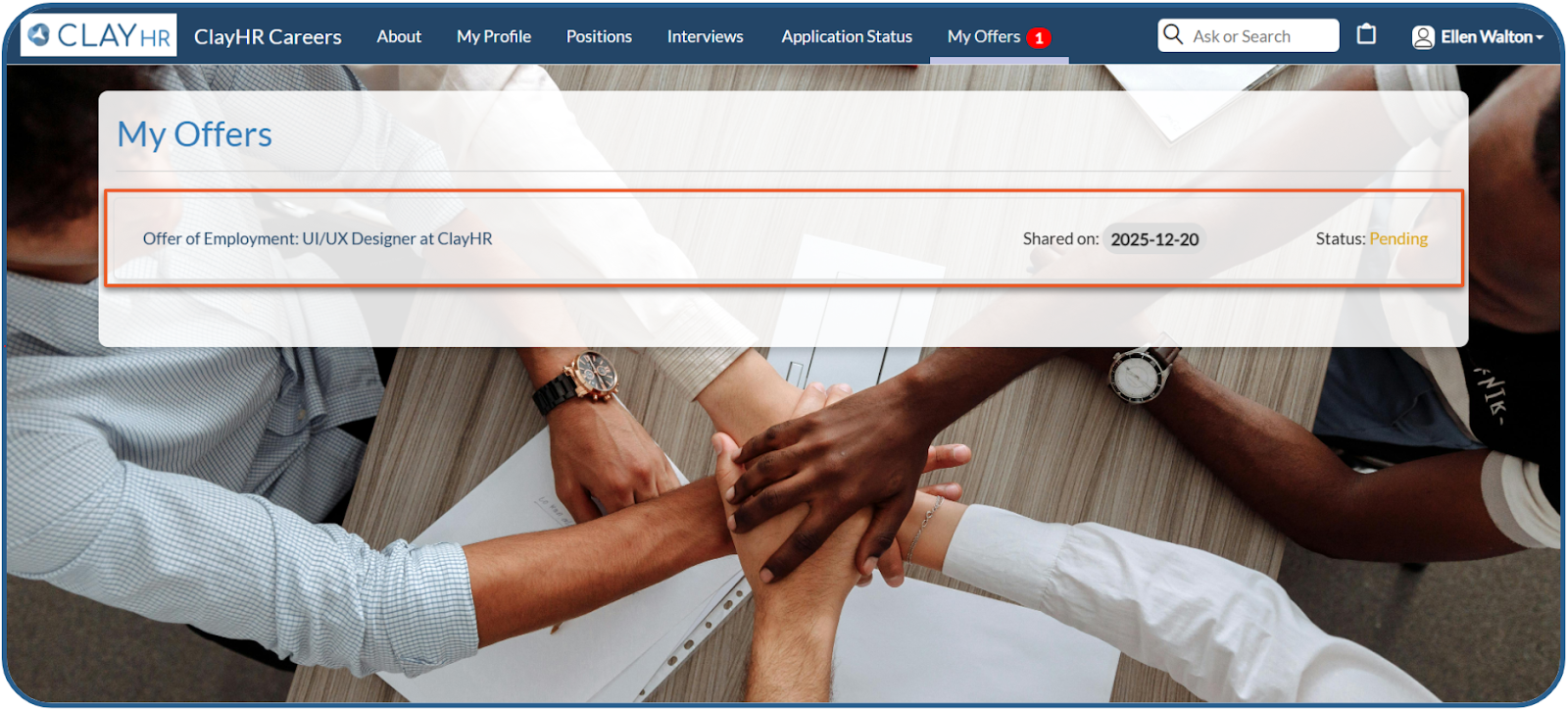
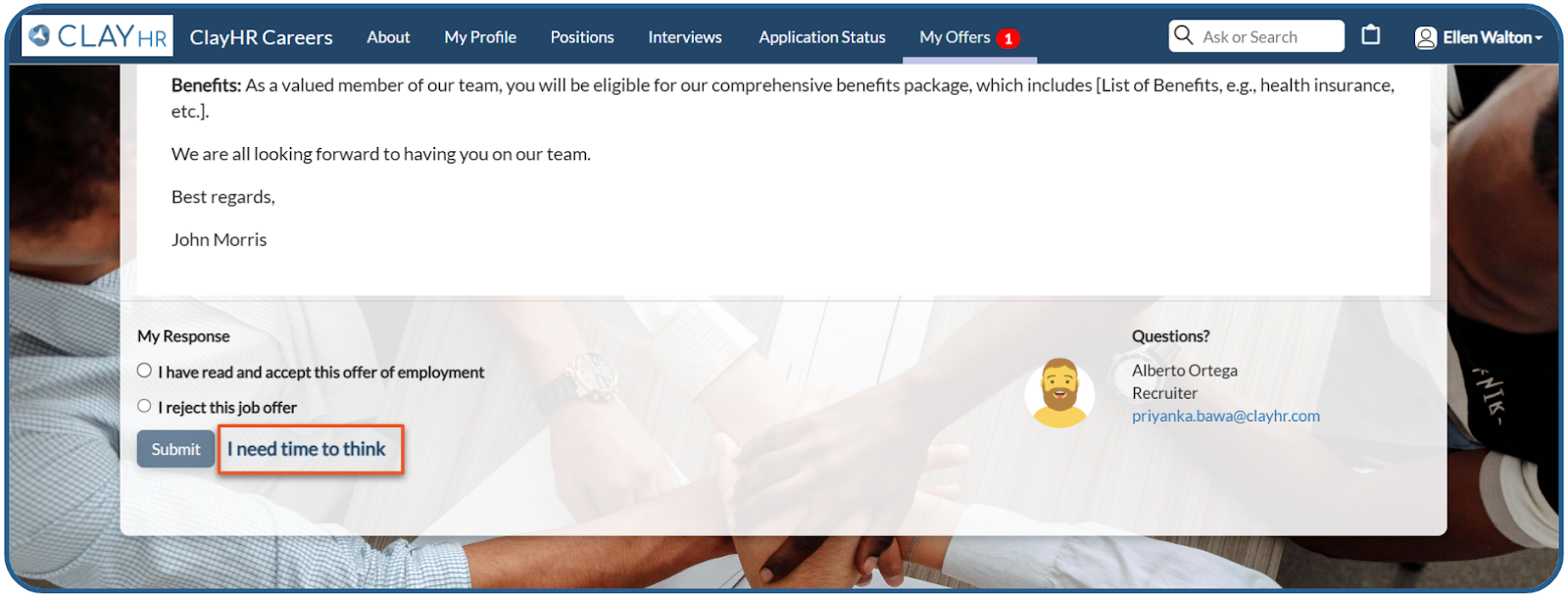
- The candidate opens the offer letter link to view the offer letter. The candidate opens the offer letter link to view the offer letter. The candidate can either accept or reject the offer or respond, "I need time to think."
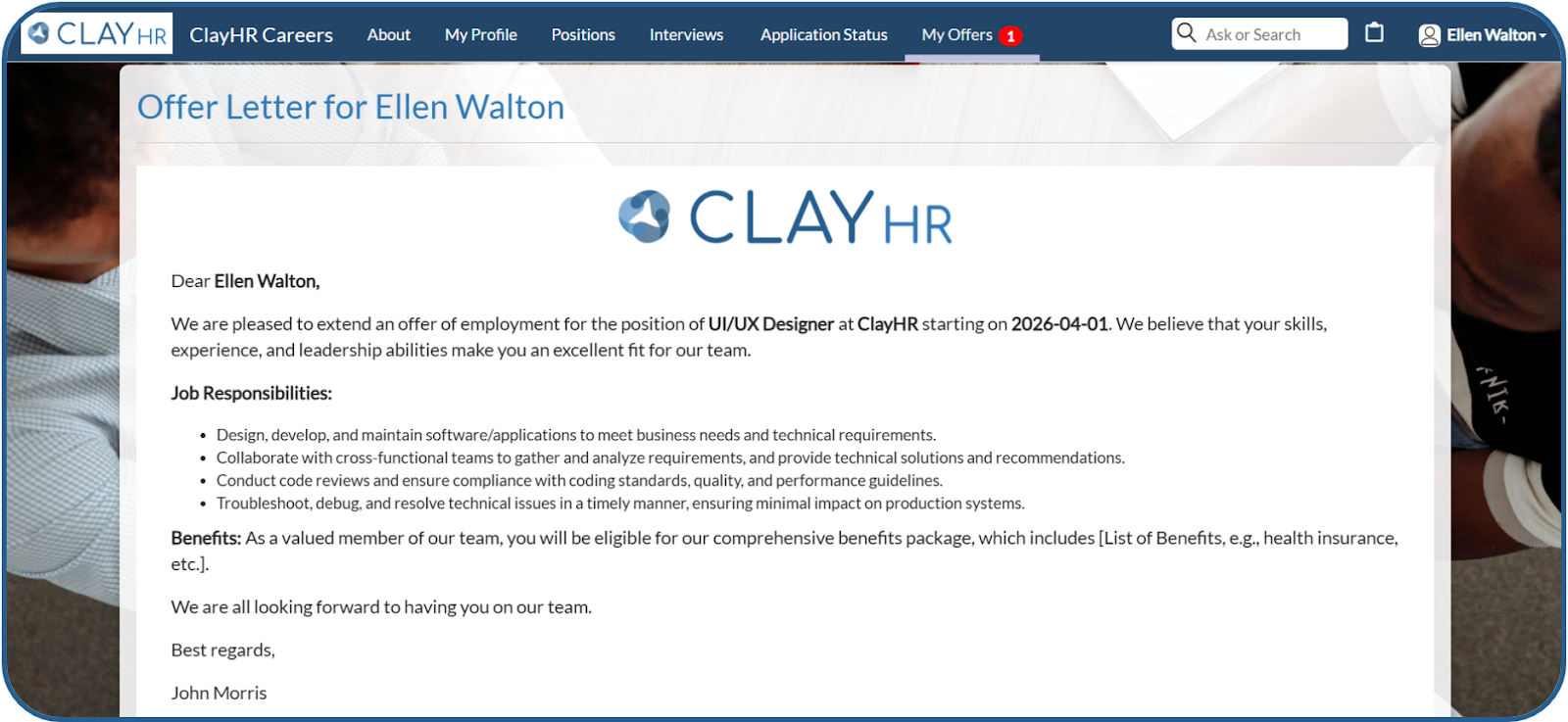
When the candidate opens the offer letter in the Candidate Portal, the offer letter status updates automatically from Pending to Viewed.
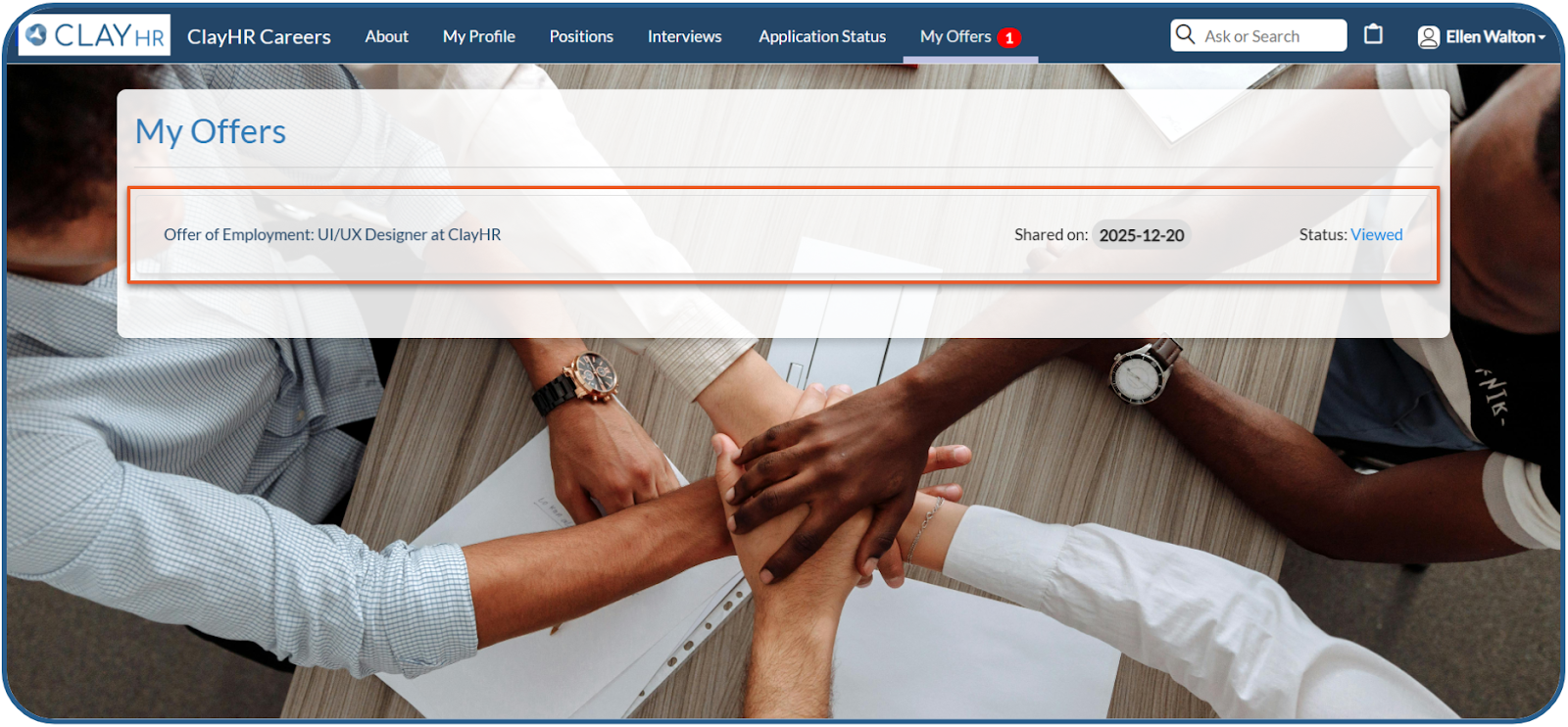
Offer Letter Acceptance
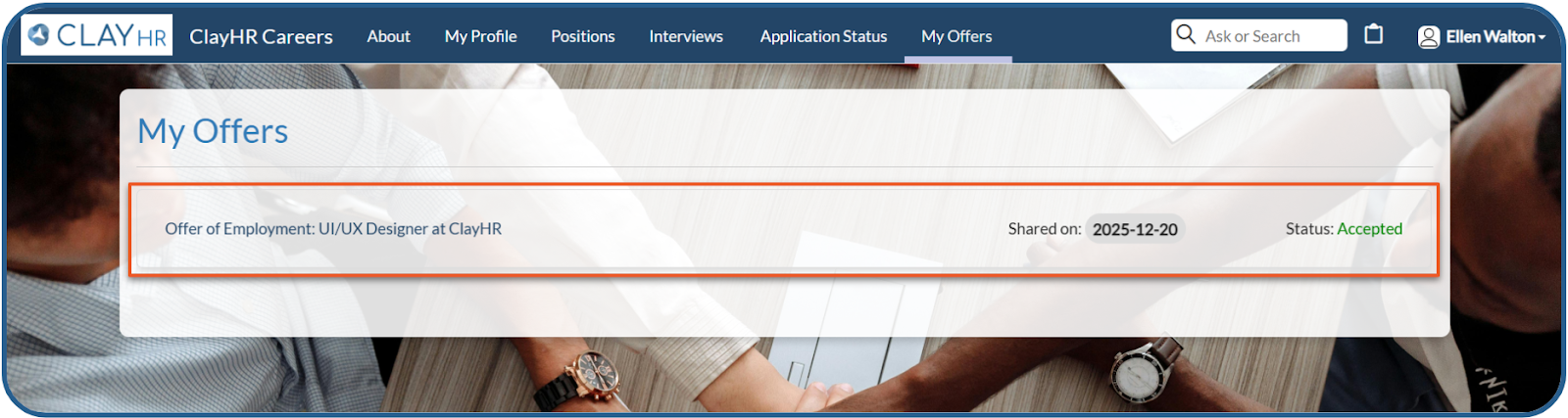
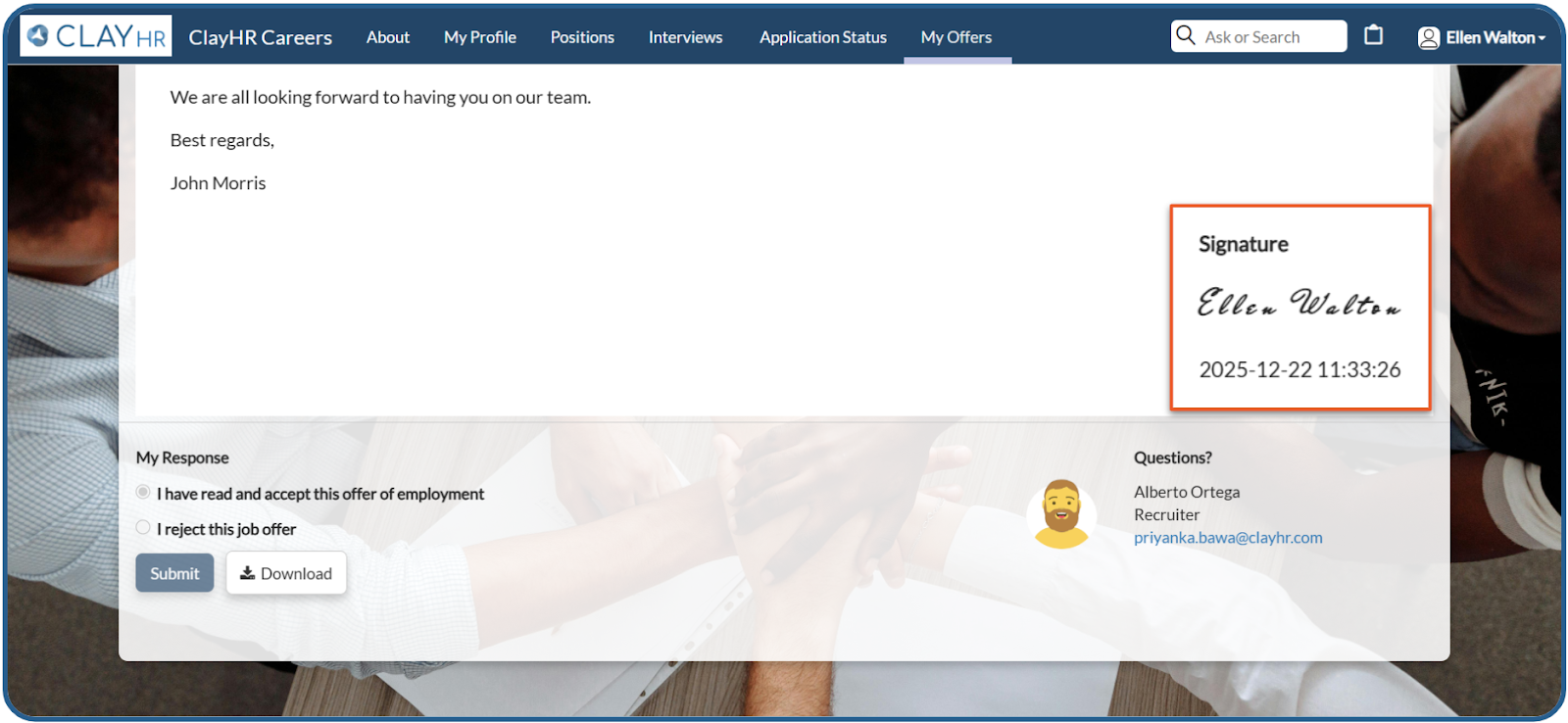
- The candidate reviews the offer letter and chooses to accept the offer letter.
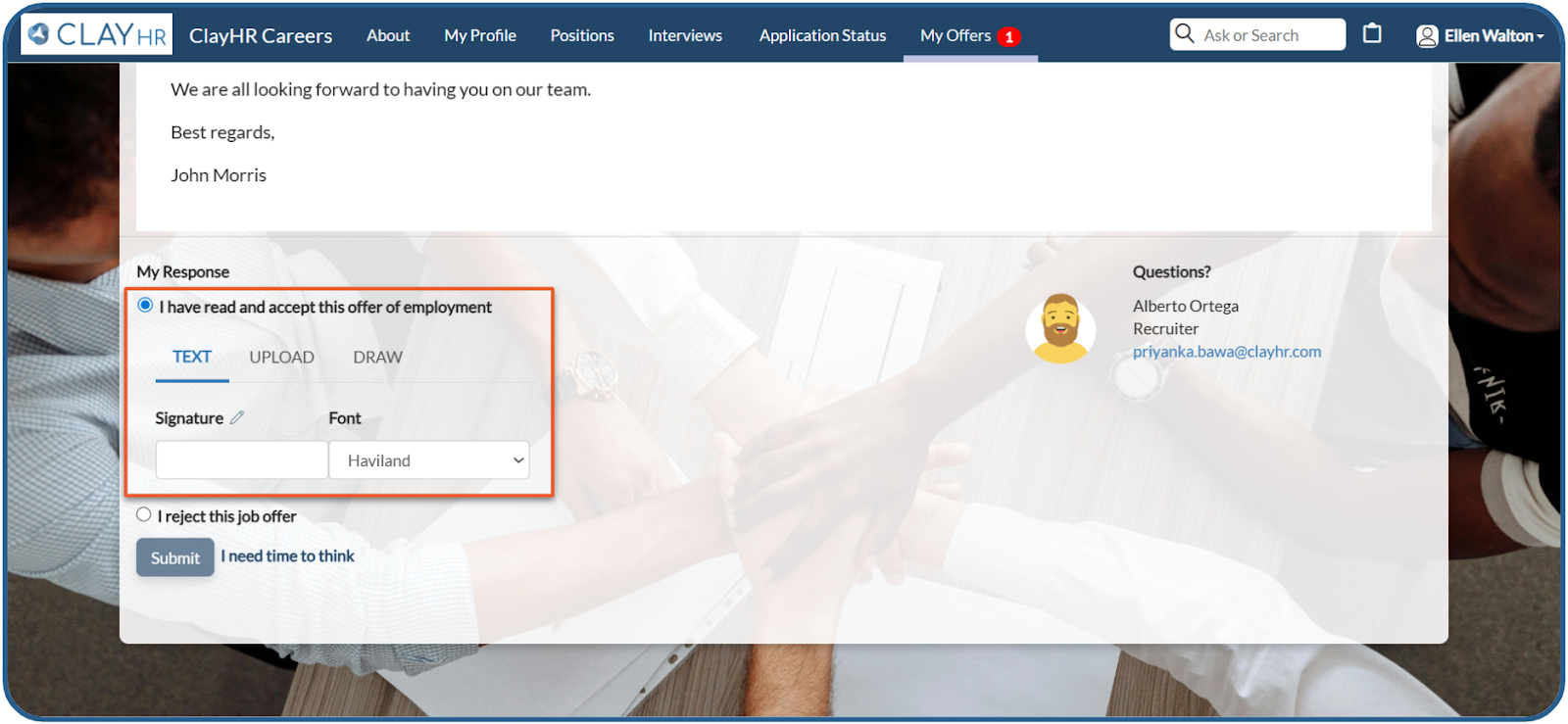
- The candidate submits the response by adding a signature.
- After the offer letter is signed, it can be viewed on the My Offers tab.
Offer Letter Rejection
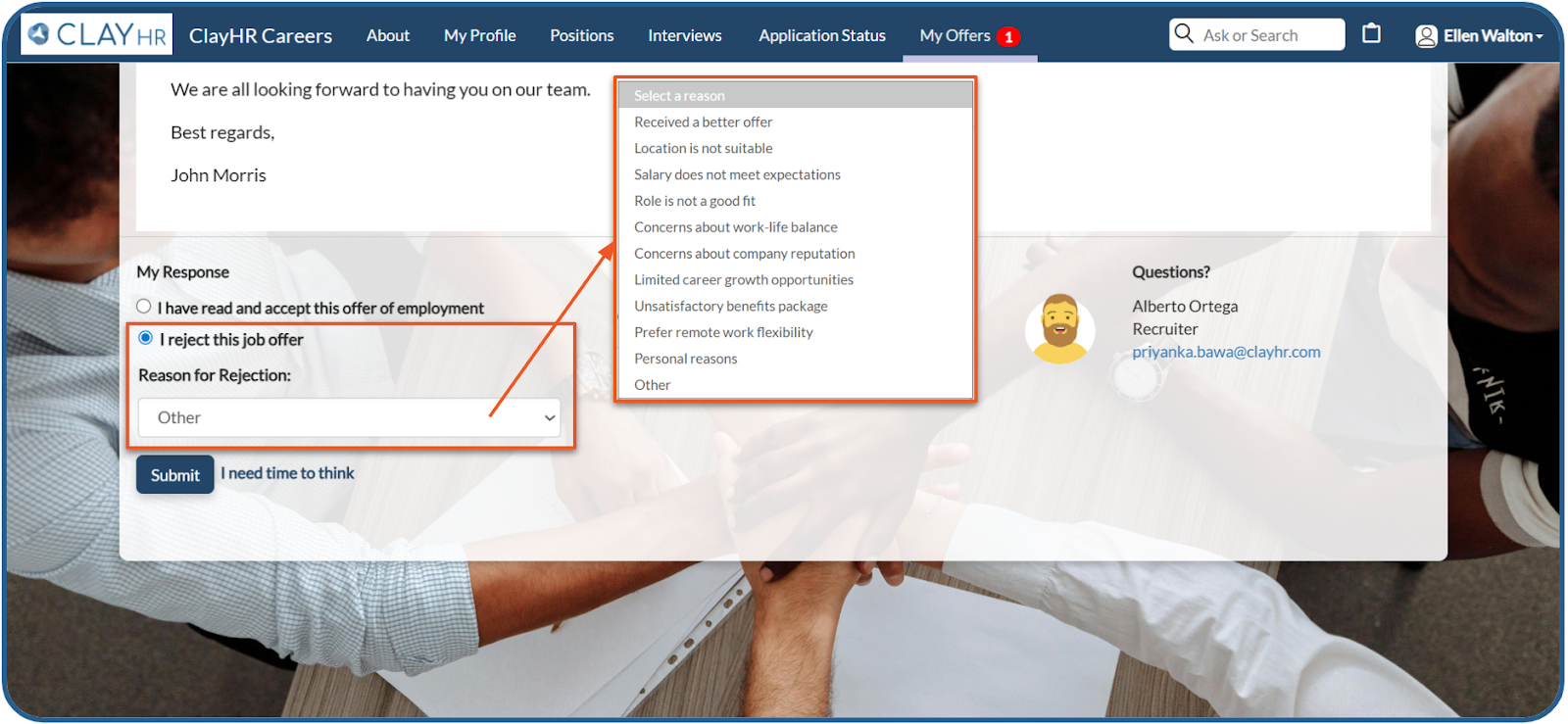
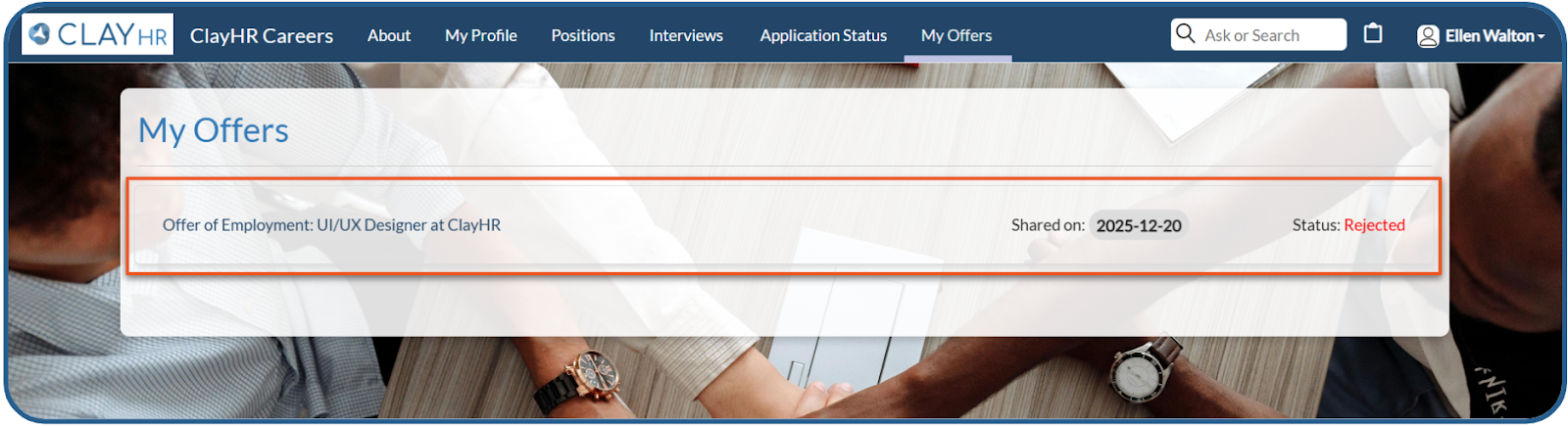
- The candidate reviews the offer letter and chooses to reject the offer letter.
- The candidate submits the response by providing a rejection reason.
Need More Time
When a candidate needs more time to think about the offer, he/she responds, “I Need Time to Think.”
Note: In each case authorized users will receive the email notification for all the actions performed by the candidate and proper offer letter history is recorded, which you will learn below.
.webp)