Classroom Learning – Creating and Managing Learning Sessions
ClayHR's Classroom Learning Session feature helps organizations efficiently manage instructor-led training by allowing training coordinators or administrators to create classroom learnings, schedule one or more learning sessions, assign subject matter experts as instructors, enroll participants individually or in bulk, and conduct both virtual and in-person training sessions. The feature also automatically notifies instructors and participants through email, provides learners with easy access to their assigned sessions, and enables instructors to track and manage attendance in real time, either individually or in bulk.
Create a Classroom Learning
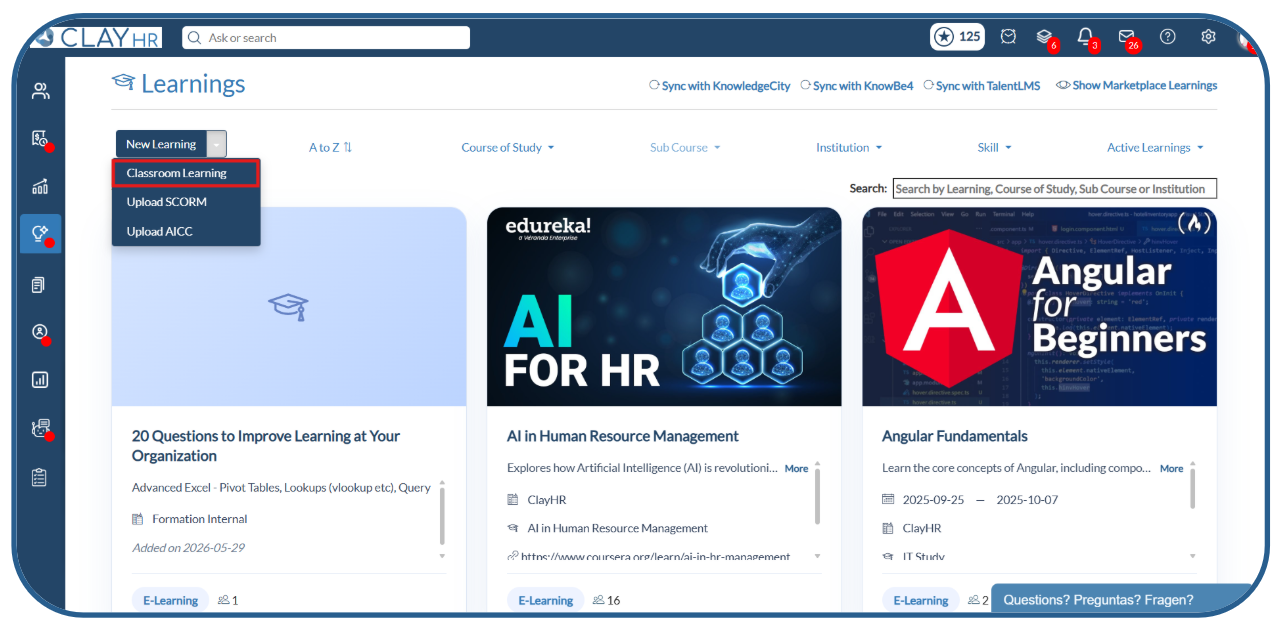
1. Navigate to: Learning Home → New Learning → Classroom Learning
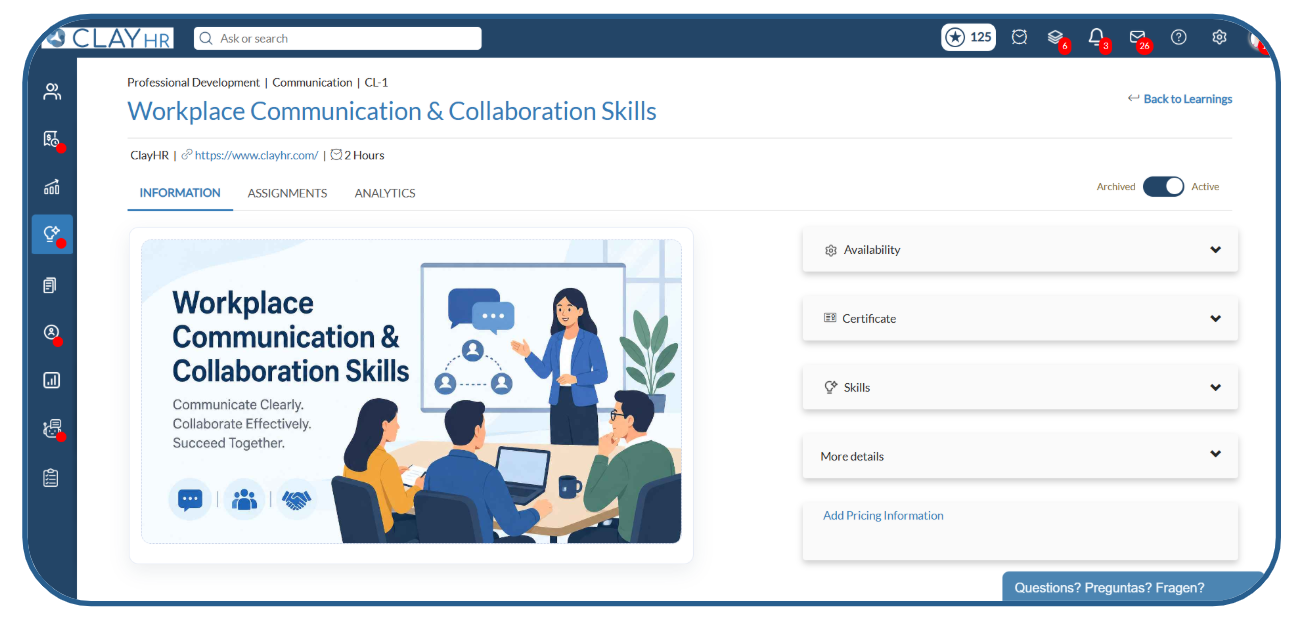
2. Enter the required learning details, such as the learning name, description, and other necessary information.
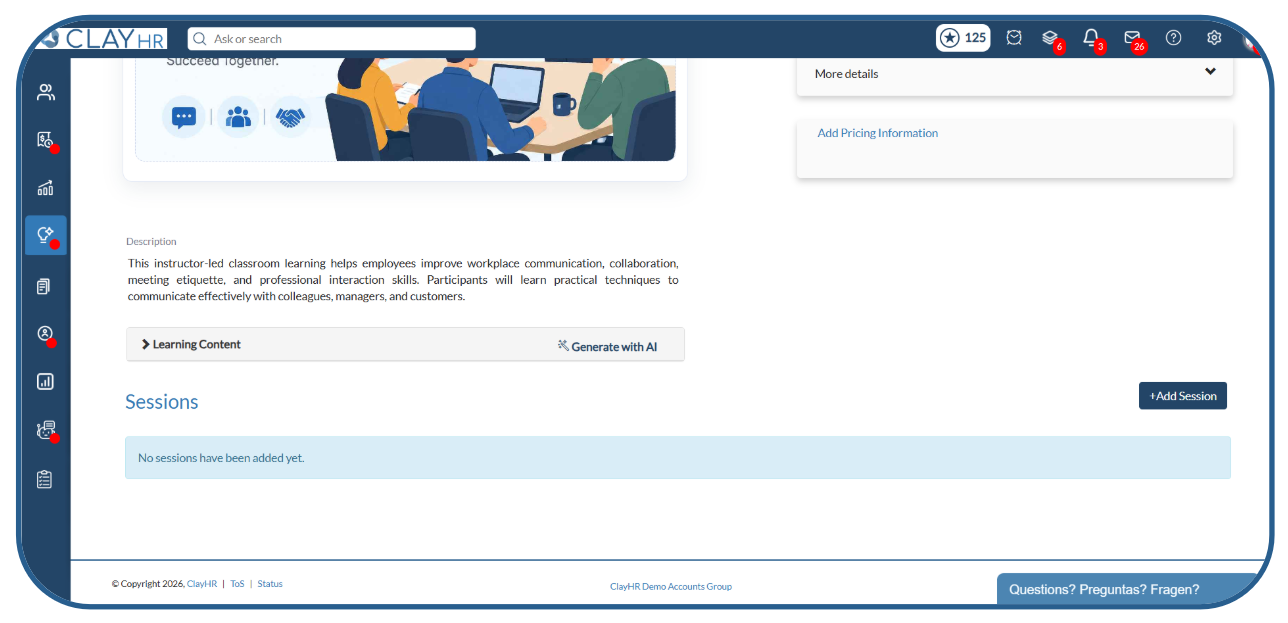
3. After completing the details, scroll down to the Sessions section.
Create a Learning Session
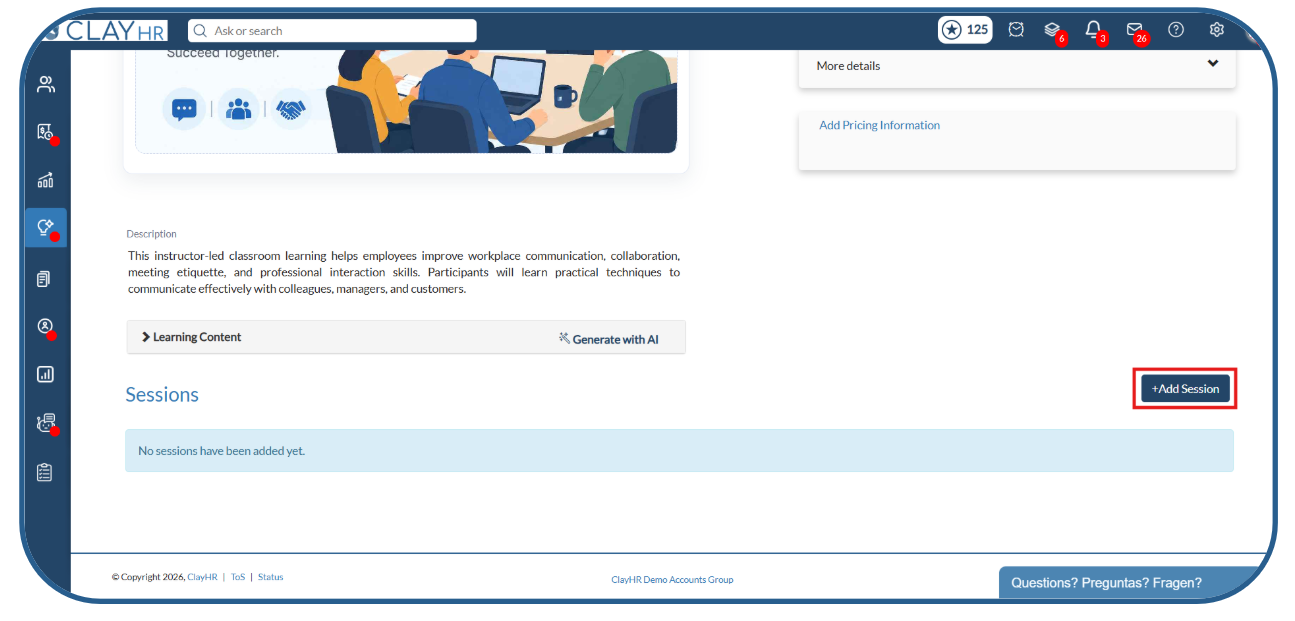
1. In the Sessions section, click the + Add Session button.
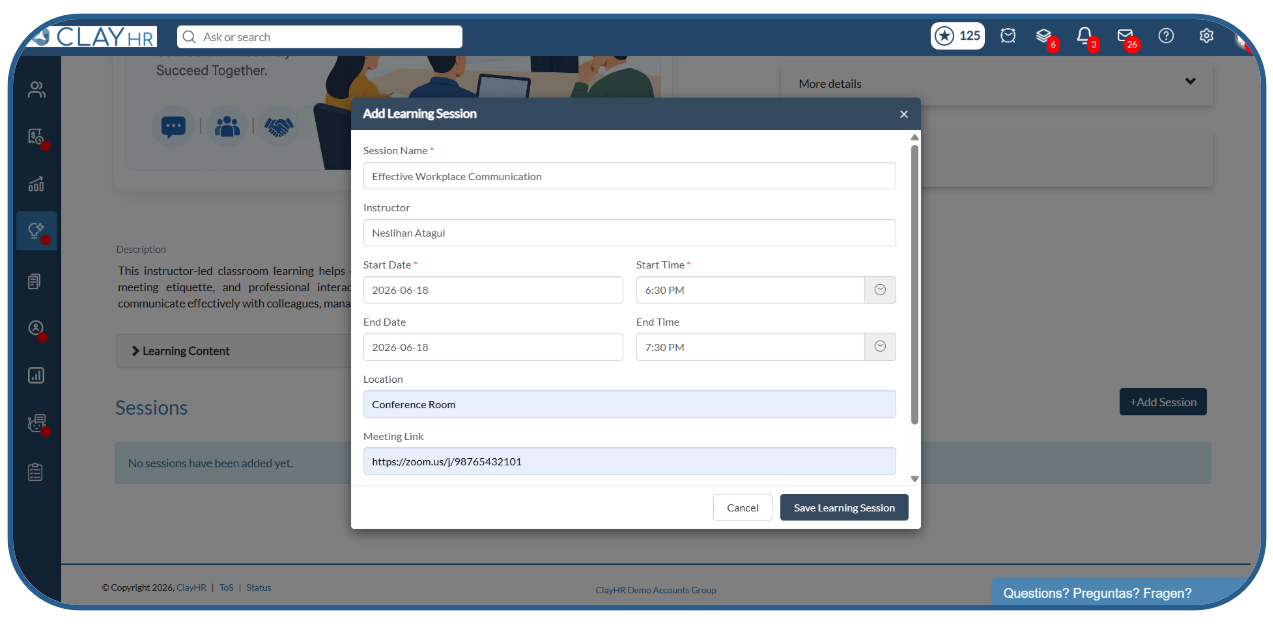
2. Enter the required session information like Session Name, Instructor, Location, Meeting Link, etc., and click on the Save Learning Session button.
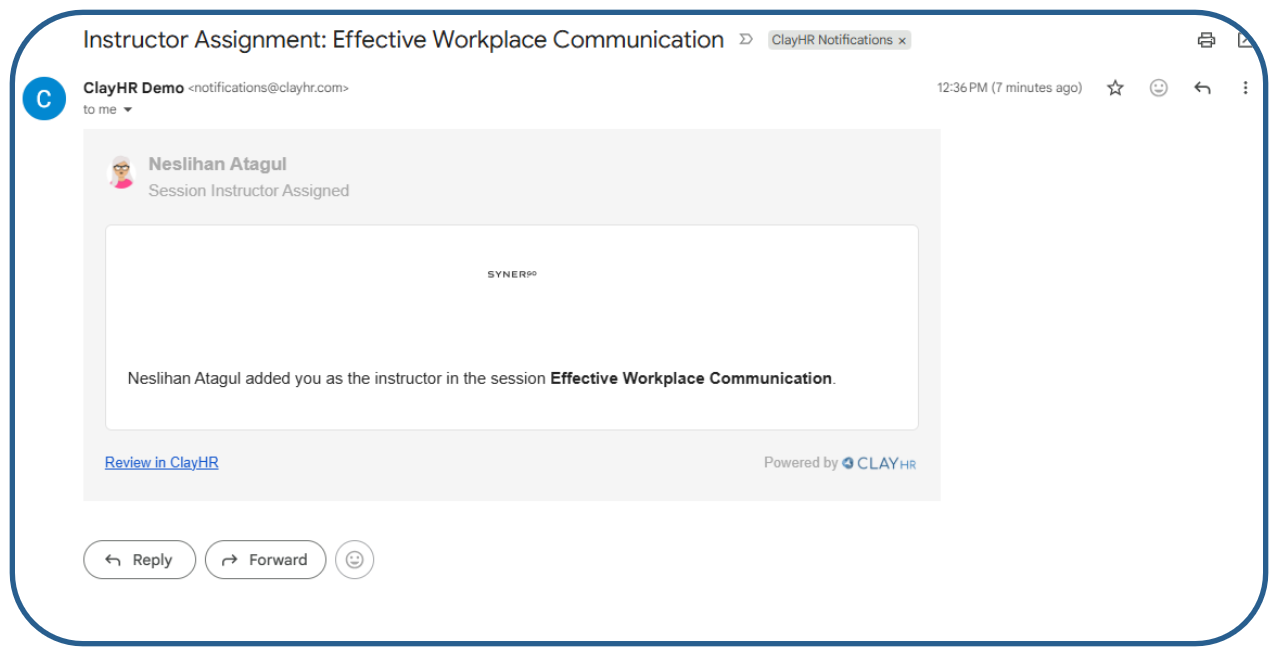
3. Once an instructor is assigned, the instructor will automatically receive an email notification informing them that they have been assigned to the session.
Add Participants to the Session
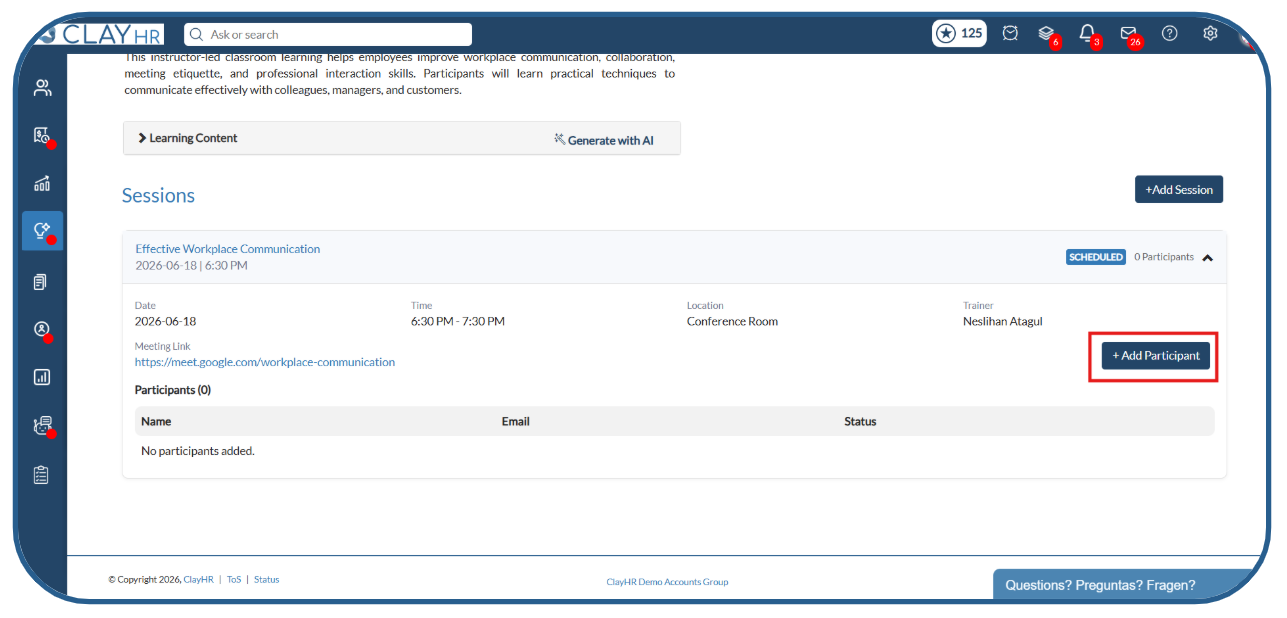
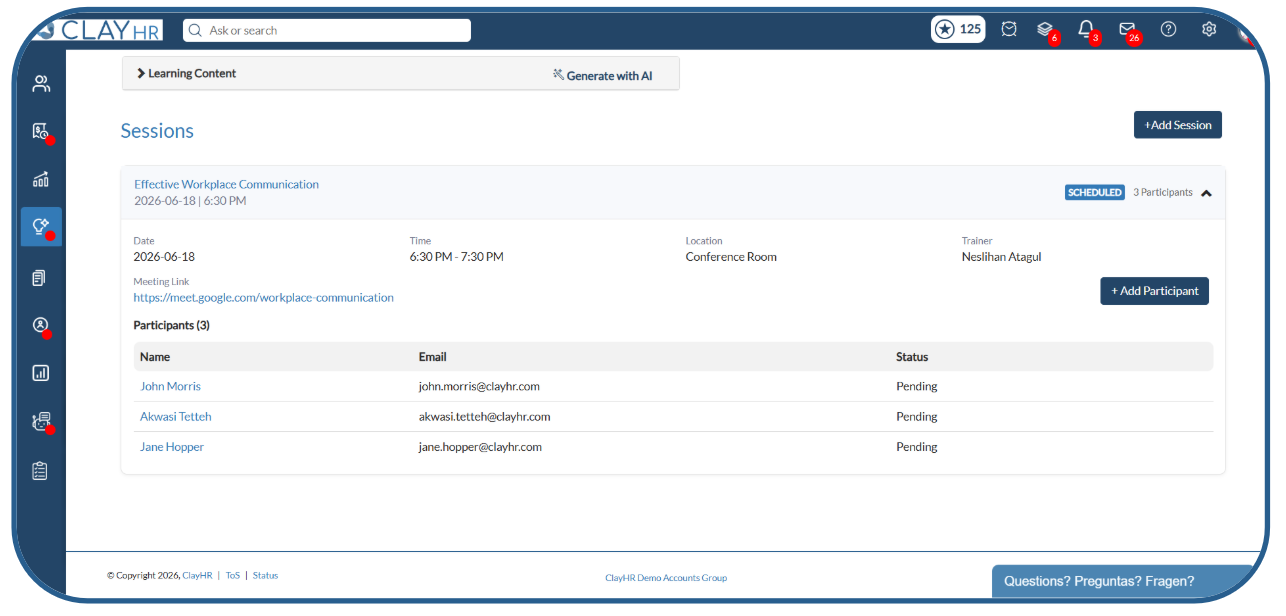
1. After creating the session, click + Add Participant.
2. Participants can be assigned:
- Individually by searching and selecting users and clicking Save to assign participants.
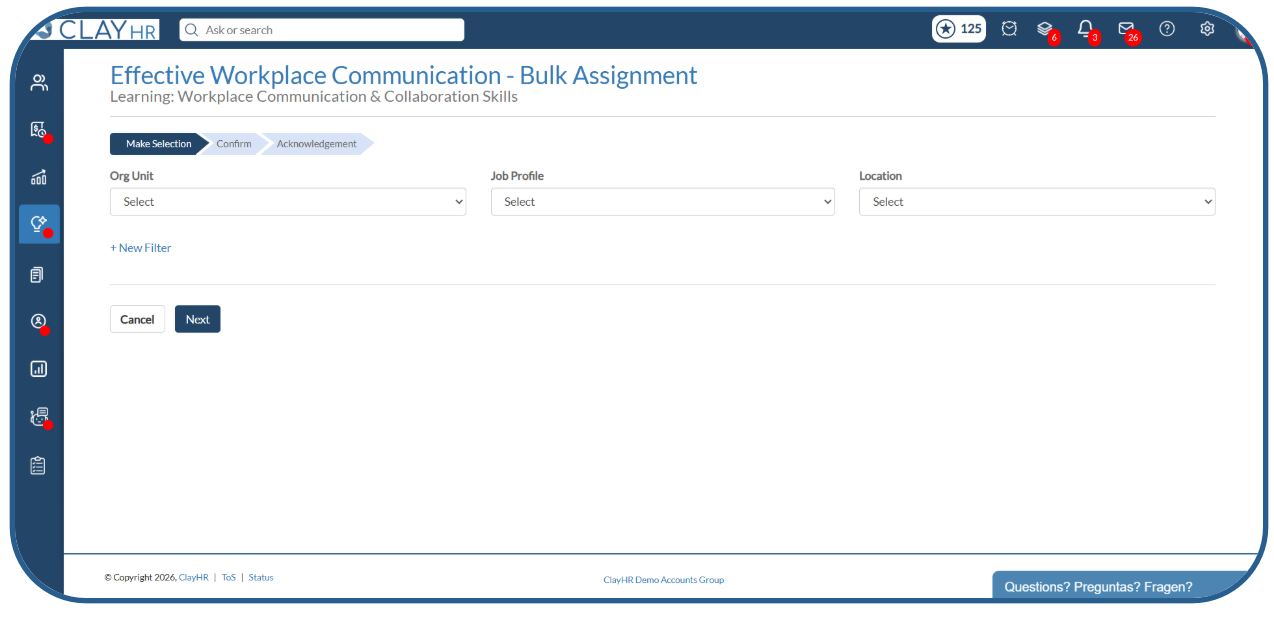
- In bulk using Bulk Assignment.
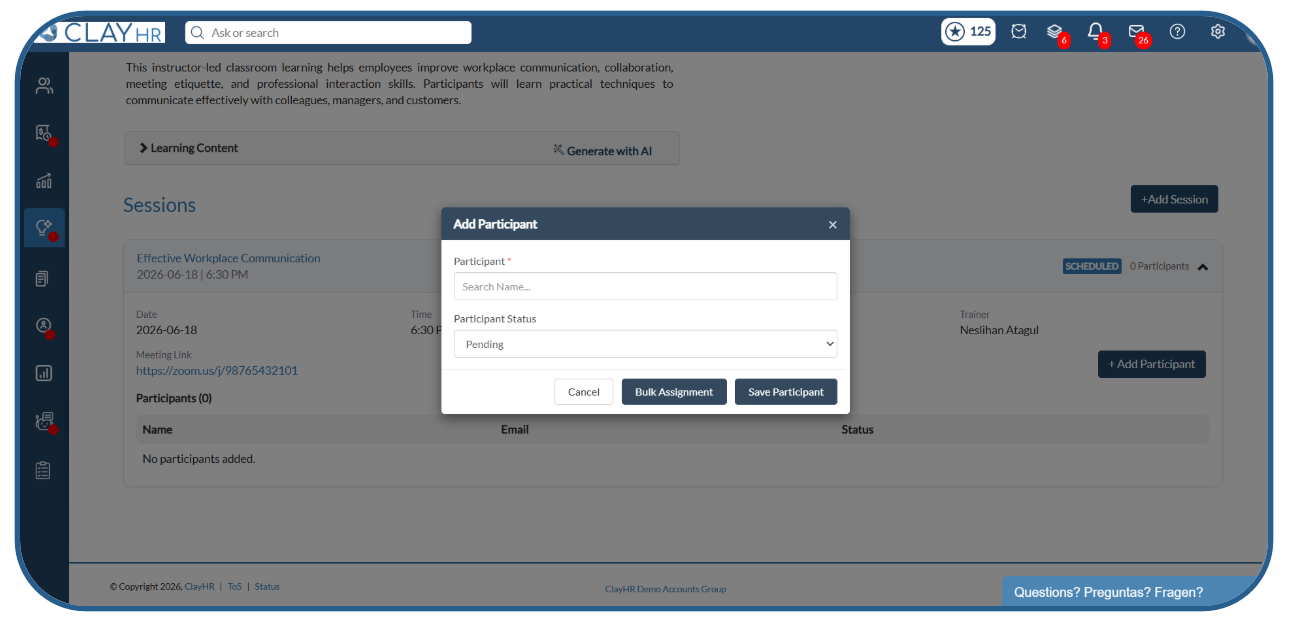
3. Bulk Assignment allows users to be enrolled based on Organization Unit, Job Profile and Location.
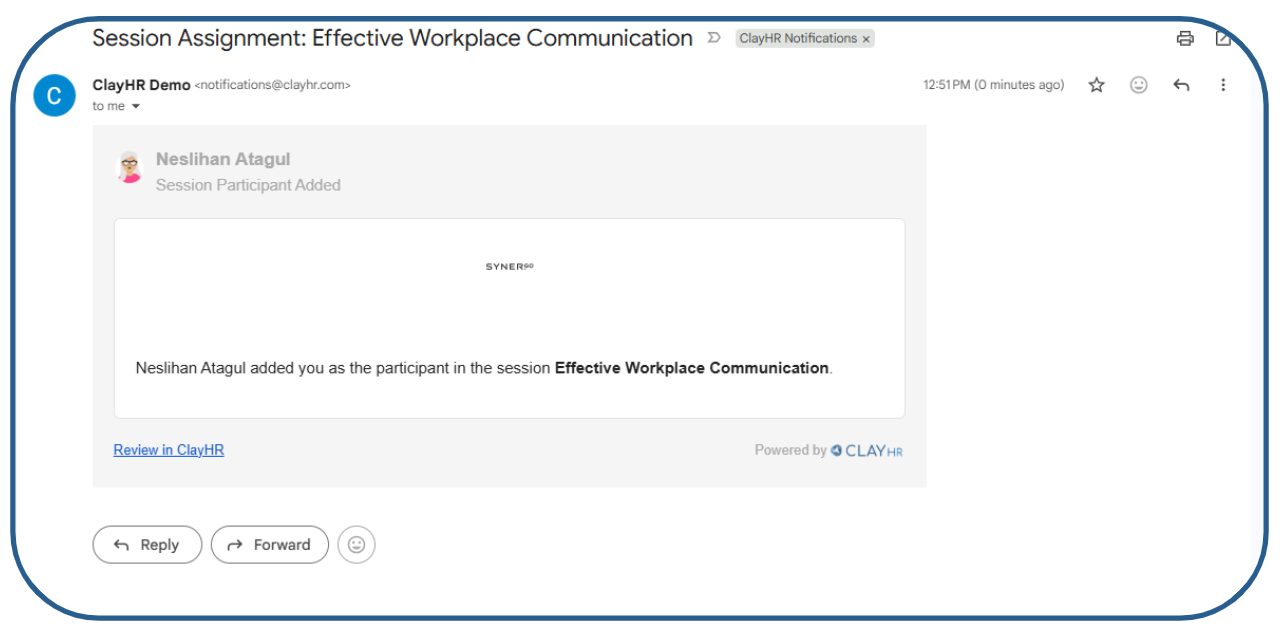
4. Once assigned, participants receive an email notification informing them that they have been added to the session.
Participant View of Assigned Sessions
1. Participants can access their assigned sessions by navigating to: My Learnings → Learning Sessions
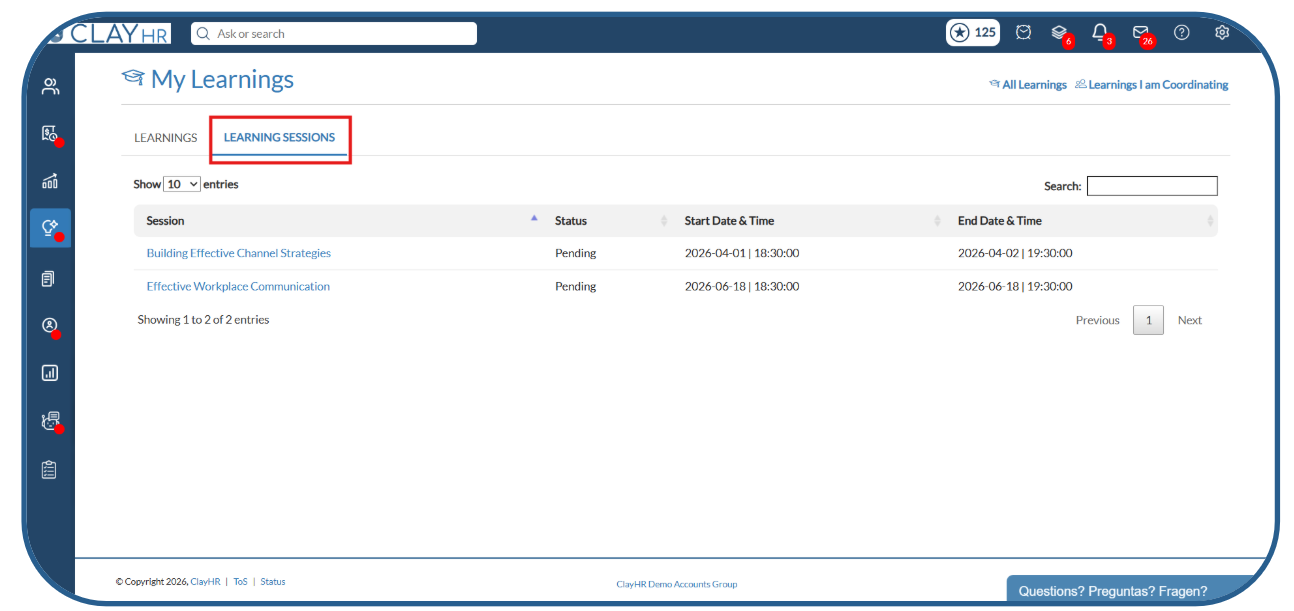
2. Participants can view the session details like session name, instructor name, session timings, location, and meeting link.
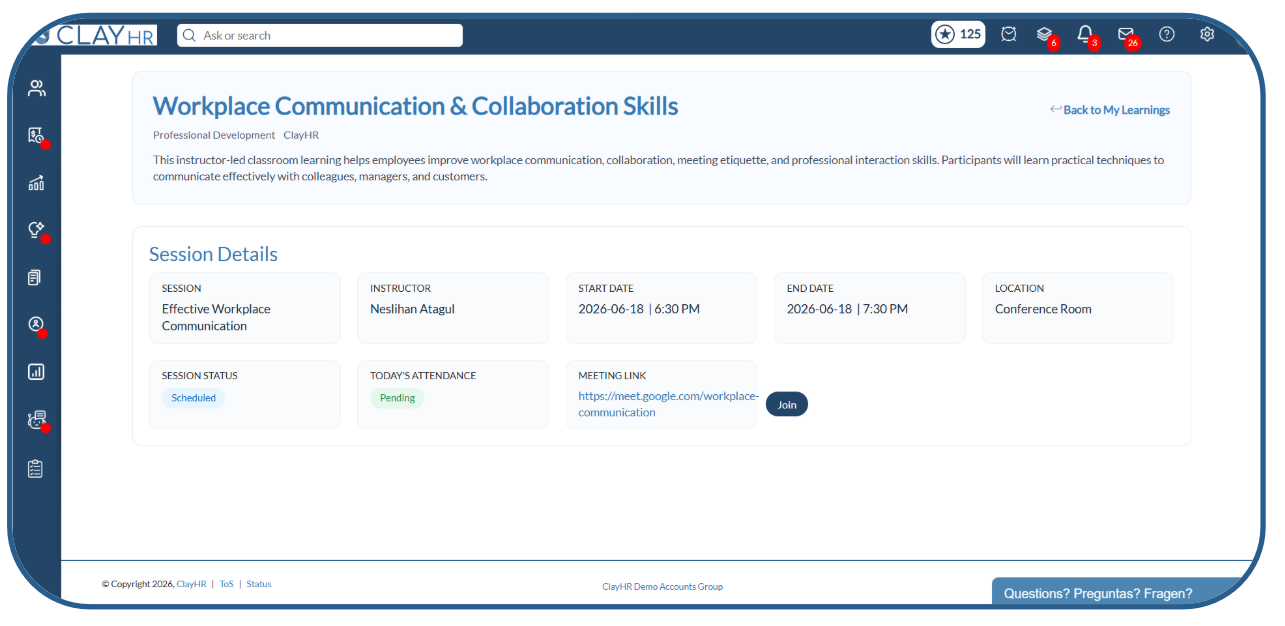
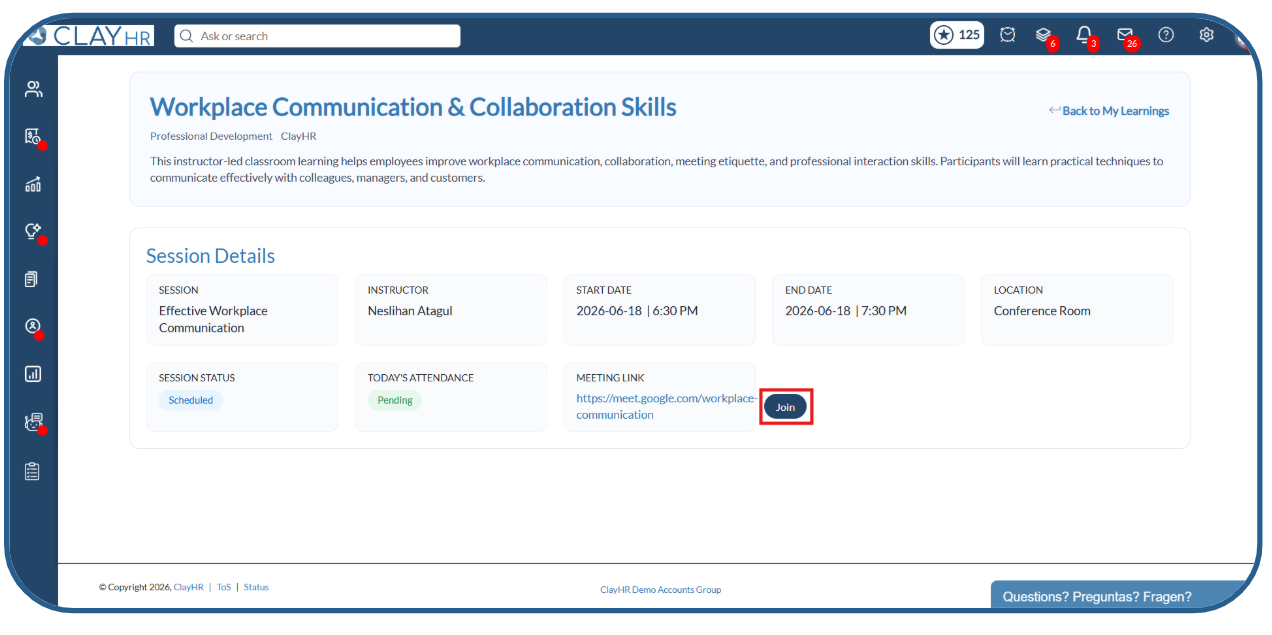
3. To join a virtual session, click the Join link.
Instructor View of Assigned Sessions
1. Instructors can access their sessions by navigating to the following: Learnings I Am Coordinating → Sessions I Am Presenting
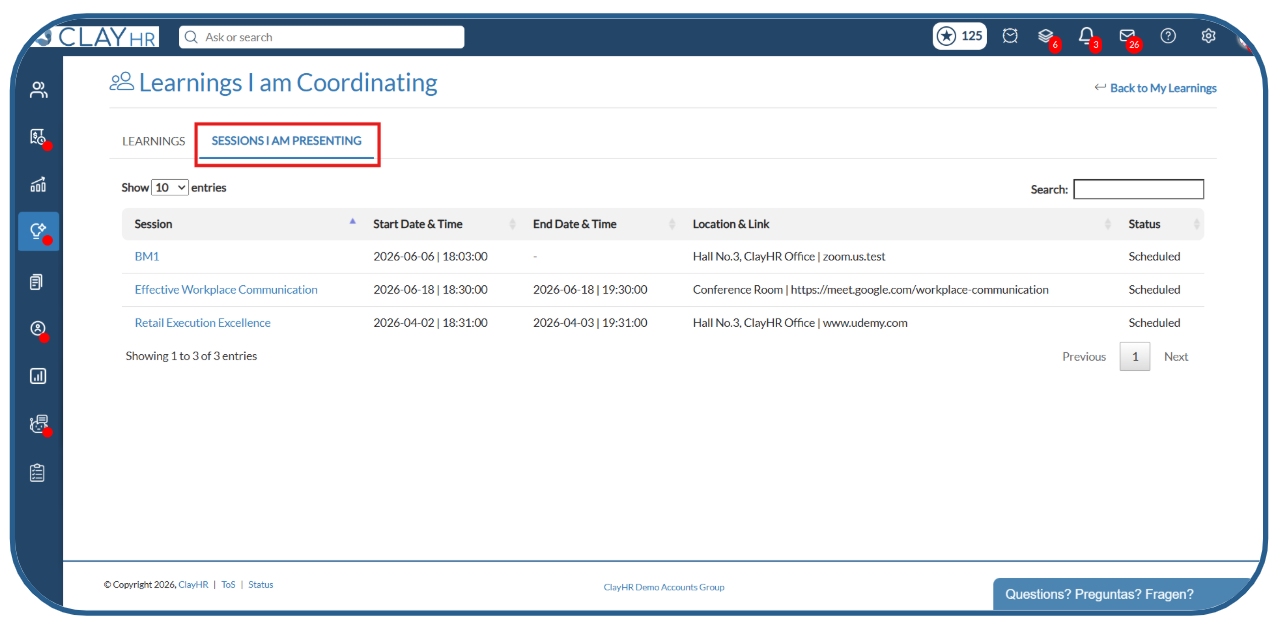
2. After clicking on the session, the instructor view displays:
- Session Details
- Number of Enrolled Participants
- Present Participants
- Absent Participants
- Pending Participants
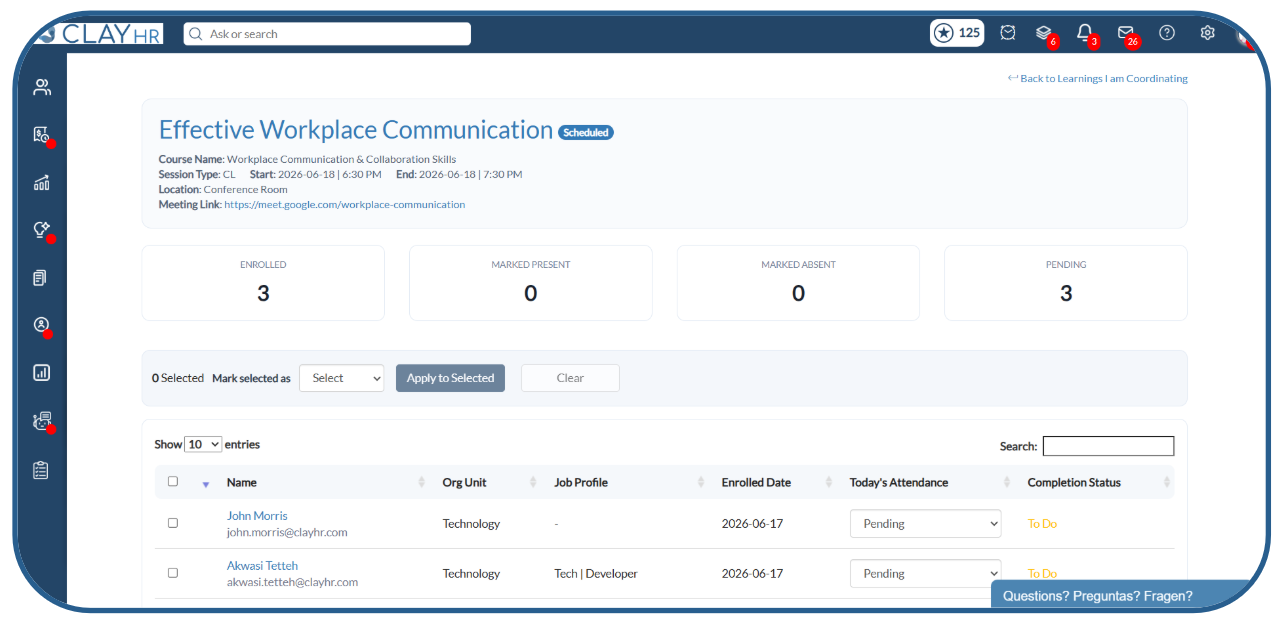
3. This allows instructors to monitor attendance and participation throughout the session.
Attendance Tracking
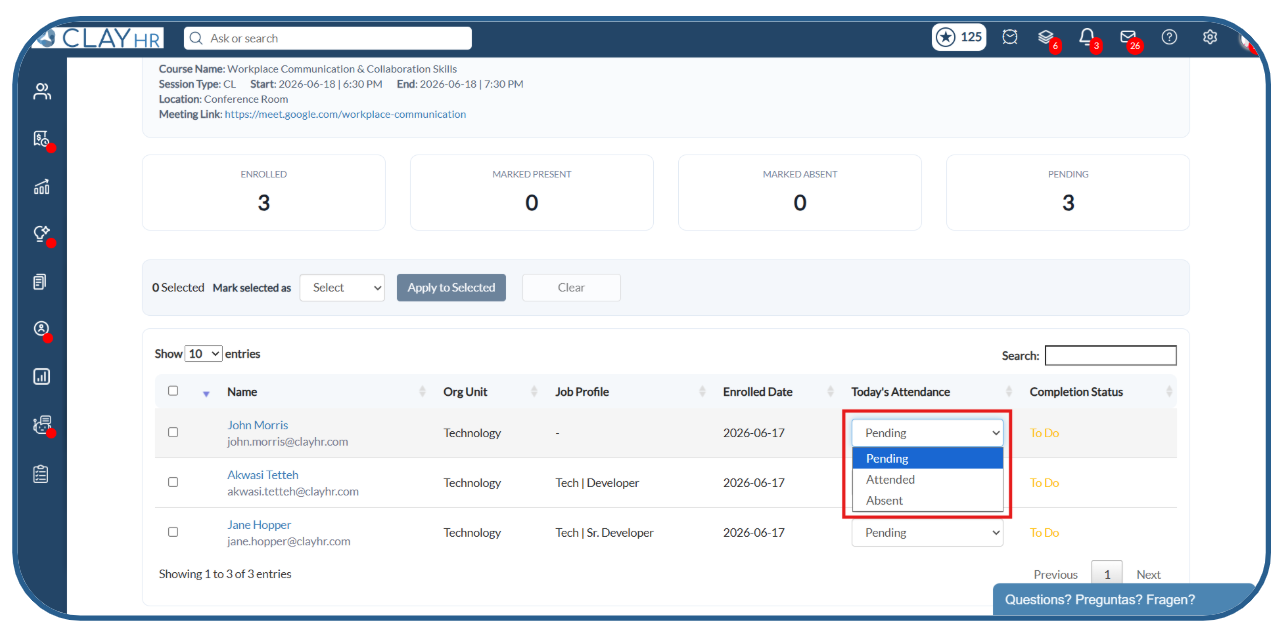
1. Instructors can update attendance for individual participants using the Today's Attendance dropdown.
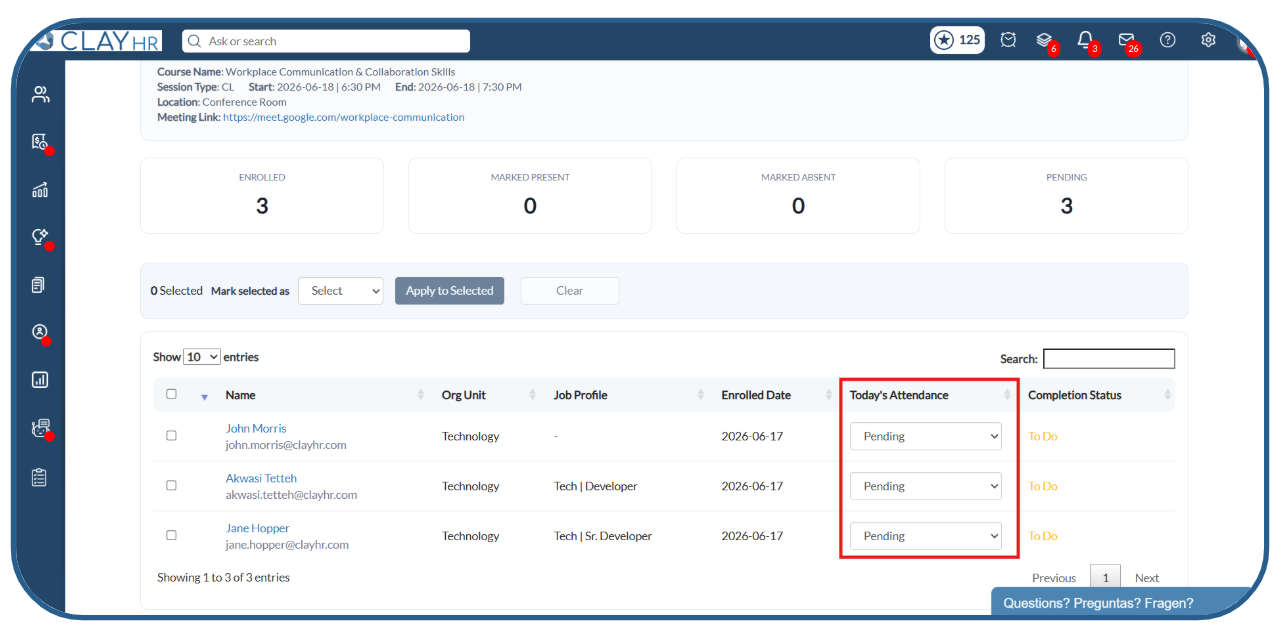
2. Select the desired status for each participant, like Pending, Attended, or Absent.
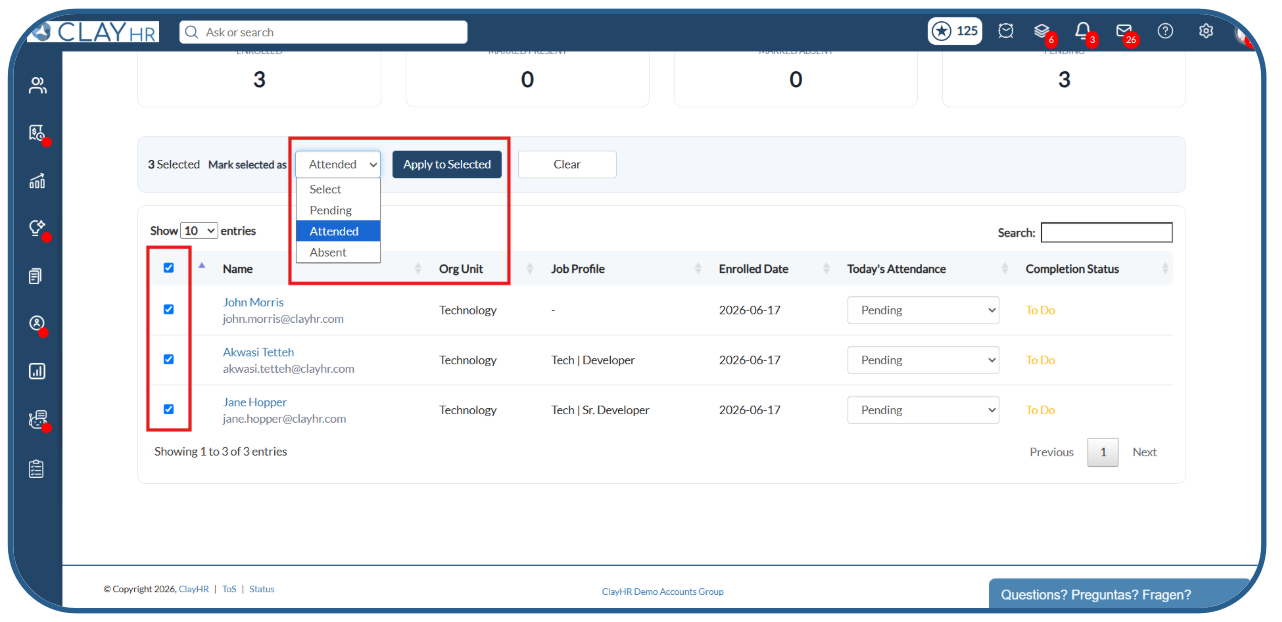
3. Instructors can also mark attendance in bulk:
- Select the participant checkboxes.
- Choose a status from the Mark Selected As dropdown.
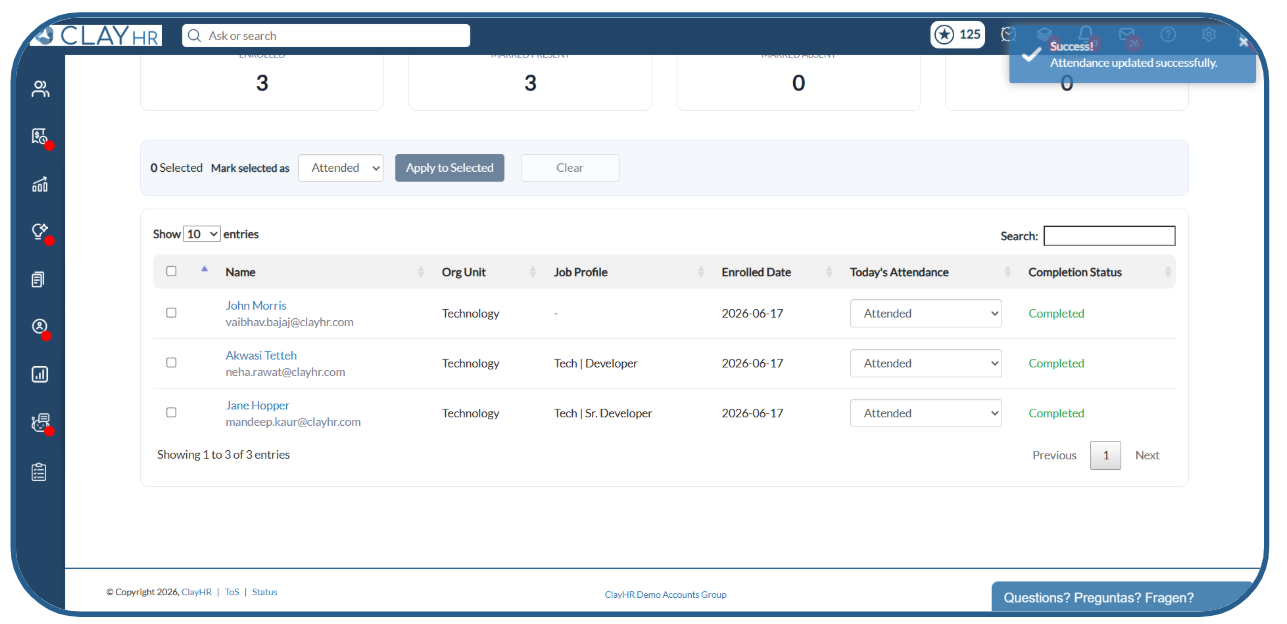
- Click Apply to Selected.
4. The selected participants will be updated with the chosen attendance status.
Classroom Analytics
1. Navigate to the Analytics tab within Classroom Learning.
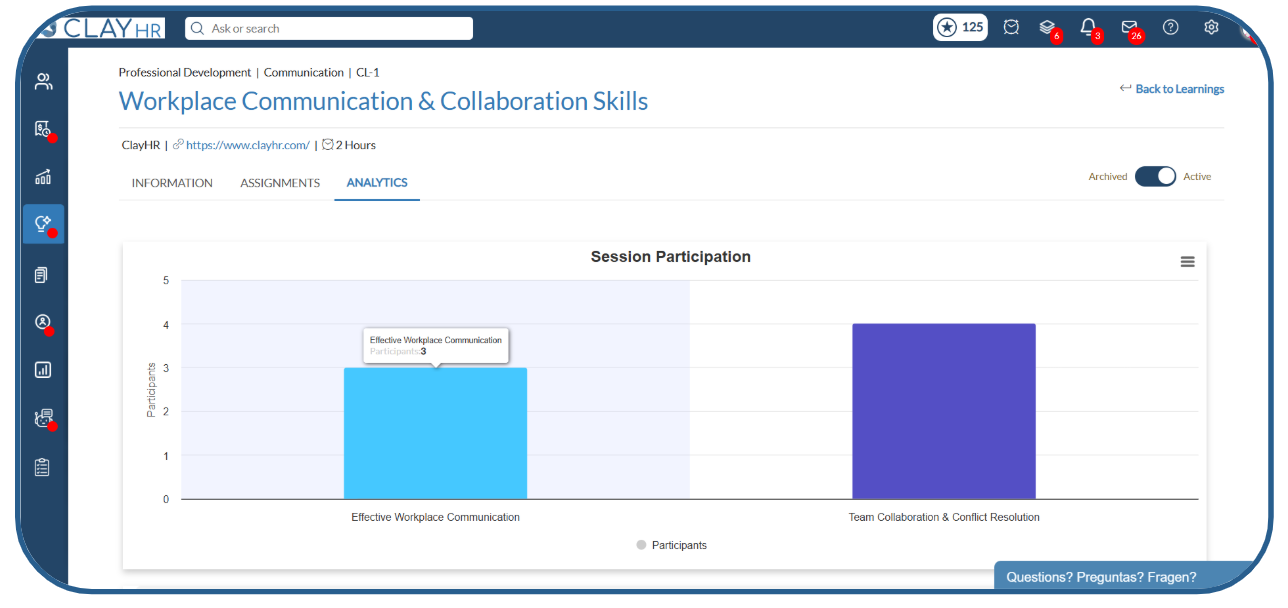
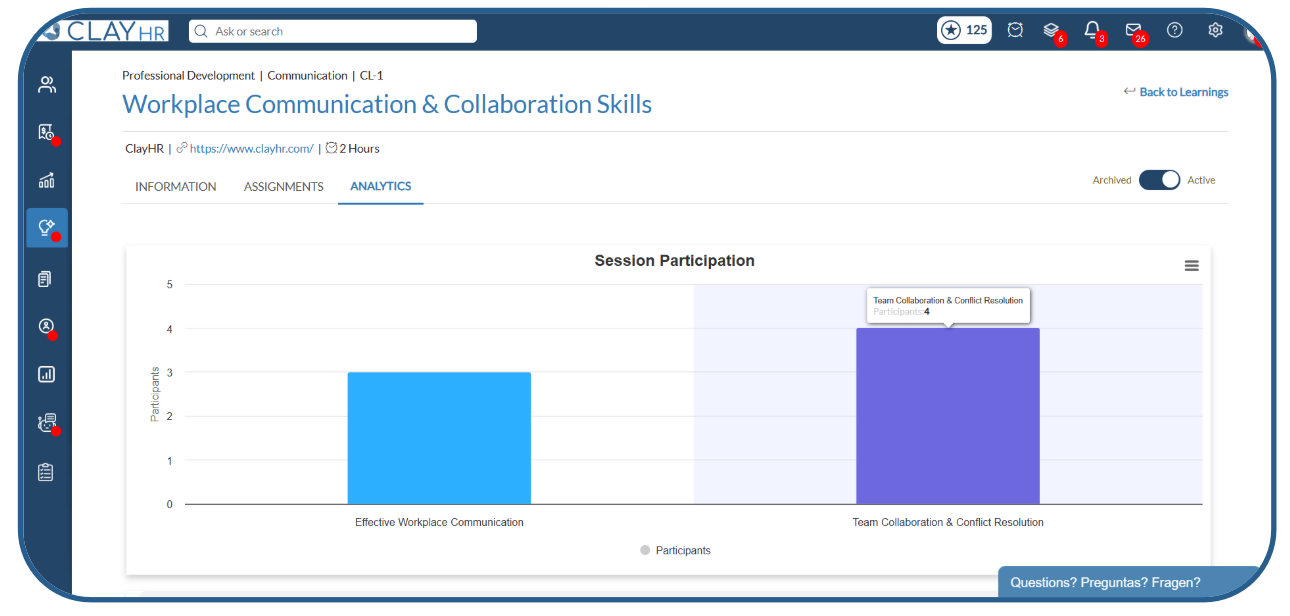
2. The Analytics tab provides a visual overview of participation across all learning sessions created under classroom learning.
3. Administrators or training coordinators can view the total number of sessions created for classroom learning.
4. This helps quickly monitor engagement levels and track participation across different classroom sessions.
.webp)