Getting Started: AI Access to ClayHR Data with MCP
Questions about your workforce often have simple answers—but getting to those answers can take time.
How much leave has my team taken this quarter? Which employees still have compliance training due? What positions are currently open? Are there unusual changes in payroll?
Answering questions like these typically means opening ClayHR, finding the right report, applying filters, and interpreting the results.
With ClayHR's Model Context Protocol (MCP) integration, you can ask those questions directly from a compatible AI assistant and get answers based on the ClayHR information you already have permission to access.
For example:
You: How much leave has my team taken this quarter compared with last quarter?
AI assistant: Queries the relevant ClayHR report, analyzes the results, and gives you an answer—without requiring you to manually locate and filter the report.
Think of MCP as conversational access to the ClayHR reports you already have permission to view—not unrestricted access to the ClayHR database.
1. What this guide covers
This guide explains:
- What ClayHR's MCP integration is and how it works
- Which AI assistants can connect to ClayHR through MCP
- What ClayHR information an AI assistant can and cannot access
- How ClayHR permissions and security continue to apply
- Examples of questions employees, managers, HR teams, and leaders can ask
- What you need before connecting
- How to connect ClayHR to your AI assistant
- How to test your connection
- How to troubleshoot common connection and permission issues
2. Which AI assistants can connect to ClayHR?
ClayHR uses Model Context Protocol (MCP), an open standard designed to let AI applications connect securely to external tools and data sources.
This means ClayHR can be used with AI applications that support MCP connections.
Depending on the MCP capabilities available in your AI application, this can include tools such as:
- ChatGPT
- Claude
- Microsoft Copilot
- Cursor
- Visual Studio Code / GitHub Copilot
- Other MCP-compatible AI agents and applications
Support for MCP and the exact connection process can vary by application and plan. Check your AI provider's current documentation to confirm MCP support and configuration options.
Once connected, the AI assistant does not receive unrestricted access to ClayHR. It can only retrieve ClayHR information made available through the MCP connection and permitted by your existing ClayHR access.
3. How MCP works with ClayHR
MCP, or Model Context Protocol, is a standard that allows AI applications to securely connect to external systems and retrieve information when needed.
When ClayHR is connected through MCP, your AI assistant can query ClayHR's reporting layer on your behalf.
Instead of manually navigating to a report, you can ask a question in natural language. The assistant determines which available ClayHR report can answer the question, retrieves the relevant information, and uses it to formulate a response.
The data is retrieved when you ask the question, so the assistant works with information from ClayHR rather than relying on a previously exported spreadsheet or static copy.
4. Answers remain traceable to ClayHR
AI-generated answers are much more useful when you can verify where the information came from.
When MCP uses ClayHR information to answer a question, the response identifies the ClayHR report used as its source. You can then open the underlying report to review or verify the data yourself.
This gives you the convenience of asking questions conversationally while keeping the underlying ClayHR report as the source of record.
5. What MCP can access
MCP follows your existing ClayHR access permissions.
If you can access a report in ClayHR, the AI assistant can use that report when answering your questions. If you don't have access to the underlying information, connecting an AI assistant does not give you additional access.
This means two people asking the same question may receive different results depending on their ClayHR permissions.
For example, a manager might be able to ask about leave across their team, while an individual employee may only have access to information relevant to themselves.
5.1. What MCP cannot do
The ClayHR MCP integration is read-only.
It cannot:
- Create records
- Edit employee information
- Delete data
- Approve requests
- Send messages
- Change configuration
In other words, MCP can help you find, analyze, and understand information in ClayHR, but it cannot make changes to ClayHR on your behalf.
6. Your ClayHR permissions still apply
Connecting an AI assistant does not bypass ClayHR's existing security model.
Your API credentials authenticate the connection to ClayHR, while your ClayHR permissions determine which information can be retrieved.
Your ClayHR credentials are not provided to the AI provider, and you can revoke the connection by disabling or regenerating the relevant API credentials.
If an AI assistant cannot answer a question because the required information is unavailable, check whether you have access to a ClayHR report containing that information. An administrator may need to create or share the appropriate report.
7. What you can ask
Once connected, you can ask questions using normal language rather than manually locating and filtering reports.
Here are some examples.
7.1. Employees
- How much leave do I have remaining?
- What training do I still need to complete?
- Show me my recent time-off history.
7.2. Managers
- Who on my team is out next week?
- How much leave has my team taken this quarter?
- Which team members have outstanding training?
- Show me upcoming employee milestones for my team.
7.3. HR teams
- Which employees have overdue compliance training?
- Show me current headcount by department.
- Which positions are currently open?
- What employee changes occurred this month?
- Show me recent configuration or user-group changes.
7.4. Leadership
- How has headcount changed over the last six months?
- Show me hiring activity by department.
- Compare turnover across departments.
- Summarize current workforce trends.
The exact questions you can answer depend on the reports available to you in ClayHR.
8. Before and after MCP
Consider a manager who wants to compare team leave between two quarters.
Without MCP, the workflow might look like this:
Open ClayHR → locate the leave report → select the team → choose a date range → run the report → repeat for the previous quarter → compare the results.
With MCP, the manager can simply ask:
“How much leave has my team taken this quarter compared with last quarter?”
The AI assistant can retrieve the appropriate ClayHR report and help interpret the results.
The underlying data and permissions haven't changed. What changes is how you interact with them.
9. Before you connect
You'll need:
- Access to your ClayHR account. The subdomain in your ClayHR address. If you sign in at acmecompany.clayhr.com, your company site name is acmecompany.
- Your User ID - available under “My Integrations”
- A ClayHR API key - available under “My Integrations”
- A compatible AI assistant — Claude, ChatGPT, or another assistant that supports custom MCP connectors.
To generate your API key, navigate to My Integration in ClayHR, generate a new key, and copy it somewhere secure along with your User ID. The key is tied to your own account and carries your permissions, so it should not be shared.
10. Connect ClayHR to your AI assistant
The exact interface differs between ChatGPT, Claude, Copilot, and other MCP-compatible applications, but the information required to connect to ClayHR is generally the same.
10.1. Generate your ClayHR API key
Sign in to ClayHR and generate or retrieve the API credentials required for the MCP connection.
Treat your API key like a password. Do not share it in chat messages, documents, or other unsecured locations.
10.2. Find your ClayHR subdomain
Your ClayHR URL contains your organization's subdomain.
For example, if your ClayHR URL is: https://acme.clayhr.com your subdomain is: acme
When configuring the connection, enter the subdomain only, not the full URL.
10.3. Add the ClayHR MCP connection
Open the MCP, connectors, integrations, or developer settings in your AI application and add ClayHR as a new MCP connection.
Enter the ClayHR MCP server information along with your ClayHR subdomain and API credentials when prompted.
The terminology and configuration screens vary between AI applications, so refer to your AI provider's documentation if the options differ.
10.4. Authorize the connection
Complete the authorization process.
The connection uses your ClayHR credentials to determine which reports and information are available to you.
10.5. Test the connection
Start with a simple question about information you know is available in one of your ClayHR reports.
For example:
“What reports can I access in ClayHR?”
or
“Show me my available leave information.”
10.6. Ask a real business question
Once the connection is working, try a question you would normally answer by opening a ClayHR report.
For example:
“Which employees on my team have compliance training due?”
The assistant should retrieve the relevant ClayHR information and identify the report used to answer the question.
11. Connecting ClayHR to Claude
The steps below use Claude as the example. Other MCP-compatible assistants follow the same sequence, though menu names differ.
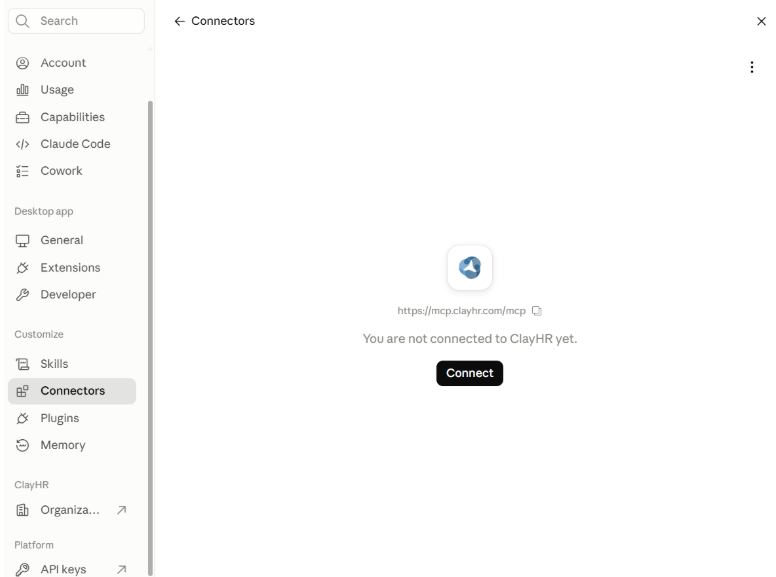
- In your AI assistant, open Settings and navigate to Connectors.
- Select Add custom connector.
- Enter the connector details:
- Name: ClayHR
- MCP Server URL: https://mcp.clayhr.com/mcp
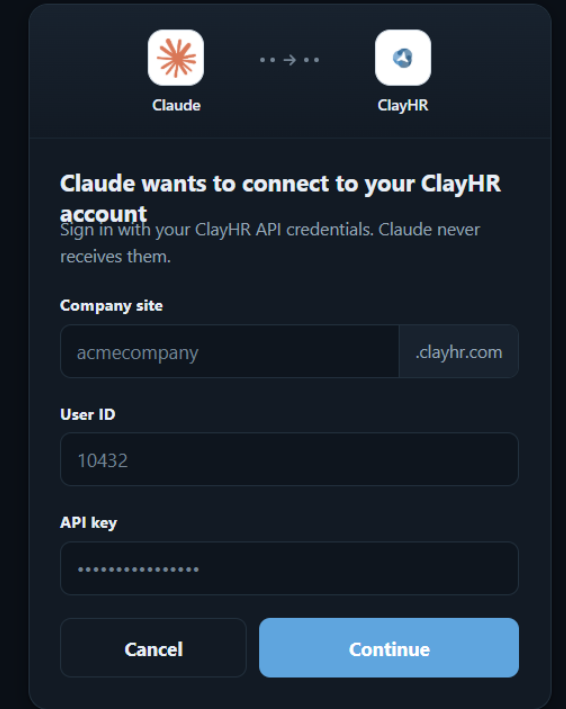
- In the ClayHR sign-in window, enter your company site, User ID, and API key, then click Continue. All three values must be correct — if any one is wrong, the connection will fail and you will be returned to this window.
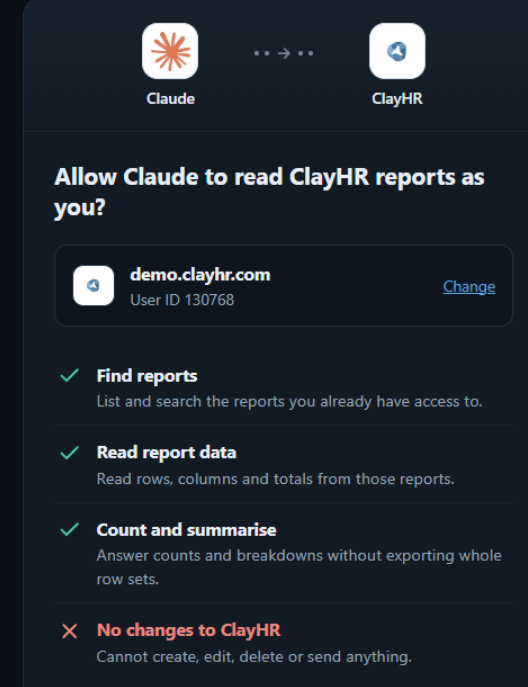
- Review the access being requested, then click Authorize. The screen confirms your company site and User ID, lists the three capabilities above, and states that no changes to ClayHR are permitted. If the company site or User ID shown is incorrect, select Change before continuing.
- Begin asking questions about any ClayHR data you have access to.
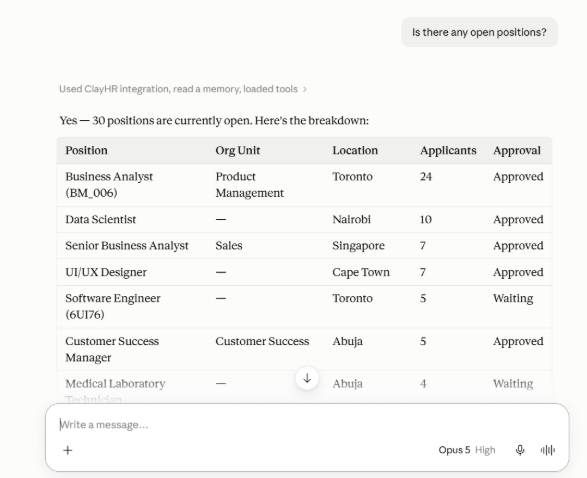
The connection persists until it is revoked, so this setup is completed once per user.
12. Troubleshooting
12.1. The connection isn't working
Check that your ClayHR subdomain and API credentials are correct.
A common mistake is entering the complete ClayHR URL instead of the subdomain.
For example:
Correct: acme
Incorrect: https://acme.clayhr.com
Also check whether the API key has been revoked or regenerated since the connection was created.
12.2. I can connect, but the assistant can't answer my question
MCP can only retrieve information available through reports you have permission to access.
Check whether the information exists in an accessible ClayHR report. If it doesn't, your ClayHR administrator may need to create a report or grant you access to an existing one.
12.3. Another user gets different results
That's expected when users have different ClayHR permissions.
MCP respects each user's existing access, so users may see different information even when they ask the same question.
12.4. I'm getting a permission error
Verify that your ClayHR account has access to the underlying report and that your API credentials are still active.
If the problem continues, contact your ClayHR administrator.
13. A simpler way to work with ClayHR data
MCP doesn't replace ClayHR reports or change your organization's access controls. It gives you another way to work with the information already available to you.
Instead of remembering which report contains a particular answer, navigating to it, setting filters, and interpreting the output, you can start with the question you actually want answered.
Ask the question. Let your AI assistant retrieve the appropriate ClayHR report. Verify the source when needed.
Whether you're working in ChatGPT, Claude, Copilot, or another compatible AI application, MCP can make ClayHR data easier to access and understand while preserving the permissions and controls already established in ClayHR.
.webp)