View and Save Offer Letter Drafts in ClayHR
ClayHR allows users to generate offer letters, save them as drafts, and complete the offer letter approval process before sending it to the candidate.
Generate Offer Letter
Users can generate the offer letter for the position the candidate has applied for and save it as a draft.
Steps to generate the offer letter:
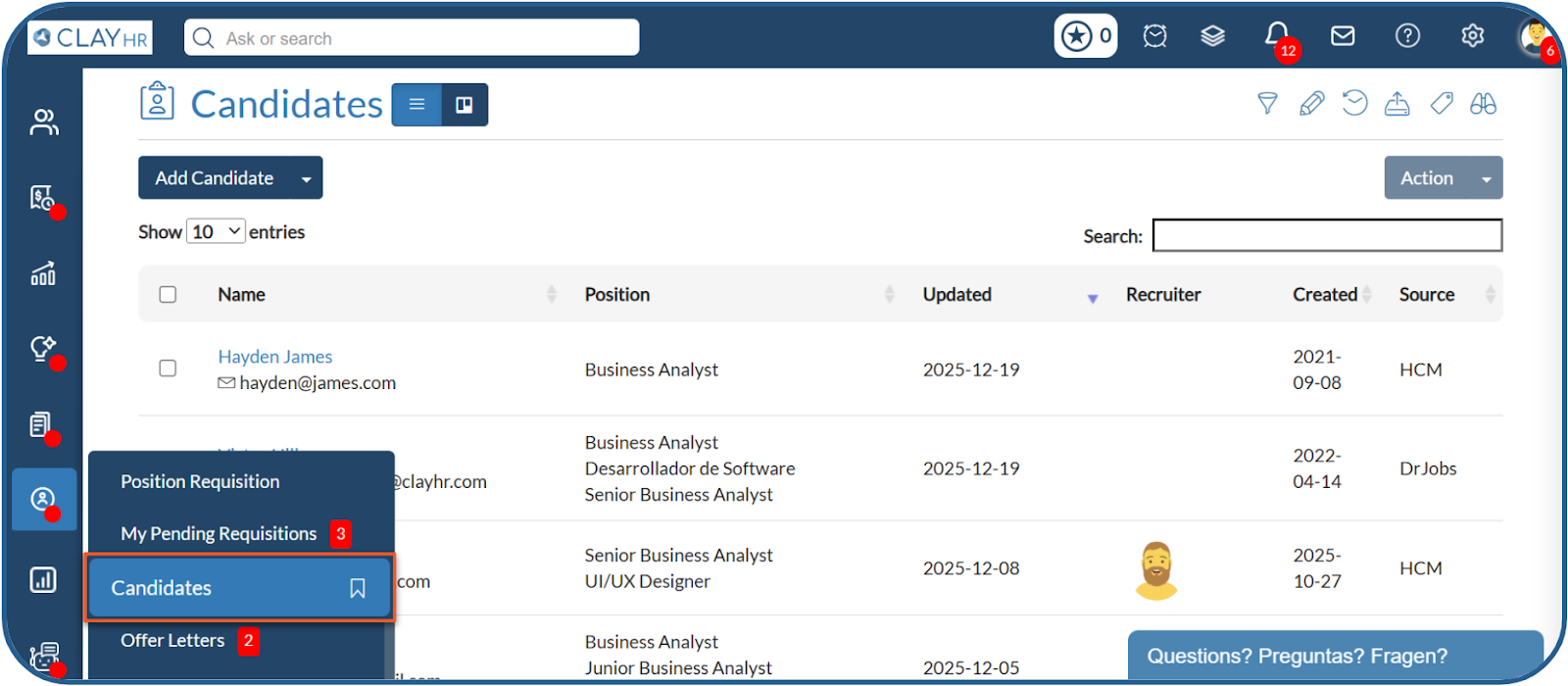
- Go to Hiring > Candidates tab.
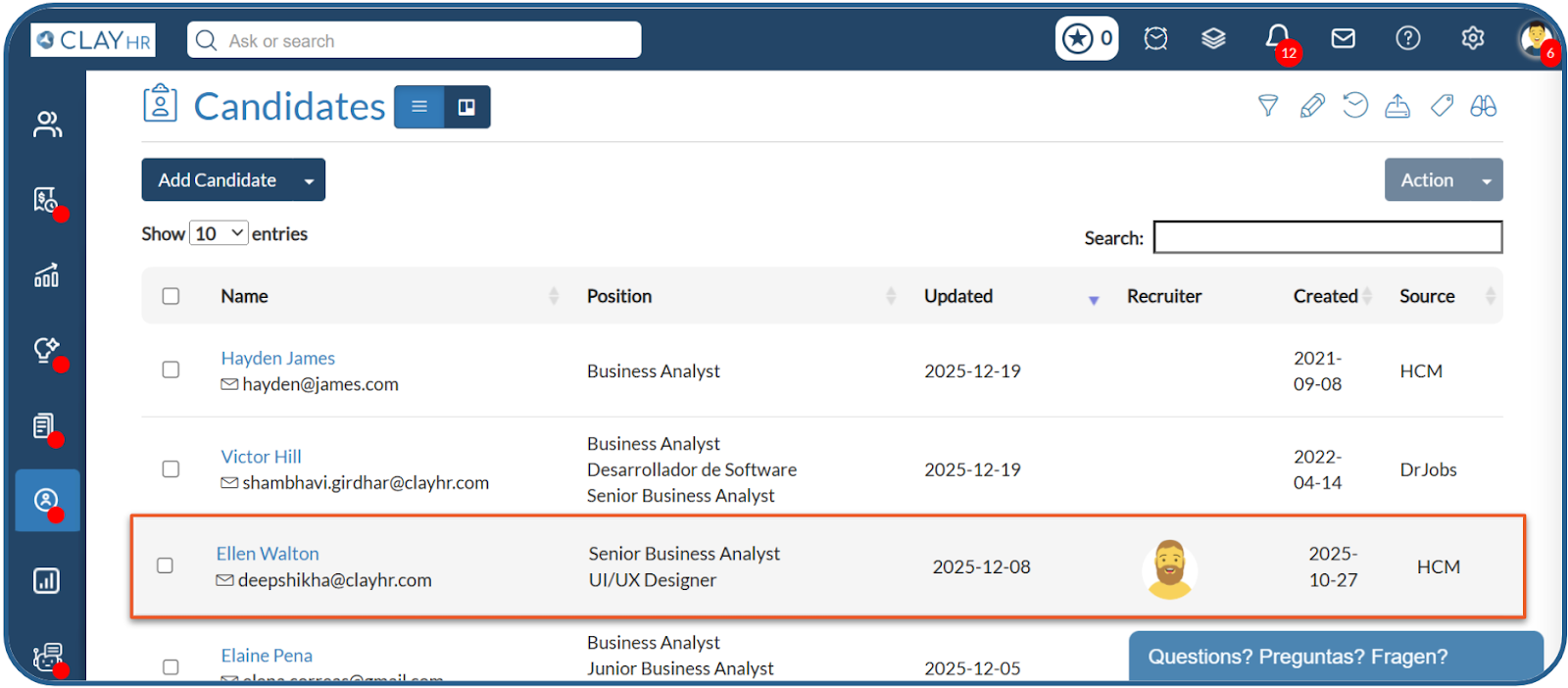
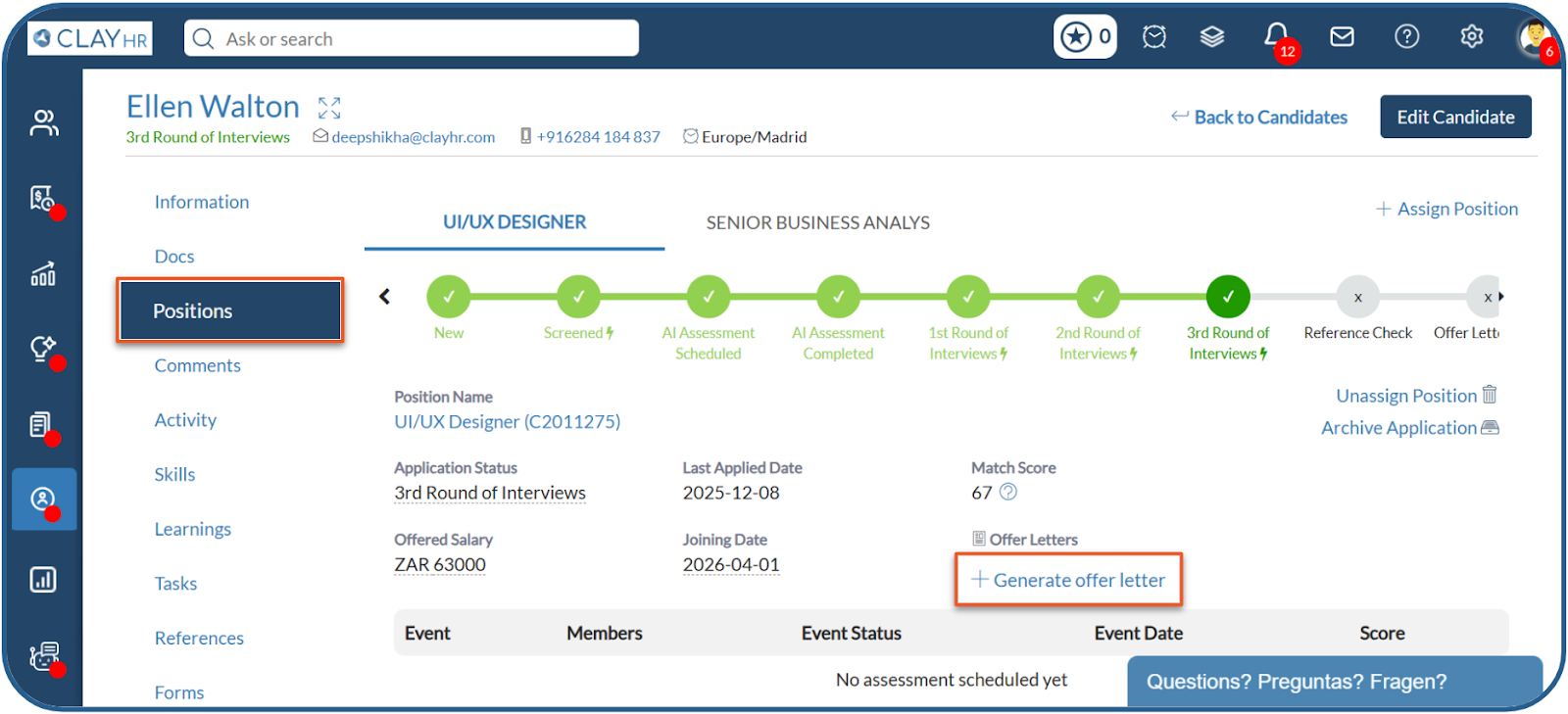
- Go to the Positions tab, and select the position for which you need to generate the offer letter.
- Click on Generate Offer Letter.
- Review the generated offer letter content and click on Save as Draft.
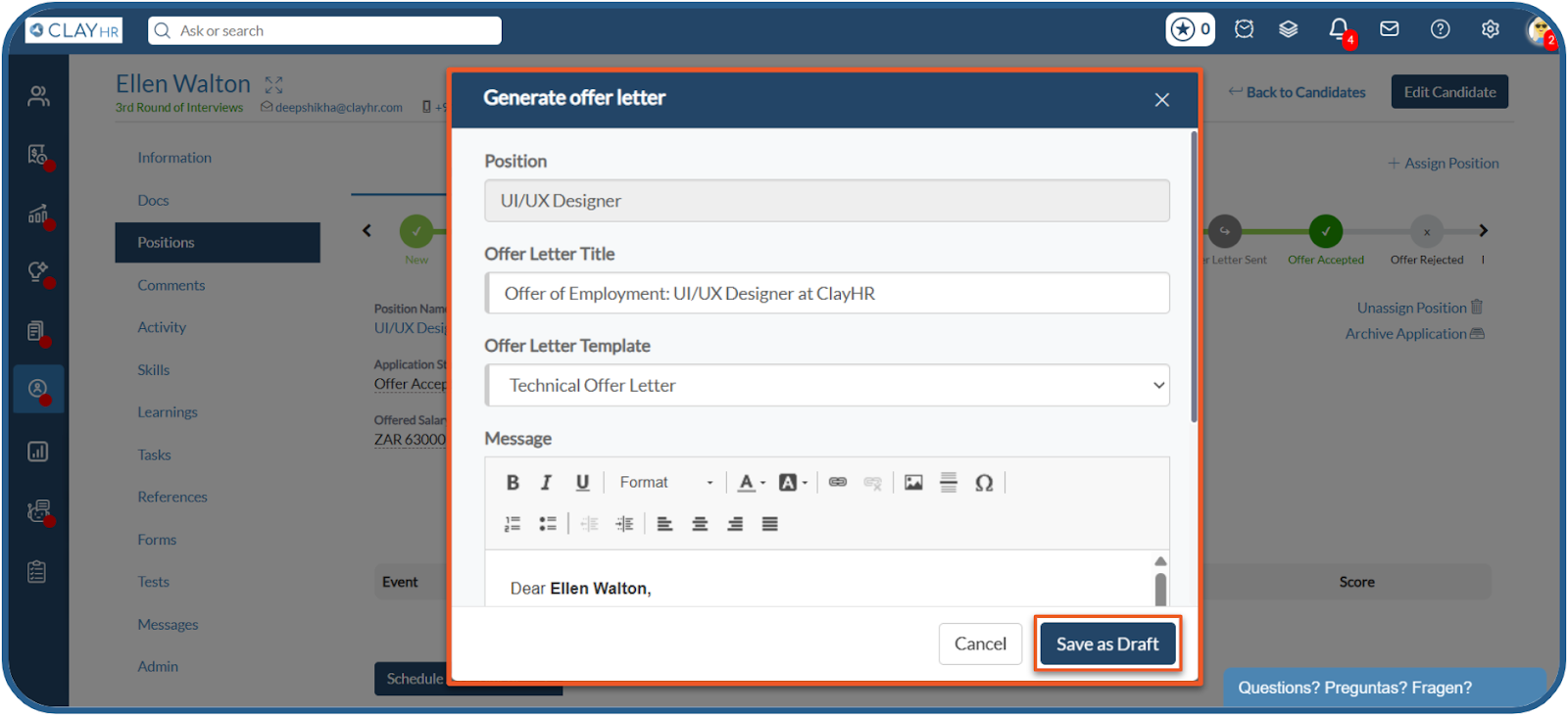
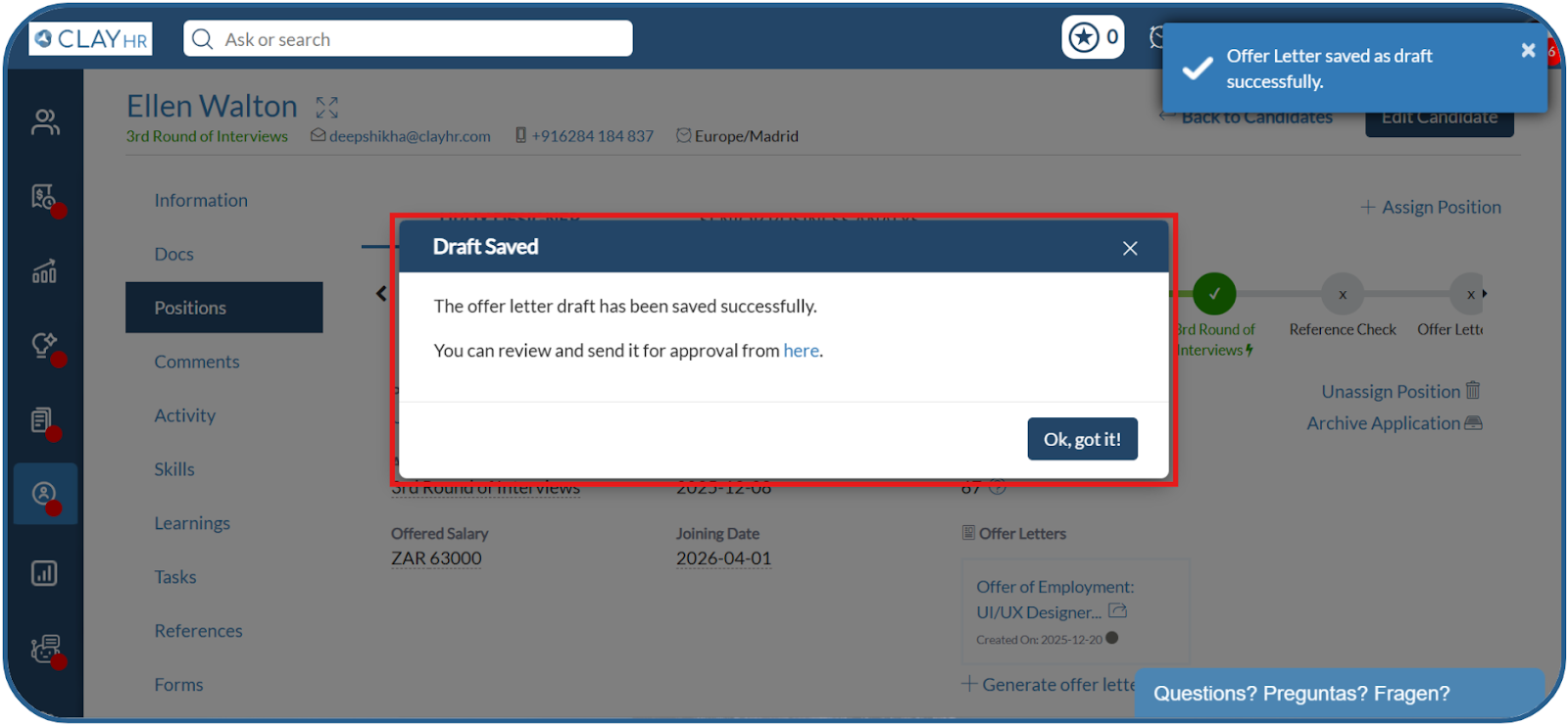
Once the offer letter is saved as a draft, it can be viewed under the Draft Offer Letters tab on the offer letter home page.
Access Draft Offer Letters
Steps to view draft offer letters:
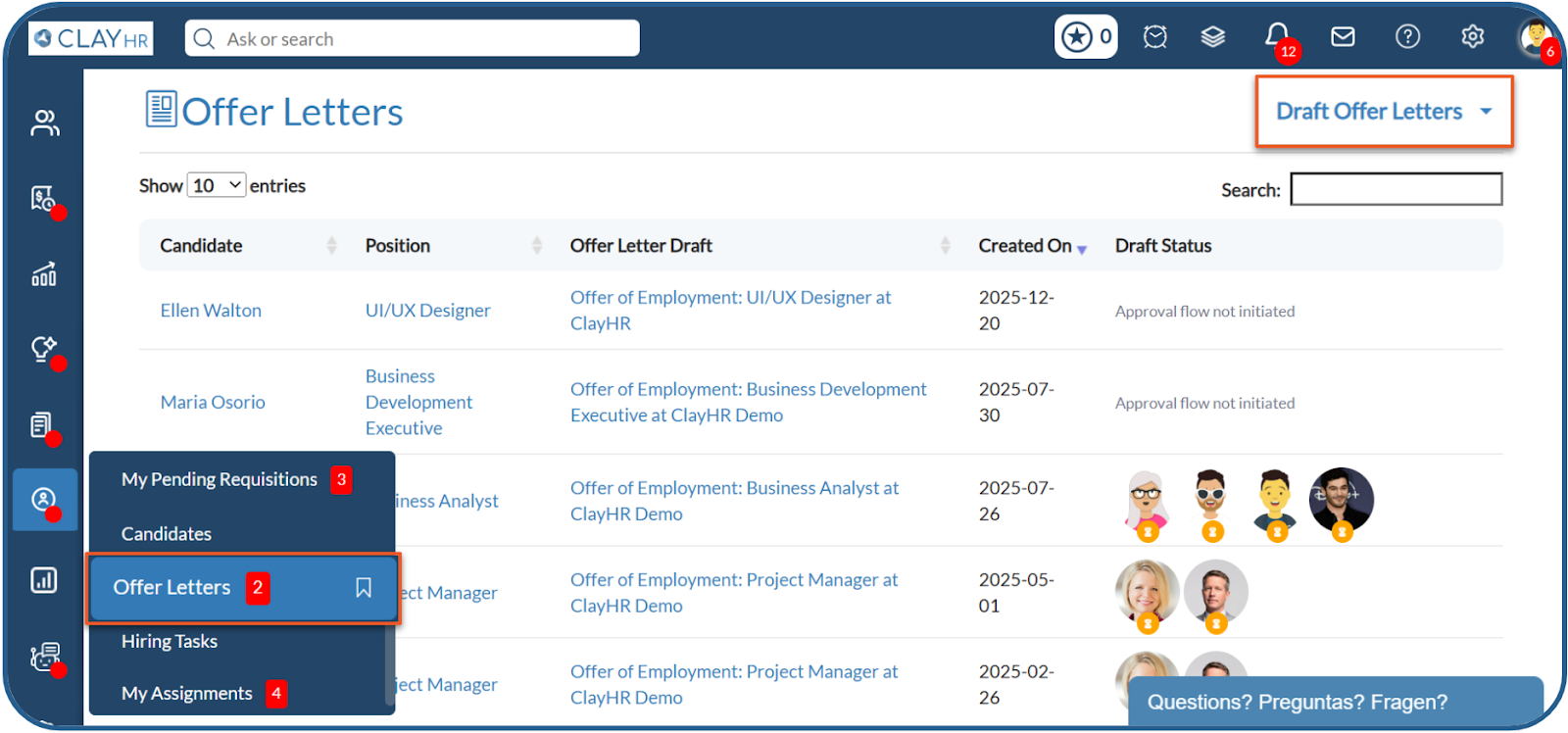
- Go to Hiring > Offer Letters.
- Click on the Draft Offer Letters filter available on the top-right corner.
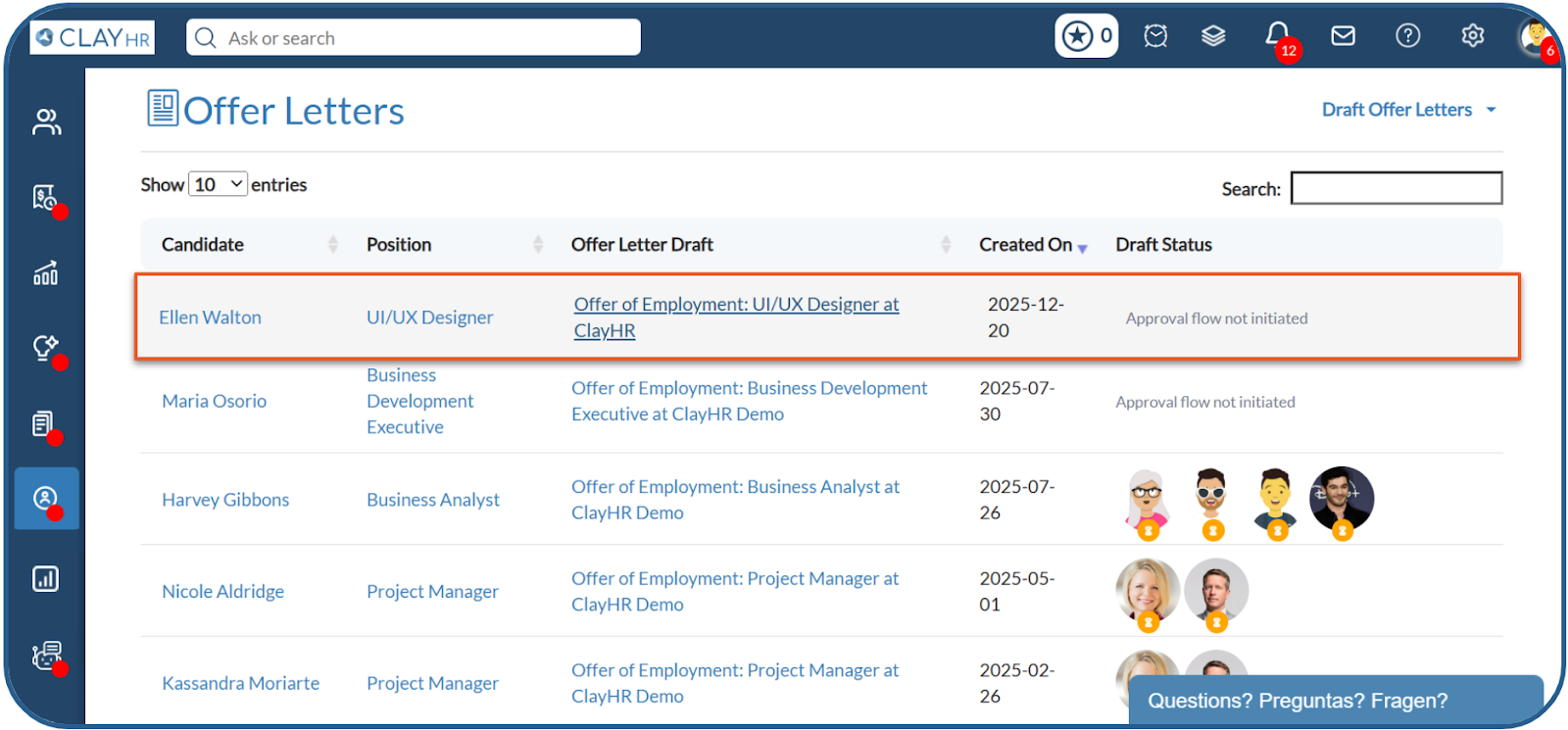
- Select the offer letter you want to view.
Offer Letter View Page
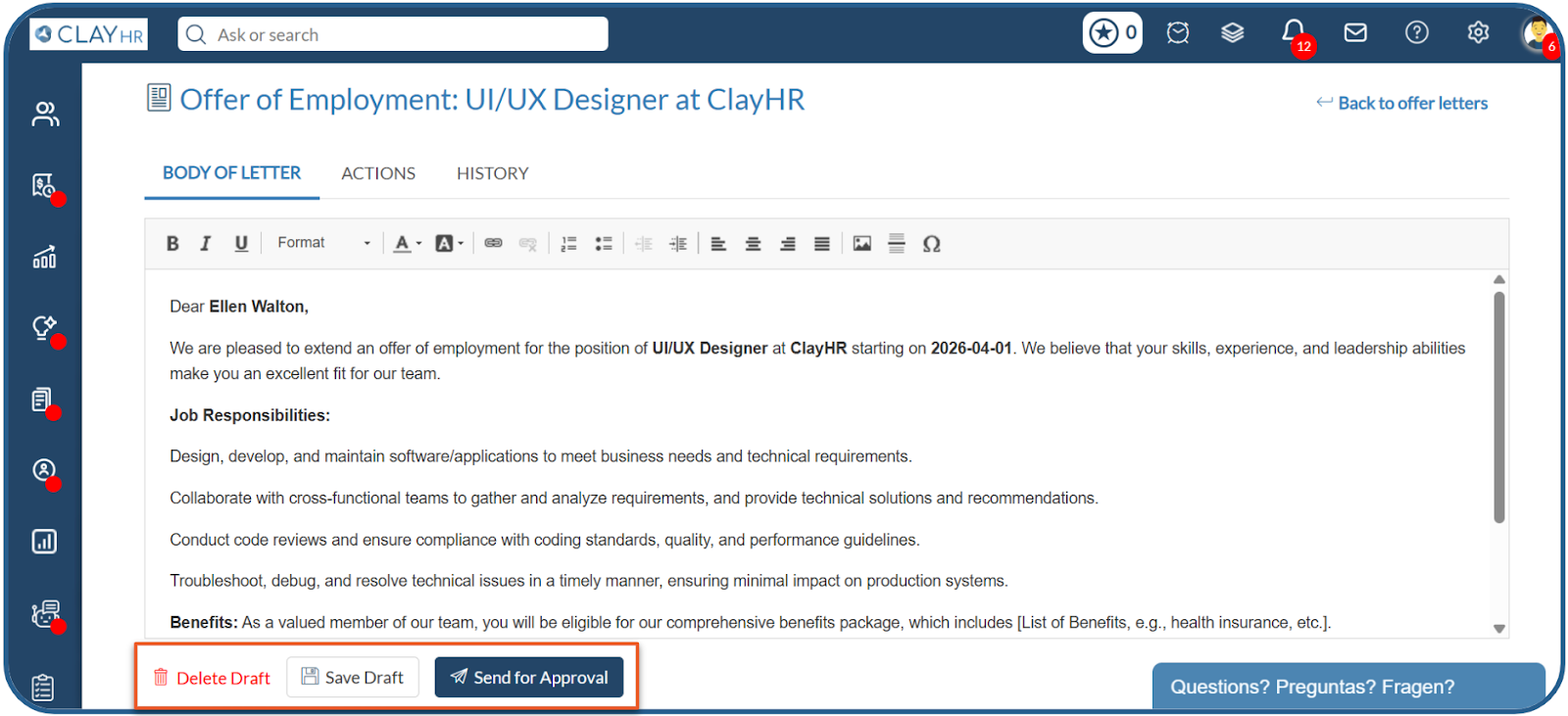
The offer letter view page displays all offer-related information under three tabs, each designed for a specific purpose:
- Body of Letter: Allows users to view and edit the offer letter content and perform draft-level actions such as Save Draft, Delete Draft, or Send for Approval.
- Actions Tab: Allows users to complete the offer letter approval process and collaborate with other users. It includes the following sections:
- Approval Workflow: Displays the complete approval workflow for the offer letter and authorized users can either approve or reject the offer letter.
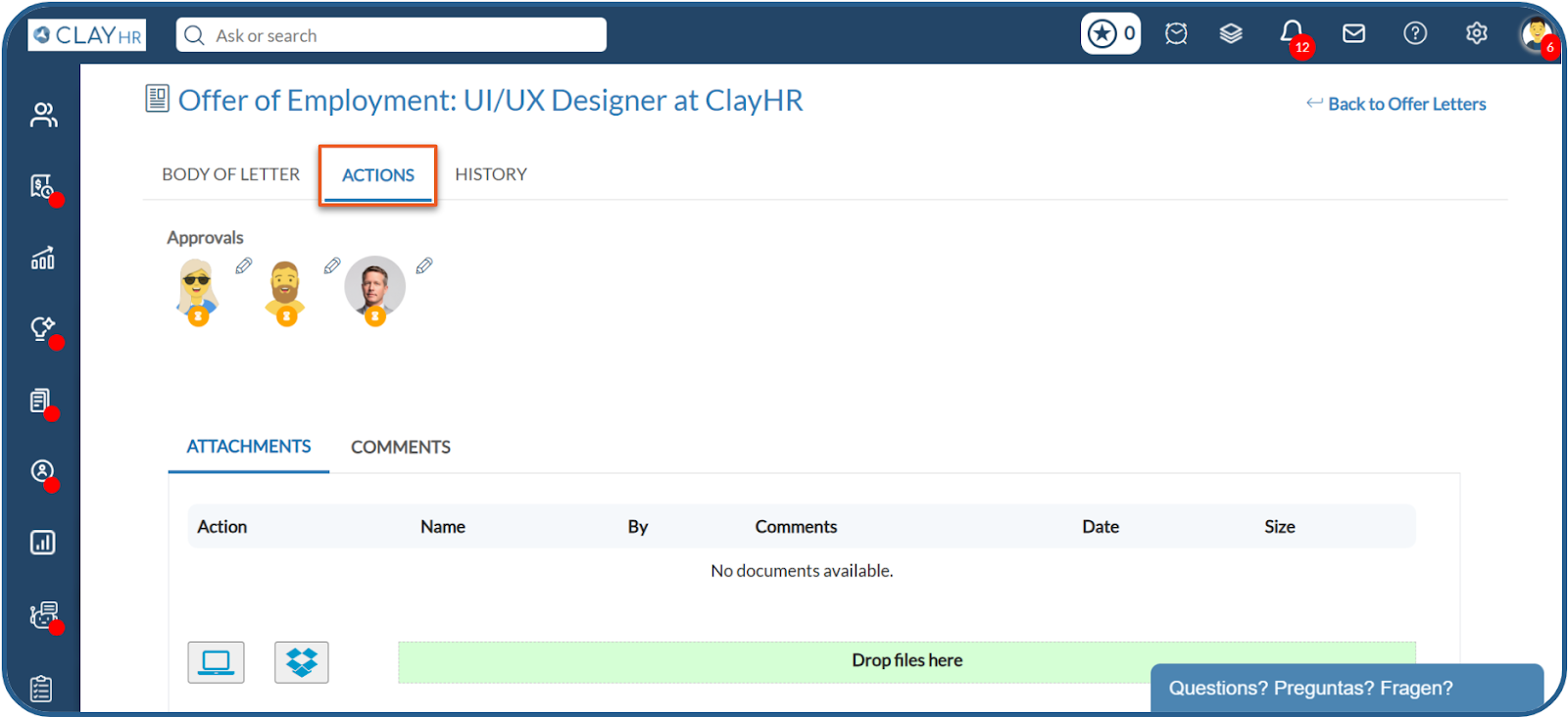
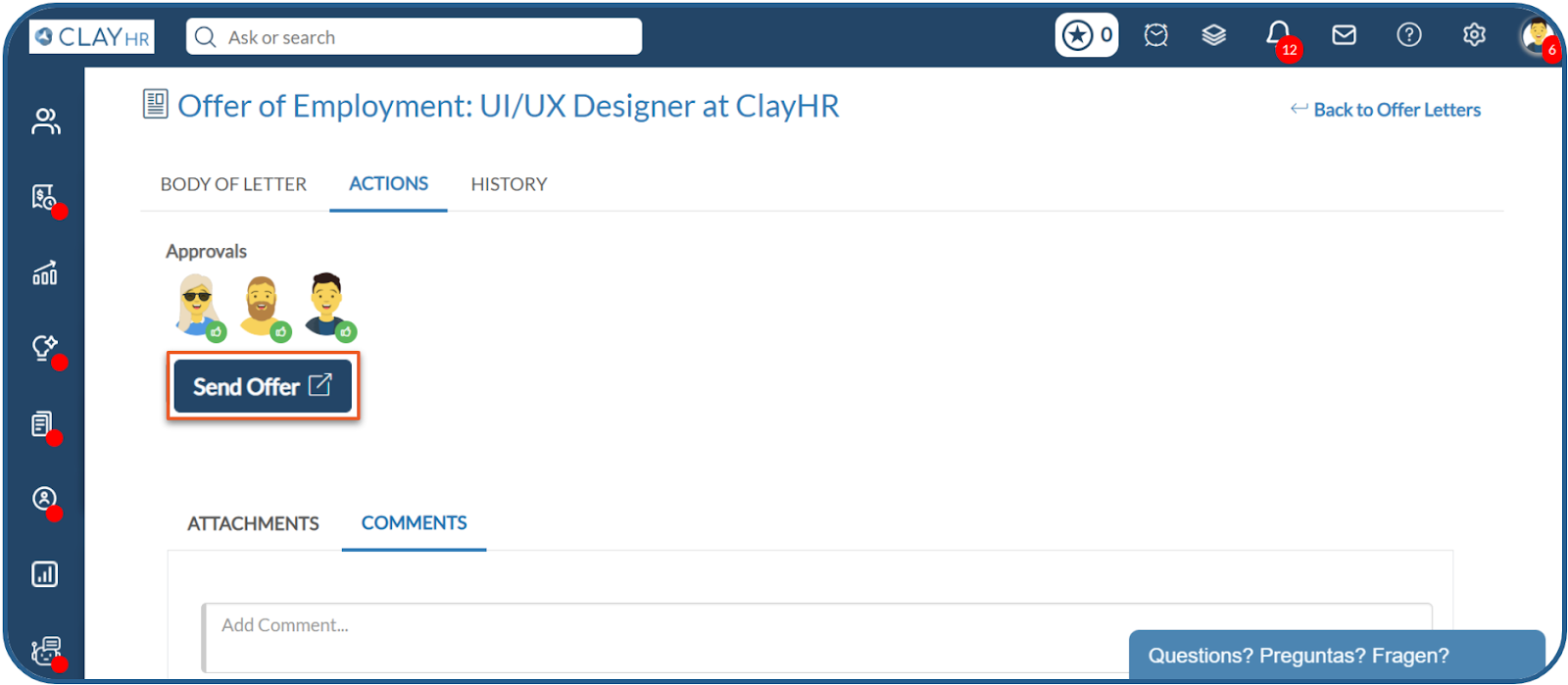
Once all approvers approve the offer letter, it is sent to the candidate.
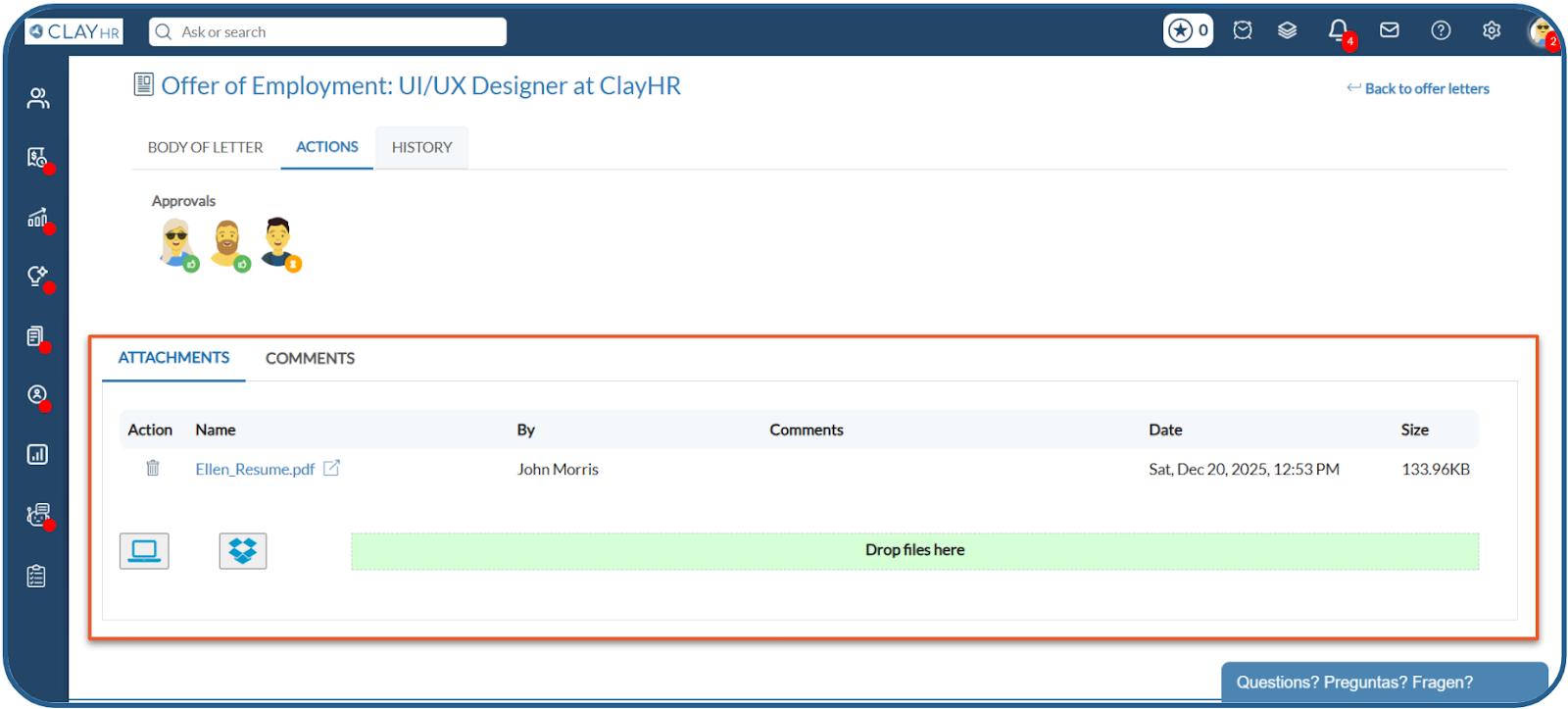
- Attachments: The Attachments section allows users to upload, view, and manage documents related to the offer letter or candidate.
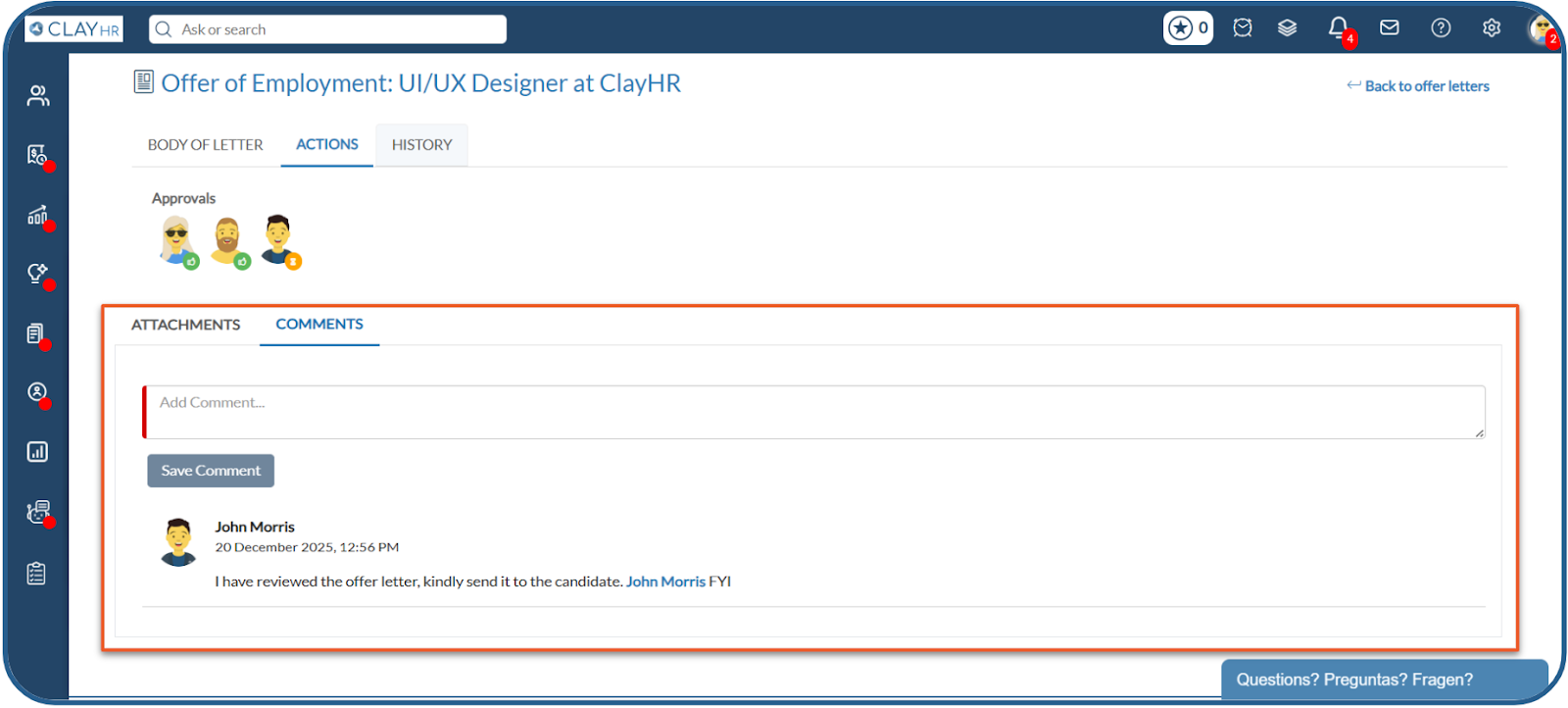
- Comments: The Comments section allows users to add comments, share feedback, and tag other users.
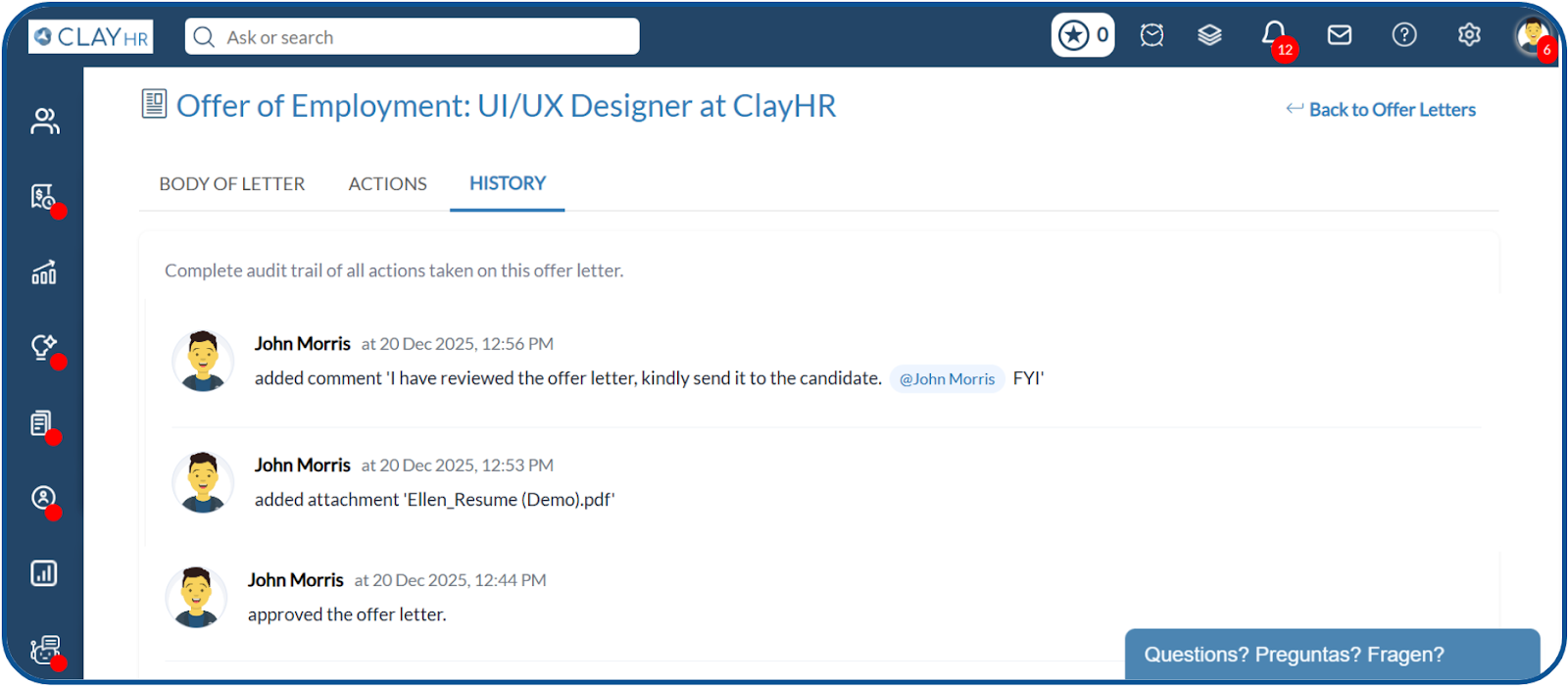
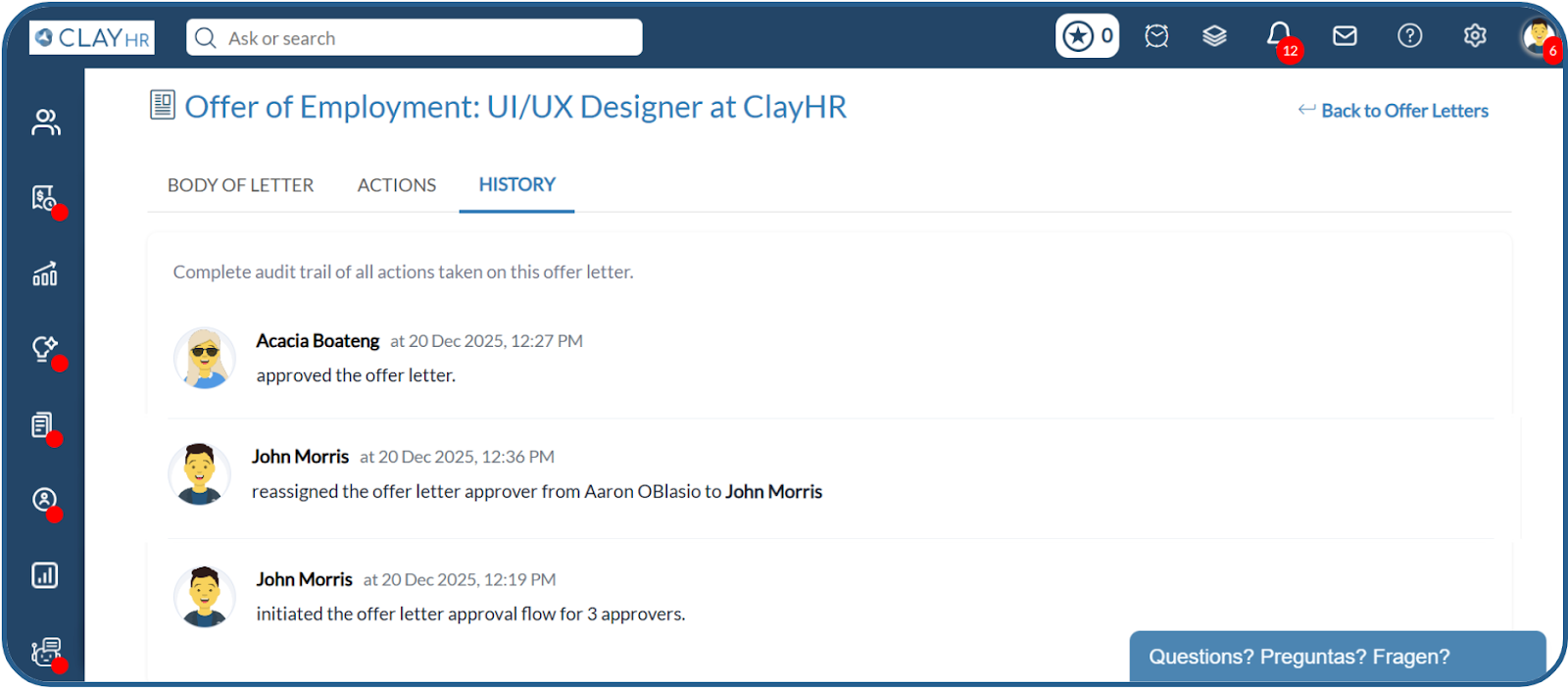
- History Tab: It provides a complete record of all activities related to the offer letter. It helps users track changes and actions taken on the offer letter. The system records the following activities:
- Updates made to the offer letter body
- Initiation of the offer letter approval workflow
- Approvals and rejections of the offer letter
- Approver reassignment
- Addition or updates of comments
- Addition or deletion of attachments
.webp)