Applying for Leave Beyond Balance or in the Next PTO Cycle When Direct Submission is Disabled
Every PTO Policy has a "Leave Request Beyond Balance" setting that controls whether an employee can submit a leave request for more days/hours than the balance they currently have available in that policy.
When this setting’s value is set to “Not Allowed” for a PTO Policy, users assigned to that policy will be blocked from submitting a leave request that exceeds their available balance — even if the request is for a genuine, exceptional reason.
Why this happens
The system enforces the balance check at the time of submission. If the requested days/hours exceed the remaining balance and "Leave Request Beyond Balance" is off, the "Submit Leave Request" action will not go through for that employee.
Leave spanning into the next PTO cycle
If you're planning leave that falls in an upcoming PTO cycle — for example, a New Year's trip that runs from late December into January, or leave booked well ahead of time for the start of a new cycle — you may find the request gets checked against your current cycle's balance instead of the cycle your leave dates actually fall in. If the current cycle's balance is insufficient, the request can be blocked even though it has no real overlap with that balance.
How to handle these cases
ClayHR provides users with the PTO Management permission (typically an HR Admin or manager with that role) the ability to apply the leave request on behalf of the employee, since this permission overrides the balance restriction that applies to self-service requests. There are two ways to do this:
Method 1: Via the PTO Landing Page
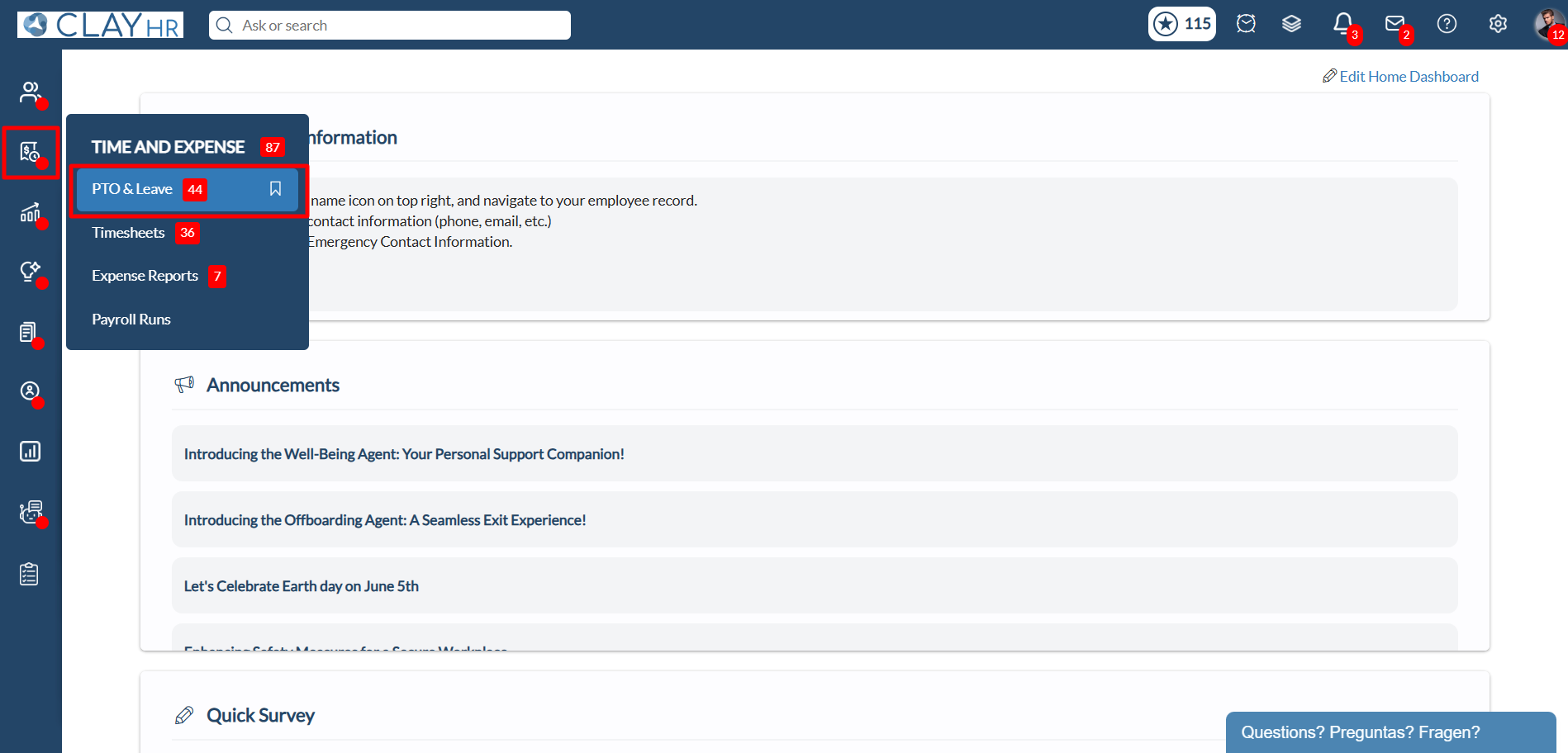
- Hover over the “Time and Expense” menu icon on the left menu and select “PTO & Leave”. You will be redirected to the PTO Landing Page.
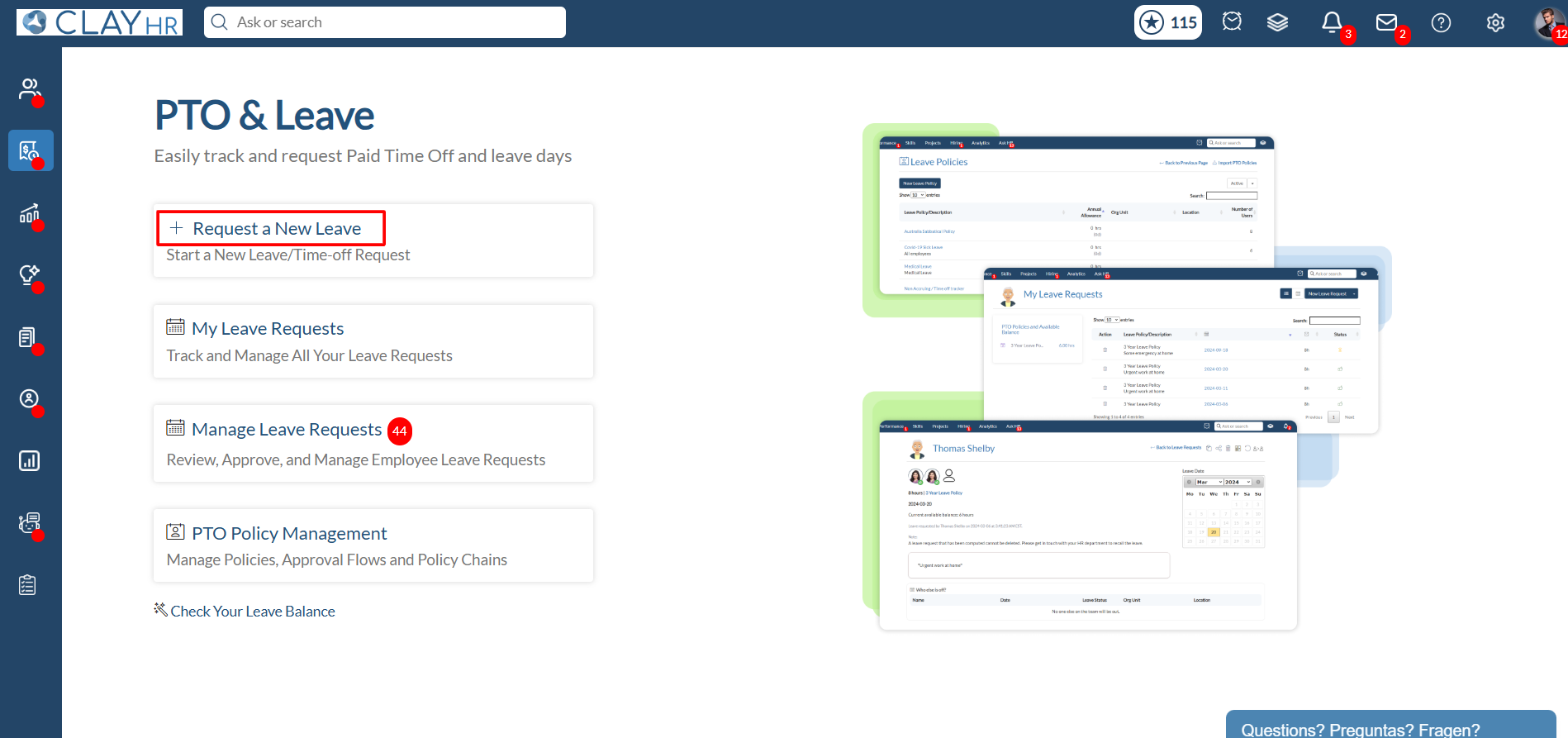
2. Click on the "Request a New Leave" widget. The Leave Request page will open up.
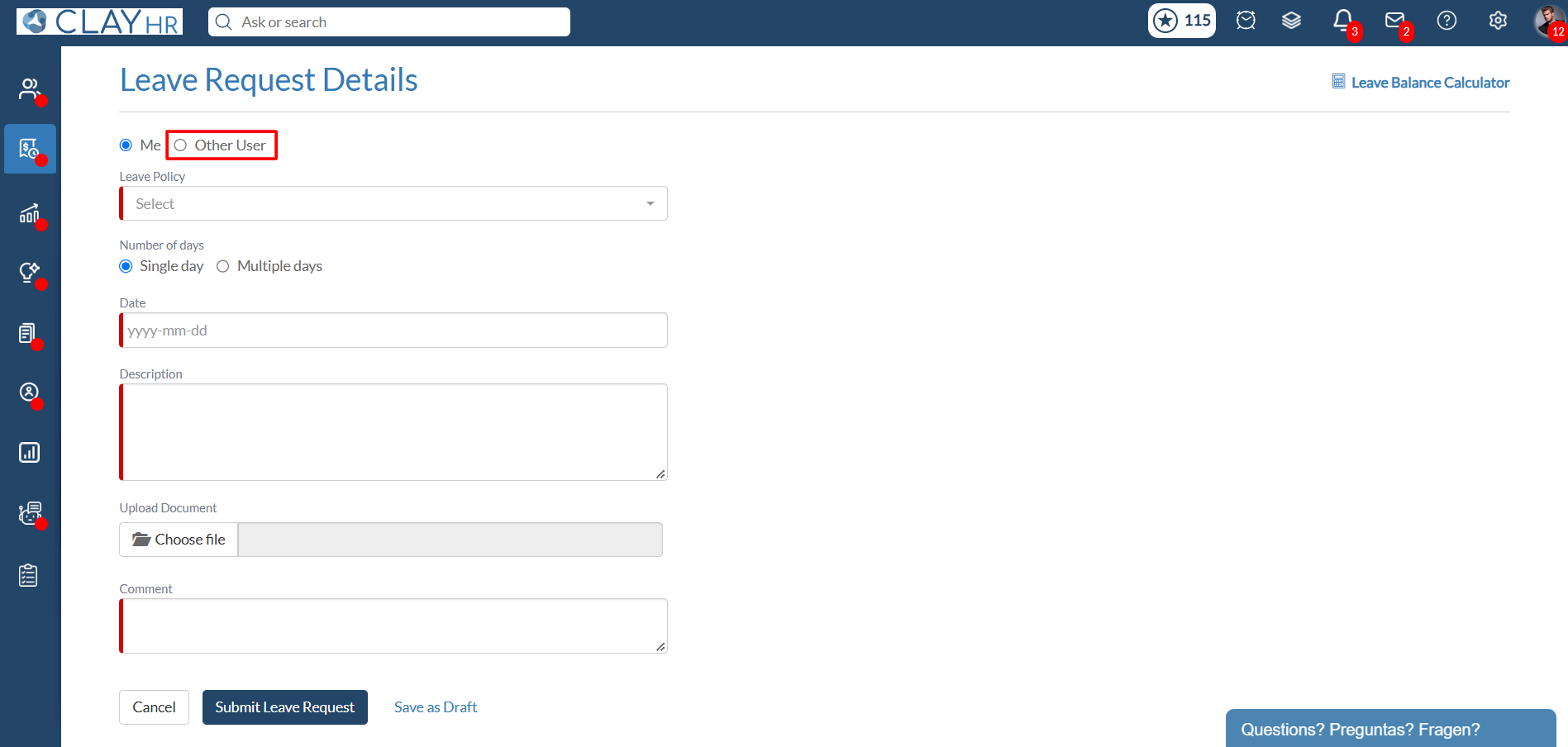
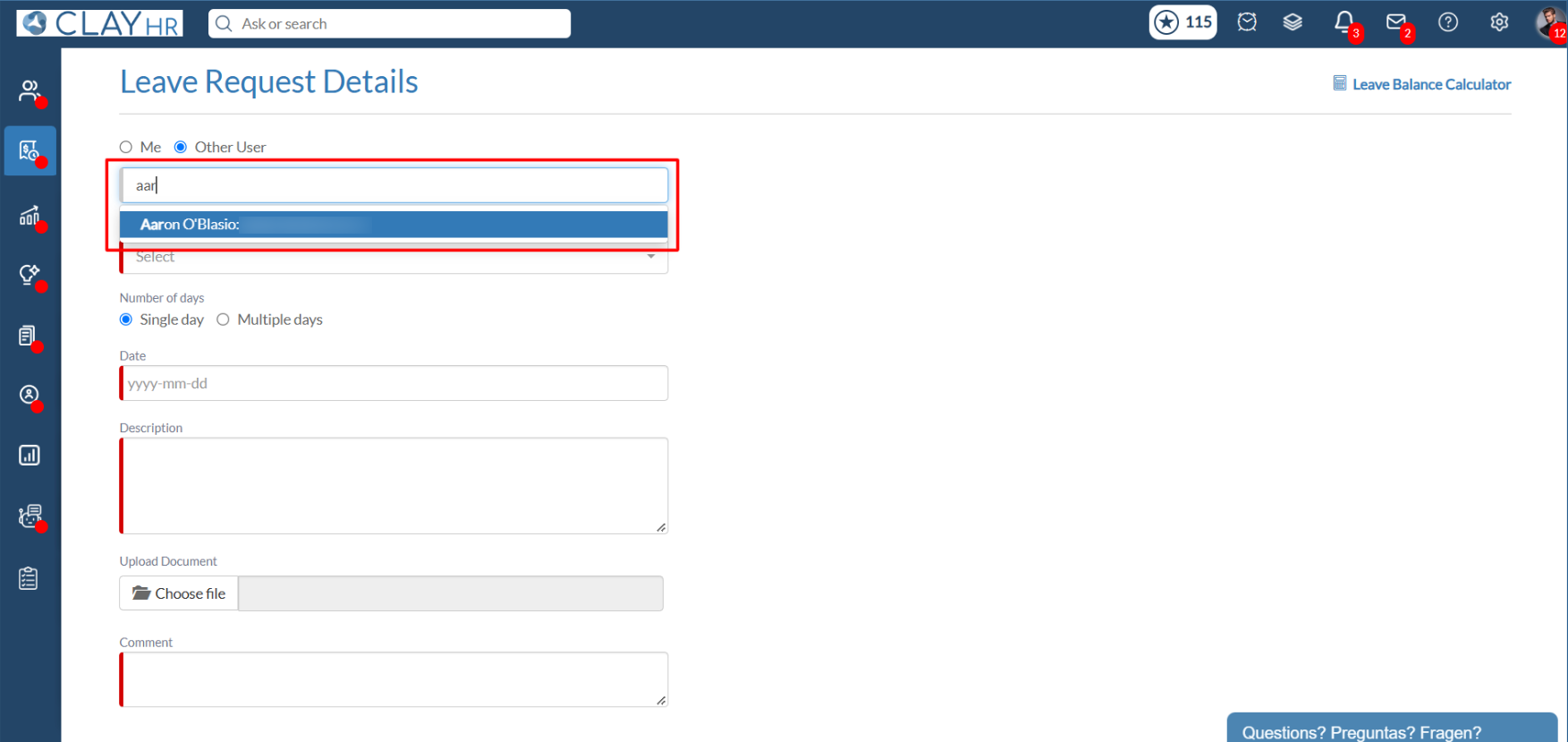
3. On the Leave Request page, click the "Other User" option.
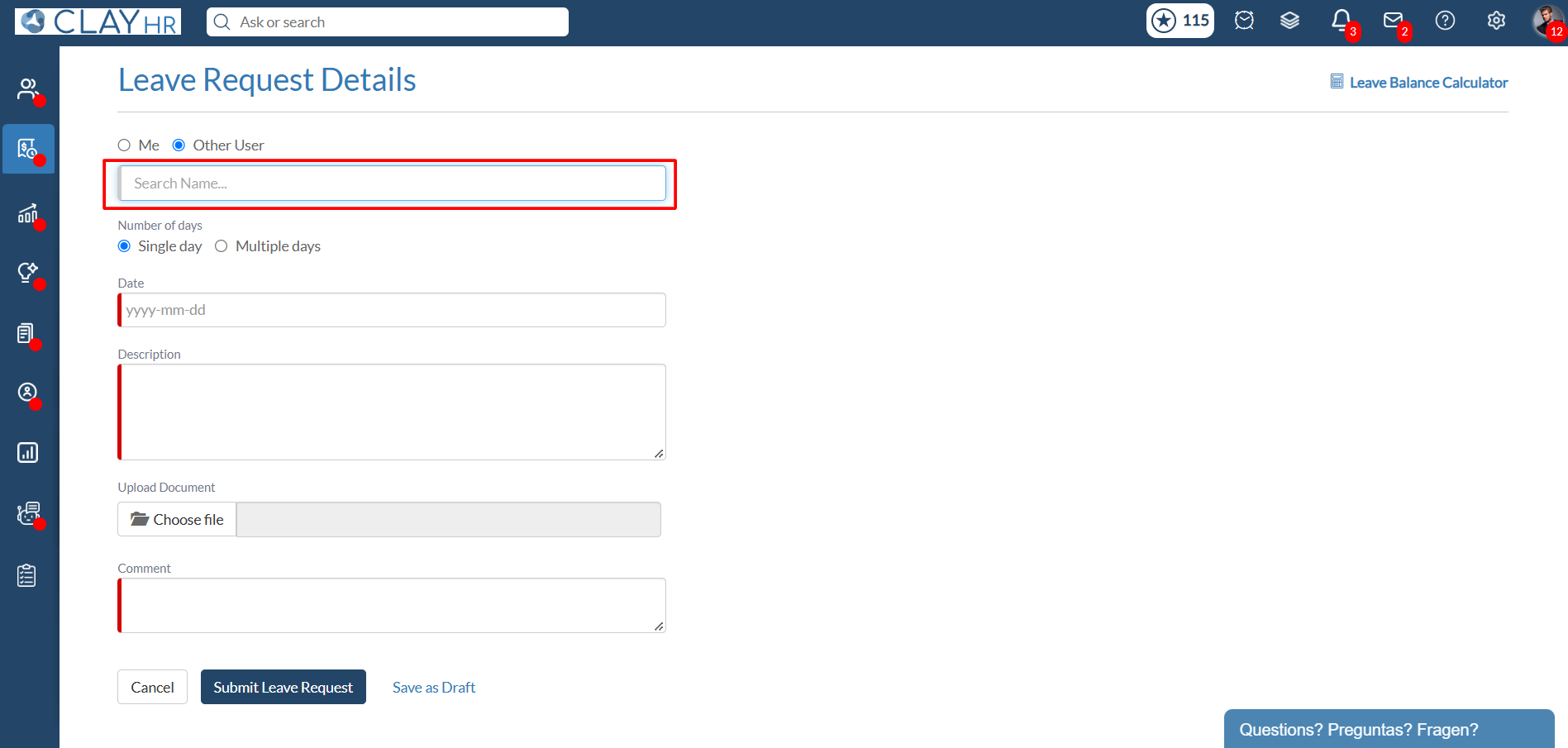
4. Search for the required user and select them from the dropdown
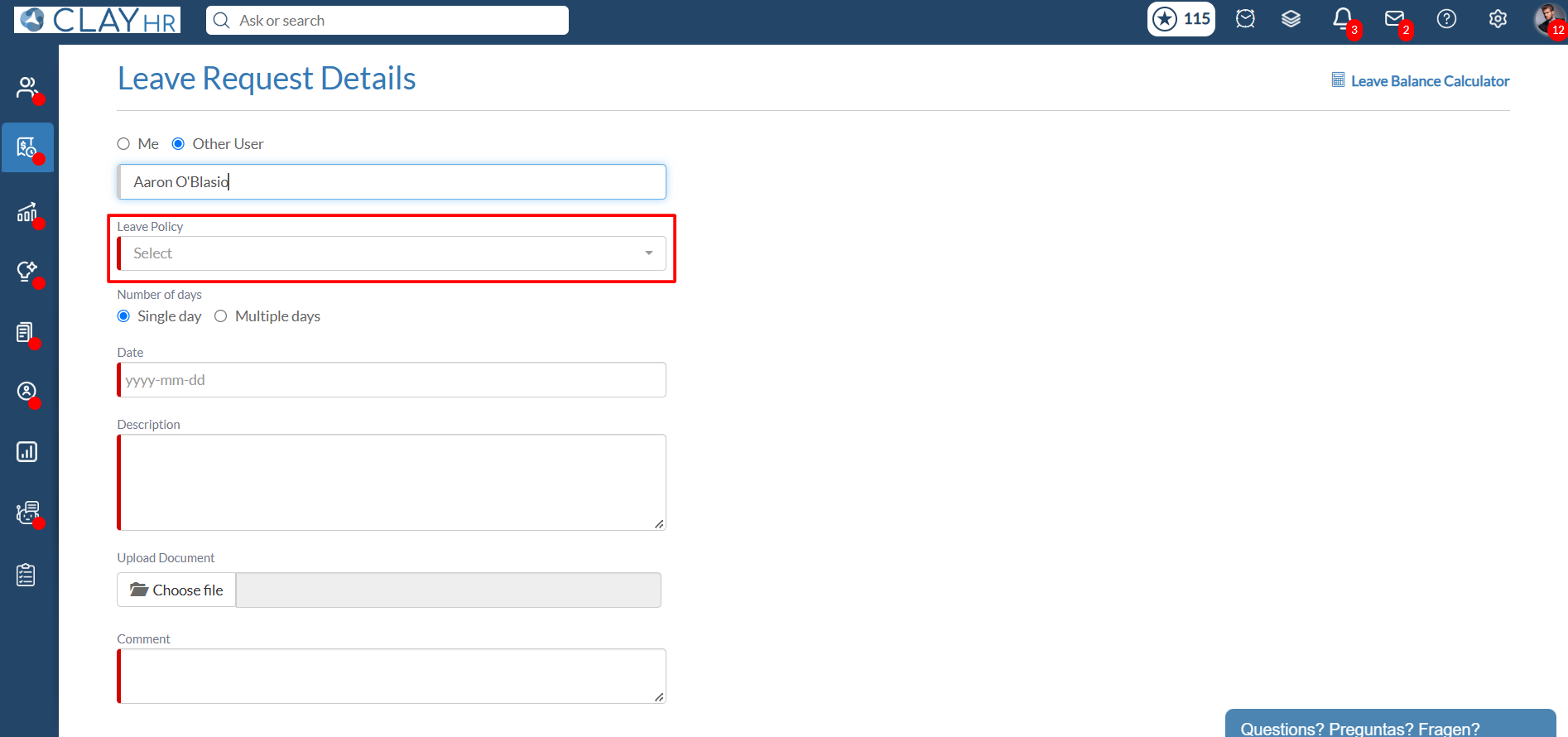
- Select the required leave policy, then continue entering the leave details (days/hours, dates, document upload) as described in How to Apply a Leave Request.
- Click "Submit Leave Request."
Method 2: Via the employee's profile
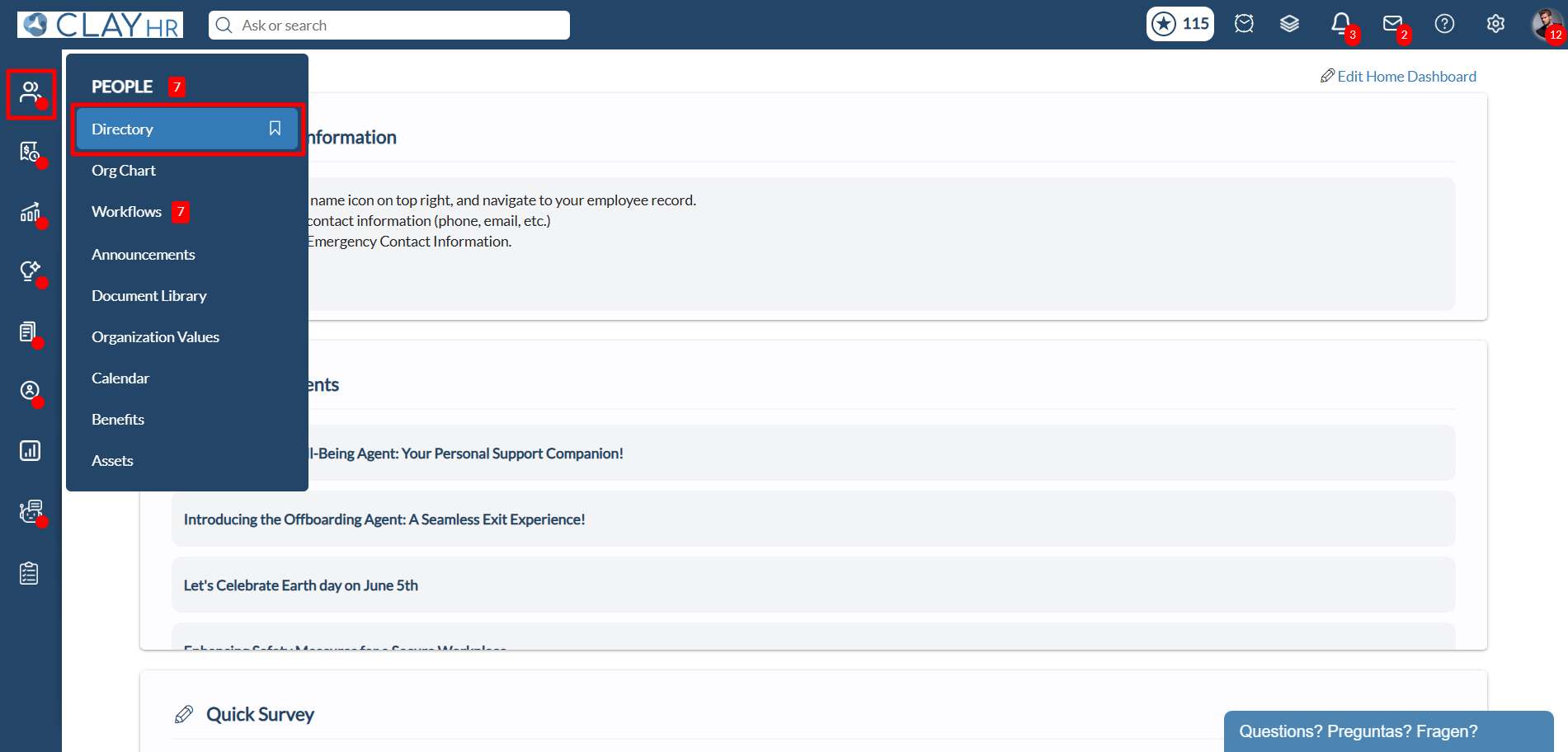
- Hover over the "People" menu icon on the left menu and select "Directory." You'll be redirected to the user directory page.
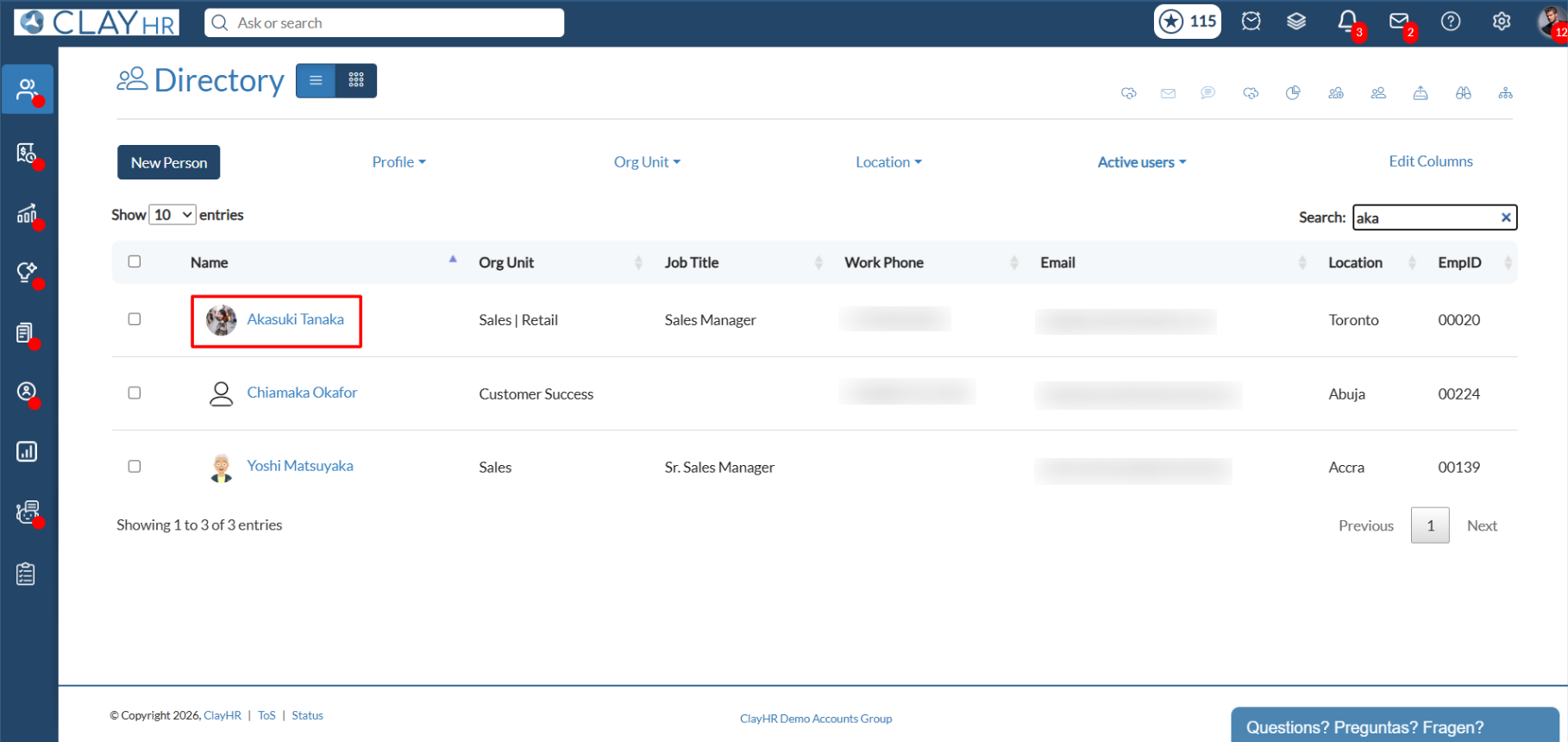
2. Locate the employee who needs the leave applied. Click on the user name, the user view page will open up.
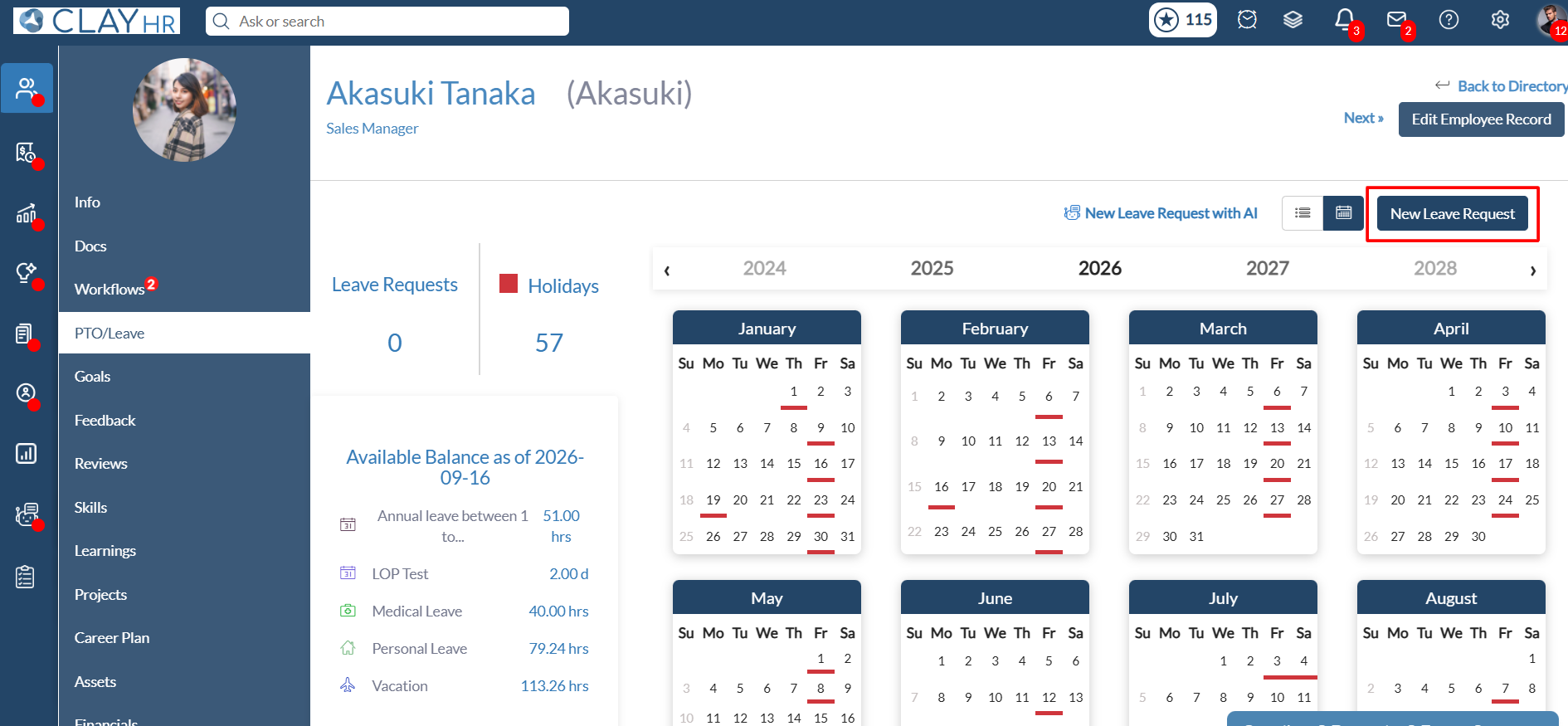
3. Click on the "PTO/Leave" tab.
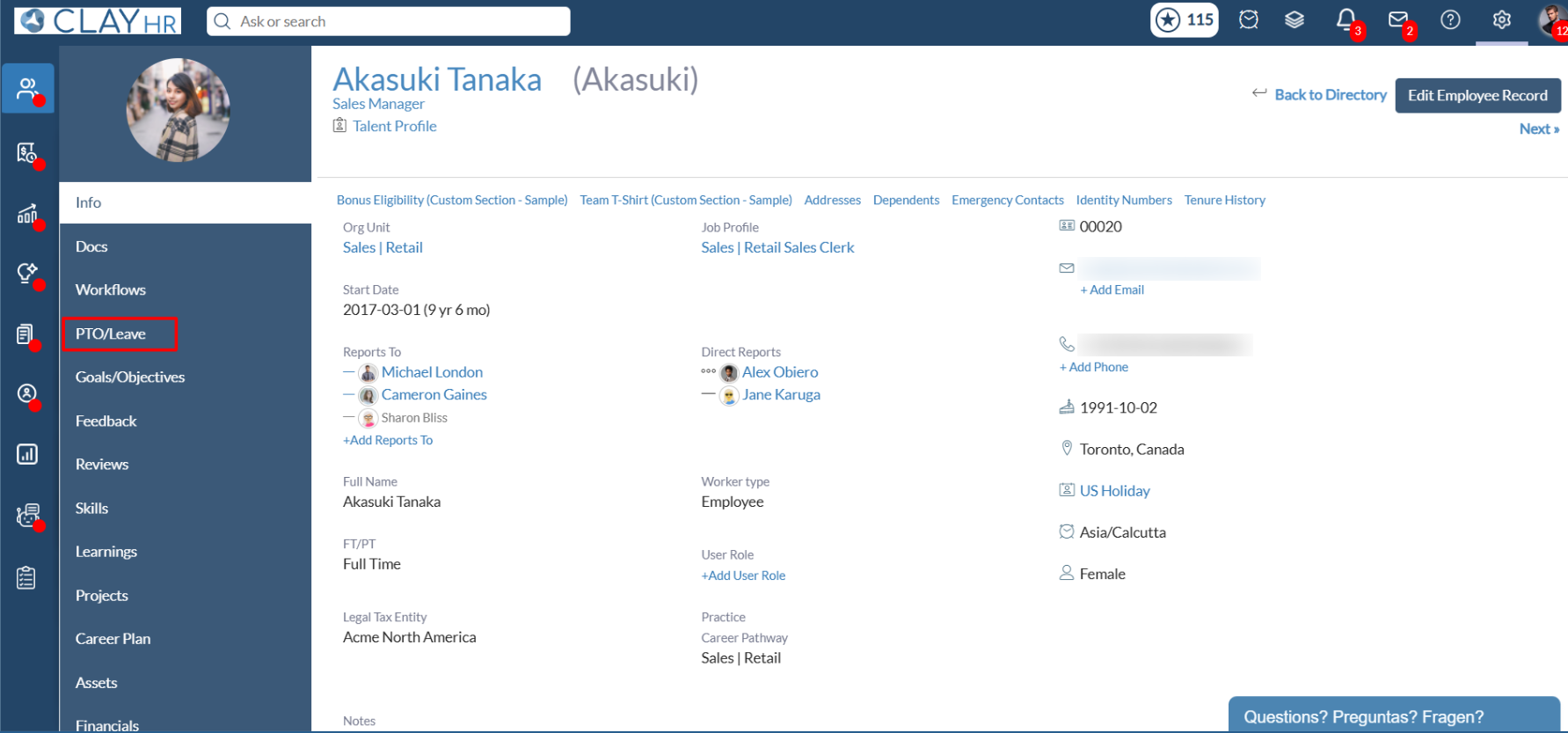
4. Click "New Leave Request." The Leave Request page will open up.
5. Select the required leave policy, then continue entering the leave details (days/hours, dates, document upload) as described in How to Apply a Leave Request.
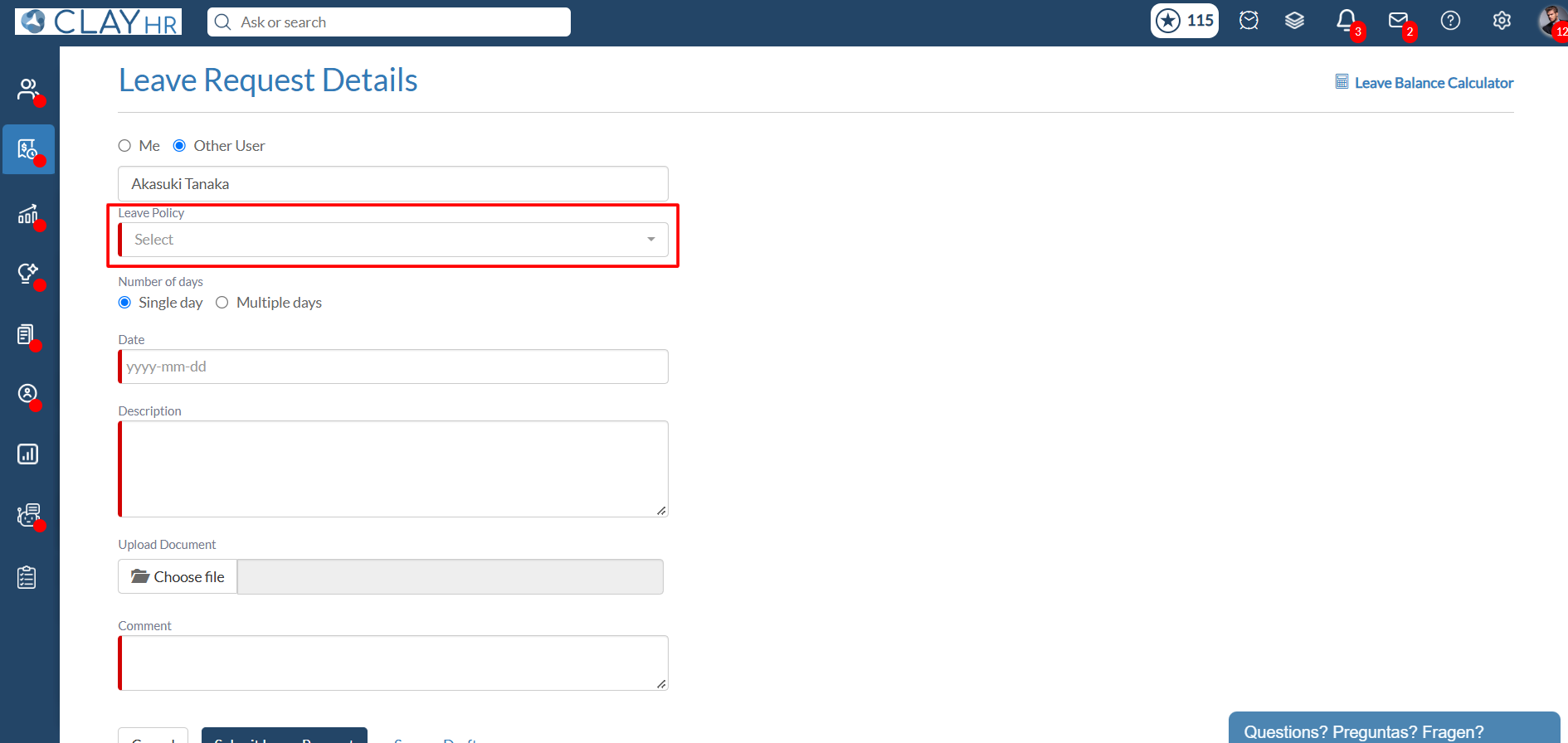
- Click "Submit Leave Request."
Note: This workflow is intended for exceptional or transitional cases — either genuine beyond-balance approvals or leave falling in a future cycle.
.webp)