Certificate vs. Certification in the Learning Module
In the Learning Module, Certificate and Certification are two separate concepts. Understanding the difference between them helps administrators and learners better track learning completions and awarded certificates.
- A Certification is a record that shows a user has successfully completed a learning associated with a Certification Type.
- A Certificate is a downloadable PDF document that can be awarded to a user after completing a learning.
This article explains how each feature works and how they are connected.
What is a Certification?
A Certification is a record stored in the user's License & Certification tab that confirms the successful completion of a learning. It is created only when a Certification Type is configured for the learning.
Step 1: Create a Certification Type
Before configuring a certification for a learning, you must first create a Certification Type.
- Navigate to Setup Menu > Skills & Learning > Certifications > Certification Types.
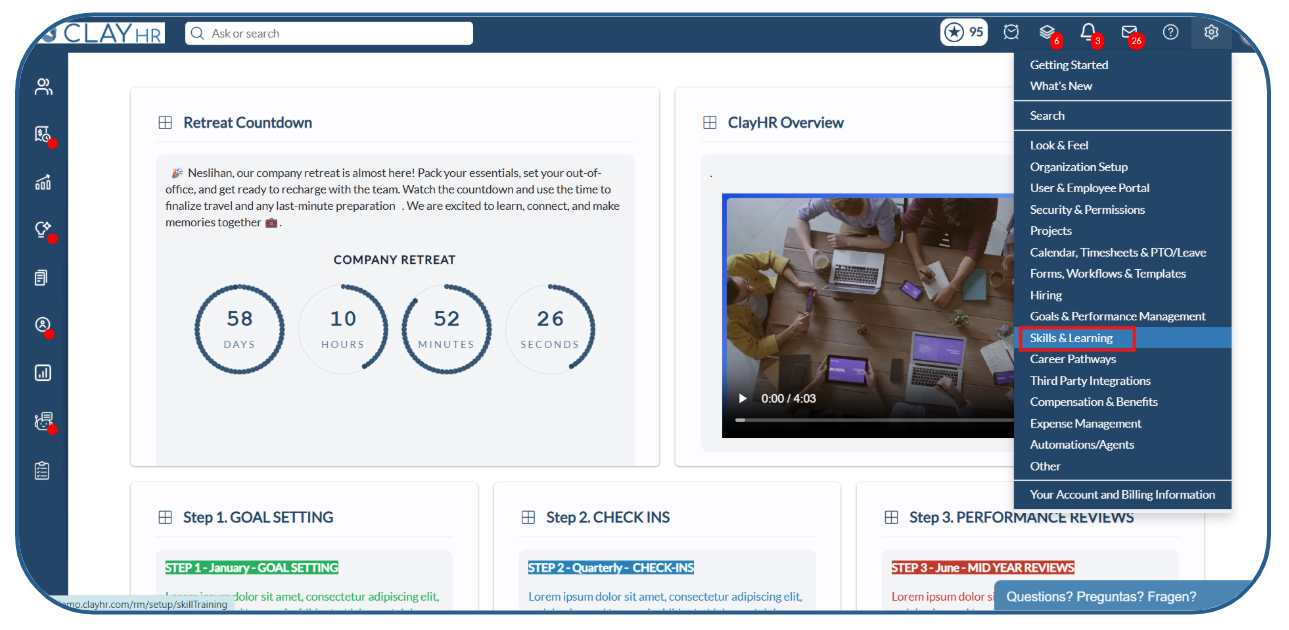
2. On the Certification Types home page, click New Certification Type.
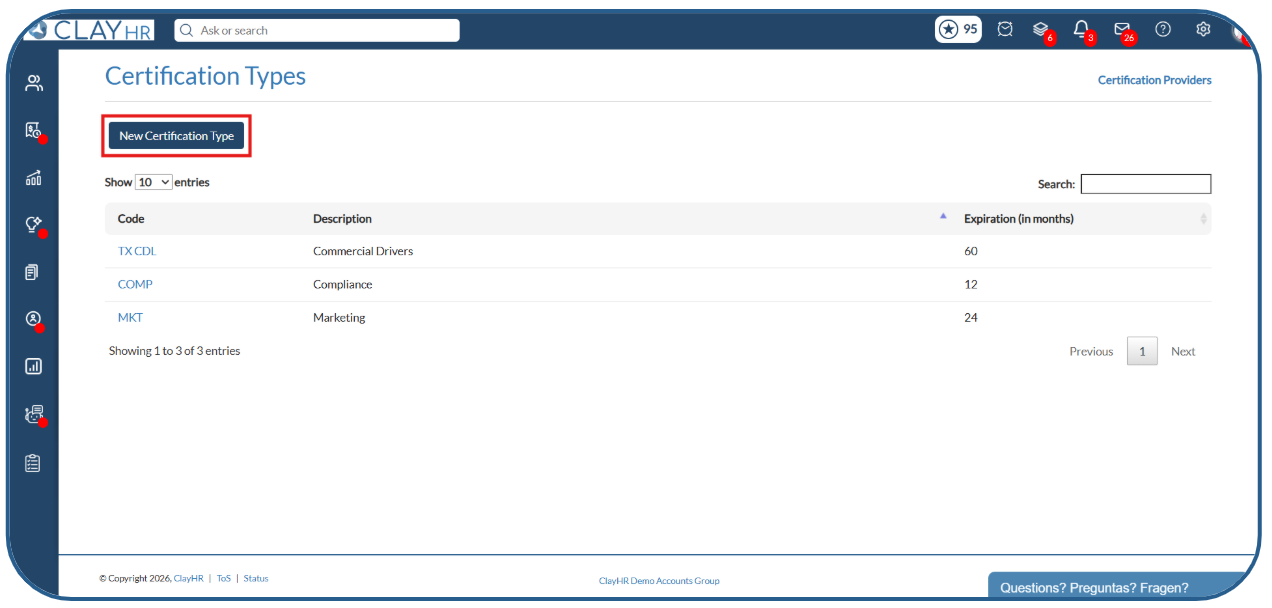
3. Enter the Certification Code, Description, and Expiration (Months), then click Save Certification Type button.
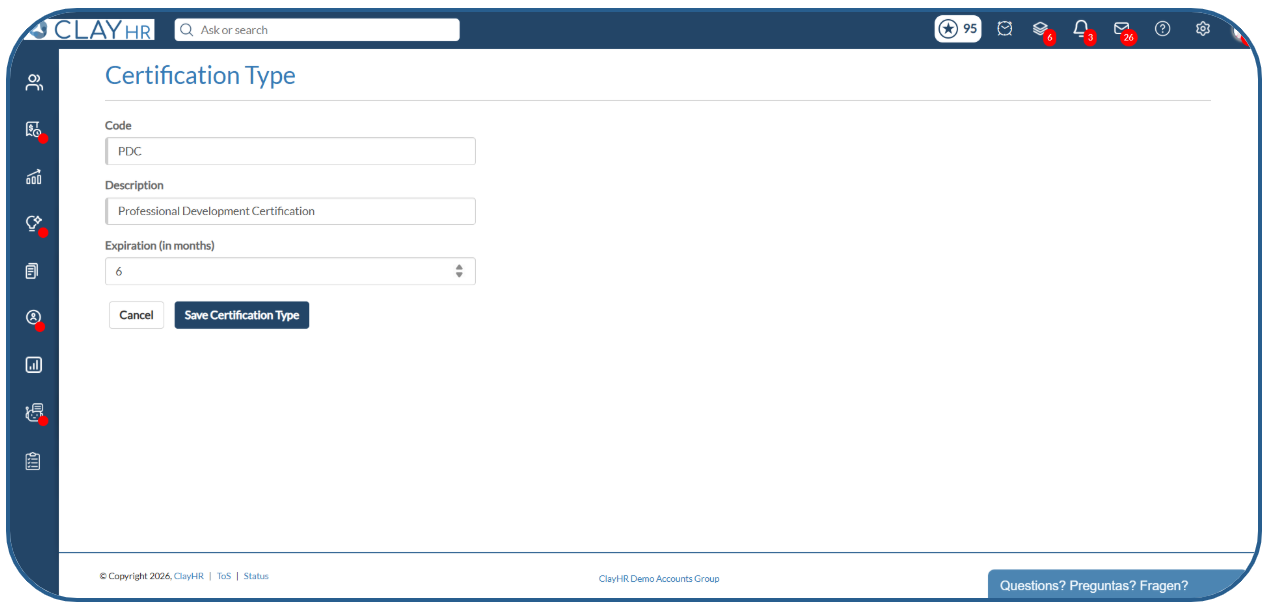
4. The Certification Type is now created and can be associated with a learning.
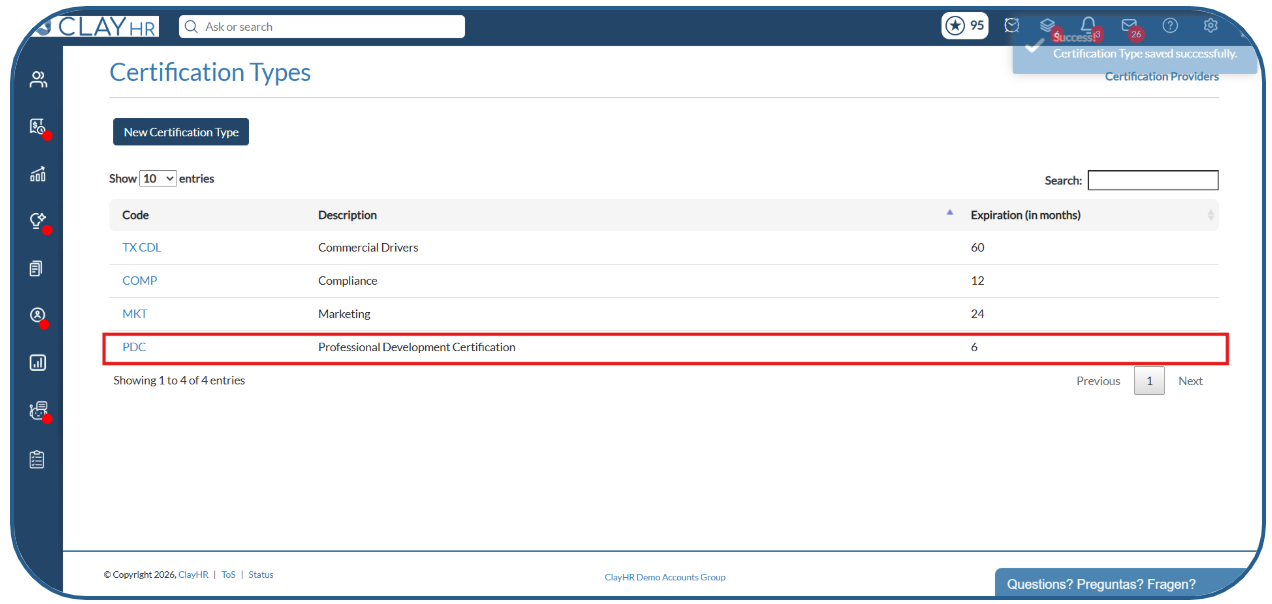
Step 2: How to Configure a Certification
- Navigate to Learnings.
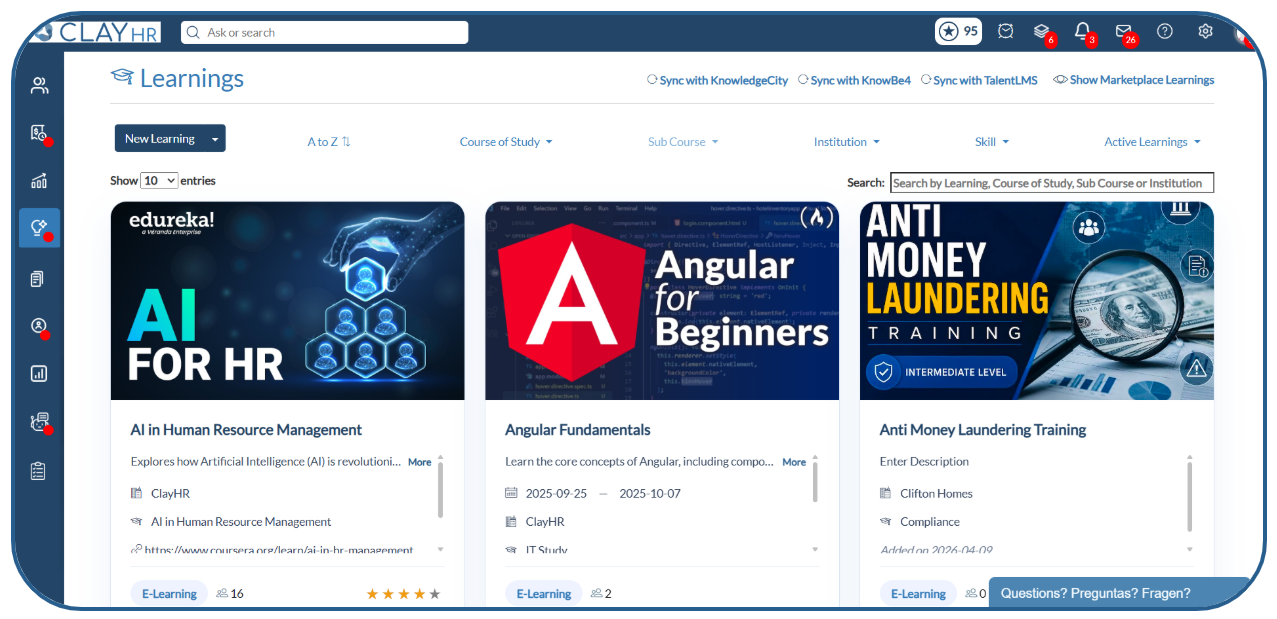
2. Open the learning for which you want to configure a certification.
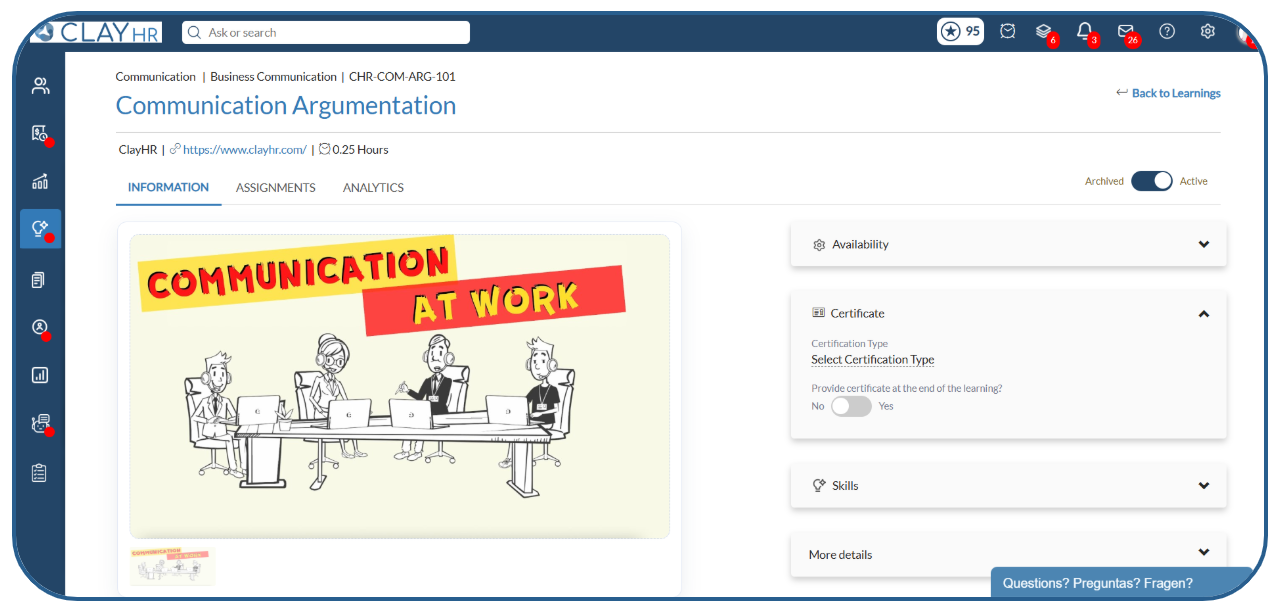
3. On the Learning View page, in the Certificate section, select a Certification Type from the available options.
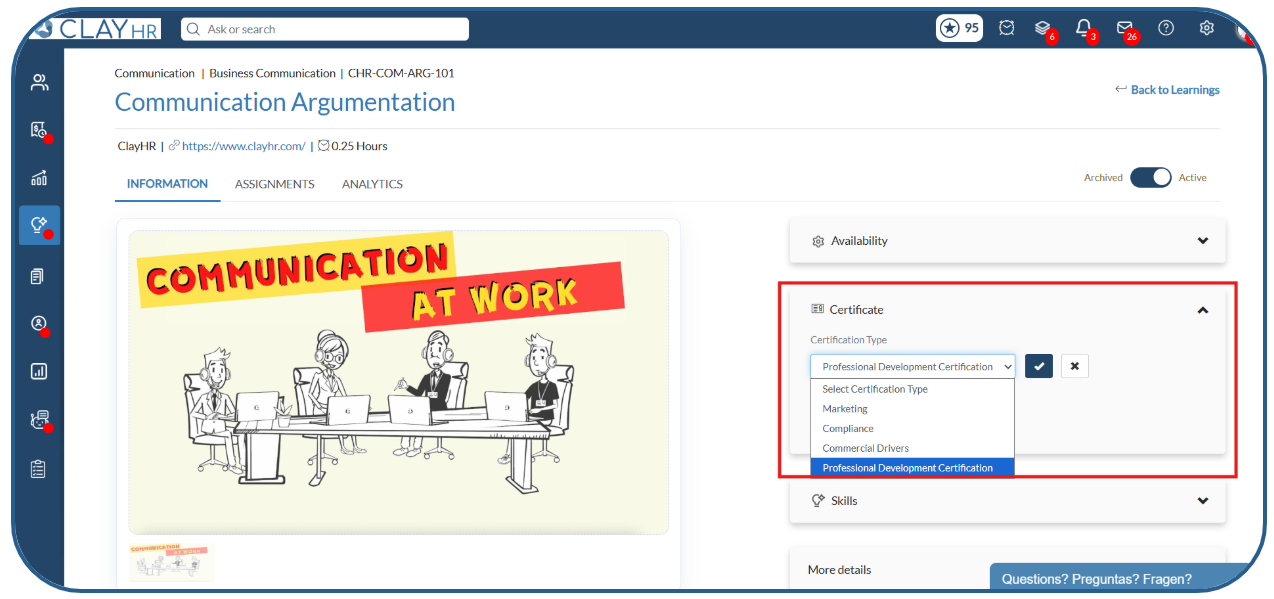
Note: Each learning can be associated with only one Certification Type. No certificate configuration is required for a certification record to be created.
Step 3: Certification Record Creation
A Certification record is automatically created when:
- A user completes the learning through the platform.
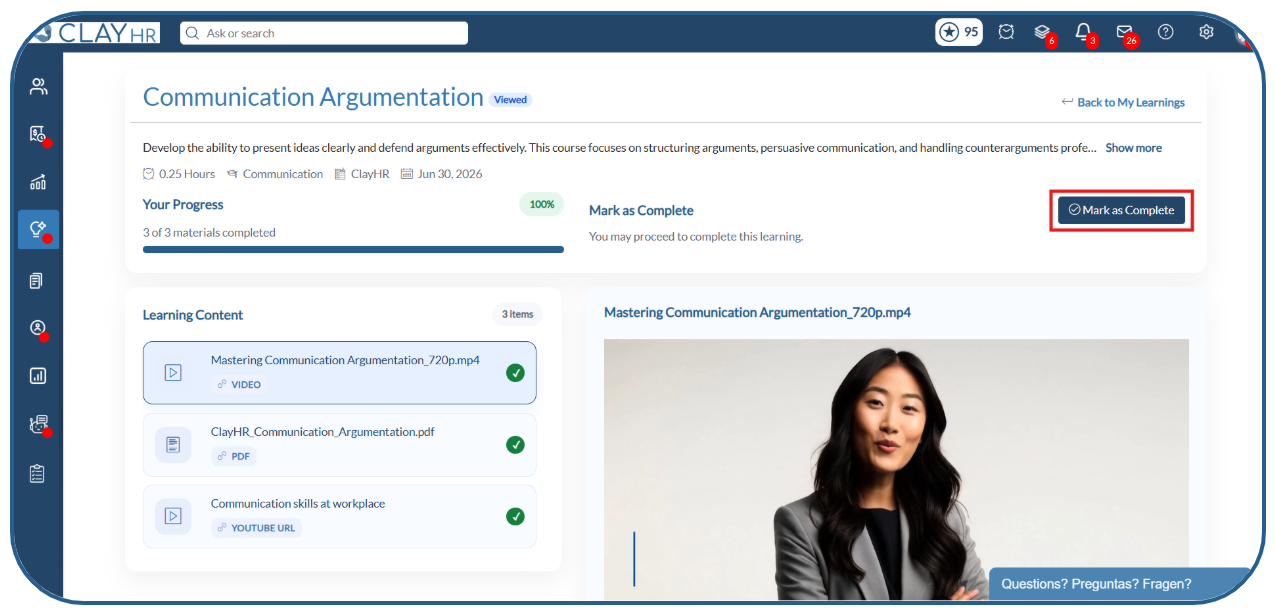
- A learning assignment is imported with the status marked as Completed.
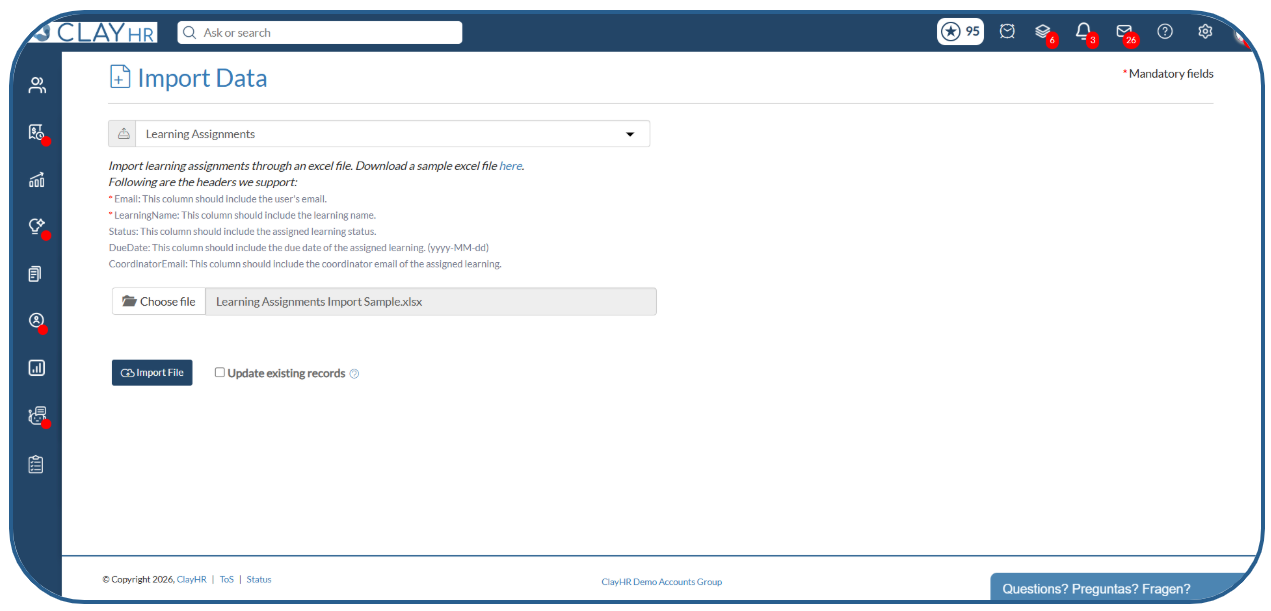
Once created, the certification record can be viewed in the user's License & Certification tab.
Step 4: Viewing the Certification Record
- Open the user's profile.
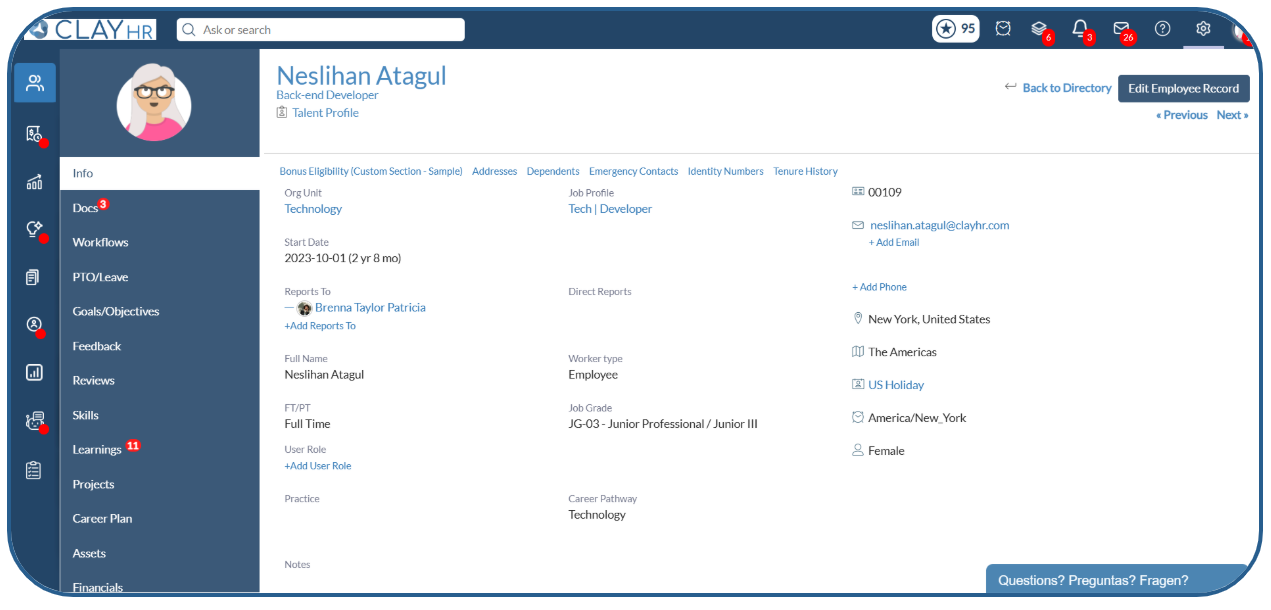
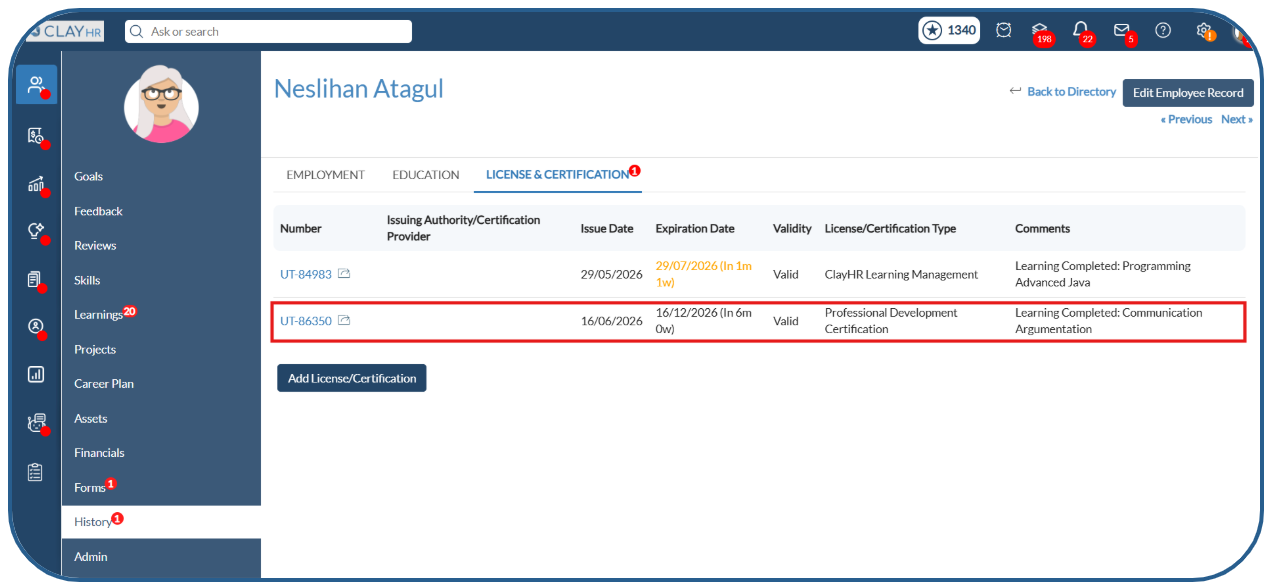
2. Navigate to the History > License & Certification tab.
3. Locate the certification record created from the
completed learning.
- The configured Certification Type is automatically assigned to the certification record.
- The Issue Date is set to the learning completion date, and the Expiration Date is calculated based on the certification validity period.
- The certification status is automatically displayed as Valid or Expired.
- The Comments field includes the learning name to indicate which learning the certification was awarded for.
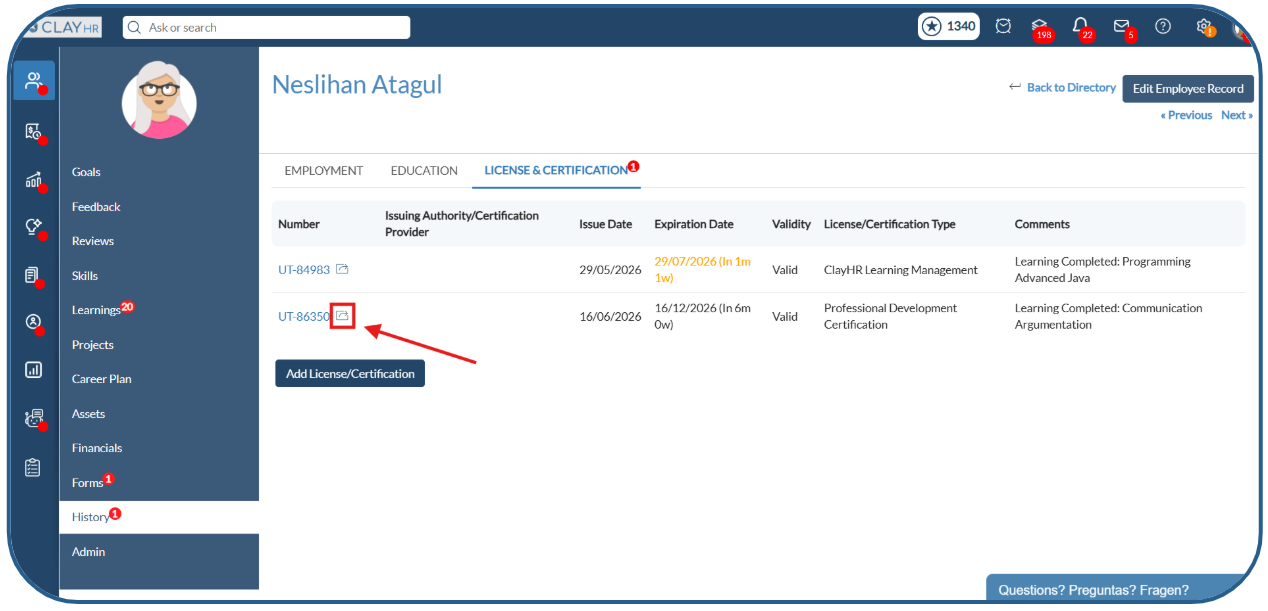
4. Click the arrow icon to open the corresponding learning details.
What is a Certificate?
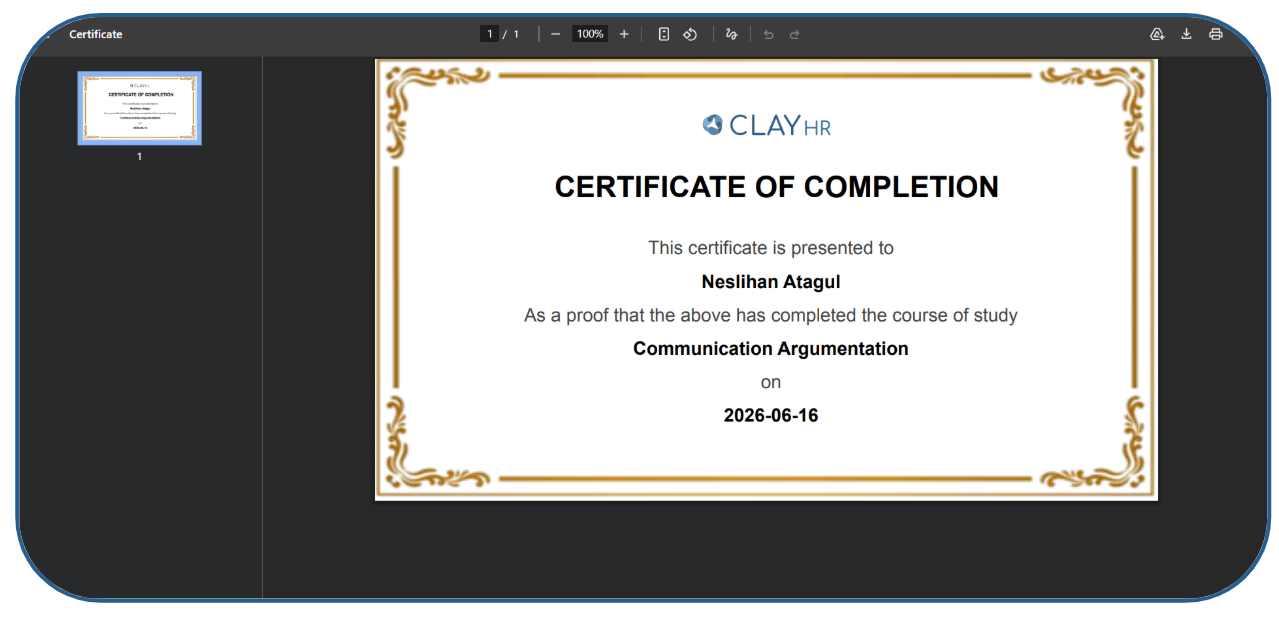
A Certificate is a downloadable PDF document awarded to users after completing a learning. Certificates are optional and must be enabled for each learning.
Step 1: How to Configure a Certificate
- Navigate to Learnings.
- Create a new learning or open an existing learning.
- In the Learning Certificate section, enable the Provide Certificate at the End of Learning toggle.
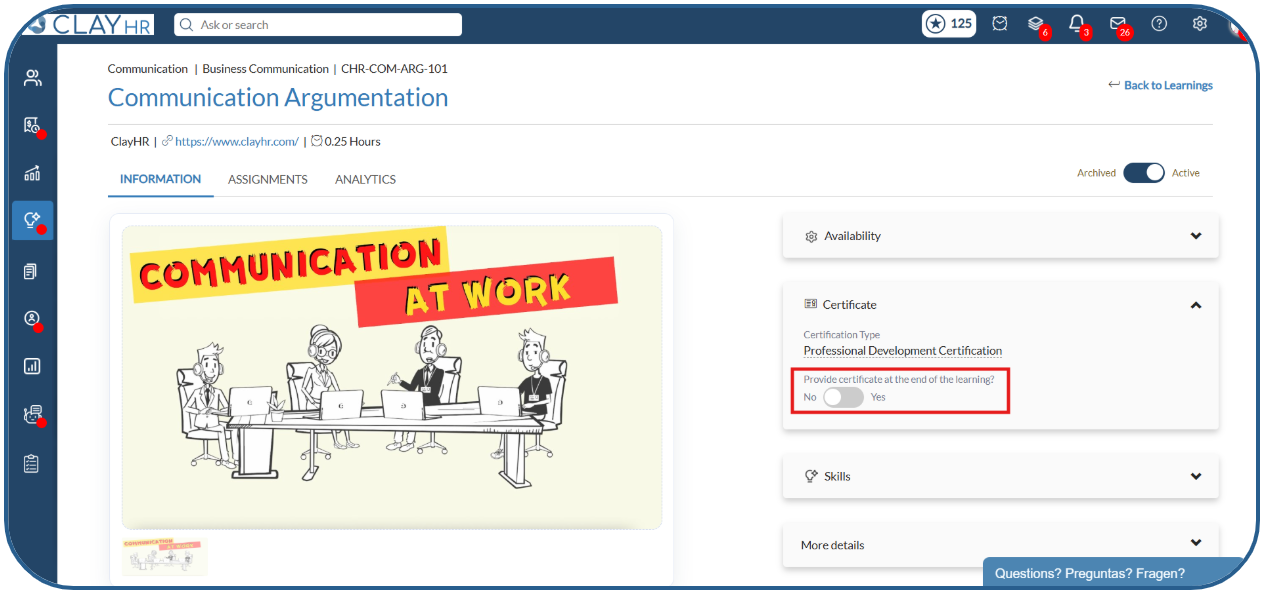
4. Once the toggle is enabled, users will be able to download a certificate after completing the learning.
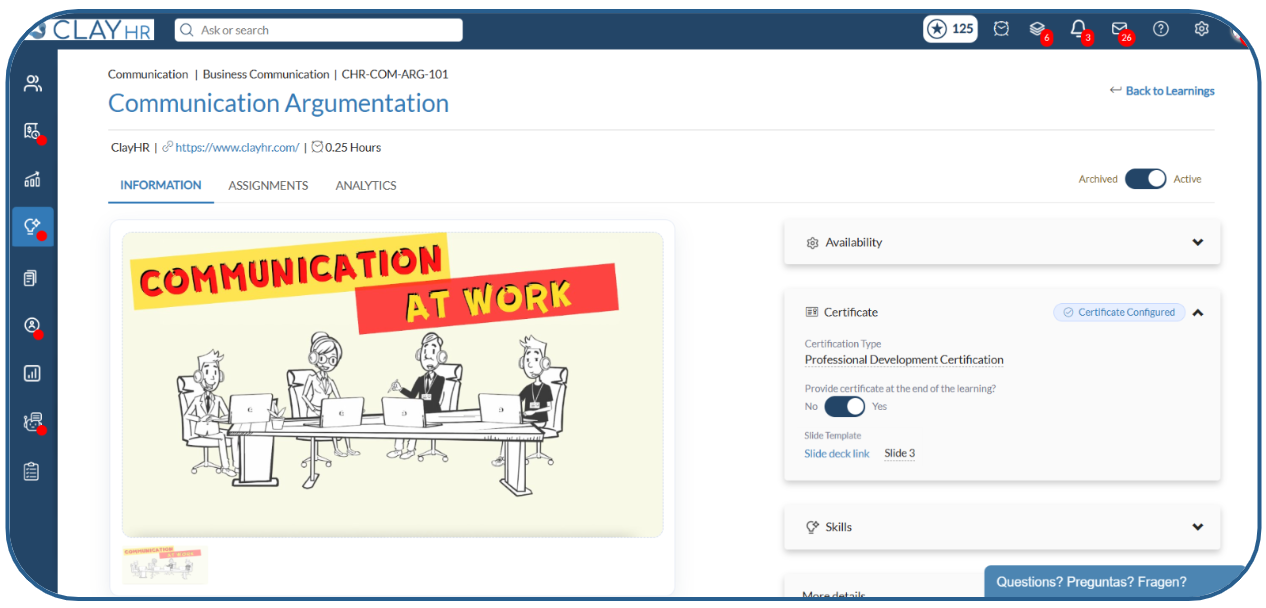
Note: For detailed instructions on certificate configuration, including certificate templates and slide settings, refer to the article: How to Create and Configure Learning Certificates
Step 2: Downloading a Certificate
After a learning is completed, either:
- Through normal learning completion, or
- Through an imported assignment marked as Completed
the Get Certificate button becomes available (provided certificate generation is enabled for the learning).
To download the certificate:
- Open the completed learning and click the Get Certificate button.
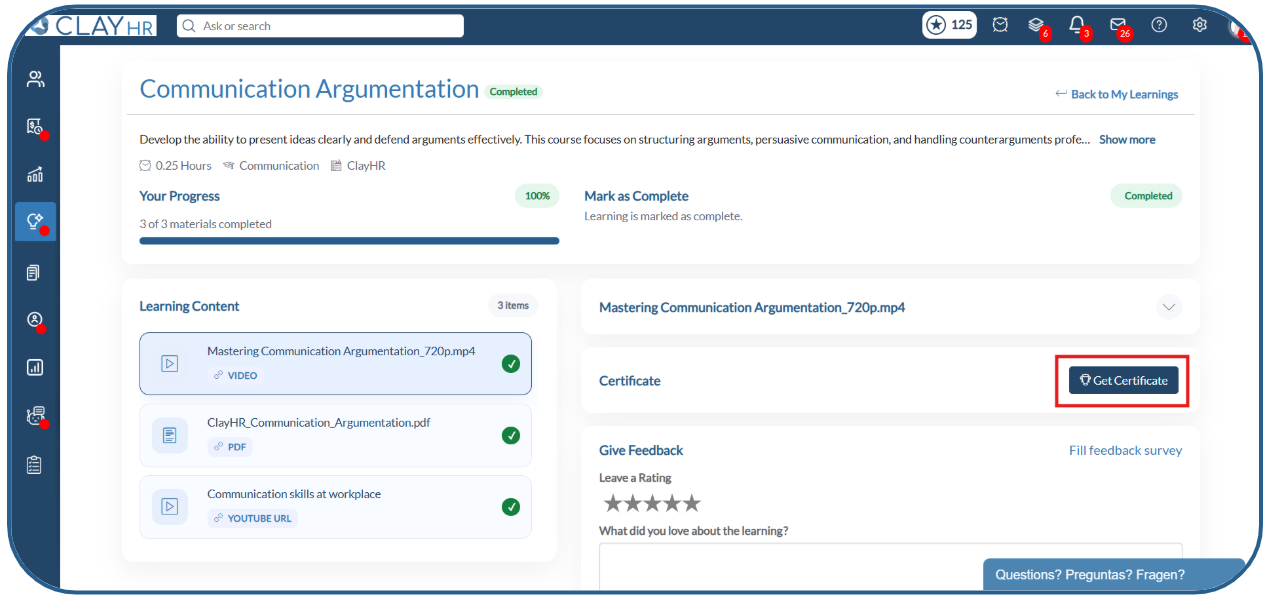
2. The certificate will be generated and downloaded as a PDF file.
Step 3: Accessing Certificates Later
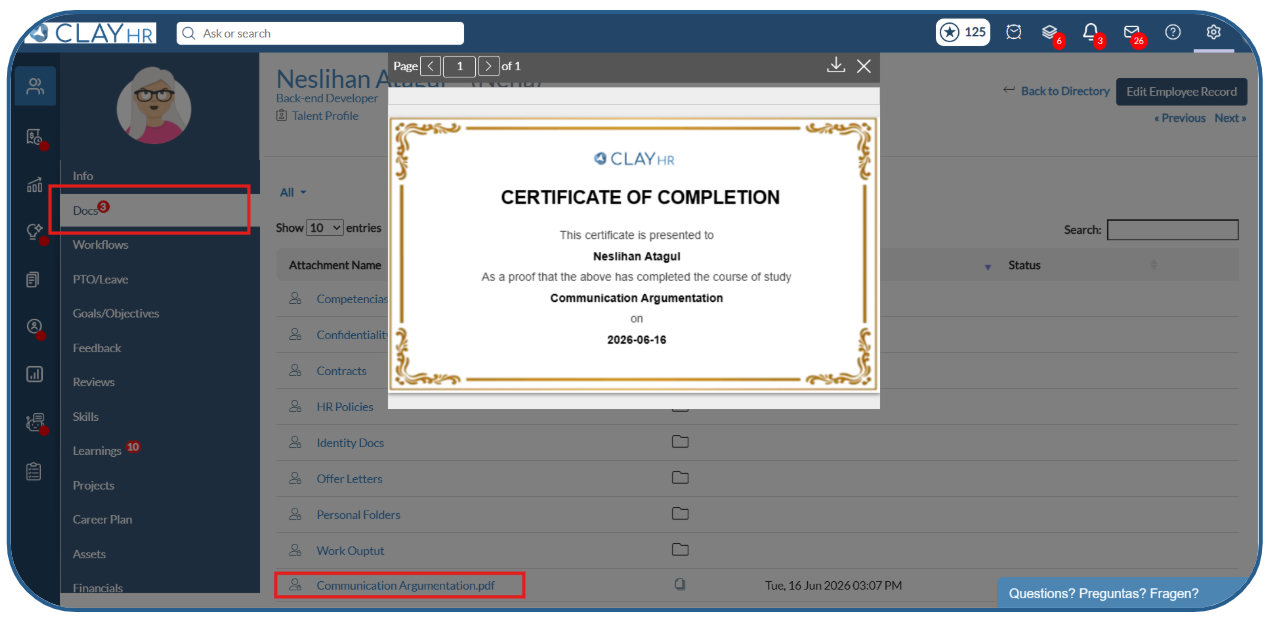
After a certificate is generated, users can access it at any time from their Docs tab.
- Open the user's profile.
- Navigate to the Docs tab.
- Users can view or download previously generated certificates whenever needed.
If you encounter any issues while configuring or managing Certificates and Certifications, please reach out to the support team or your account manager for assistance.
.webp)