How to Enable Supported Links for Deep Links in the ClayHR Android Application?
Deep links let the ClayHR app open a specific screen when you tap a URL, much like clicking a link in an email, message, or browser that takes you straight into the app instead of a website. This helps you reach the right place quickly without navigating through the app manually.
This article explains how to make sure your Android device (Android 12 and above) is set up to handle these URLs directly in the ClayHR Android app. It walks you through the steps to allow the app to open ClayHR domains (i.e. *.clayhr.com and *.bizmerlin.net) automatically, without prompting you to choose a browser or another app.
Follow these steps to enable the supported links for Deep links in ClayHR Android mobile application:
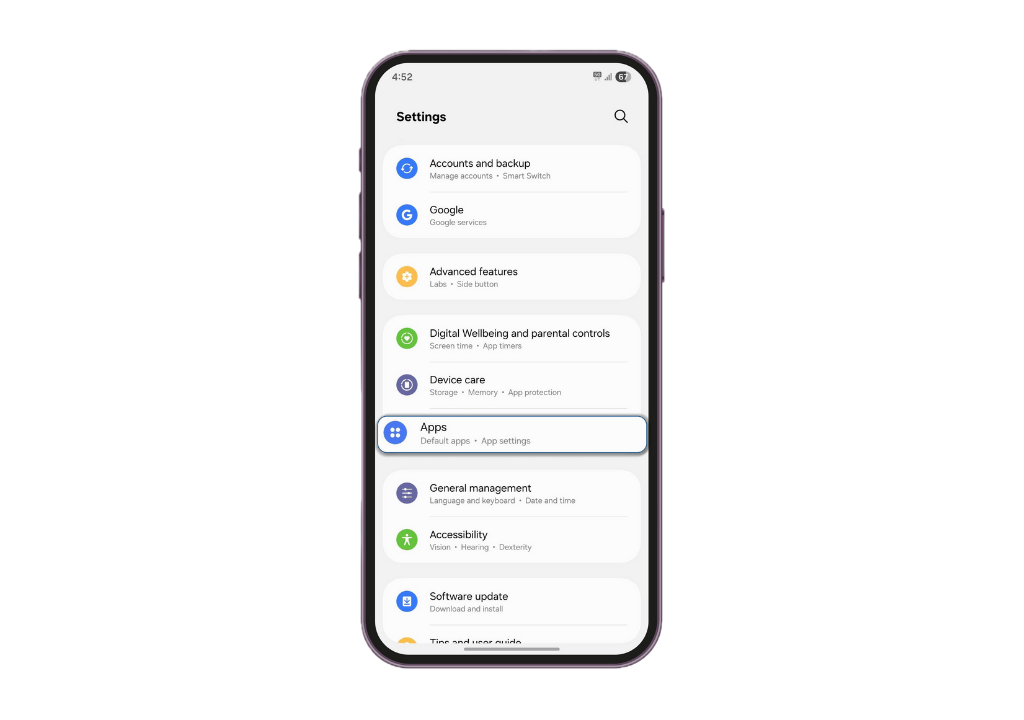
- Open the Settings app on the Android device and go to the Apps section (or Apps & notifications, depending on the device).
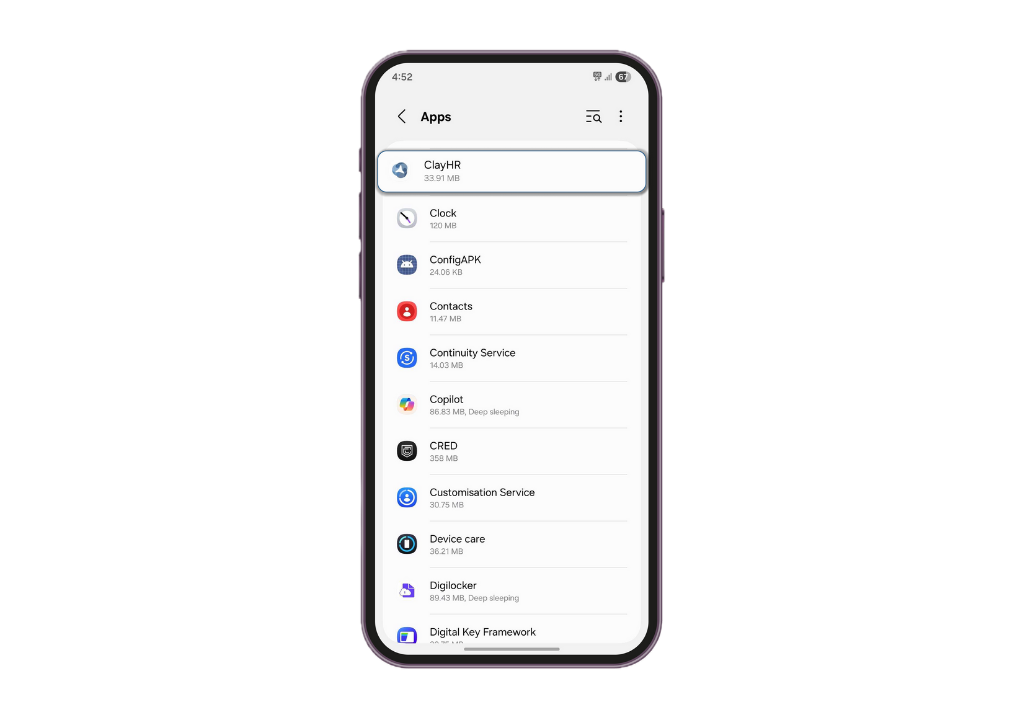
- Select the ClayHR app. The App Info screen will open.
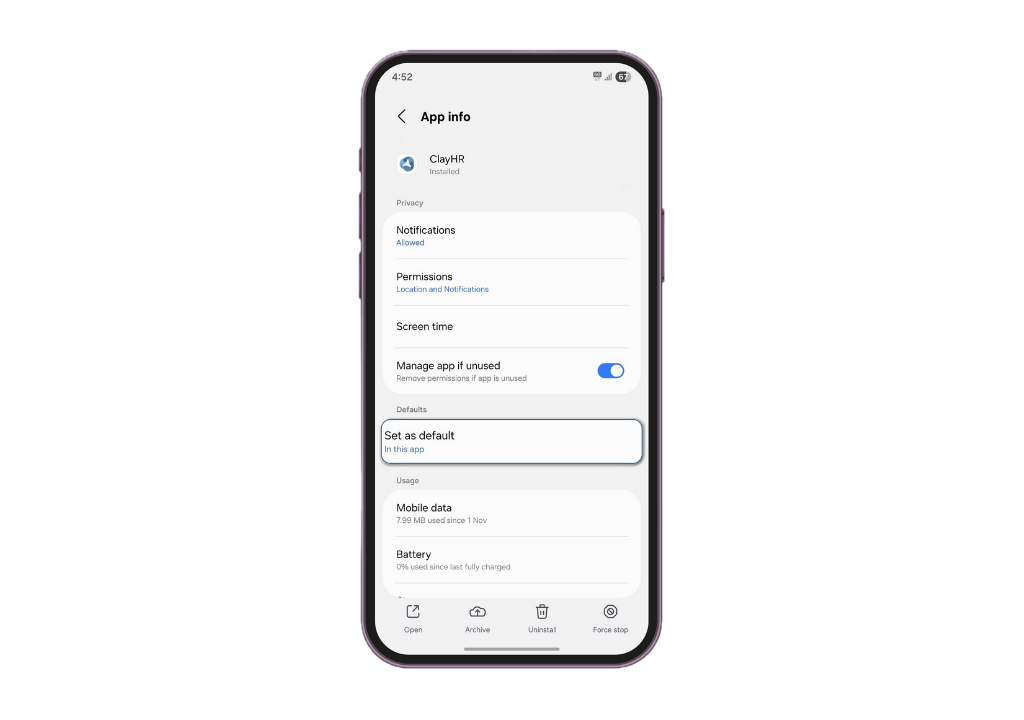
- Tap Set as default under the Defaults section.
- Ensure that “Open supported links” is turned ON.
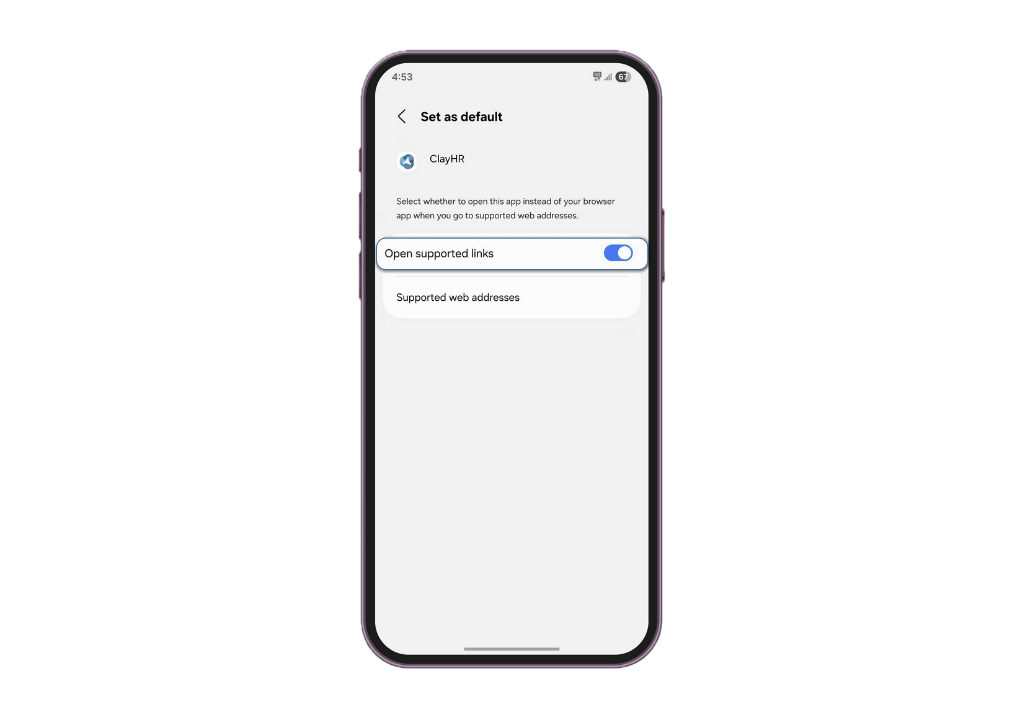
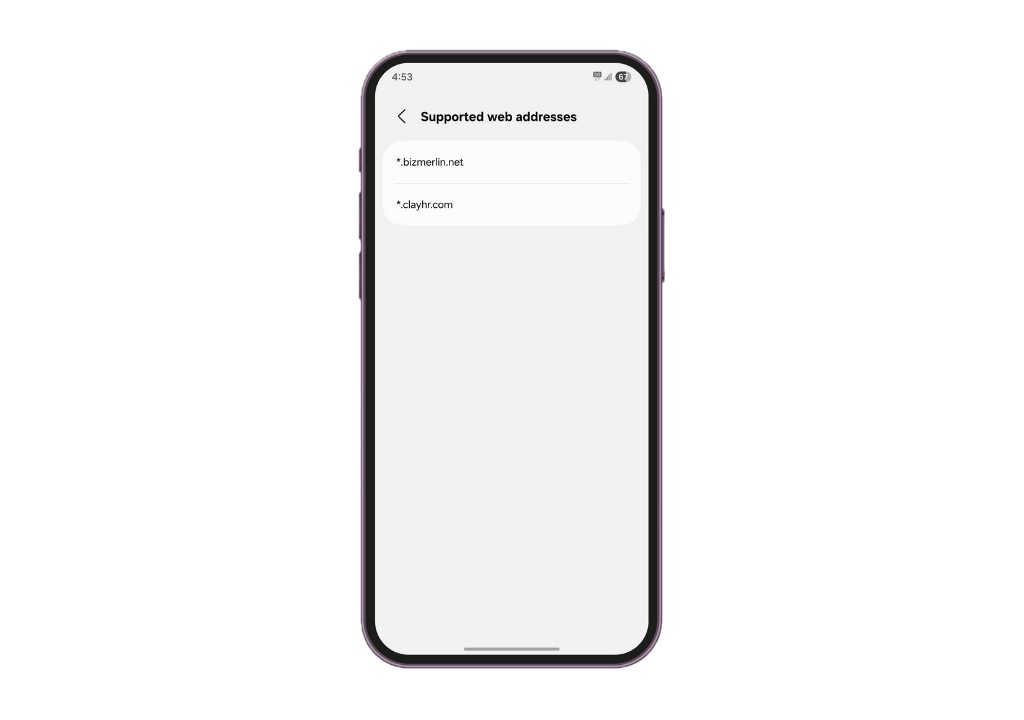
- For some Android version, depending on the Operating System, you may need to tap Supported web addresses and confirm that both: "*.clayhr.com" and "*.bizmerlin.net" are allowed.
Alternate way to enable supported links:
1. Long-press the ClayHR app icon on your home screen or app drawer until a menu appears.
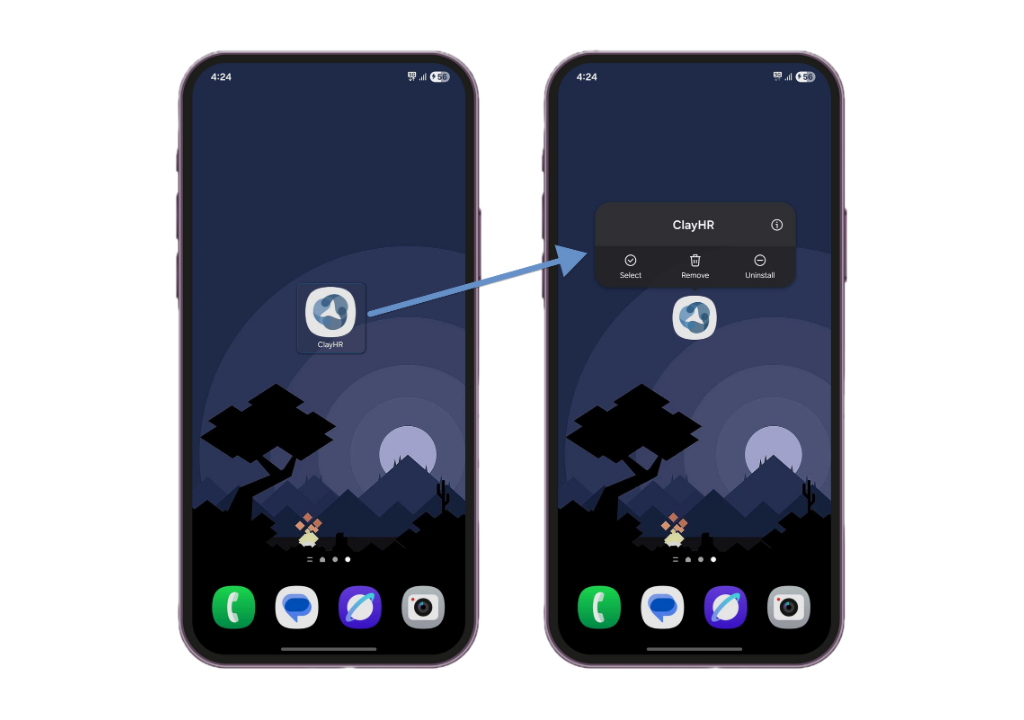
- Tap the “ⓘ” (App Info) icon to open the App Info screen.
- Tap Set as default under the Defaults section.
- Ensure that “Open supported links” is turned ON.
- For some Android version, depending on the Operating System, you may need to tap Supported web addresses and confirm that both: "*.clayhr.com" and "*.bizmerlin.net" are allowed.
.webp)