

View and Update Sent Offer Letters in ClayHR
ClayHR allows users to send offer letters to candidates once it is approved by all approvers. After the offer letter is sent, users can view offer details and track candidate responses directly within the system.
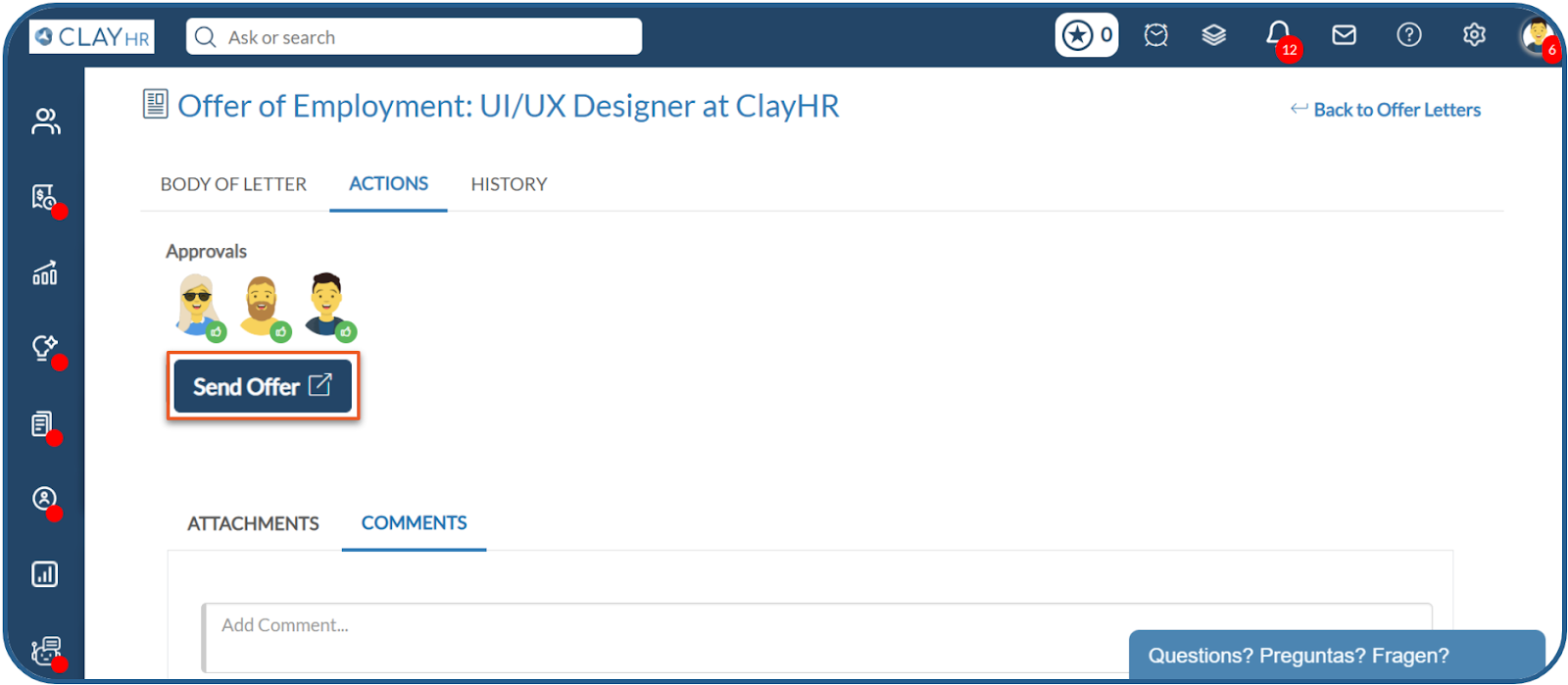
Access Sent Offer Letters
Steps to view sent offer letters:
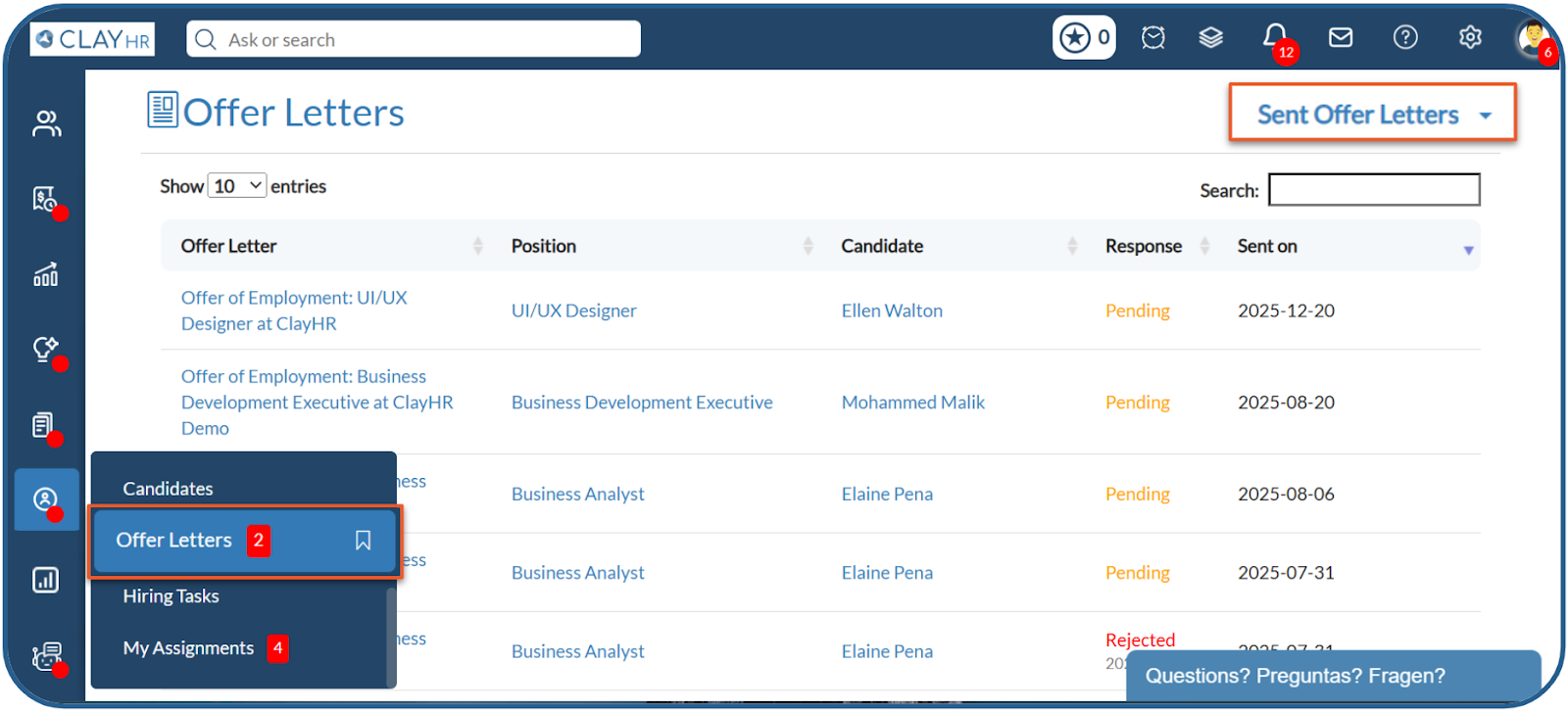
- Go to Hiring > Offer Letters.
- Click on the Sent Offer Letters filter available on the top-right corner.
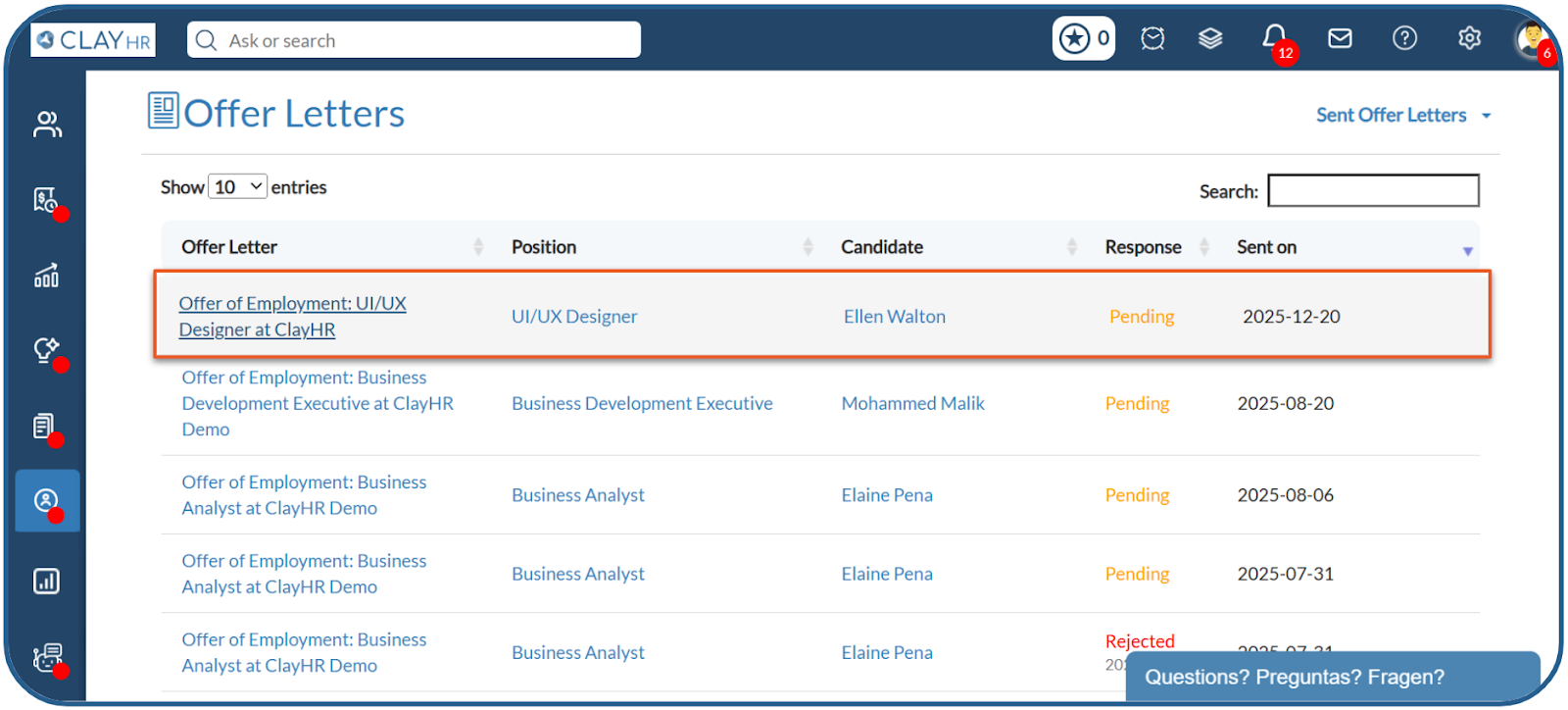
- Select the offer letter you want to view.
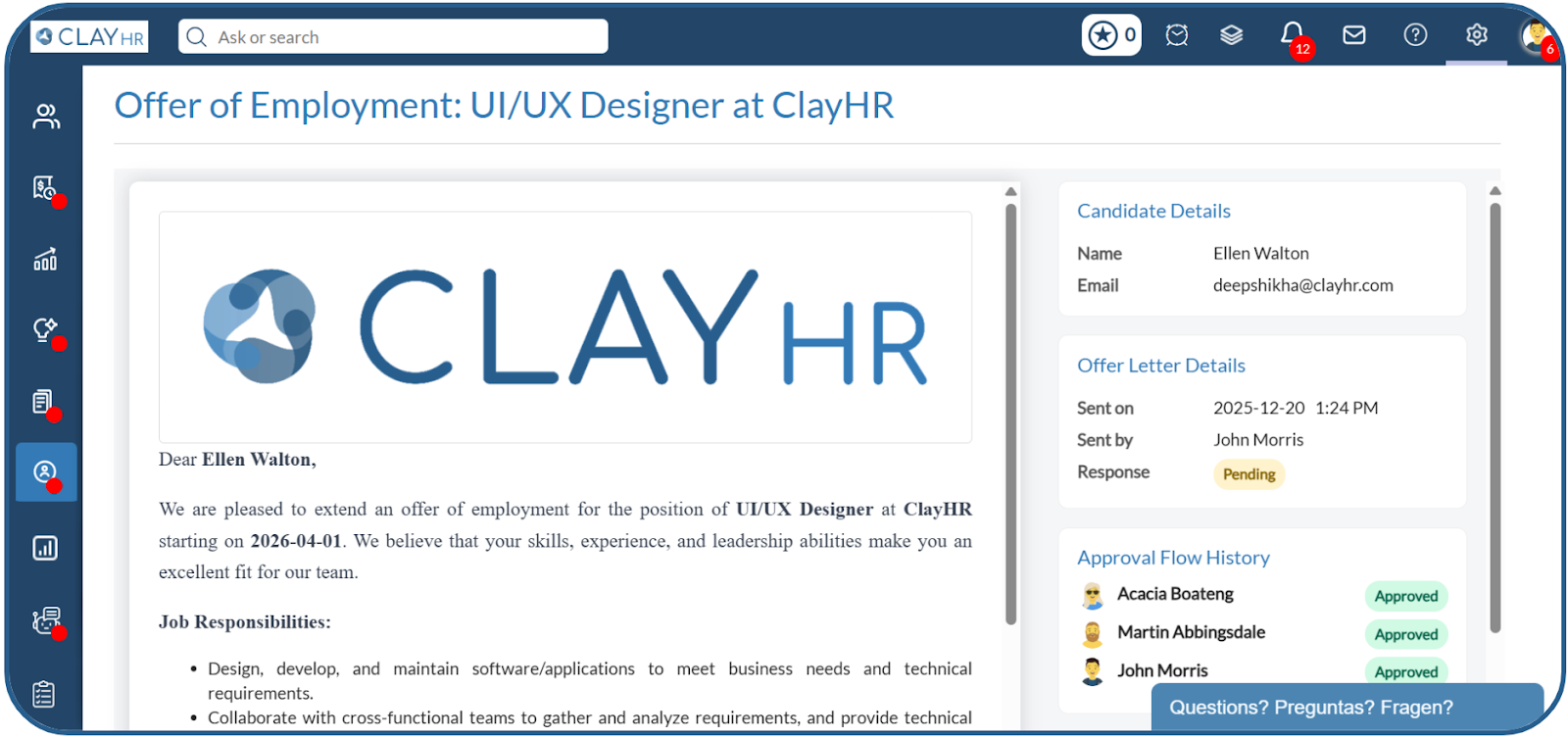
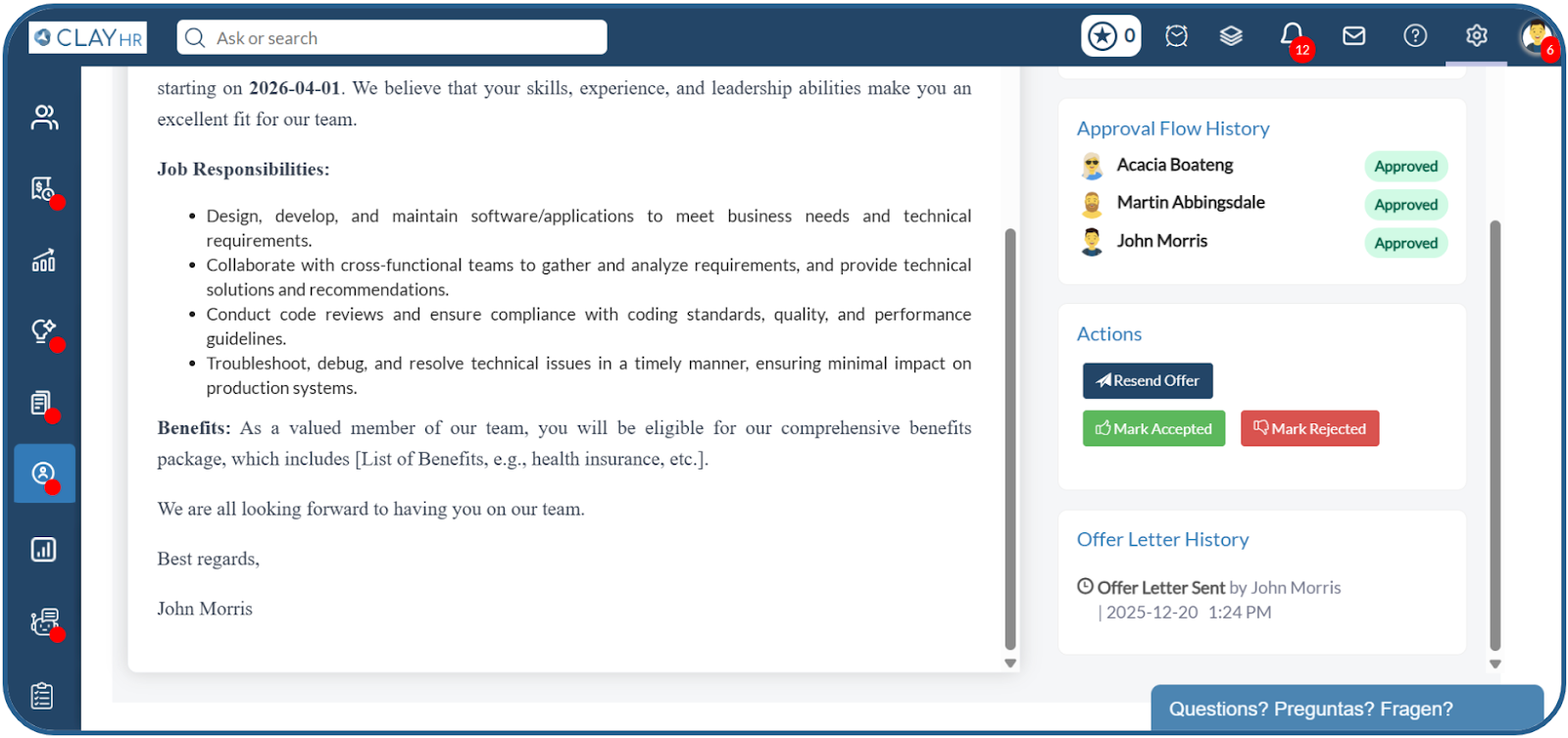
- On the offer letter view page, users can view the following offer letter details:
- View the offer letter body.
- View candidate details and offer-related information.
- Review the offer letter approval flow.
- View the complete offer letter history after the offer letter is sent.
- Perform actions like: Resend Offer, Mark Accepted, or Mark Rejected.
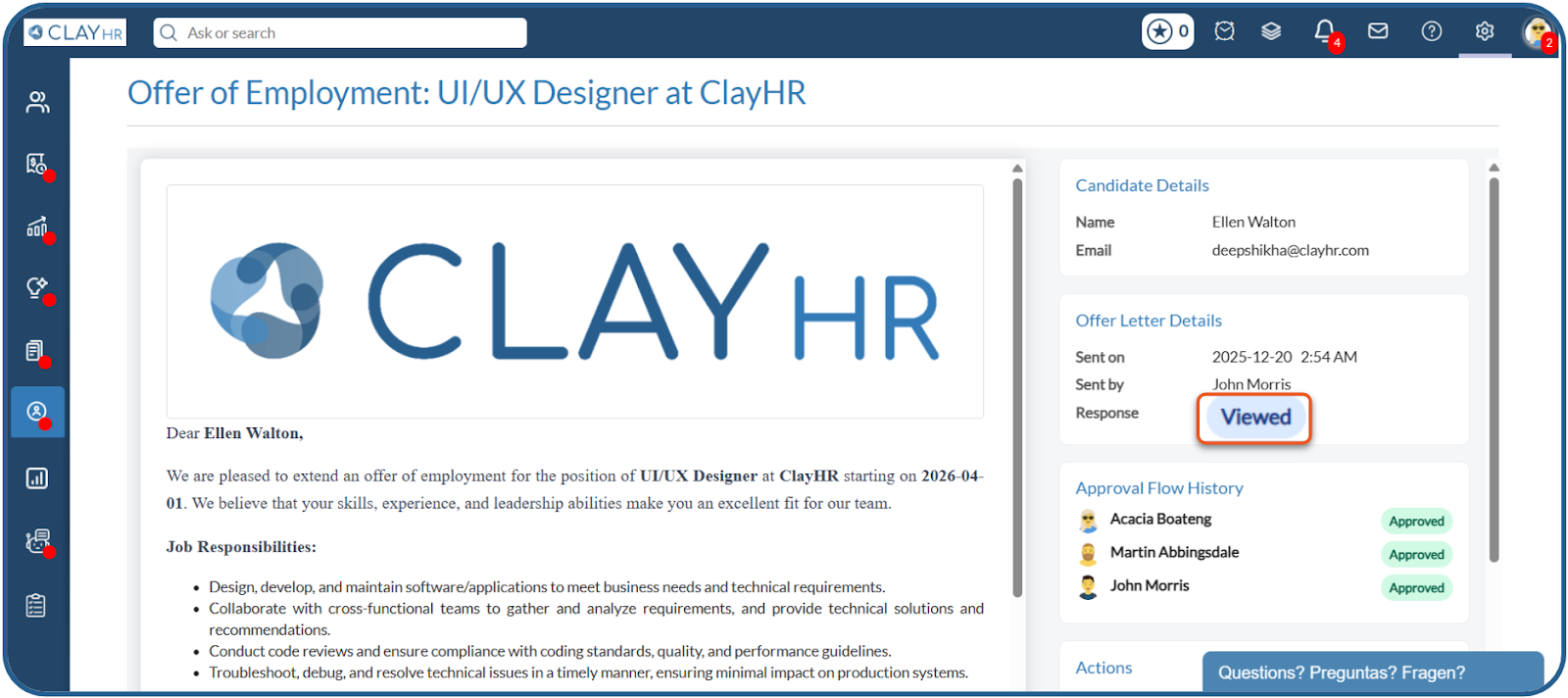
The candidate can respond to the sent offer letter through the Candidate Portal. The candidate can either Accept or Reject the offer or respond, “I need time to think.” Additionally, once the candidate views the offer letter, the offer letter status gets updated to Viewed and can be seen on the offer letter view page.
User Actions
User can perform the following actions on the offer letter:
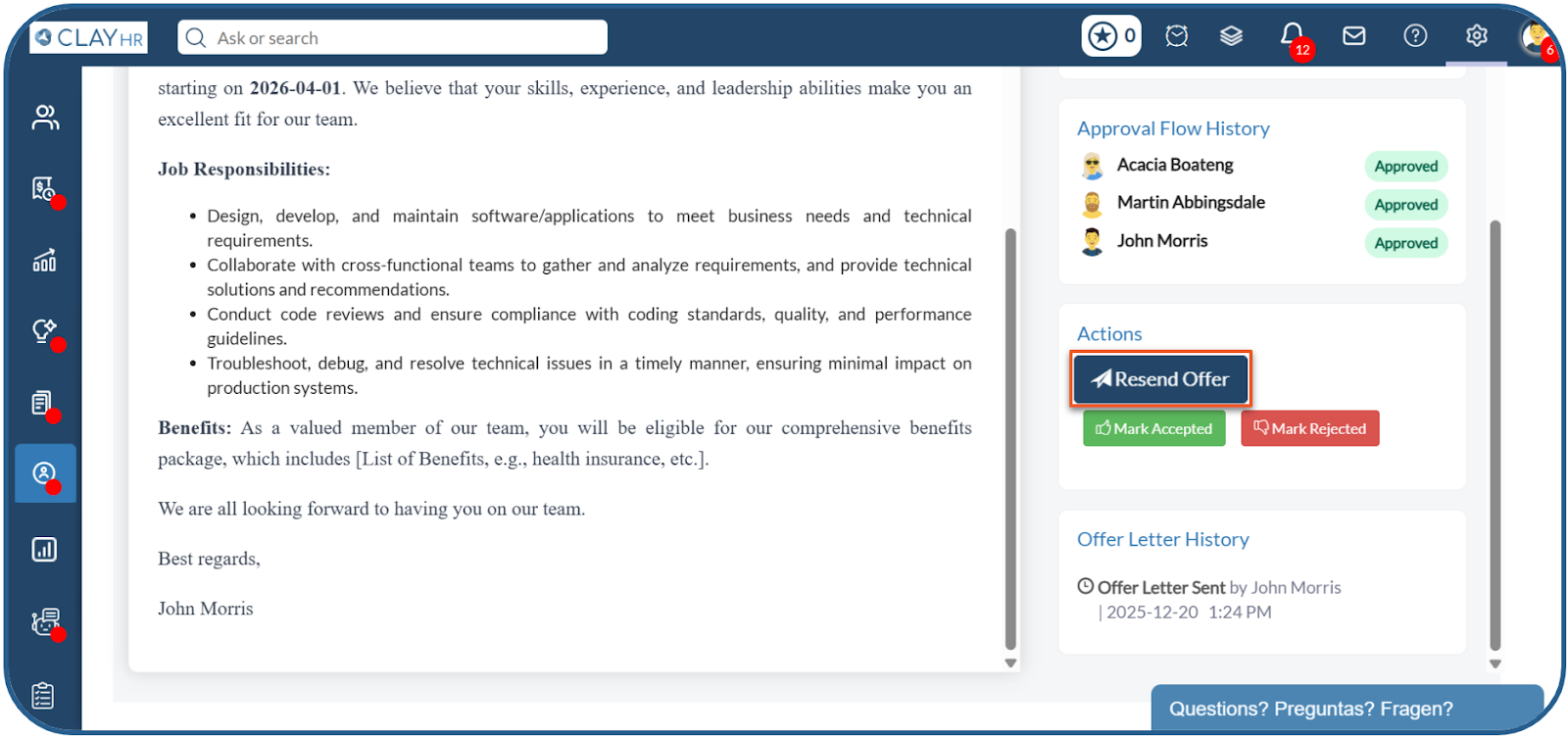
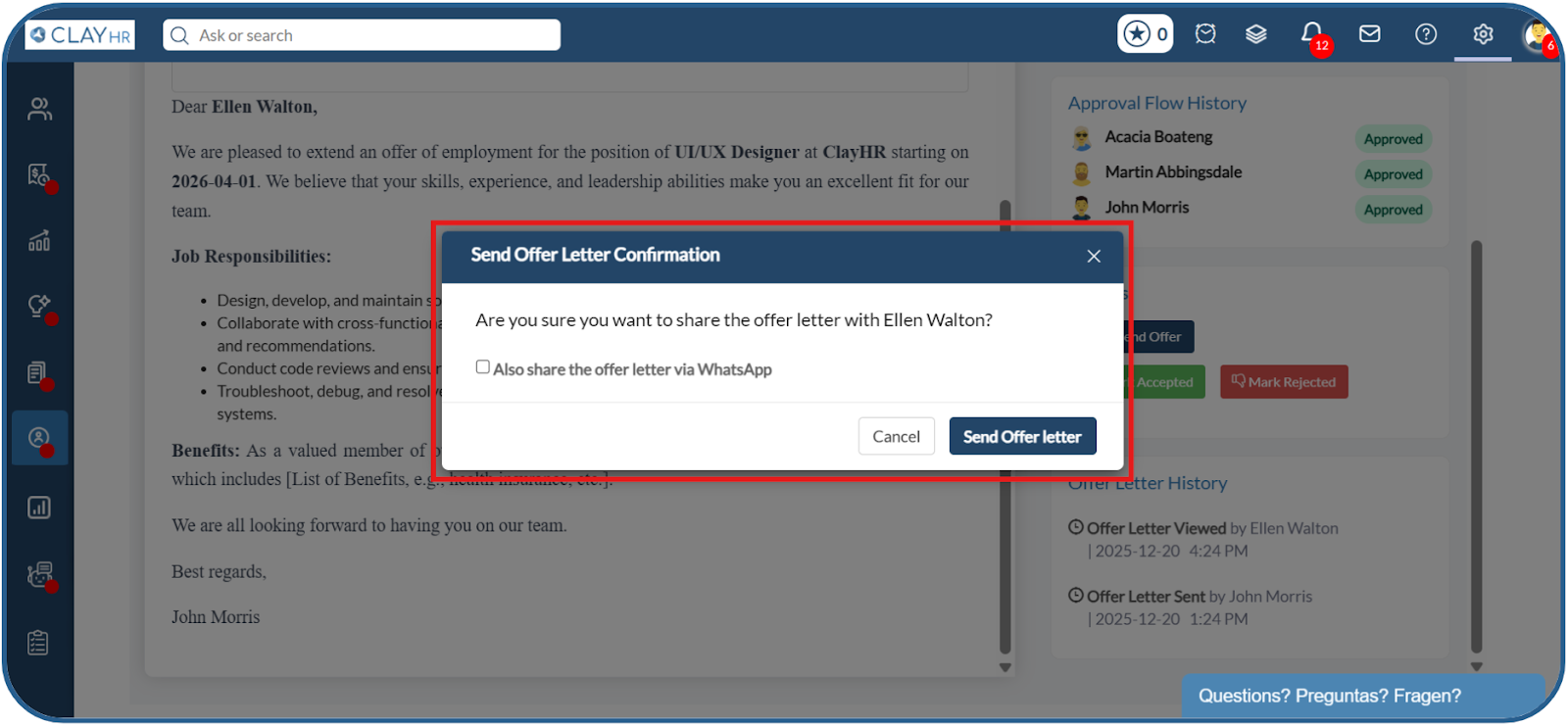
- Resend Offer Letter: Users can resend the offer letter to the candidate by clicking on the Resend Offer button.
- Accept/Reject the offer letter: If a candidate shares their decision outside the Candidate Portal, such as through a call or email, ClayHR allows authorized users to update the offer letter on behalf of the candidate.
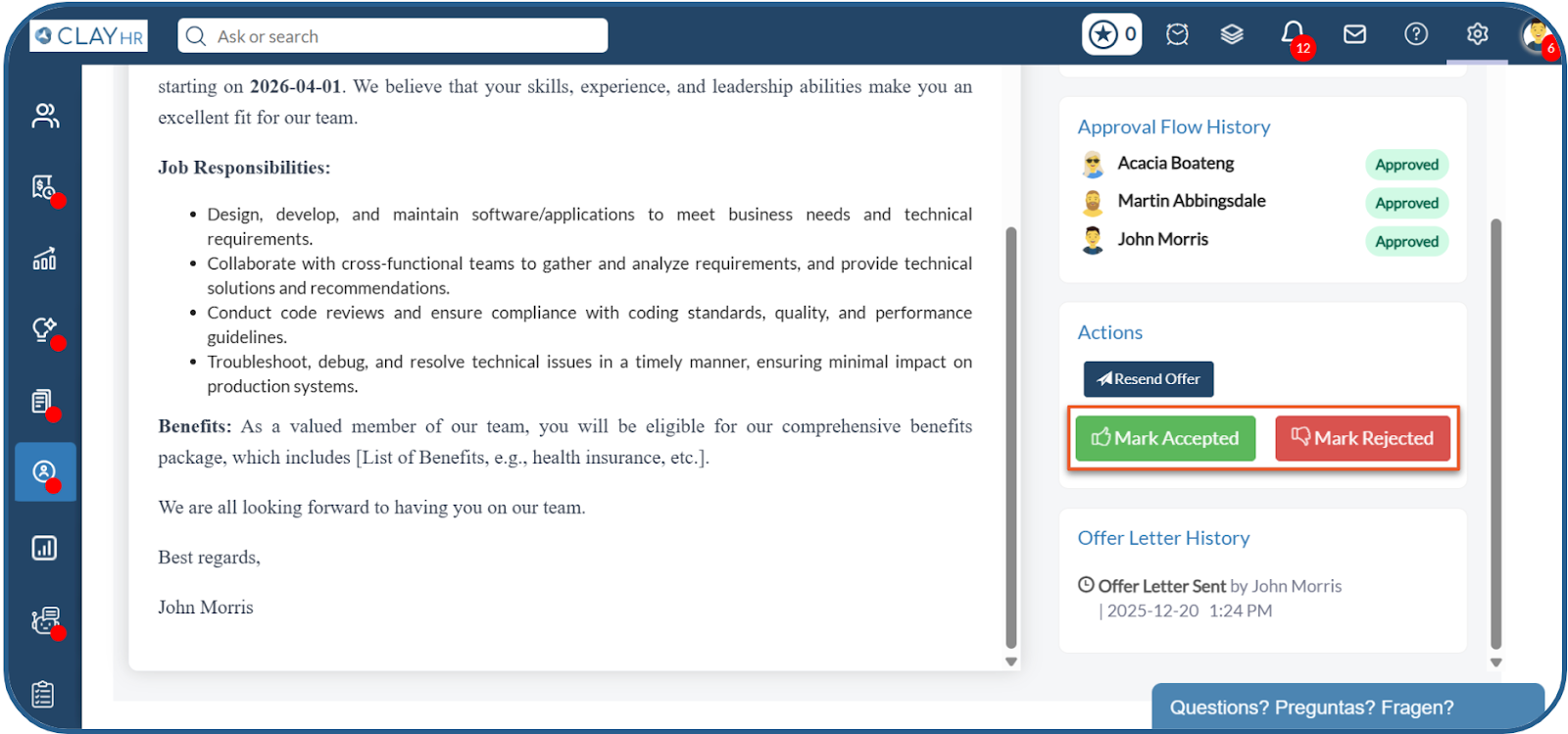
Offer Letter Acceptance
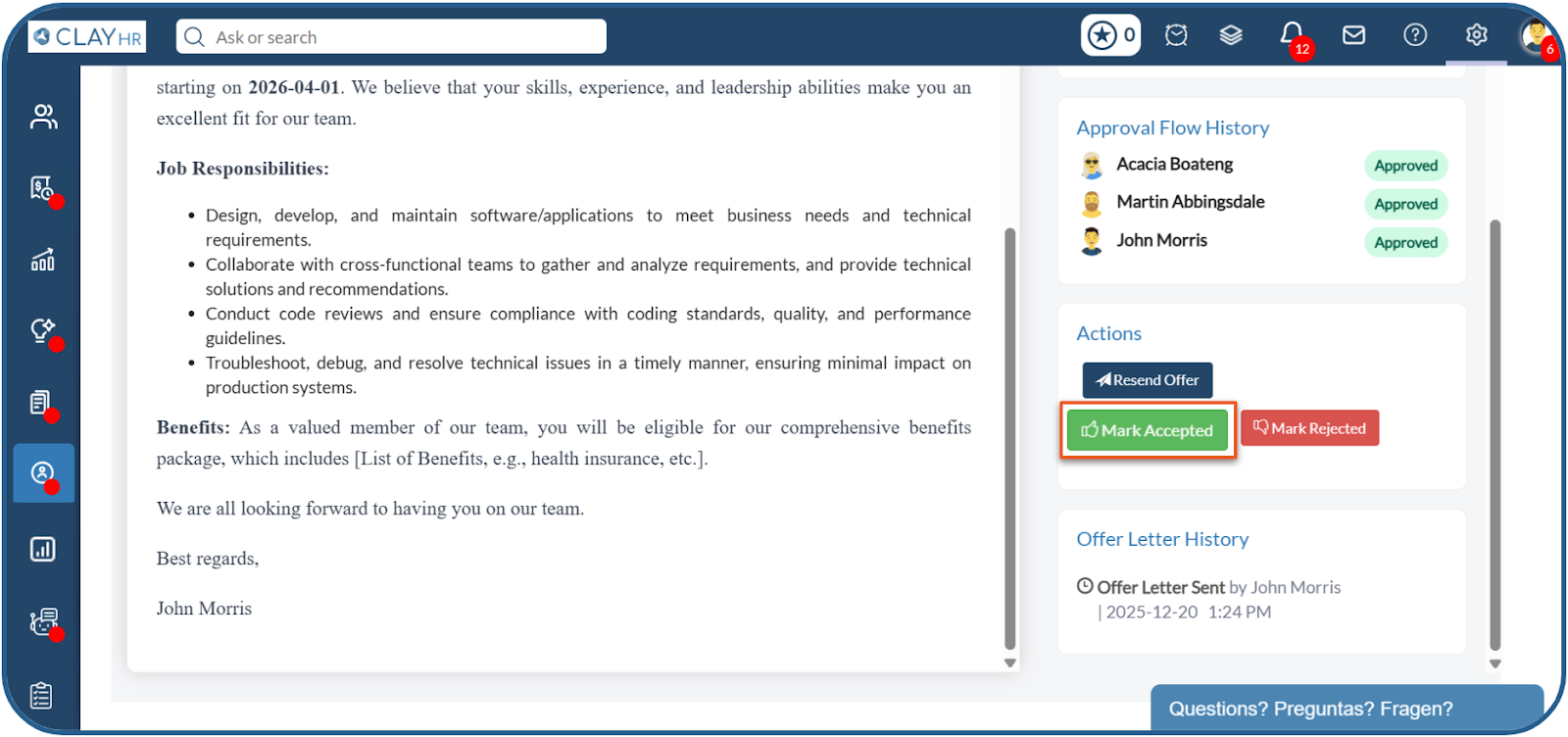
i) Users can accept the offer letter by clicking on the Mark Accepted button.
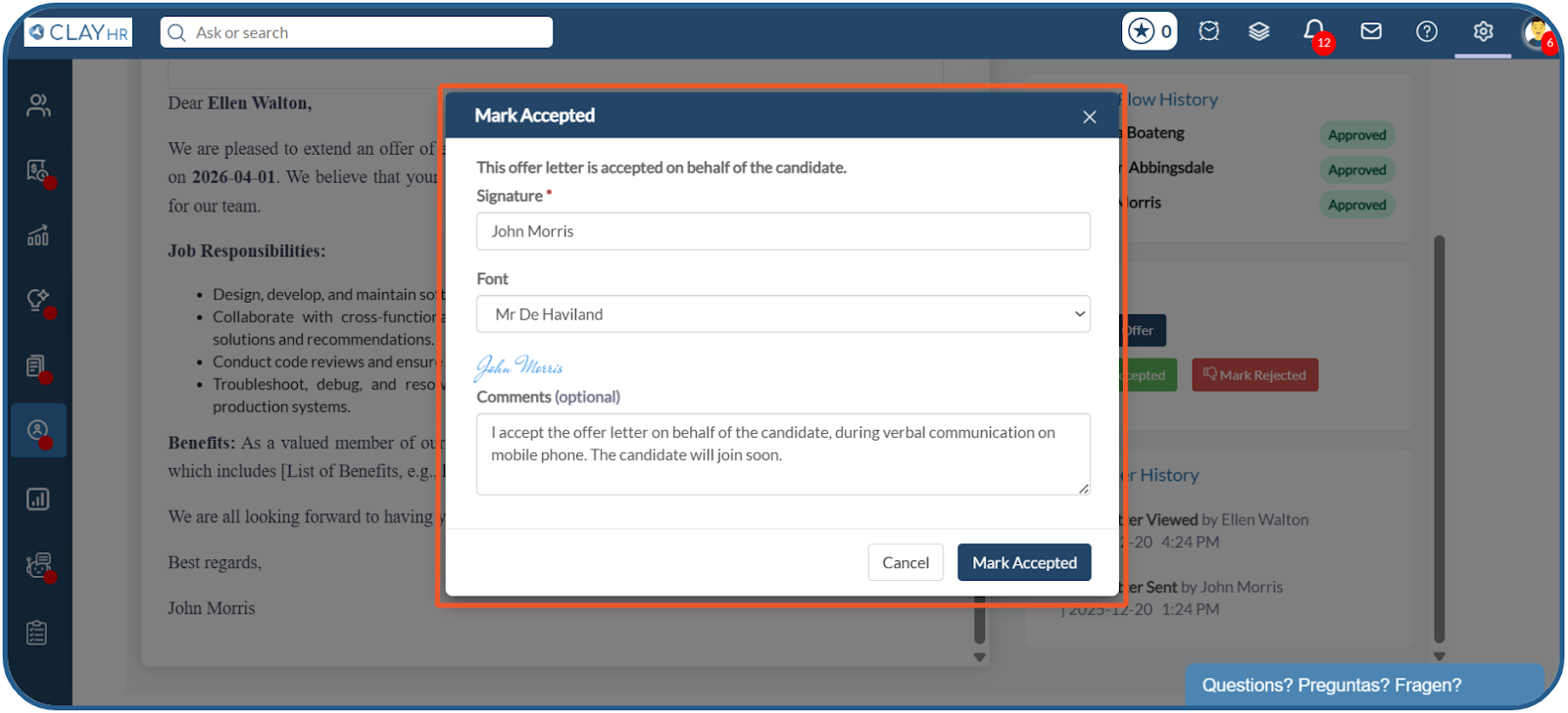
ii) The user submits the response by adding a signature and a reason for acceptance.
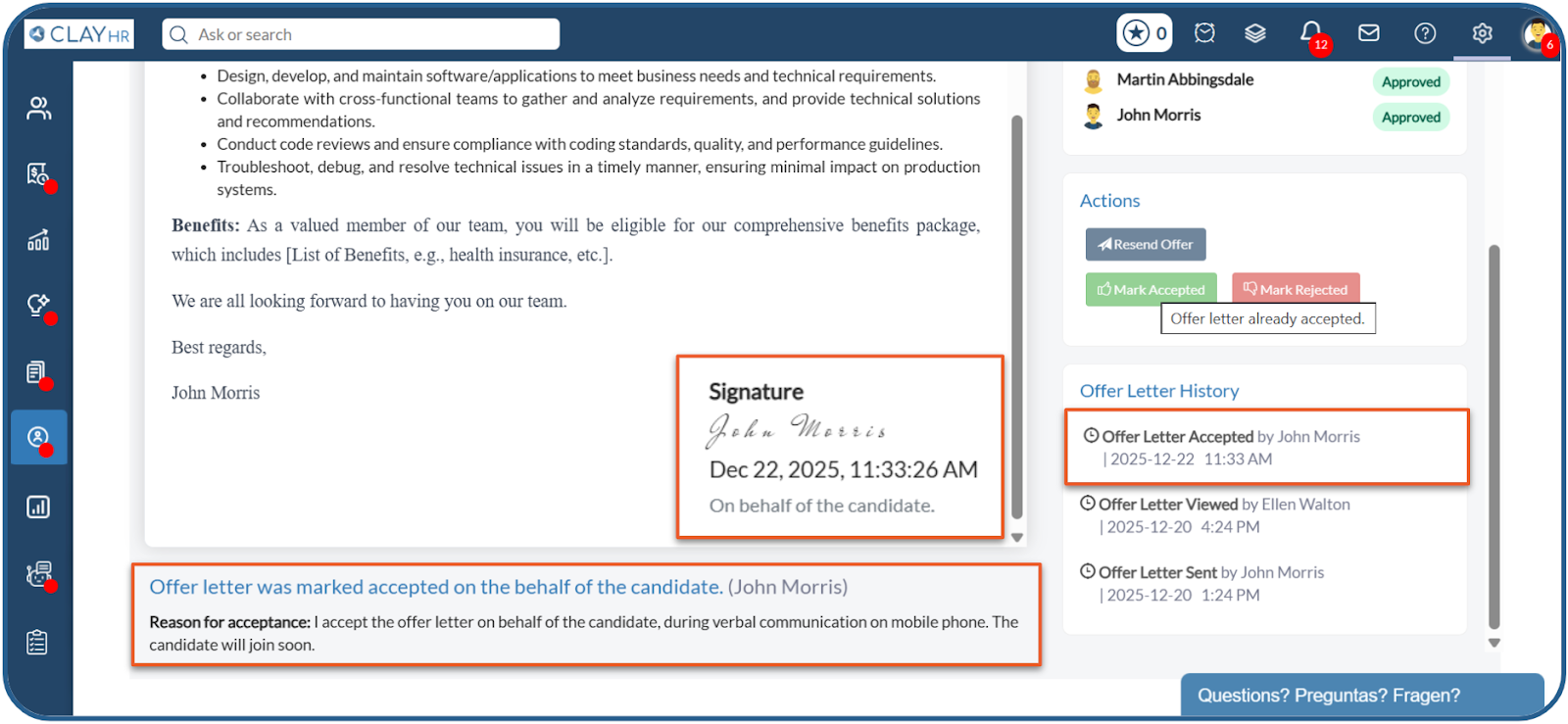
iii) After the offer letter is signed, it can be viewed on the offer letter view page.
Offer Letter Rejection
i) Users can reject the offer letter by clicking on the Mark Rejected button.
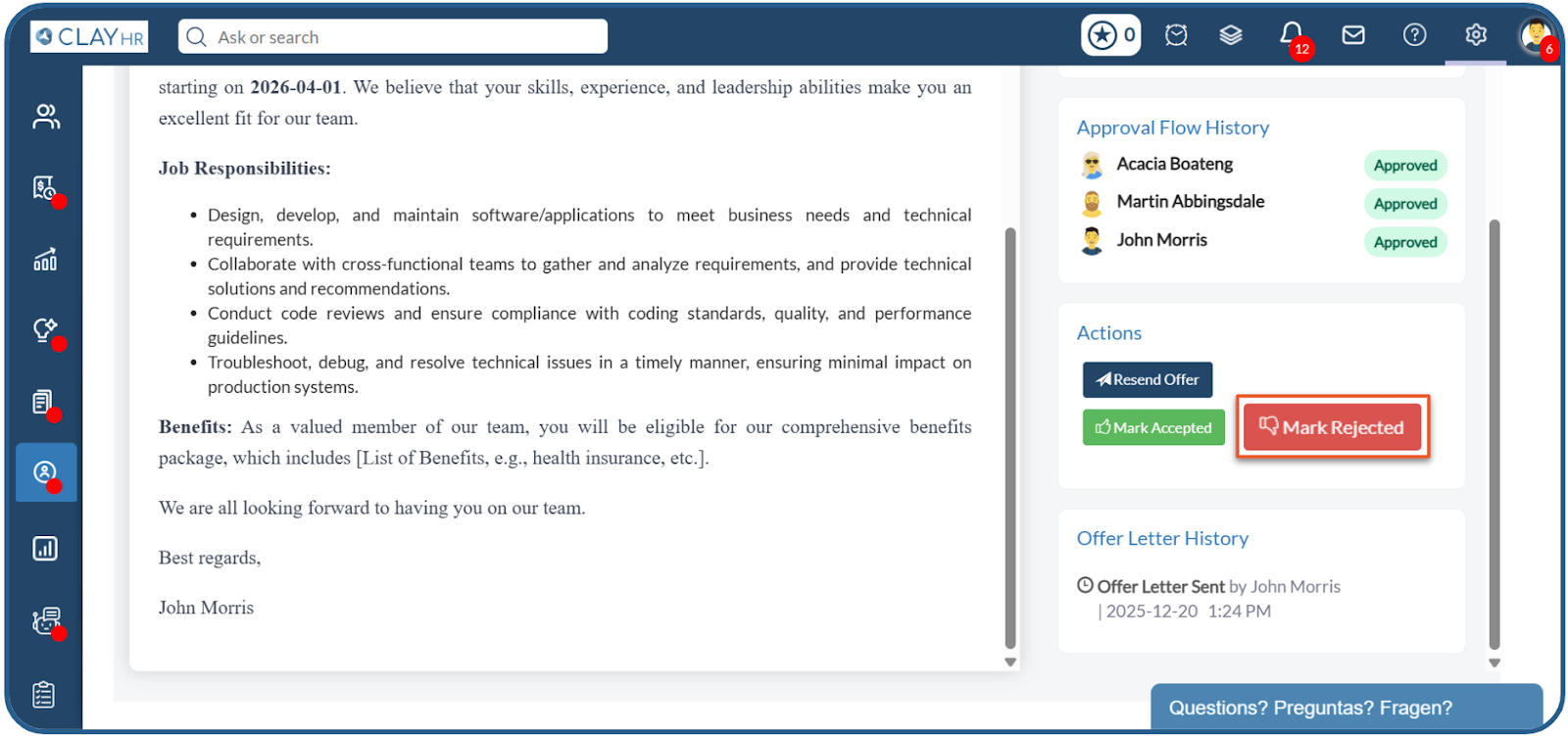
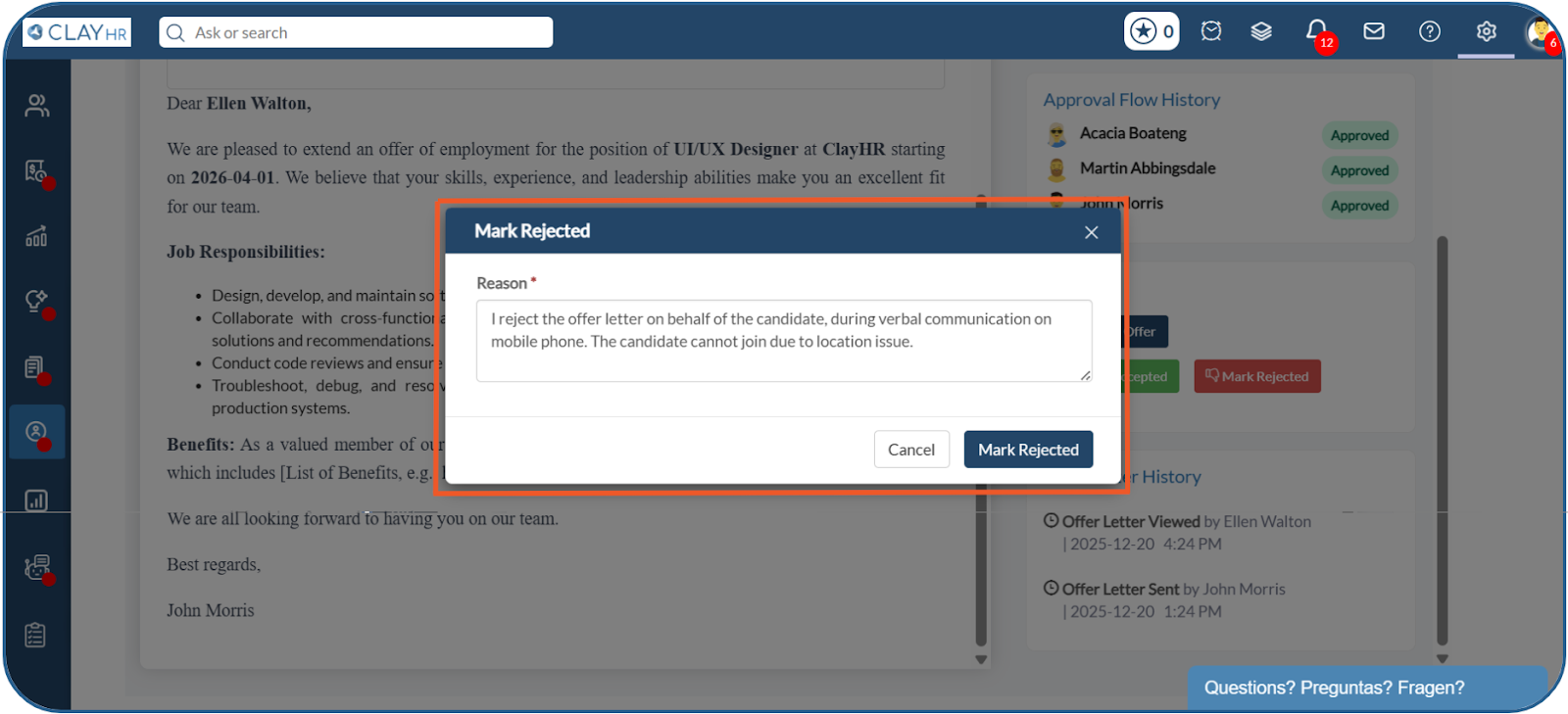
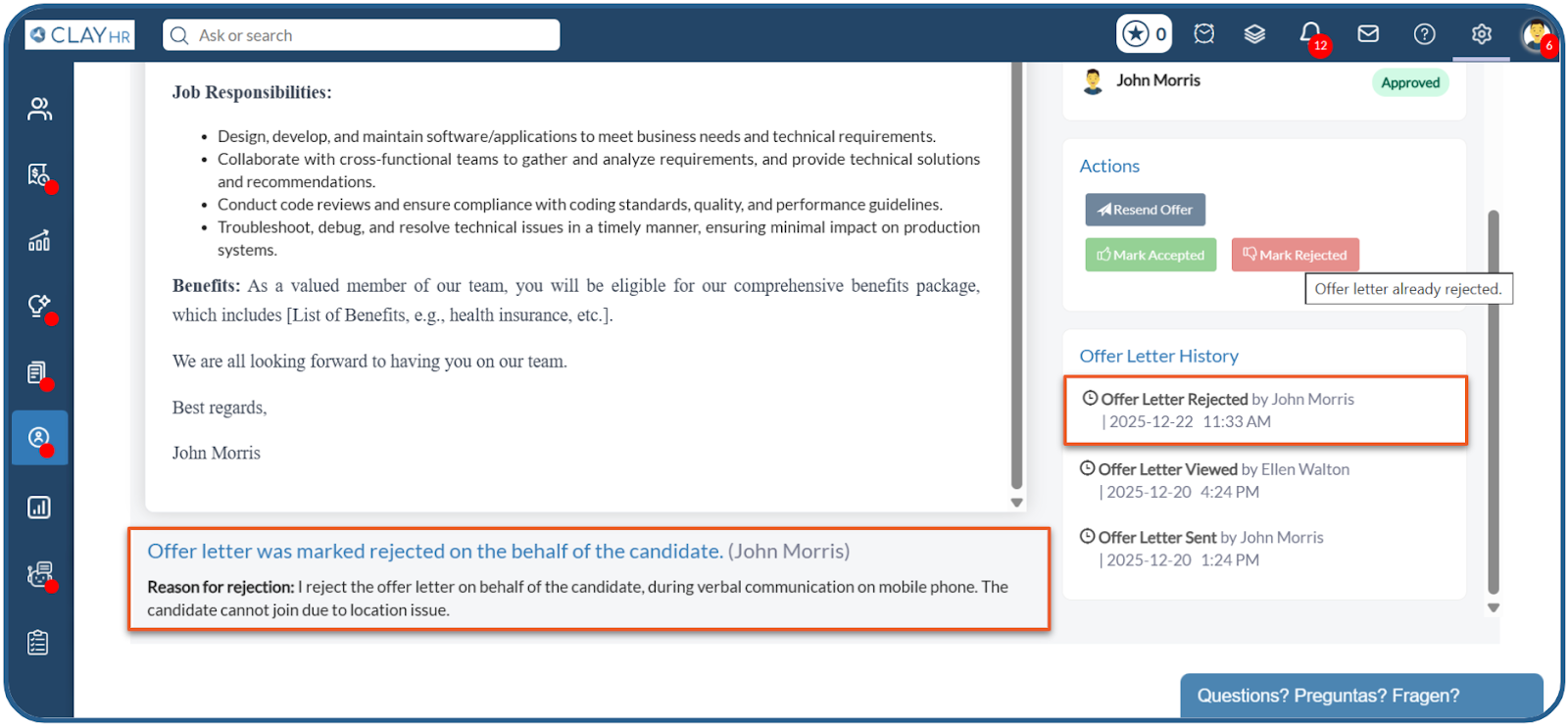
ii) The user submits the response by providing a rejection reason.






.webp)
