

How Feedback Updates Skill Levels (Linear vs. BMP)
ClayHR allows you to automatically update an employee's skill level based on the feedback they receive. You can choose between two methods: Linear and BMP.
Linear uses a fixed formula to update skill levels, while BMP considers the skill level of the person giving the feedback. This article explains how both methods work and how to configure them.
Before You Start
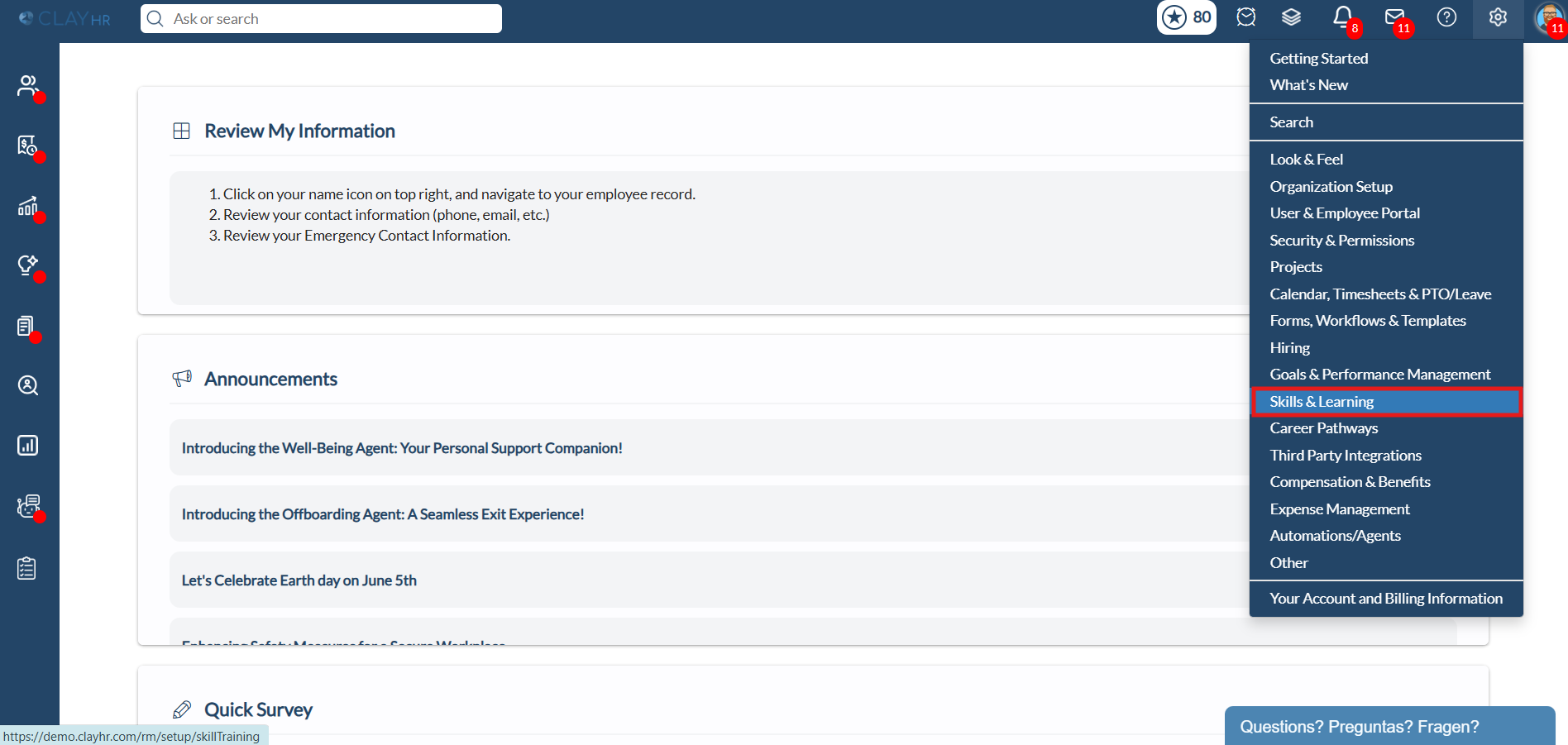
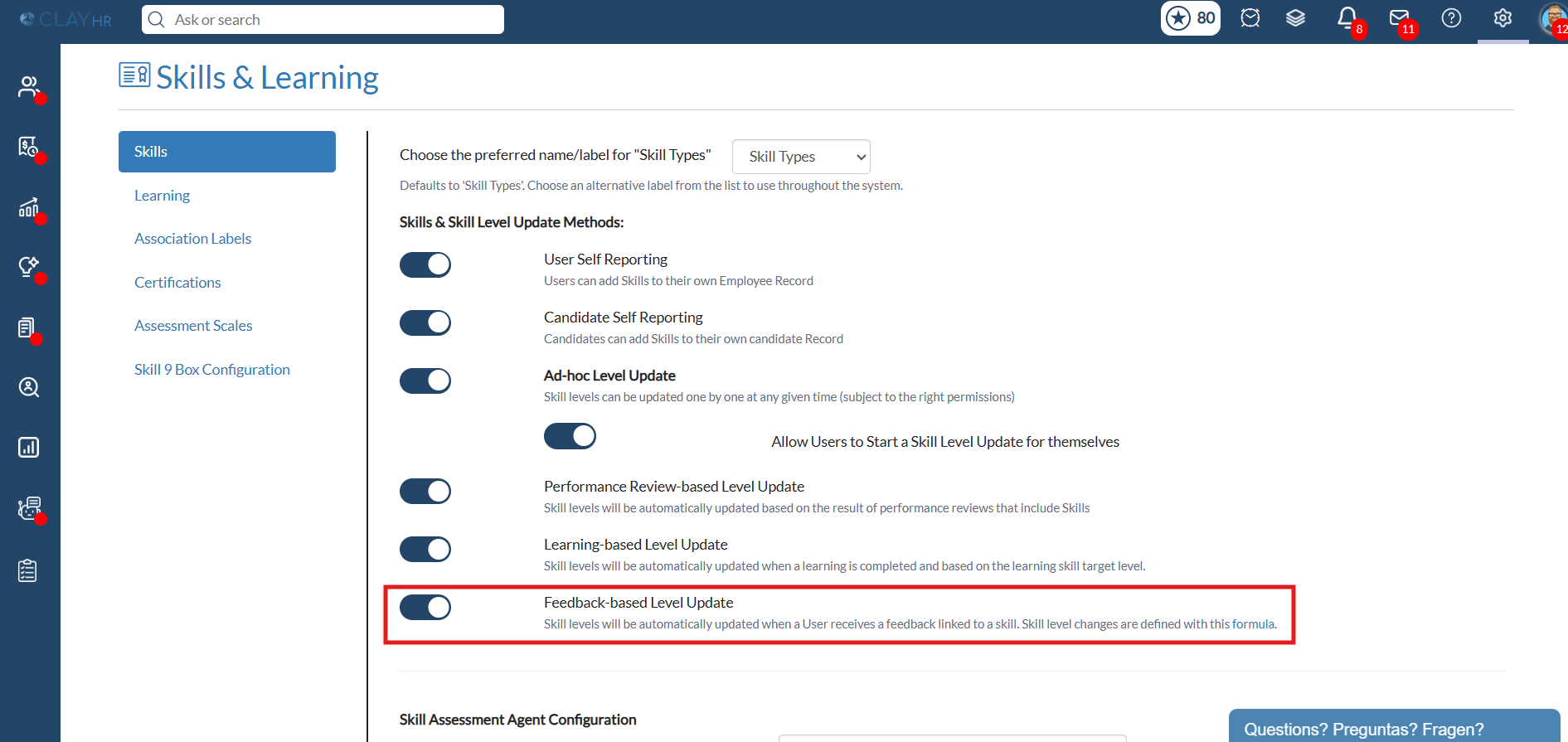
- Enable Feedback-based Level Update under Setup > Skills & Learning > Skills.
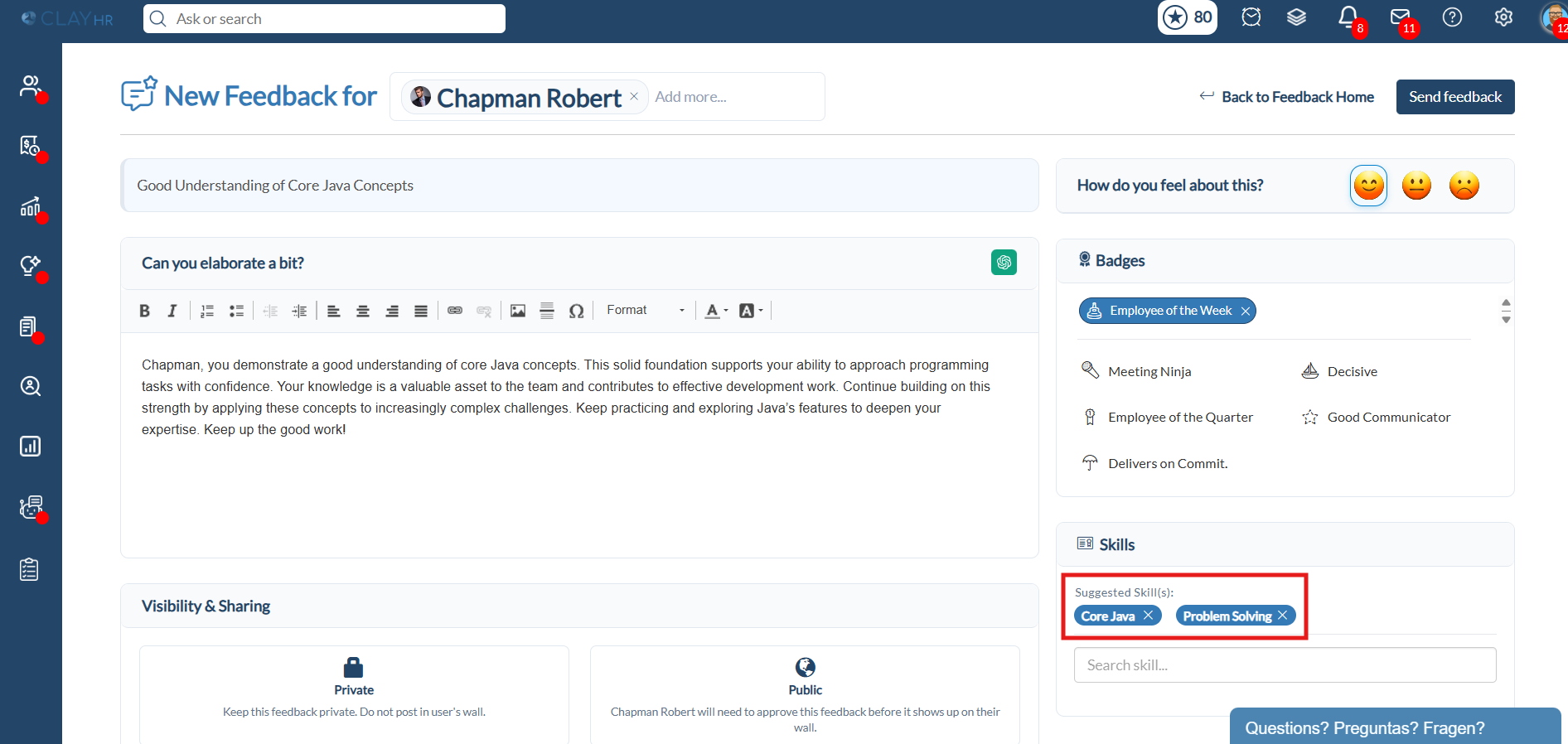
- The feedback must be linked to a skill, and the skill must have an Assessment Scale.
- The skill level cannot go below the minimum or above the maximum of the Assessment Scale.
- Neutral feedback does not change the skill level.
- Skill level updates may take some time to appear.
How to Configure the Settings
- Go to Setup > Skills & Learning > Skills.
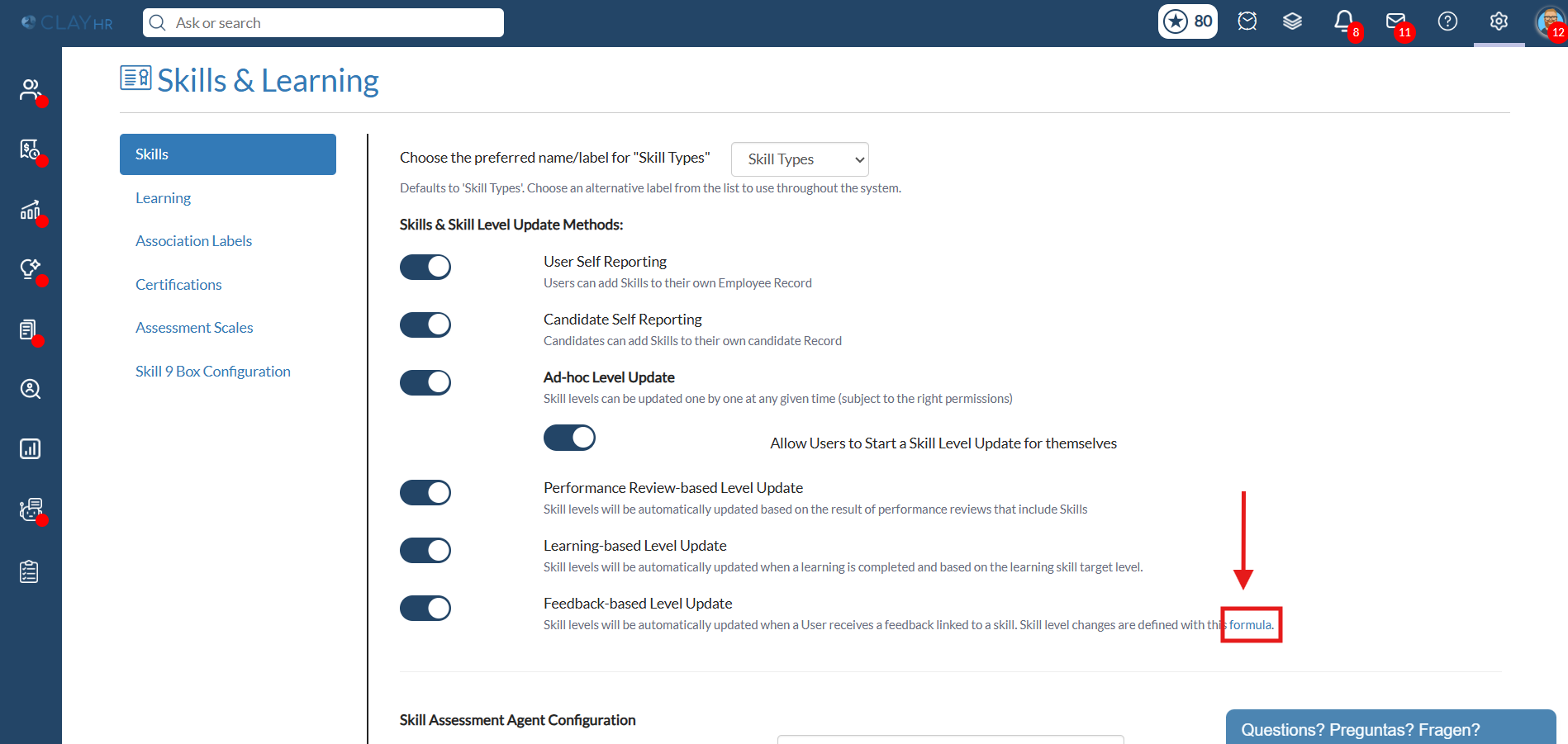
2. Next to Feedback-based Level Update, click the formula link.
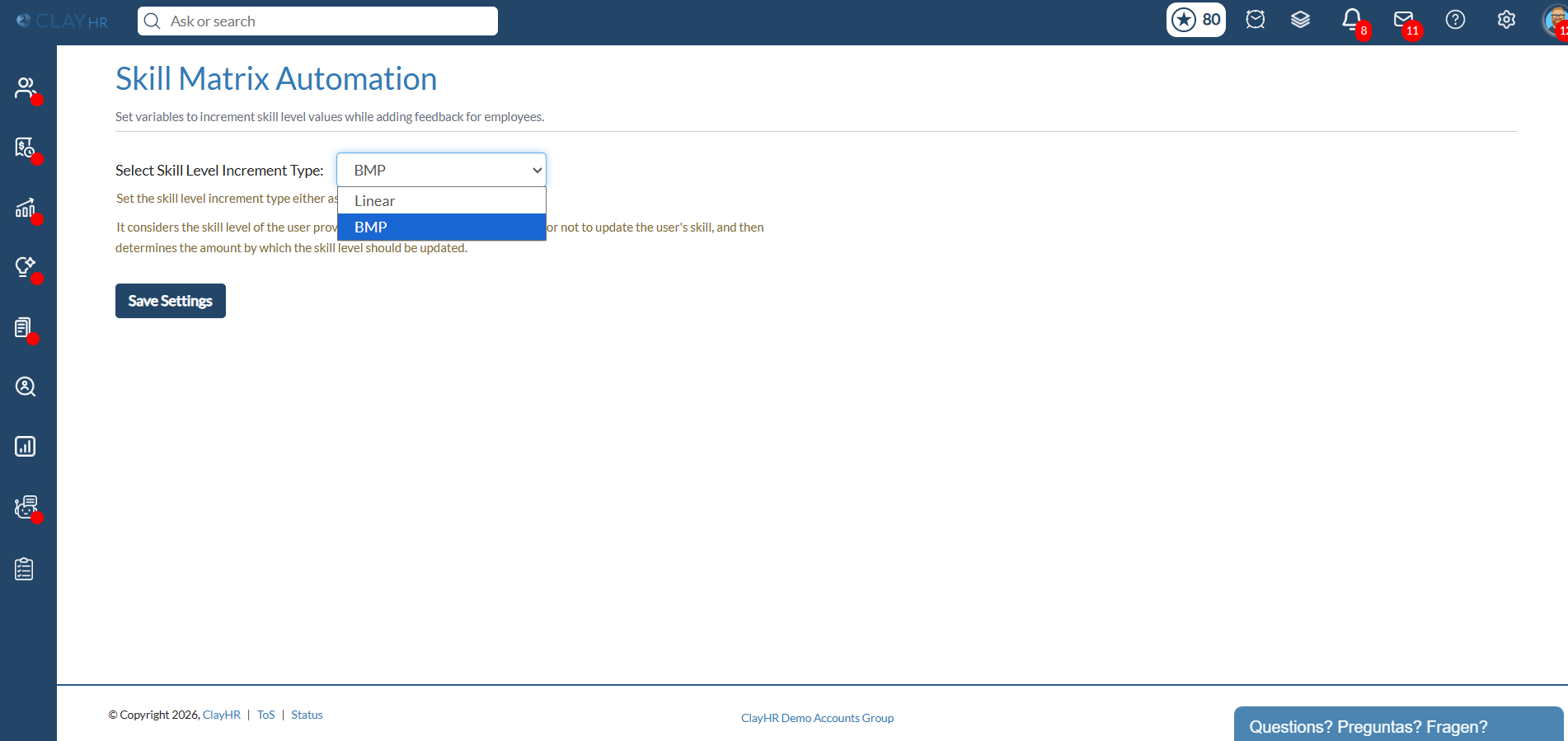
3. On the Skill Matrix Automation page, select Linear or BMP under Select Skill Level Increment Type.
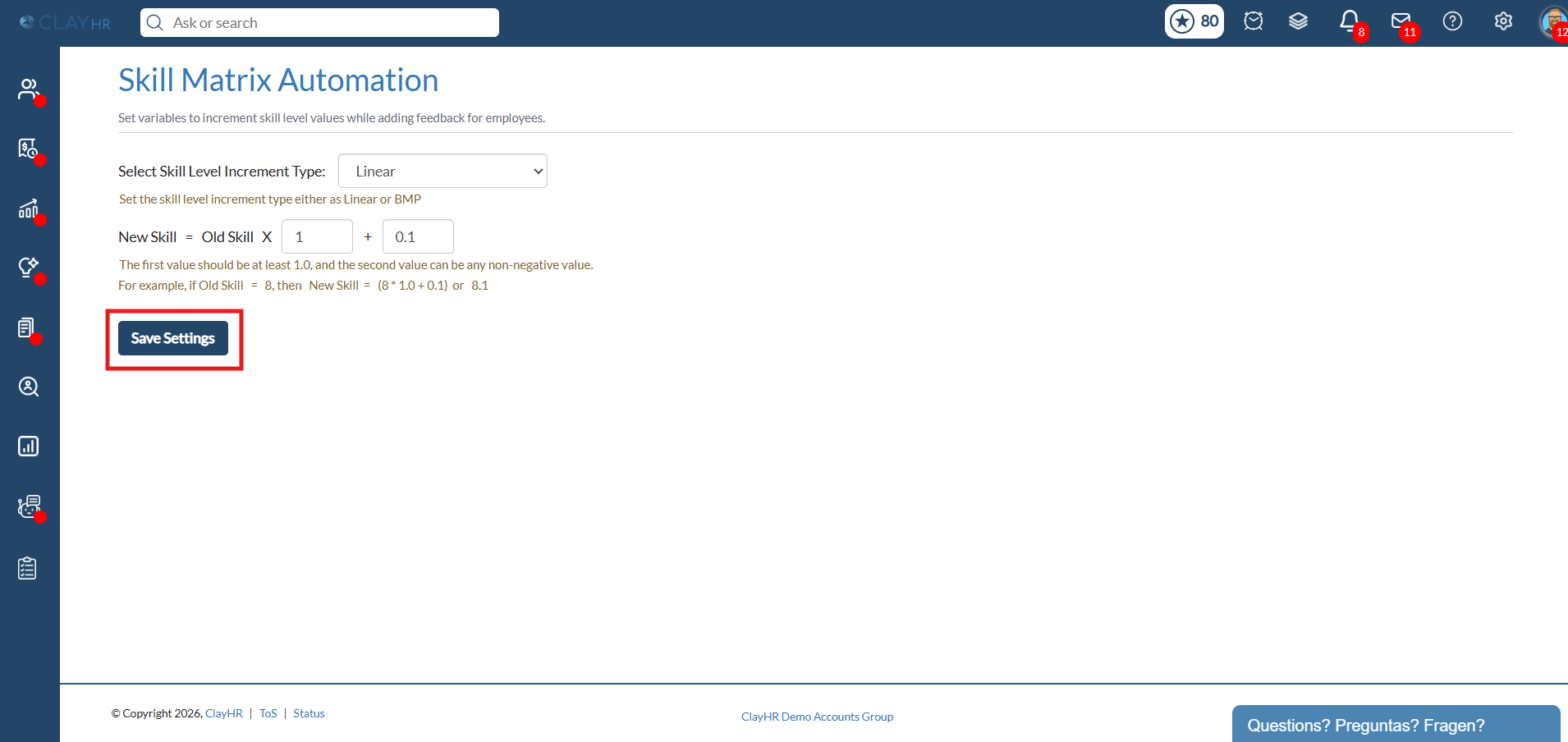
4. If you select Linear, enter the first and second values.
5. Click Save Settings.
Option 1: Linear
Linear uses the same calculation for everyone, regardless of who gives the feedback.
The formula is:
New Skill Level = (Old Skill Level × First Value) + Second Value
The first value multiplies the current skill level, and the second value is added to the result.
Examples of positive feedback:
Things to remember:
- The first value must be at least 1, and the second value must be 0 or greater.
- If an employee does not have a skill level yet, positive feedback can assign an initial level based on the second value and the scale's minimum.
- The new level cannot exceed the maximum of the Assessment Scale.
Option 2: BMP
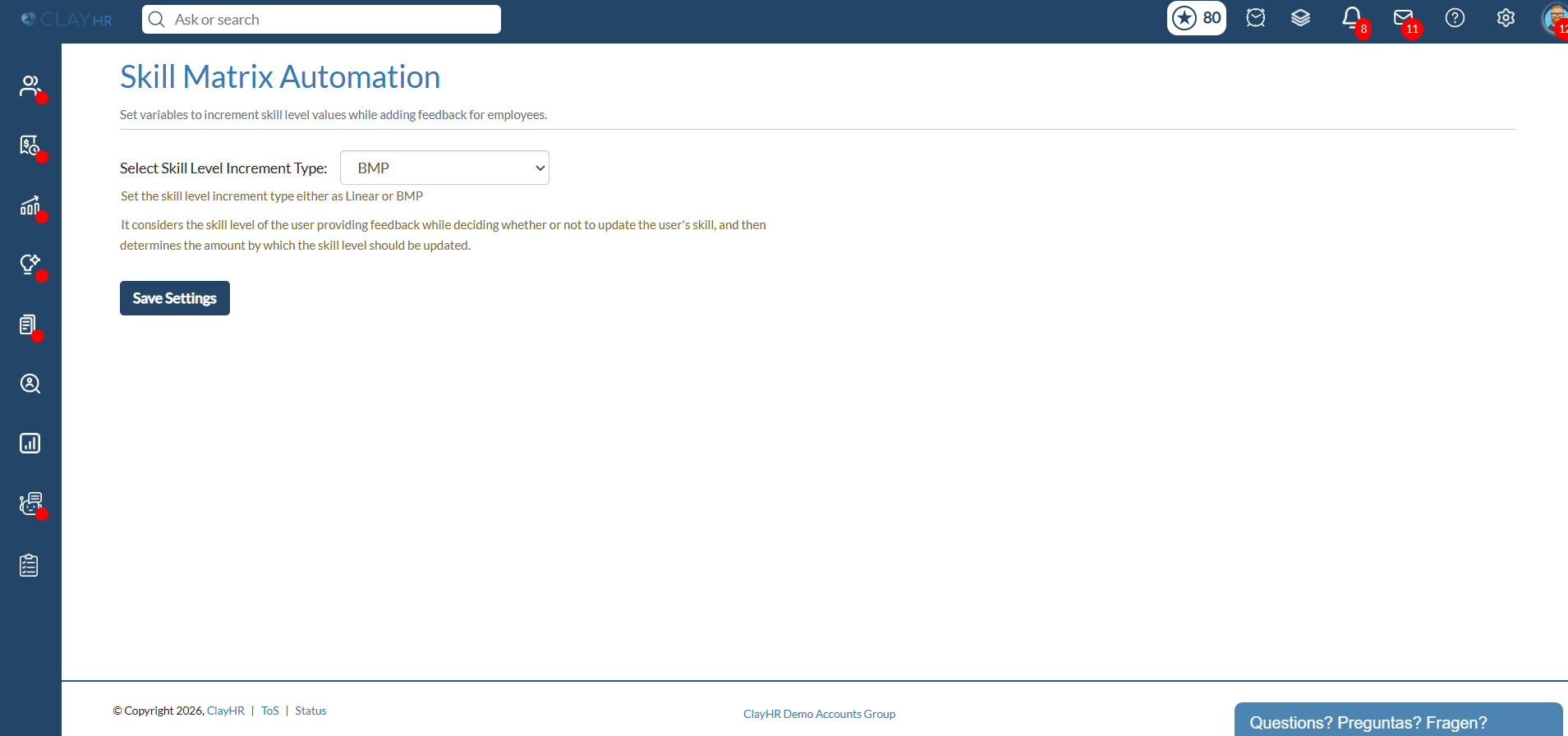
BMP is built on one idea: feedback from a more skilled person should change a level more than feedback from a less skilled person.
How it works:
- ClayHR looks at the feedback giver's level in the same skill.
- It finds the middle of the scale. On a 0–10 scale, the middle is 5.
- If the giver is at or below the middle, nothing changes. Only givers above the middle can change someone else's level.
- If the giver is above the middle, the higher they are, the bigger the change. A giver at the scale maximum has the biggest effect.
Examples of positive feedback:
Things to remember:
- An eligible positive feedback update increases the skill level by at least 0.1.
- Negative feedback decreases the skill level, subject to the calculation and the scale's minimum.
- The employee must already have a skill level above 0 for BMP to update it.
- The feedback giver must also have a recorded level in the same skill.
- The new skill level cannot exceed the maximum or fall below the minimum of the Assessment Scale.
View Updated Skill Levels
- Open the employee's profile.
2. Go to Skills and select the relevant skill.
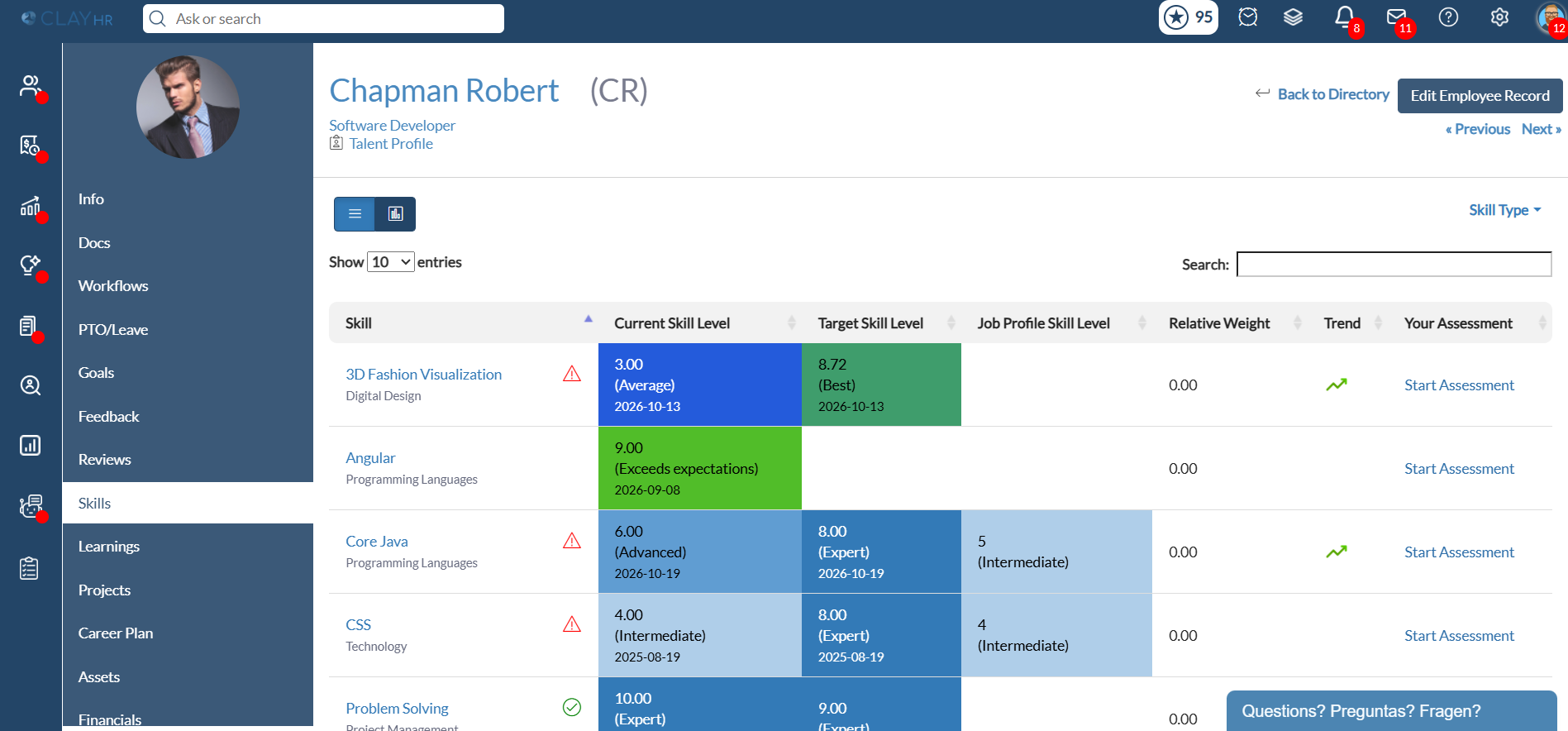
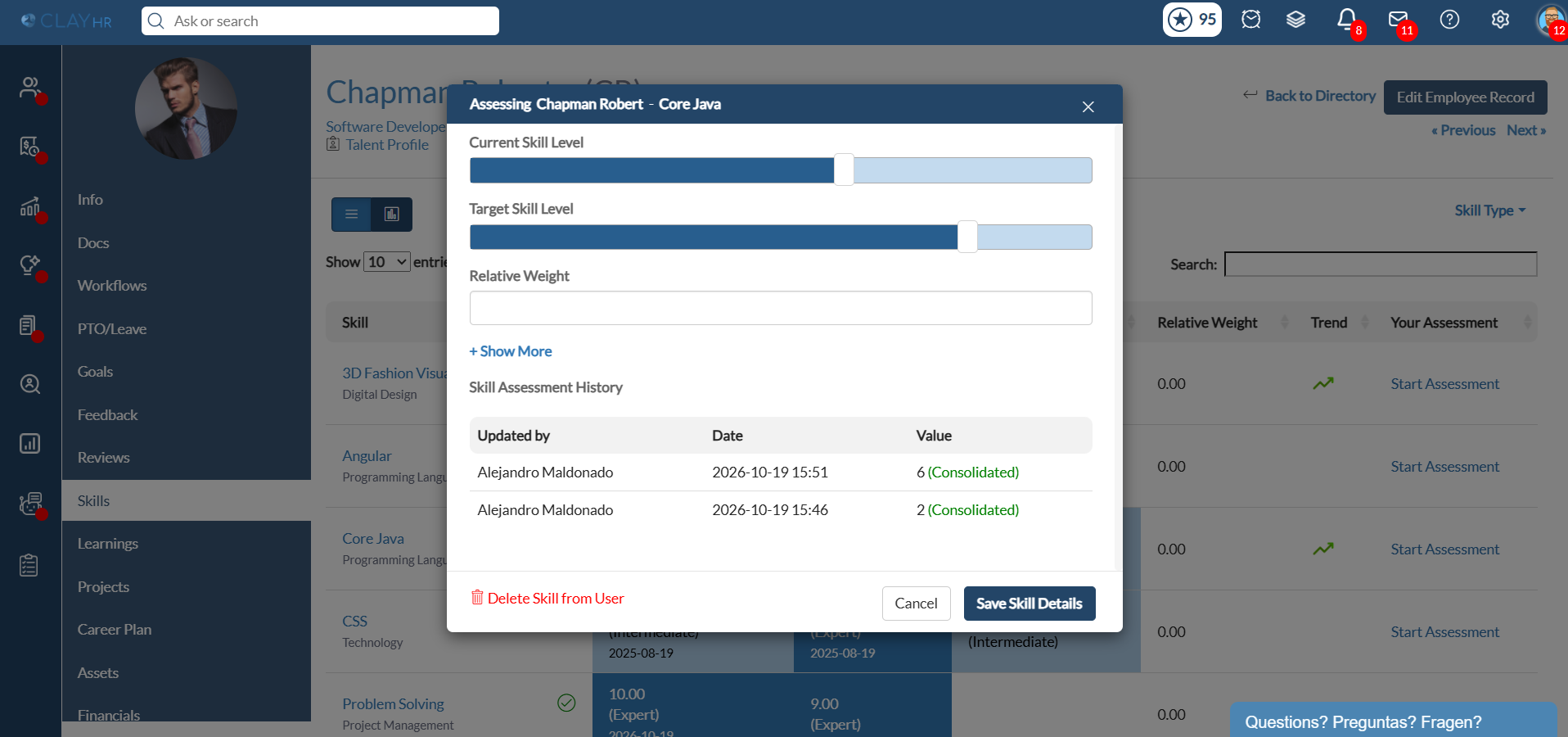
3. Check Skill Assessment History to review the recorded skill level changes.
4. Use the Updated by column and the date and time to help identify the person and feedback associated with the update.





.webp)
