

How to Complete a Learning in ClayHR
ClayHR provides a simple way to access and complete your assigned learnings. You can explore learning materials, watch videos, read documents, visit helpful resources, and take assessment tests to check your understanding. This guide explains how to complete a learning and track your progress.
Step 1: Open Your Assigned Learnings
- Navigate to Skills & Talent Hub > Learnings.
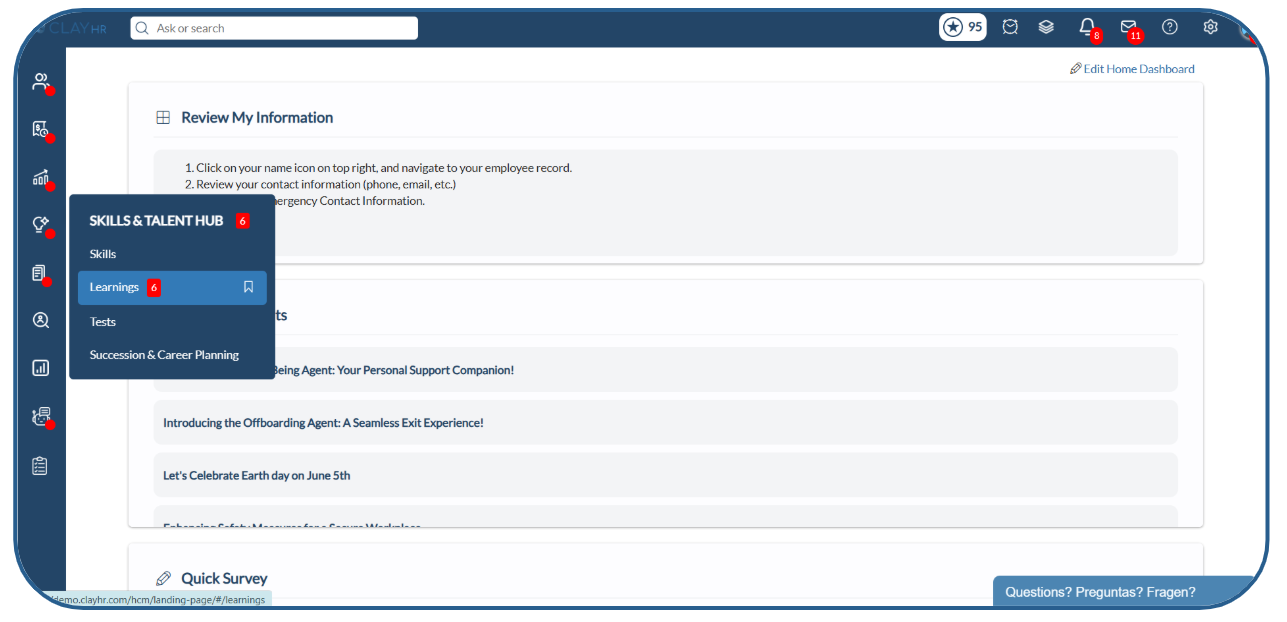
2. Click My Learnings to view your assigned learnings.
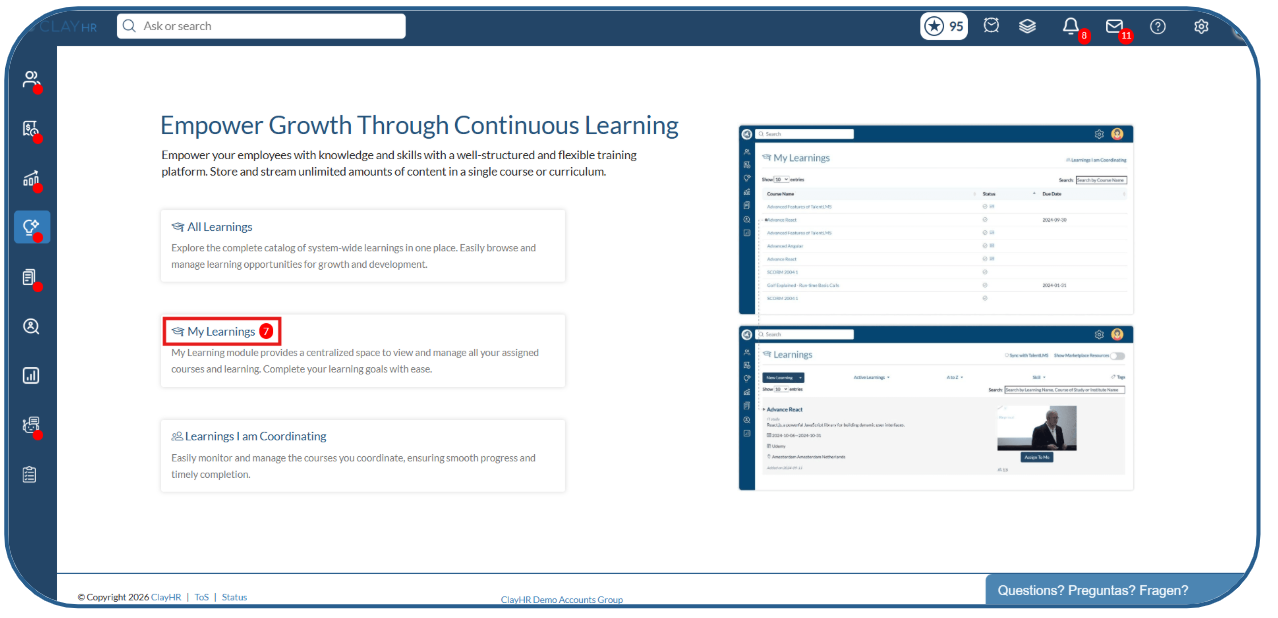
3. Select the learning you want to complete.
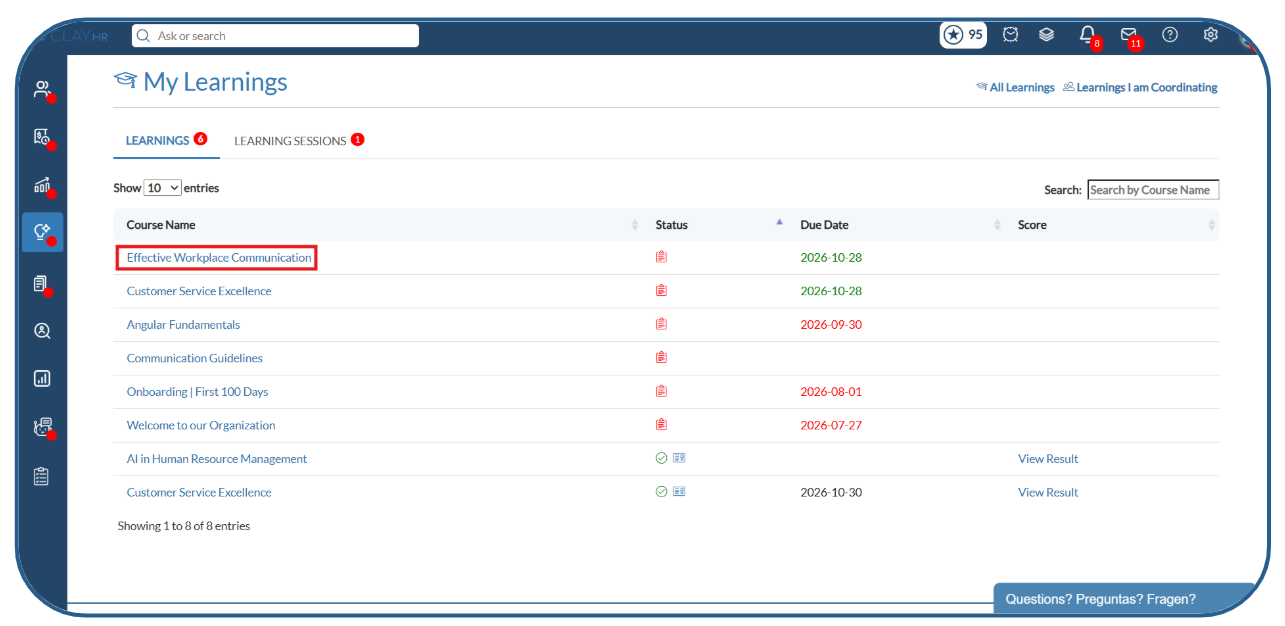
Step 2: View the Learning Details
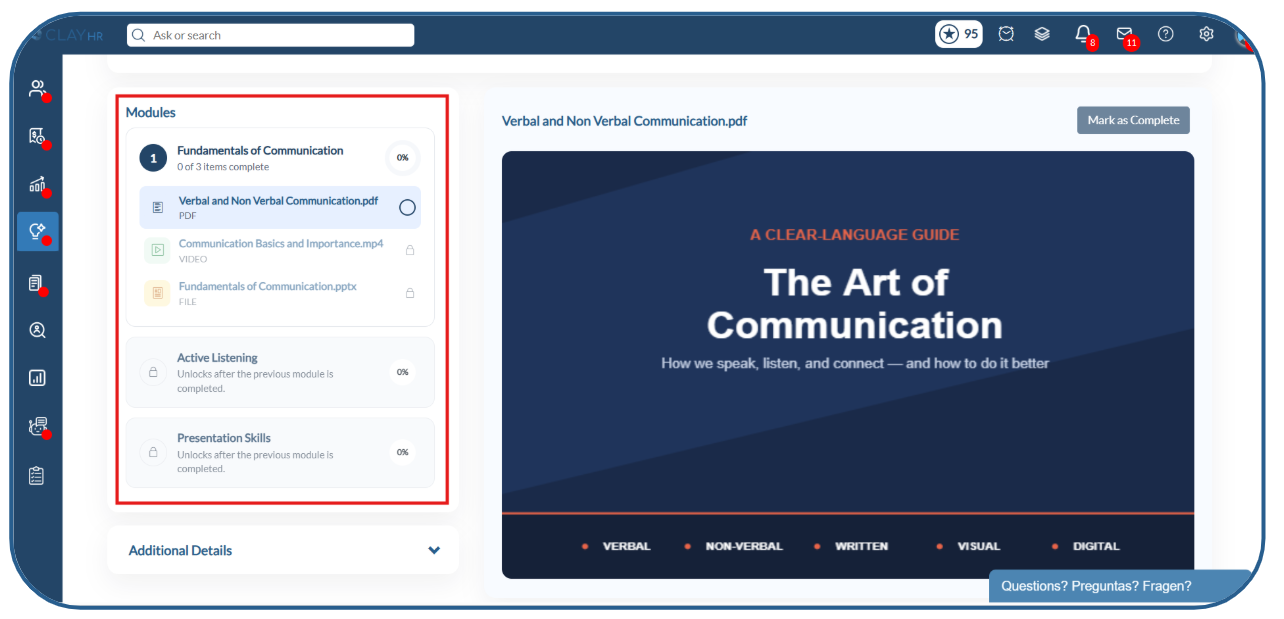
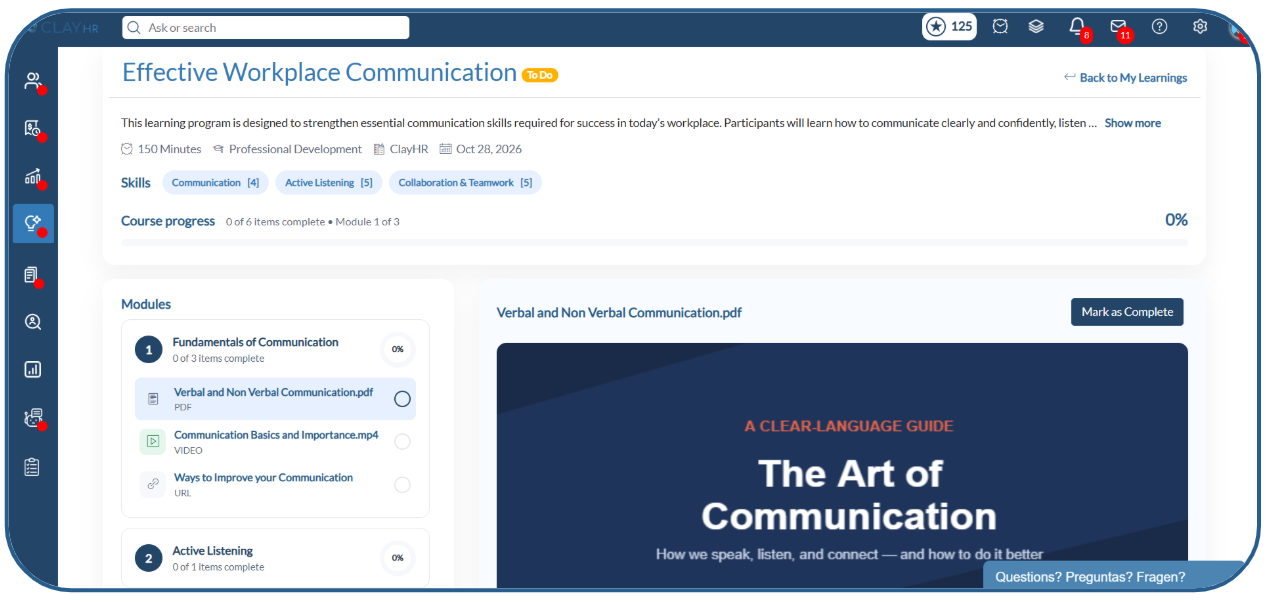
The learning view page displays the learning information, your overall progress, the available modules, and their learning items with previews.
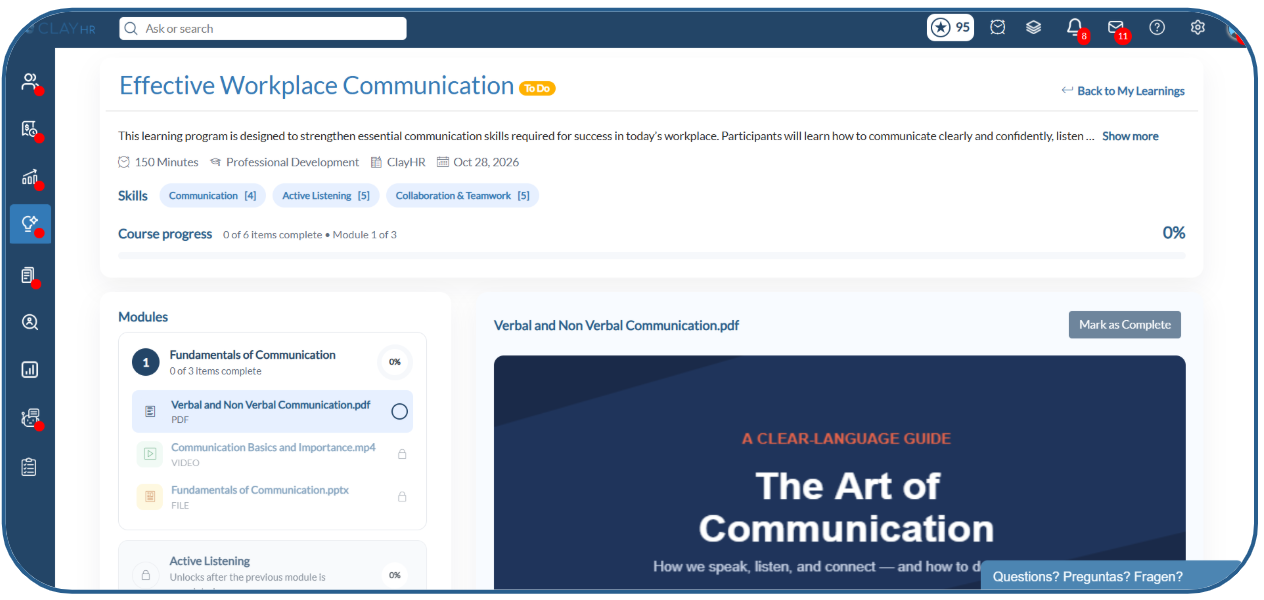
If Course Mandatory is enabled, you must follow the learning sequence and complete the modules in order.
Step 3: Start with the First Module
When Course Mandatory is enabled:
- Only the first module is unlocked initially.
- Other modules remain locked until the previous module is completed.
- Open the unlocked module to access its learning items.
Step 4: Complete the Learning Items
Open each learning item and follow the steps according to its content type.
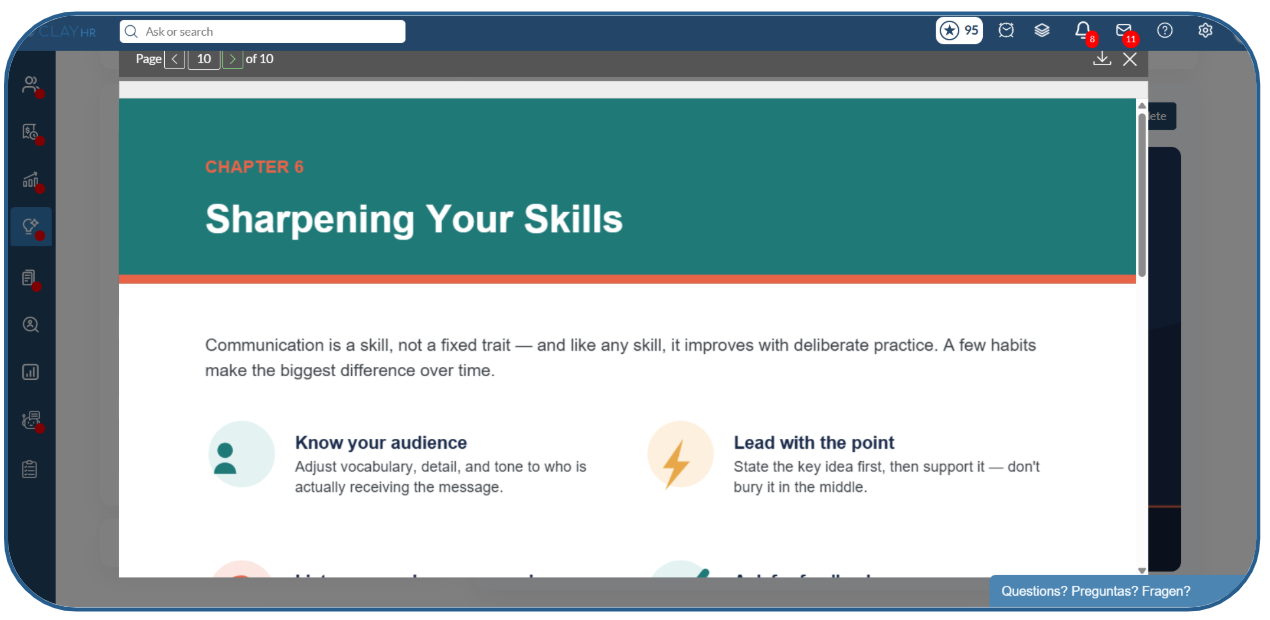
- Open the PDF to view its content.
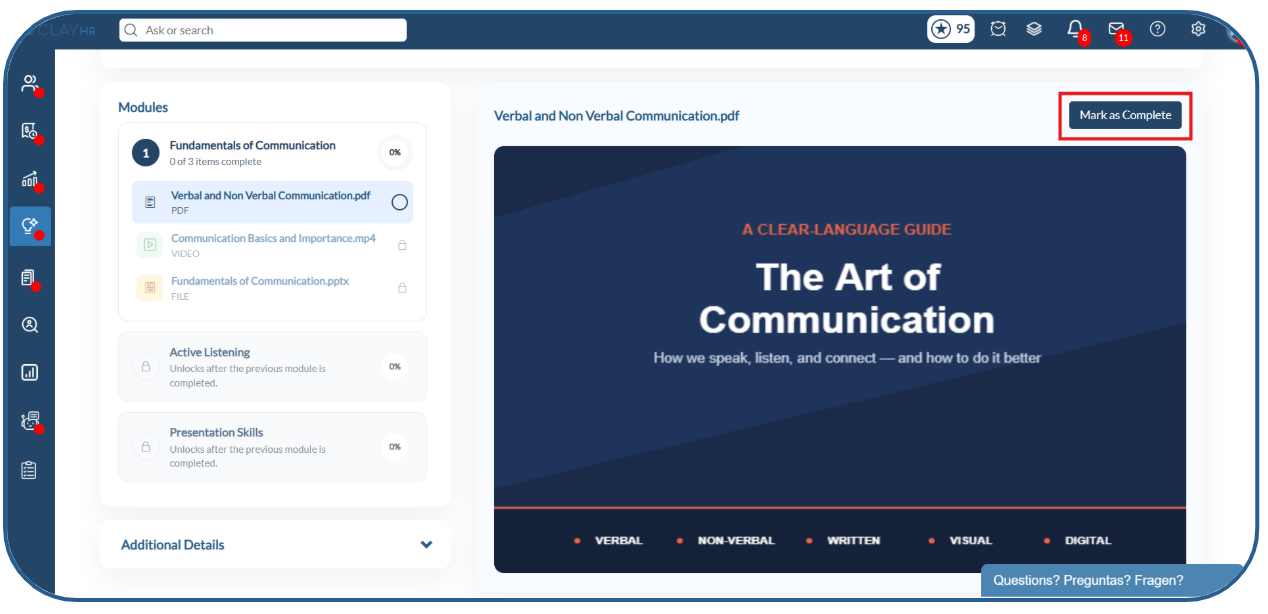
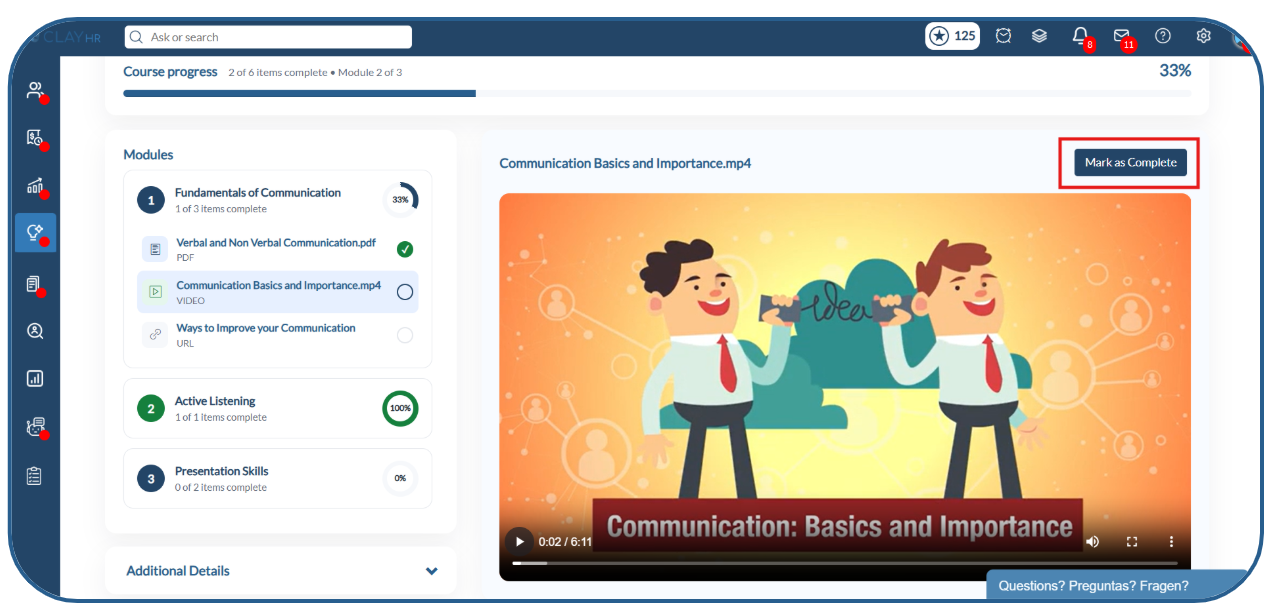
2. After viewing the PDF, click Mark as Complete.
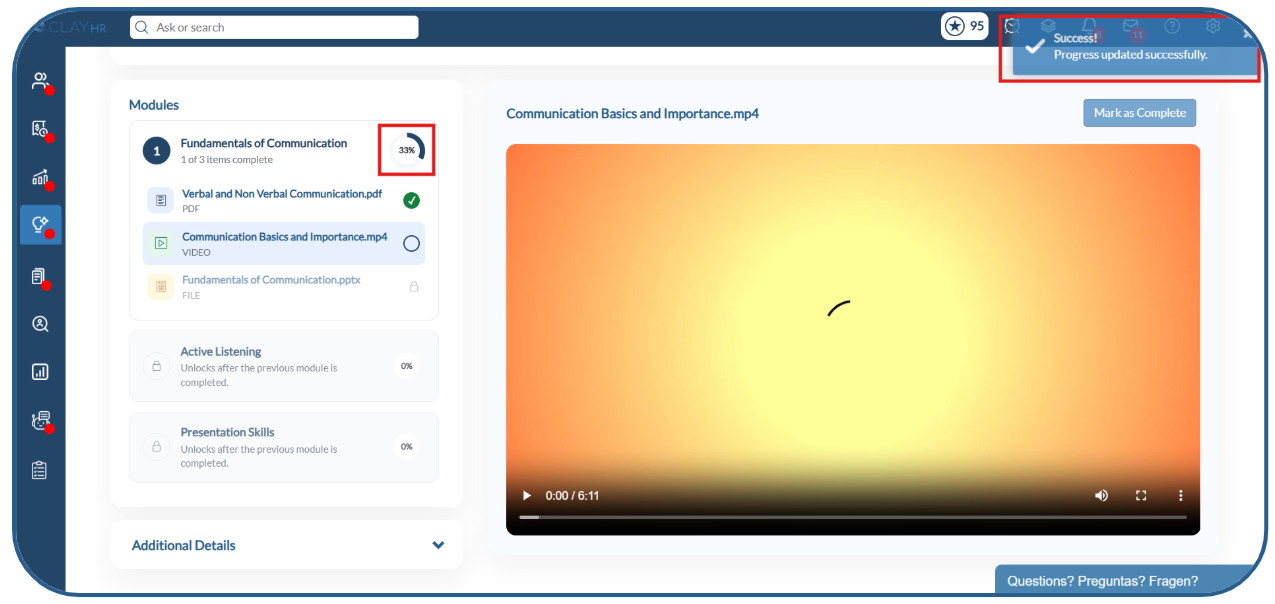
3. The learning item will be marked as completed.
Video
- Open and watch the video.
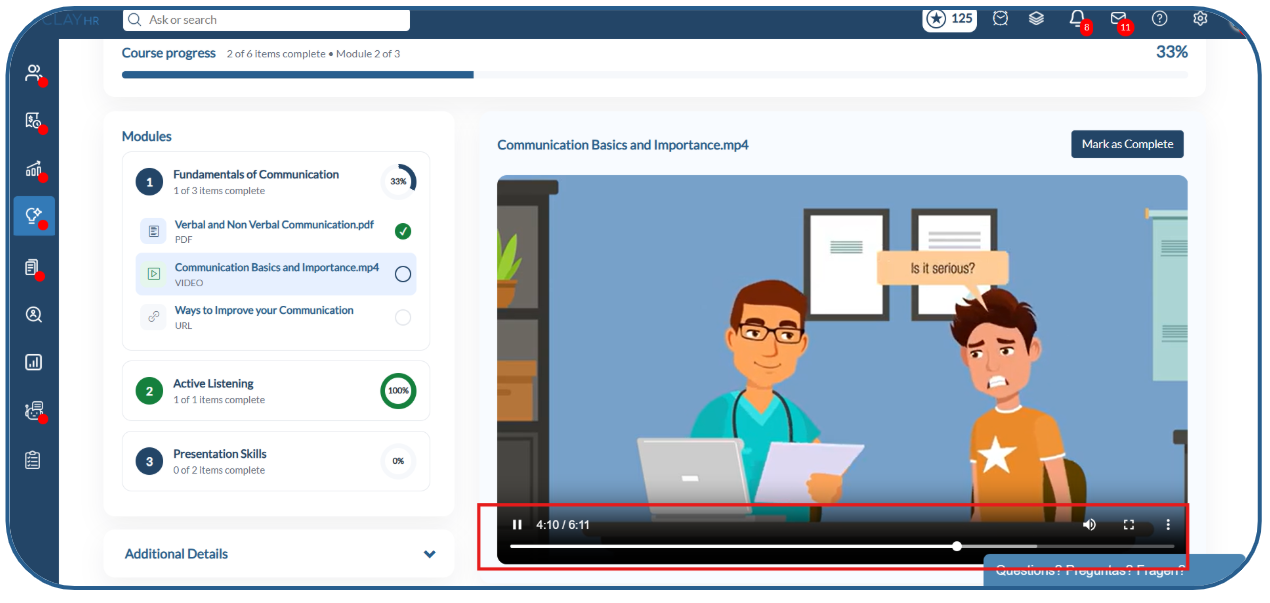
- The video must be watched in full. You cannot skip or fast-forward through it when Course Mandatory is enabled.
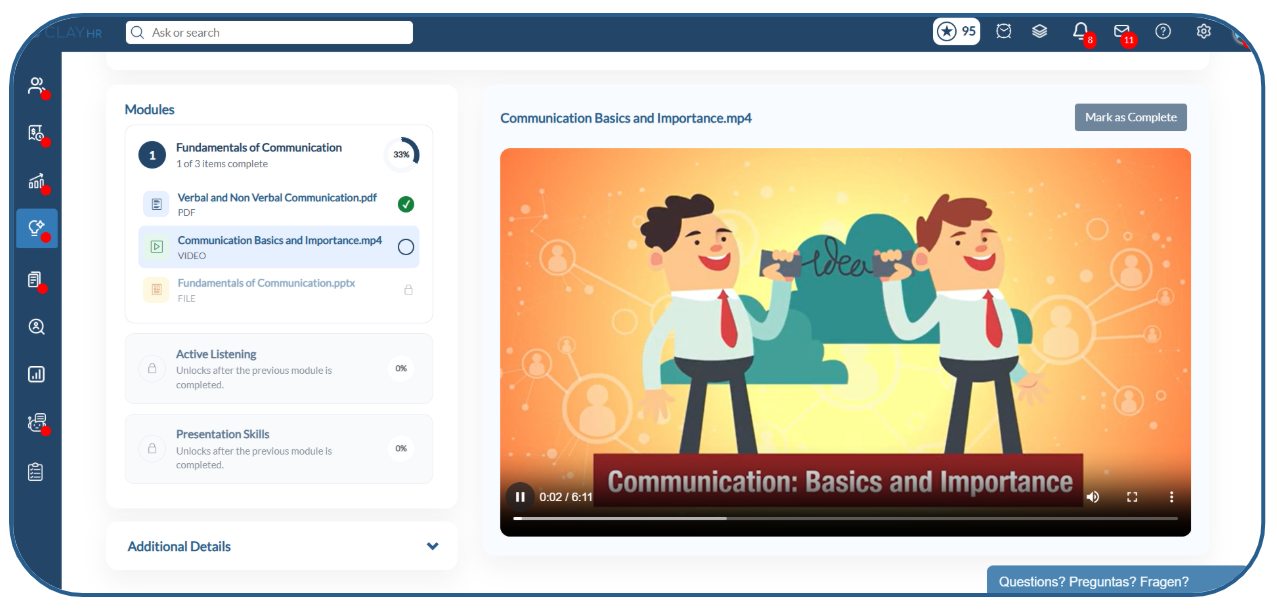
3. Once the video has been watched completely, the learning item is automatically marked as completed.
URL
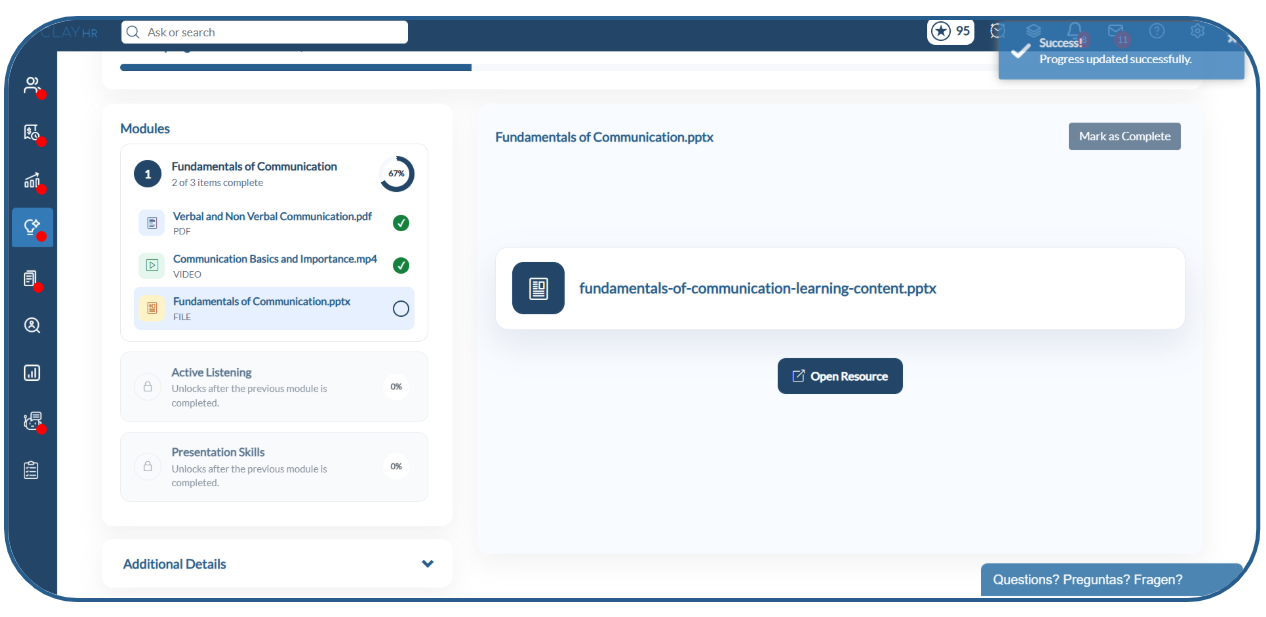
- Open the URL provided in the learning item.
- Visit the URL resource to access the linked content.
- Return to the learning view and click Mark as Complete to complete the item.
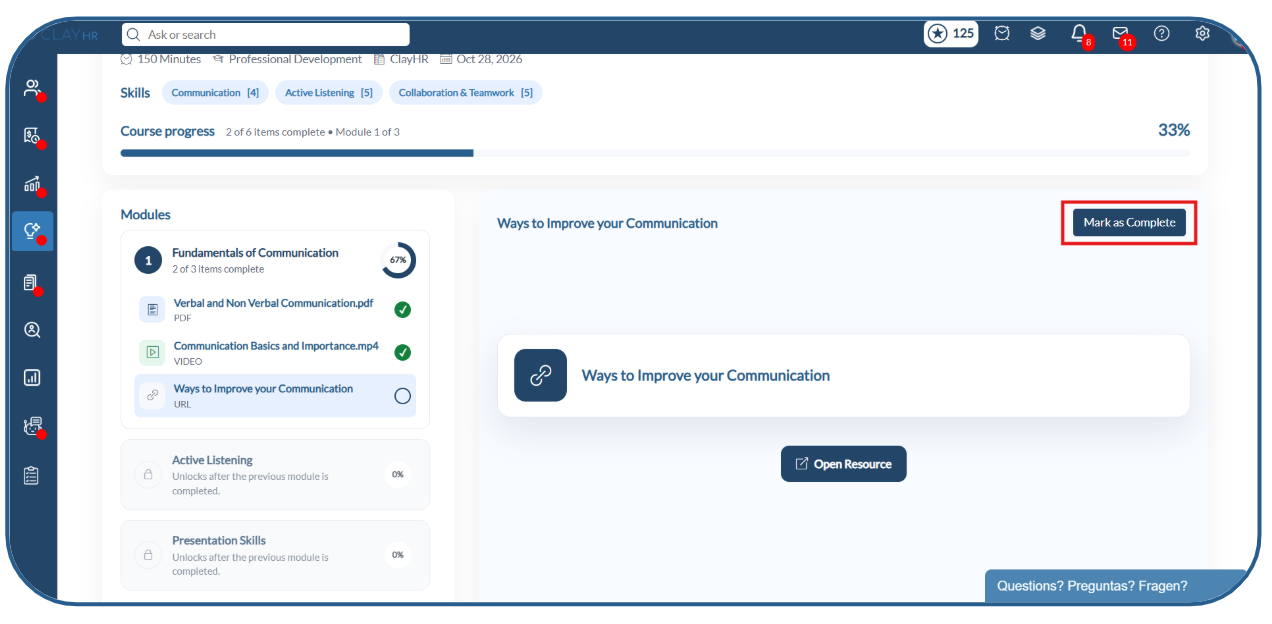
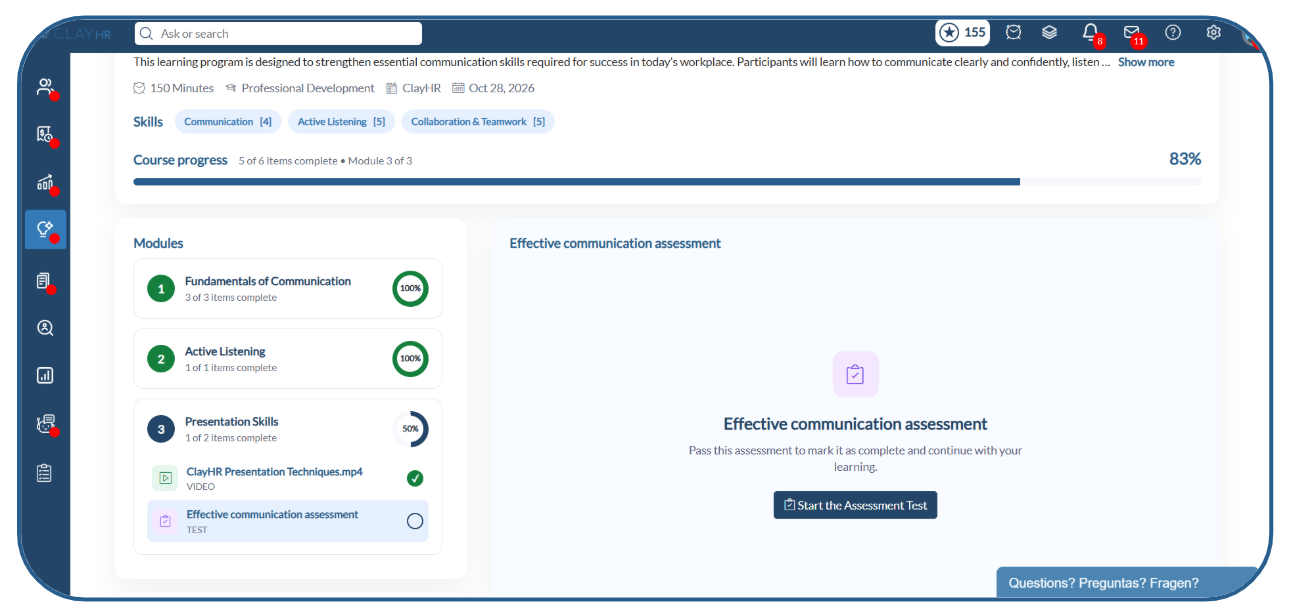
Assessment Test
- Open the assessment test.
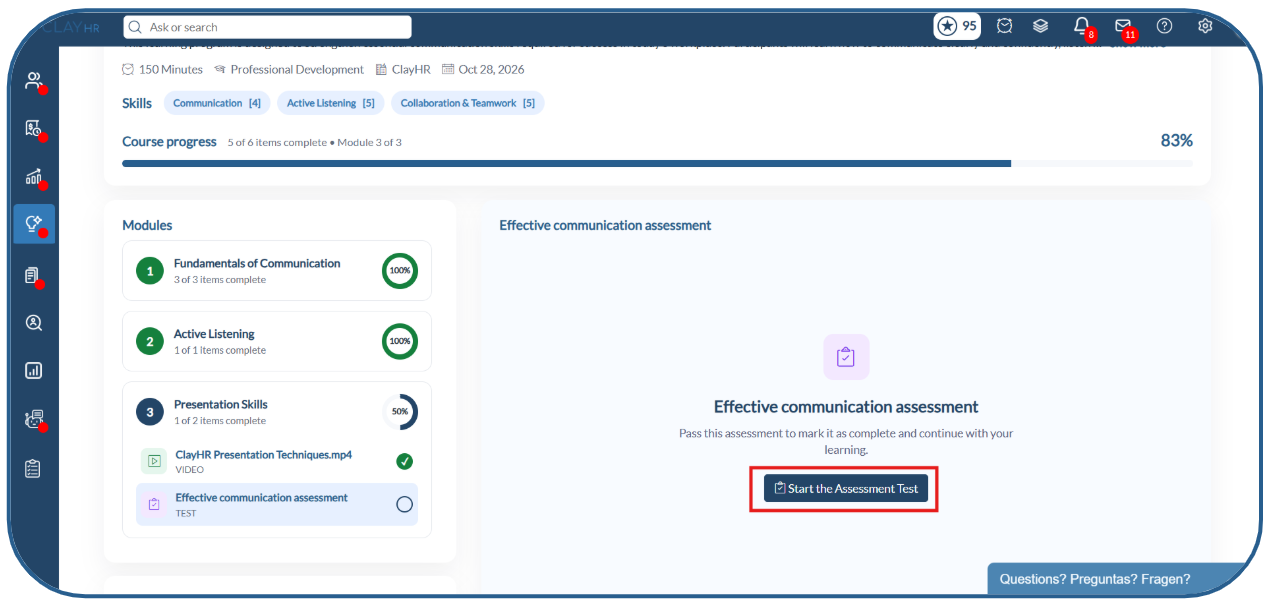
2. Answer the questions and submit the test.
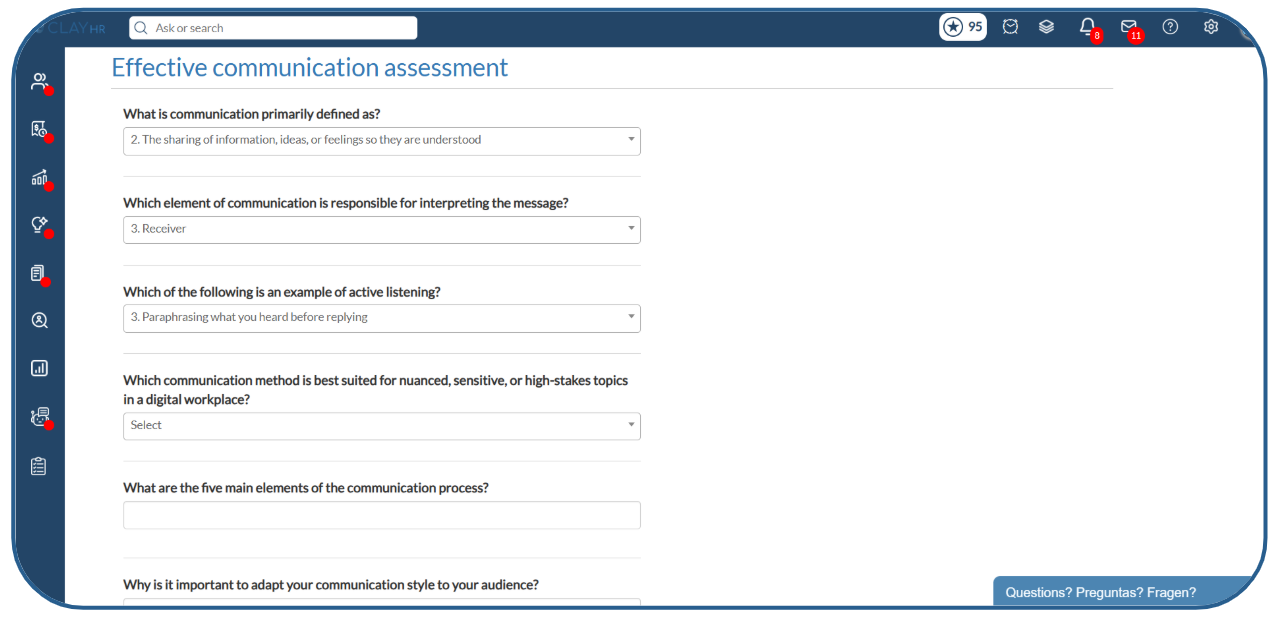
3. After completion click on ‘Go to Learning’.
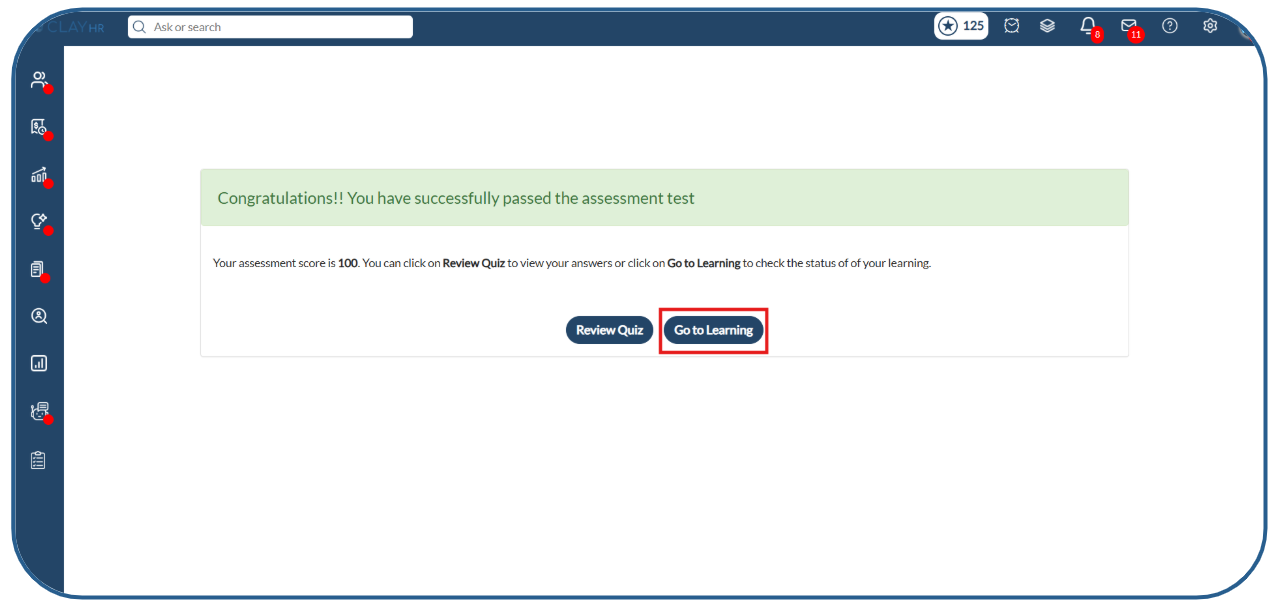
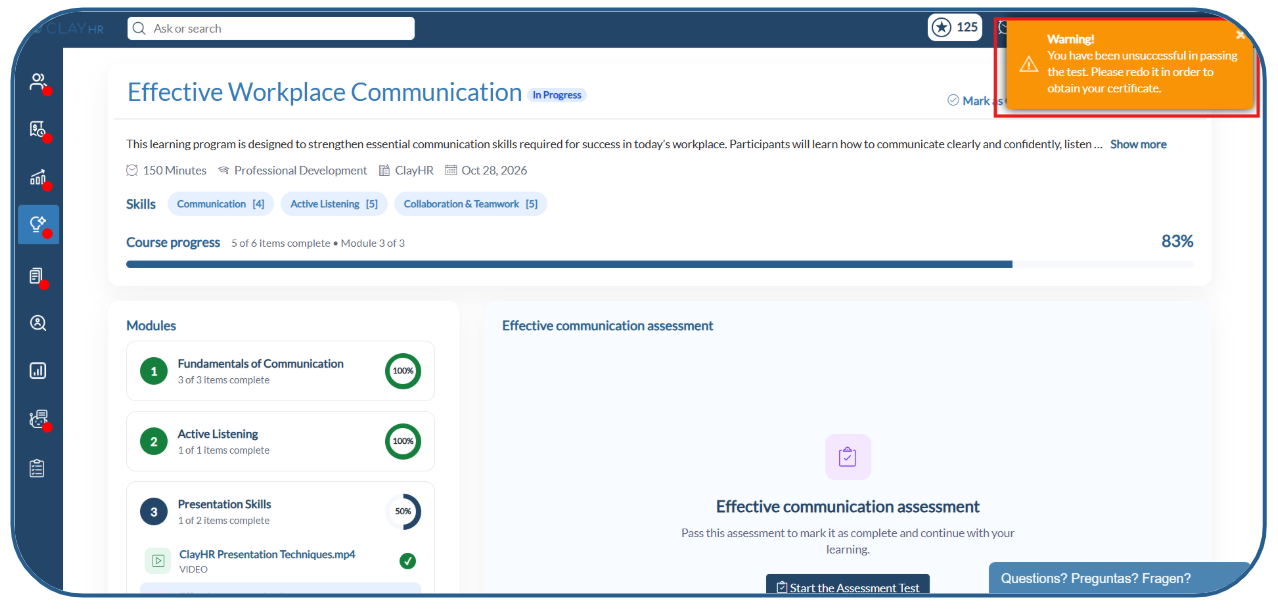
4. You must pass the assessment for the learning item to be marked as completed.
5. If you fail, the learning remains in progress, and you must retake the test.
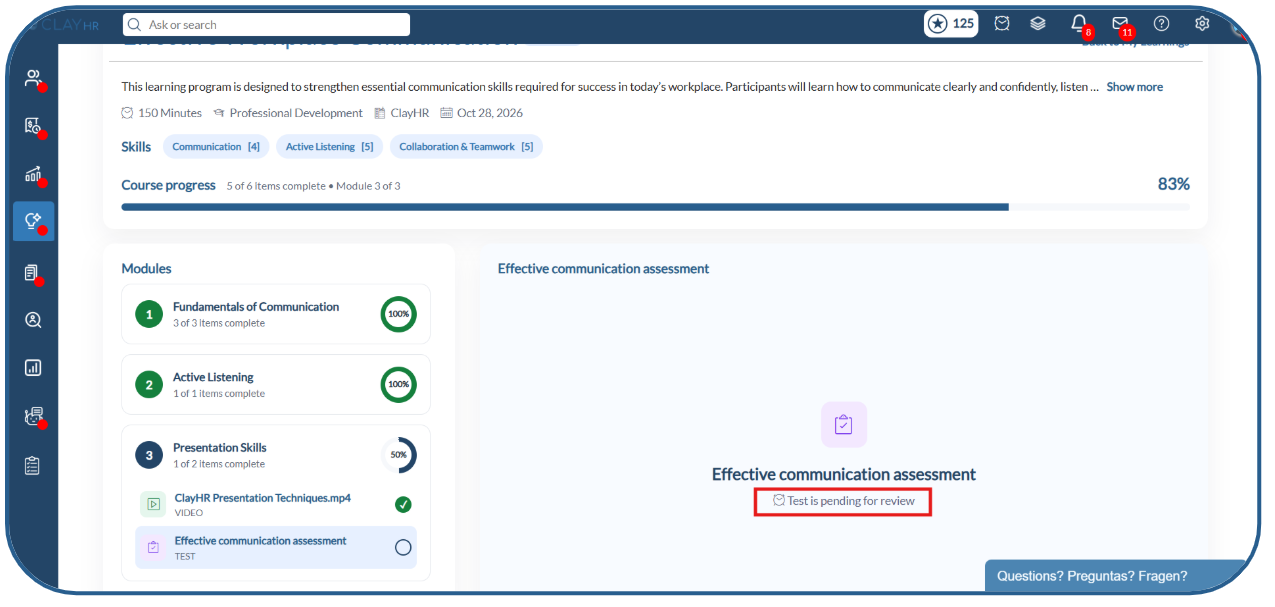
6. If the test requires grading, its status will show Submitted for Grading. The learning item will be completed only after the grader evaluates the test and you pass.
Step 5: Complete All Modules
- Complete all learning items in the first module.
- Once the module is completed, the next module will be unlocked.
- Continue completing the modules and their learning items in sequence.
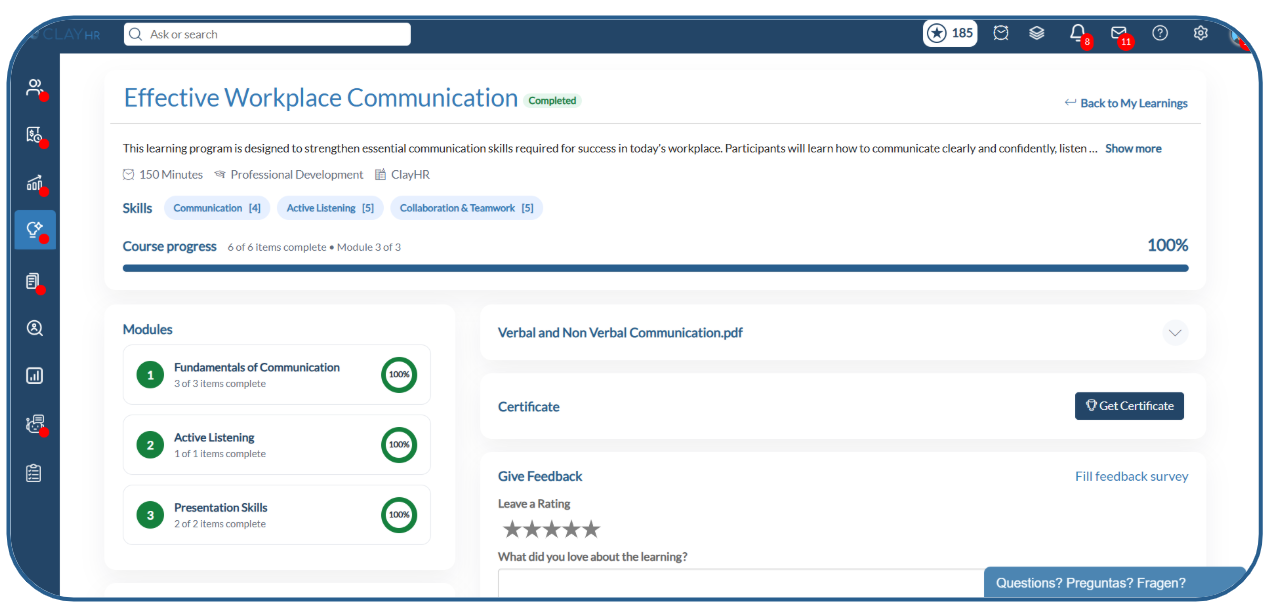
- Once all modules and their items are completed, the learning will automatically be marked as Completed.
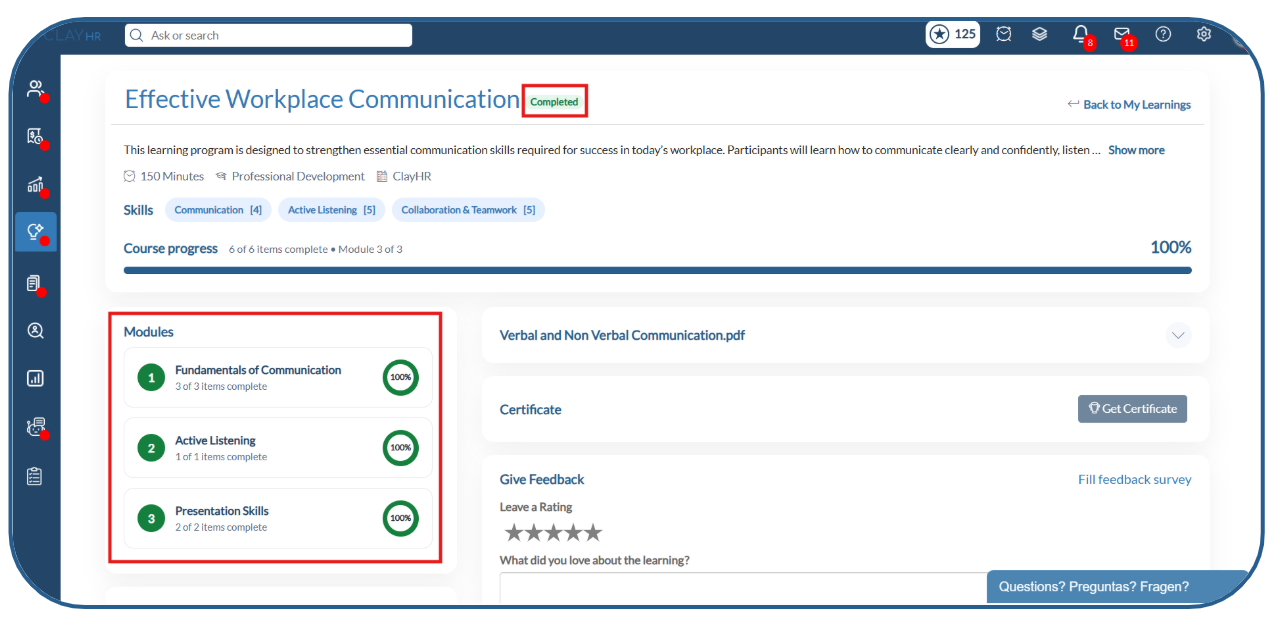
Step 6: Access Additional Options
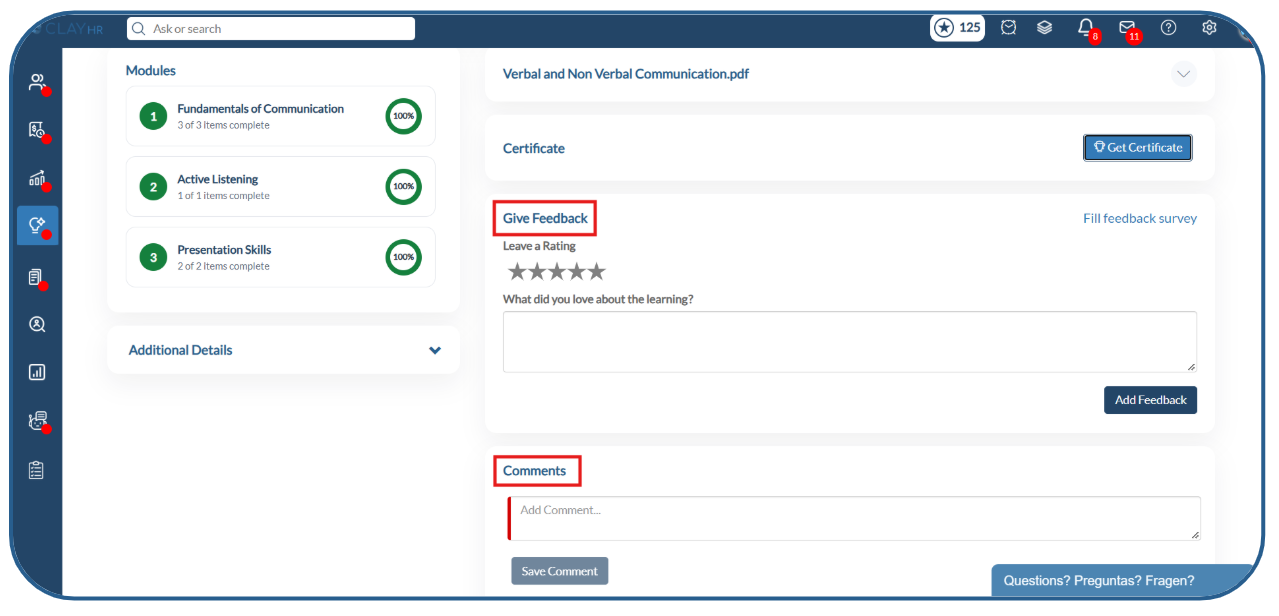
Once you complete the learning, you can access the following options:
- Fill Feedback Survey: The Get Certificate button will be enabled only after you complete the feedback survey.
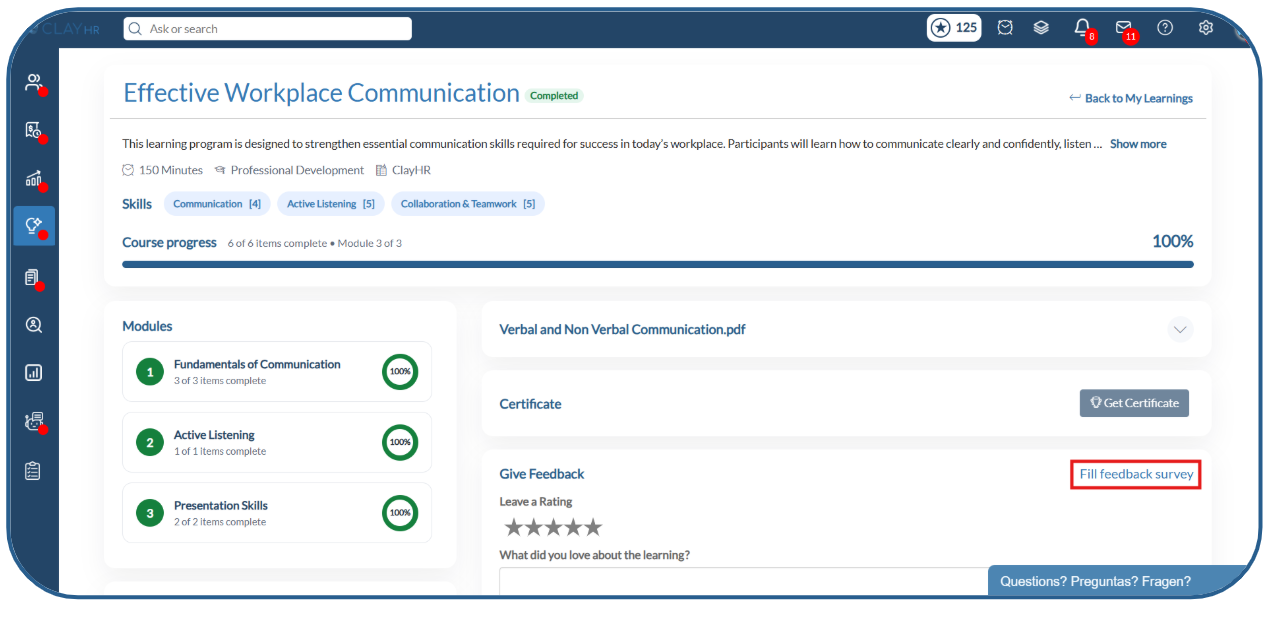
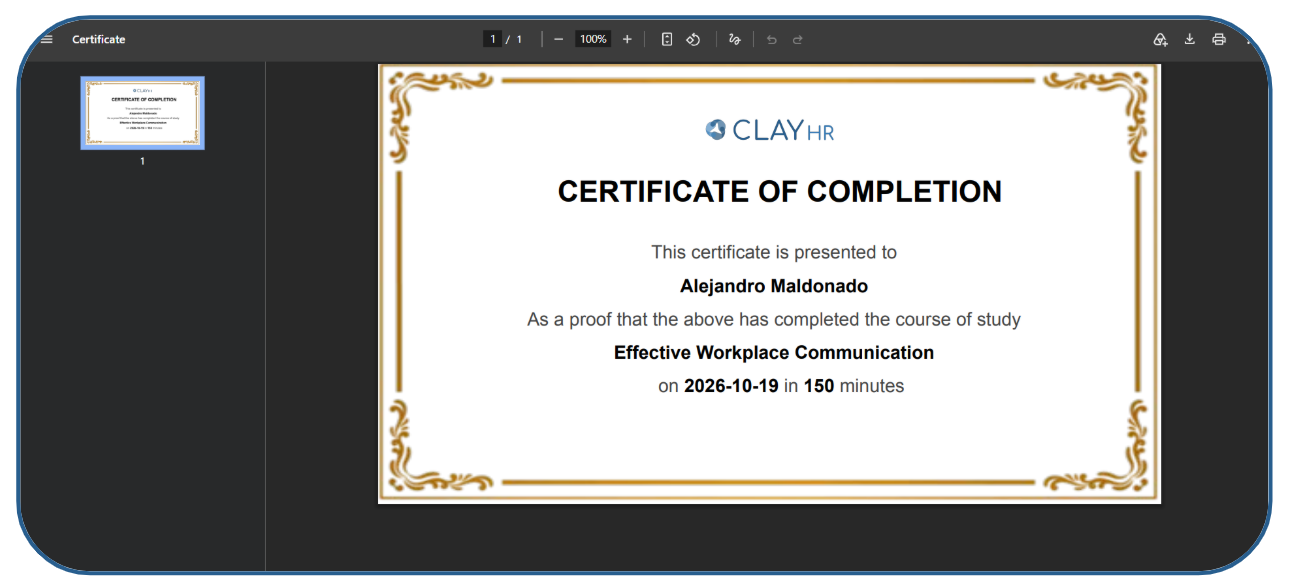
- Get Certificate: If a certificate has been configured for the learning, you can download it. After downloading the certificate, it will also be available in the Docs tab of your user record.
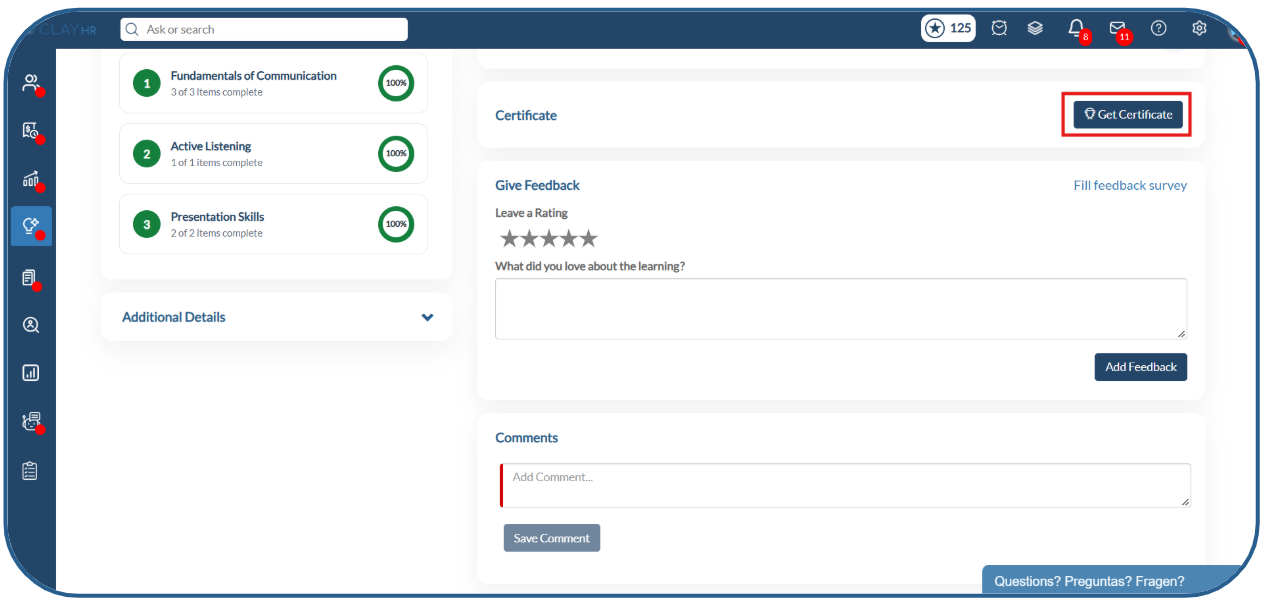
- Feedback: Share your feedback about the learning and your overall experience.
- Comments: Add comments related to the learning.
What happens when Course Mandatory is disabled?
When Course Mandatory is disabled, you can complete the learning more flexibly:
- All modules and learning items are accessible, so you can complete them in any order.
2. You can click Mark as Complete without opening or viewing the content.
3. Videos can be skipped or fast-forwarded.
4. Assessment tests must still be passed to complete the assessment item.
5. The learning is automatically marked as Completed once all required learning items are marked as complete and the assessment requirements are met.
Note: The learning completion process depends on the Course Mandatory setting configured for the learning.





.webp)
