

How to Create, Assign and Manage Learnings?
ClayHR gives you a structured way to create and manage learning content, so you can deliver training efficiently across your organization. As an admin, you can create new learnings, define key details, and assign them to employees or groups to ensure consistent knowledge sharing and skill development. In this guide, you will learn how to create a new learning and assign it to users step by step.
Watch a Quick Video Tutorial
Here are the steps to create and assign a learning:
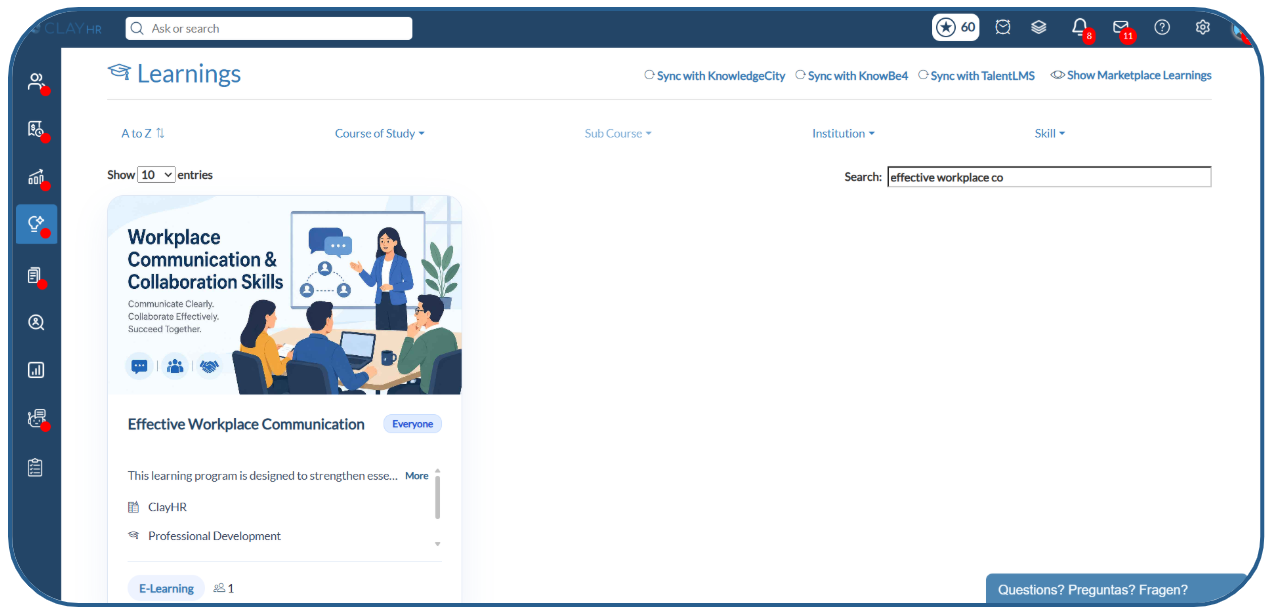
- Go to the learning home page by navigating to: Skills & Talent Hub > Learnings > All Learnings.
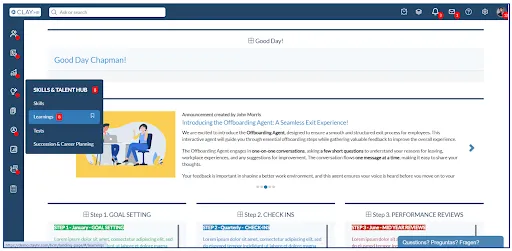
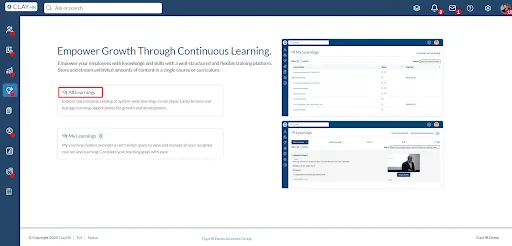
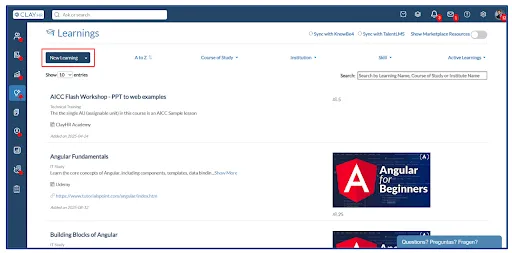
- On the learning home page, click the ‘New Learning’ button.
- Enter all the required details for the learning, including course name, course of study, and other relevant information.
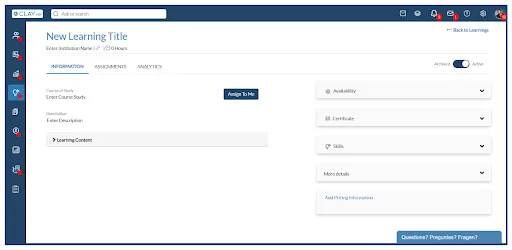
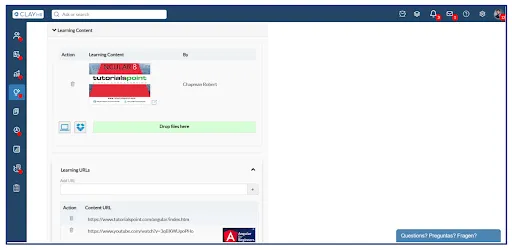
- Add the learning materials that employees will use to complete the course. You can upload documents (PDFs), attach content URLs, or embed multimedia resources such as YouTube videos to make the learning more engaging and effective.
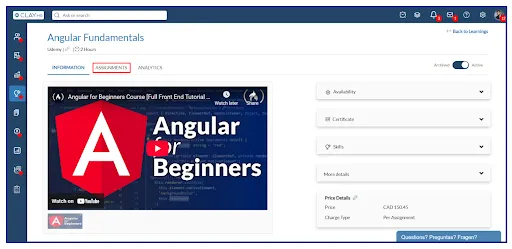
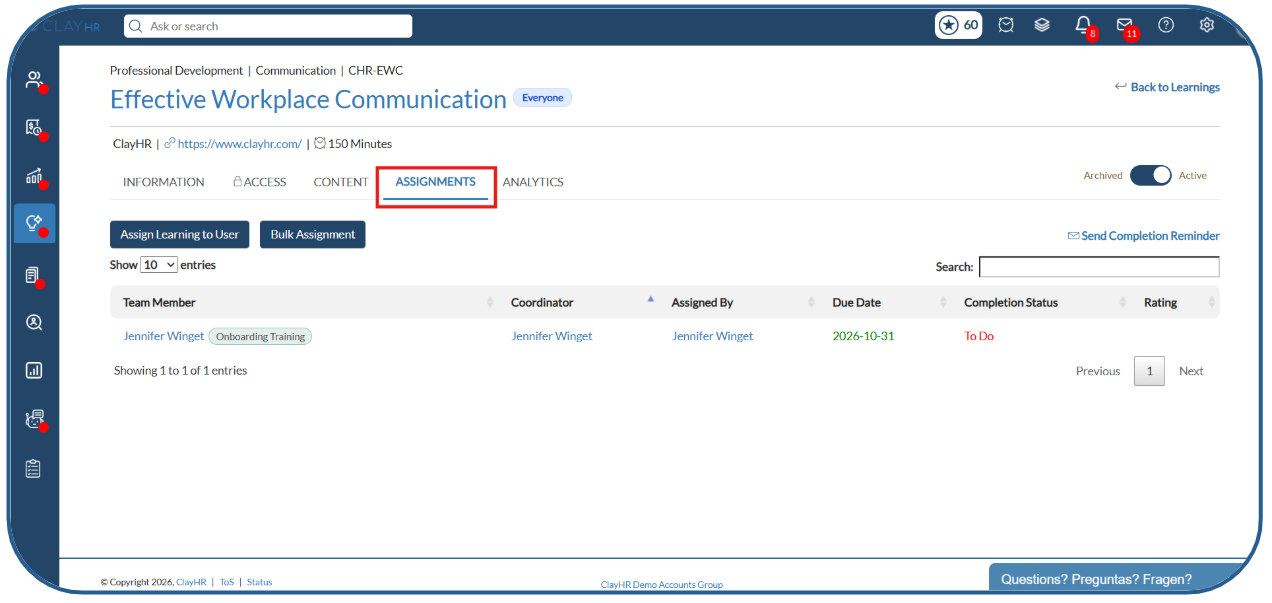
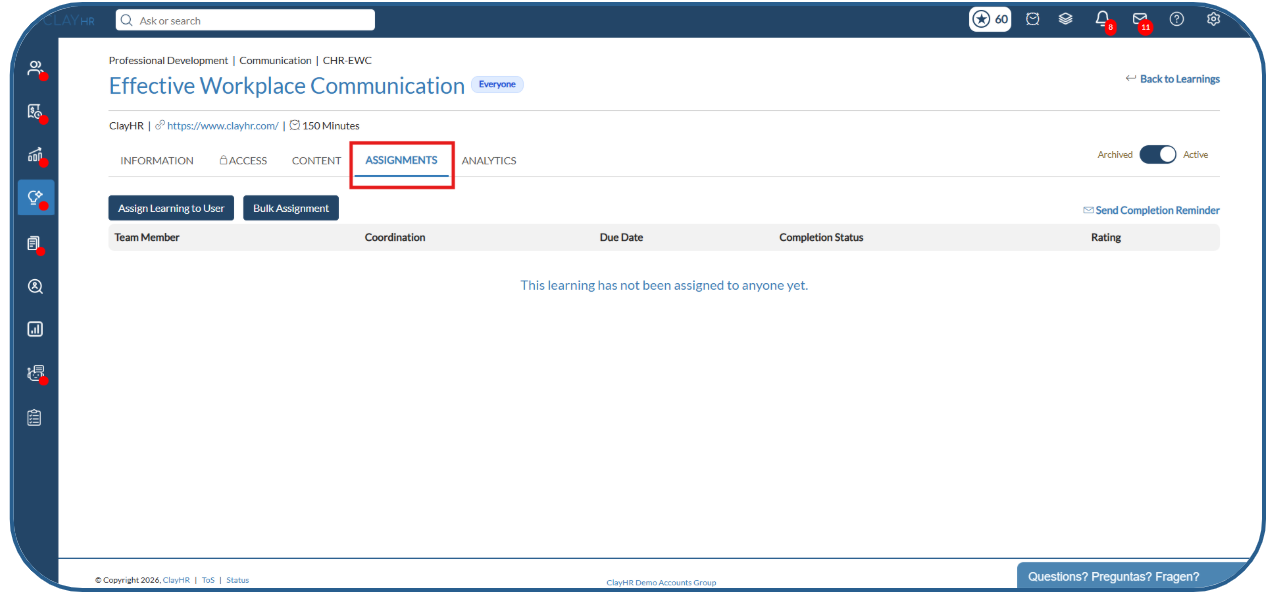
- To assign the learning to users, open the ‘Assignments’ tab on the learning view page.
- From here, you can assign learnings to users individually or in bulk.
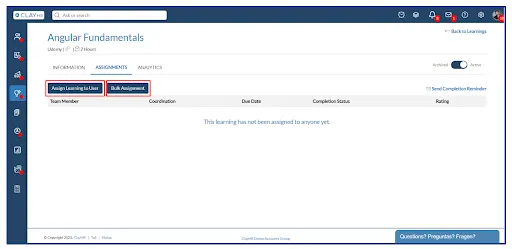
- Individual Assignment
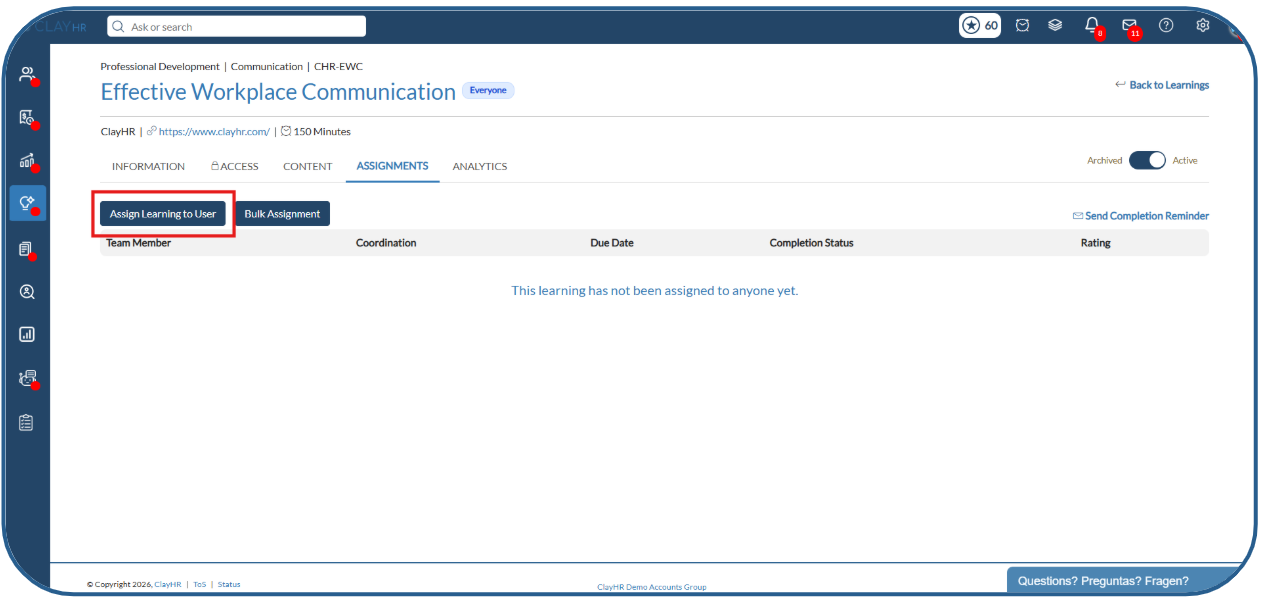
- Click Assign Learning to User.
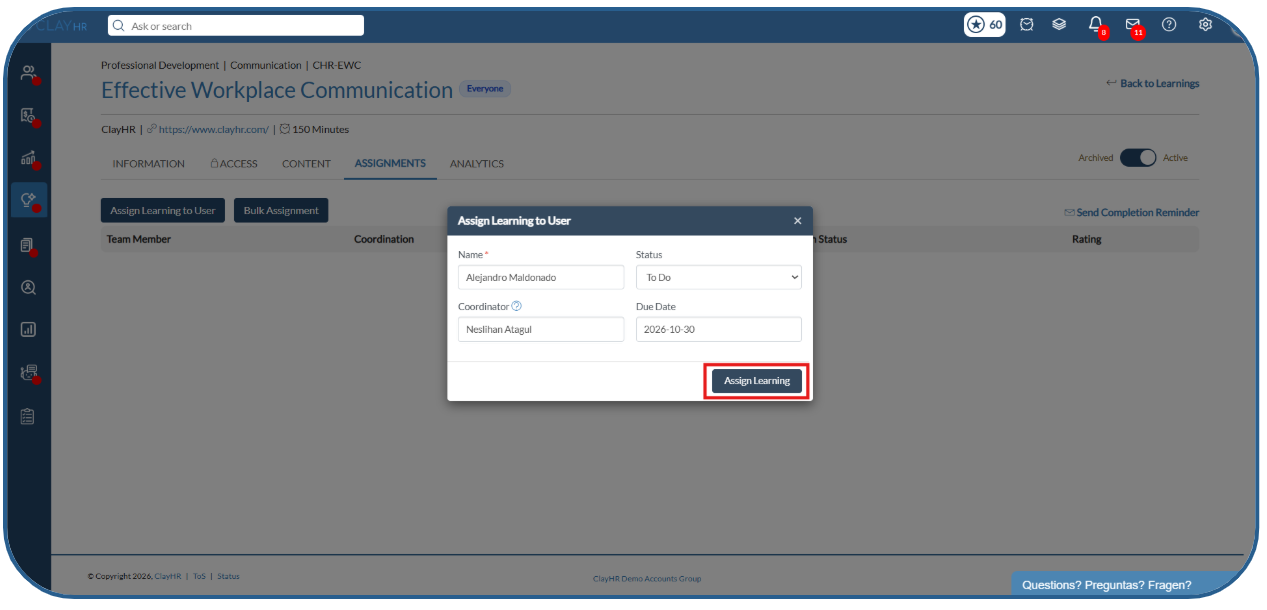
- Enter the learner’s name, coordinator’s name, and due date.
- Click Assign Learning.
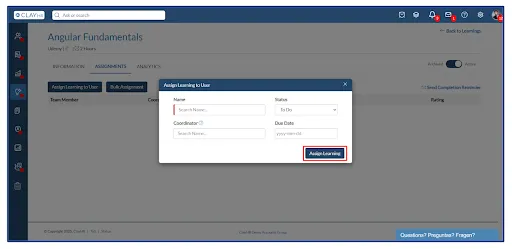
- Bulk Assignment
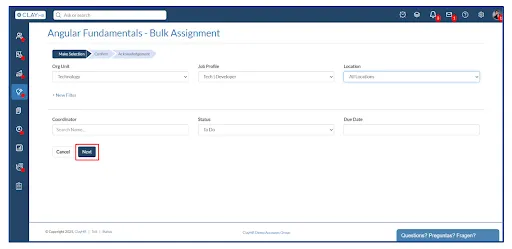
- Click Bulk Assignment.
- Use filters such as organization unit, location, and others to select a targeted group of users.
- Click the Next button.
- Select one or more users from the filtered list.
- Click the Confirm Assignment button.
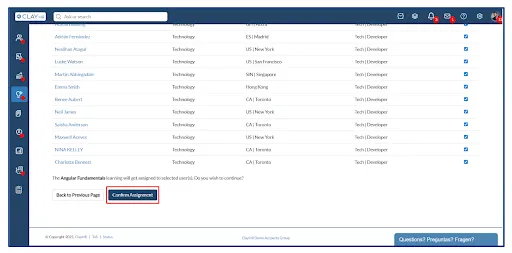
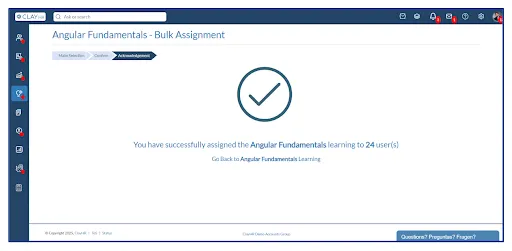
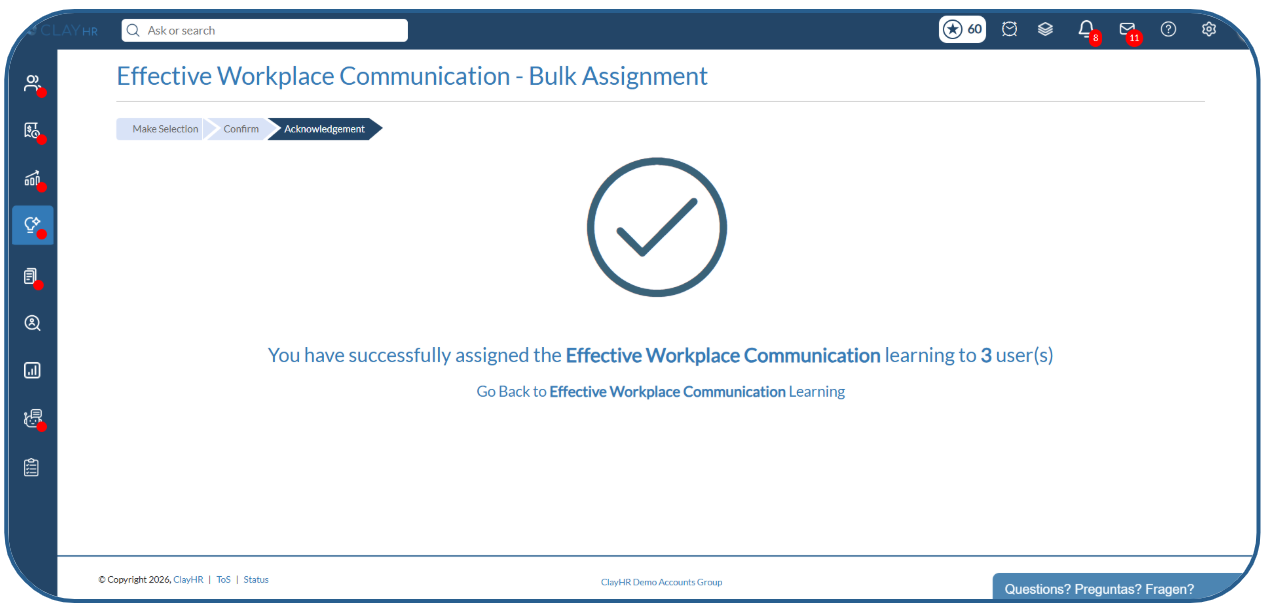
- The learning will now be successfully assigned to the selected users.
ClayHR provides a structured way to create, organize, and manage learnings across your organization. Admins can build learnings by adding modules and learning content, configure access and completion settings, assign learnings to individual users or groups, and monitor learner progress through analytics. This guide walks you through the complete process of creating, assigning, and managing a learning in ClayHR.
Here are the steps to create, assign and manage a learning:
Step 1. Create a New Learning
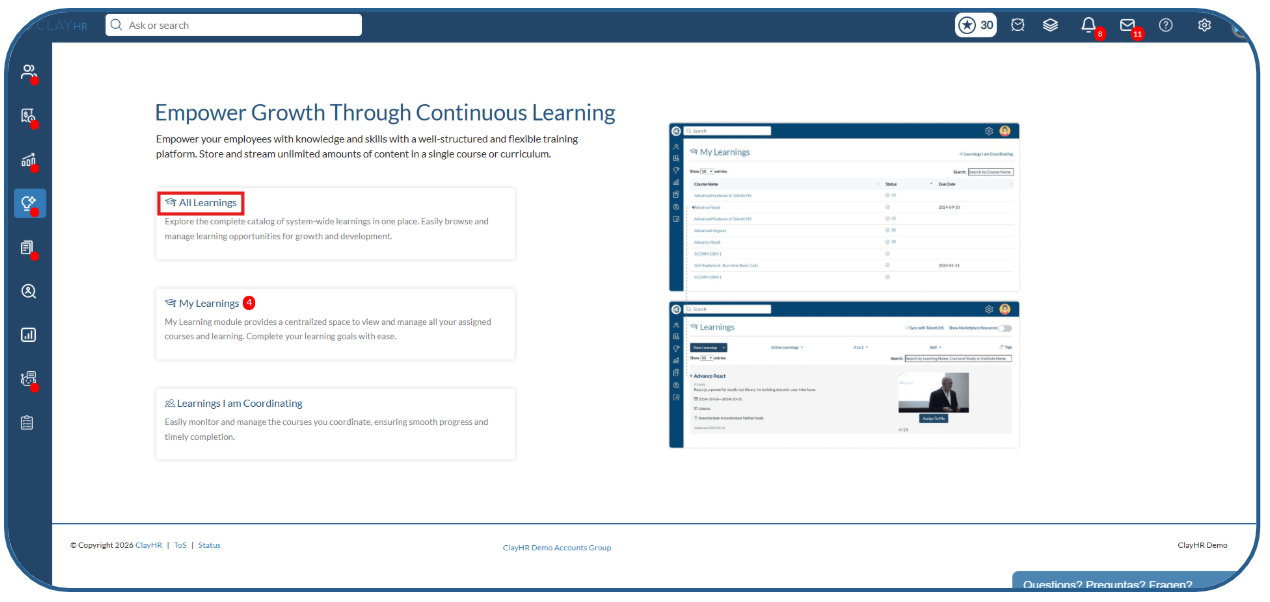
- Go to Skills & Talent Hub > Learnings > All Learnings.
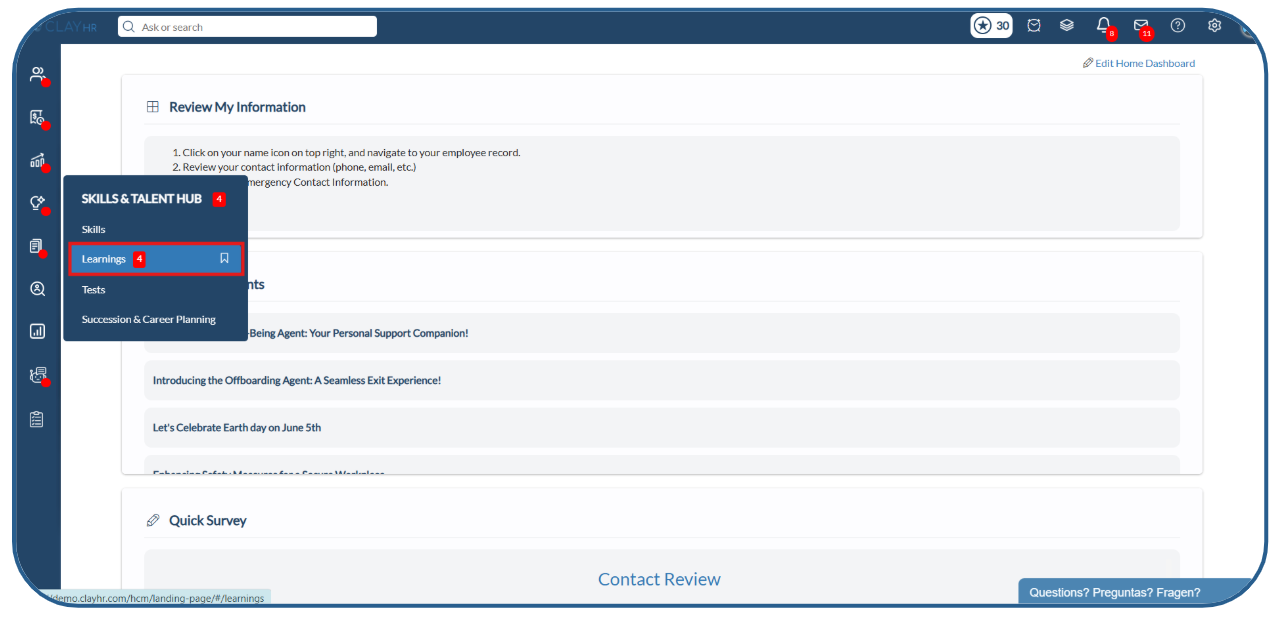
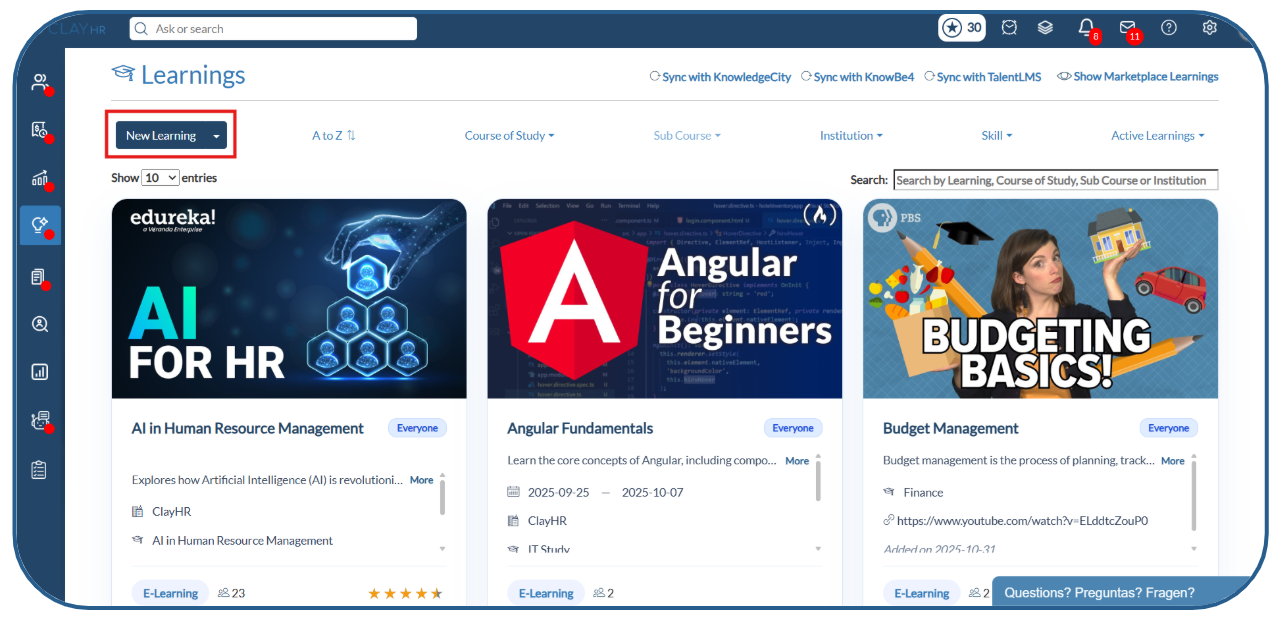
- Click New Learning.
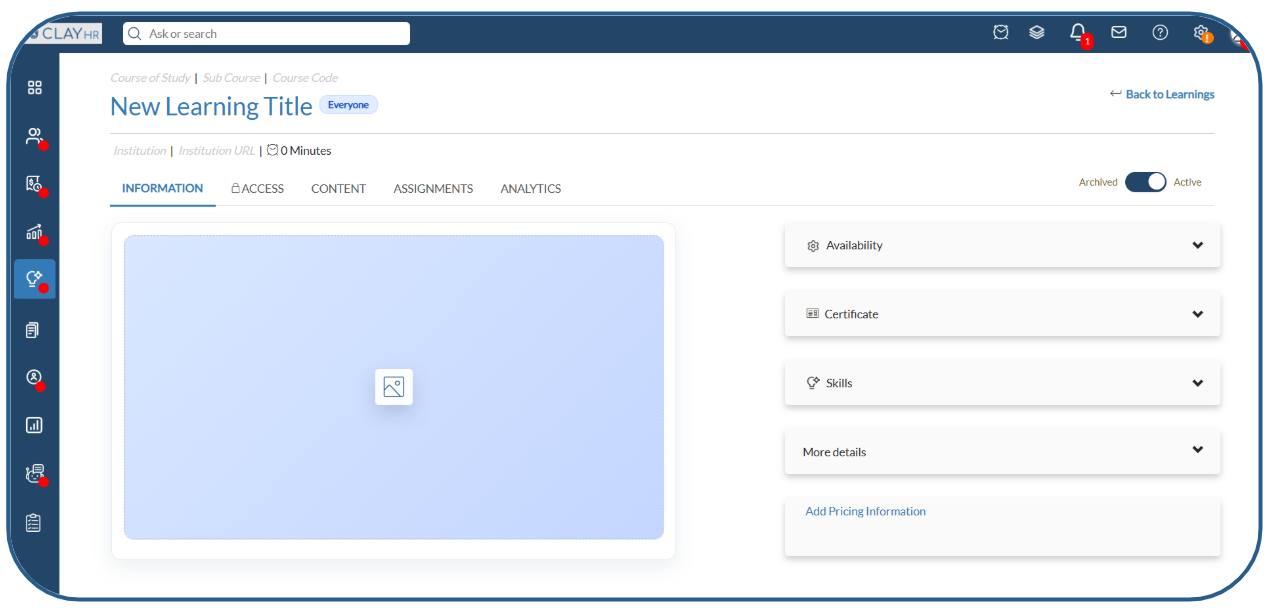
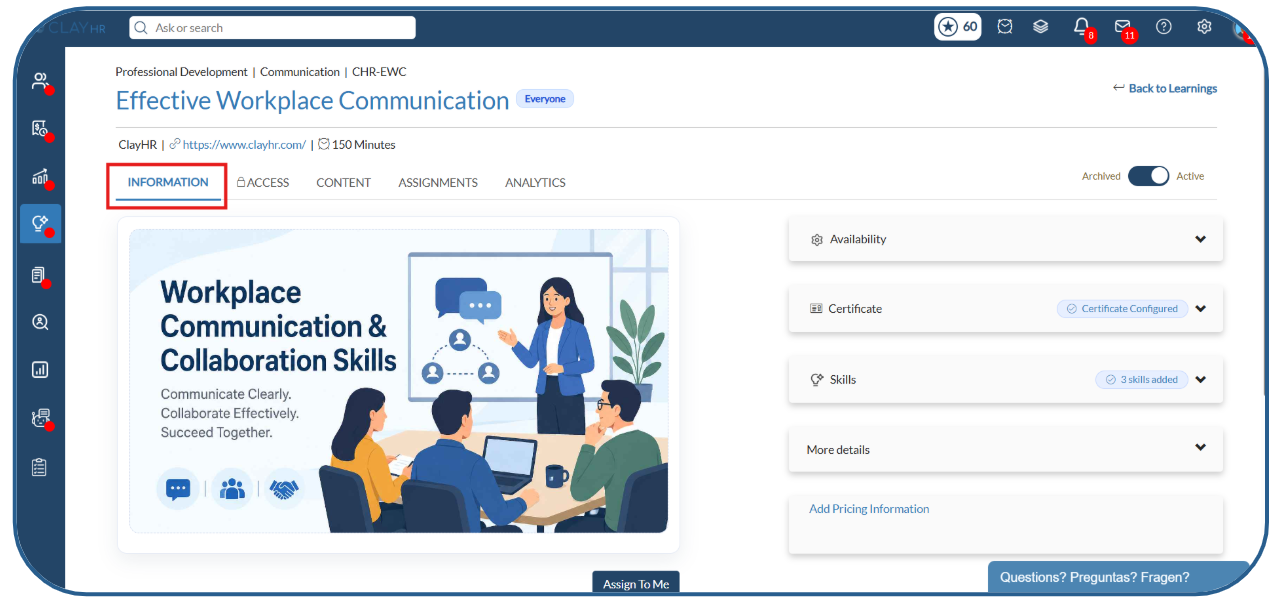
- In the Information tab, enter the required learning details, such as:
- Learning Name
- Course of Study
- Sub Course
- Course Code
- Duration
- Add Thumbnail
- Description
- Skills
- Other relevant information
- Configure the Course Mandatory option.
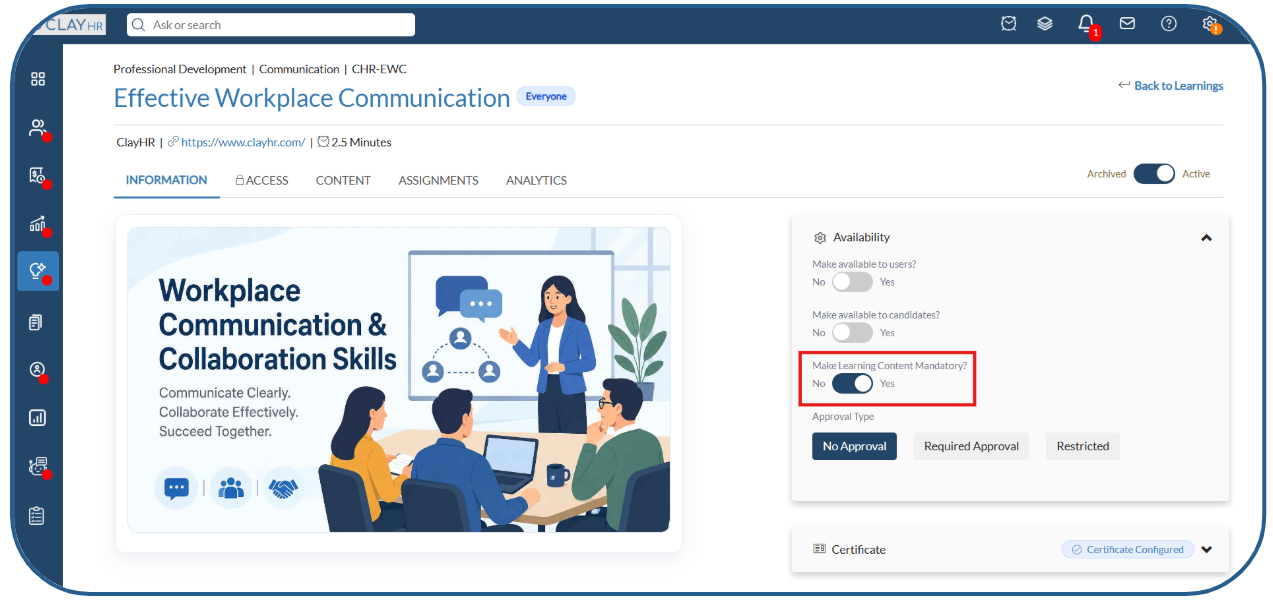
Course Mandatory – ON
This option is enabled by default and provides a strict learning experience:
- Modules and module items are unlocked in sequence.
- Learners must complete the current item before moving to the next one.
- Videos must be watched completely and cannot be skipped or seeked.
- Mark as Complete becomes available only after the required content has been accessed or watched.
- The learning is completed only after all required items are completed.
Course Mandatory – OFF
Turn this option off to provide a flexible learning experience:
- All modules and module items are available from the beginning.
- Learners can access and complete modules and items in any order.
- Mark as Complete is available at any time, except for tests/assessments.
- Learners can mark content as complete without opening or viewing it.
- Videos can be freely skipped or seeked.
- The learning is completed once all learning items are marked as complete.
Step 2. Configure Learning Access
The Access tab allows you to control who can manage and access the learning.
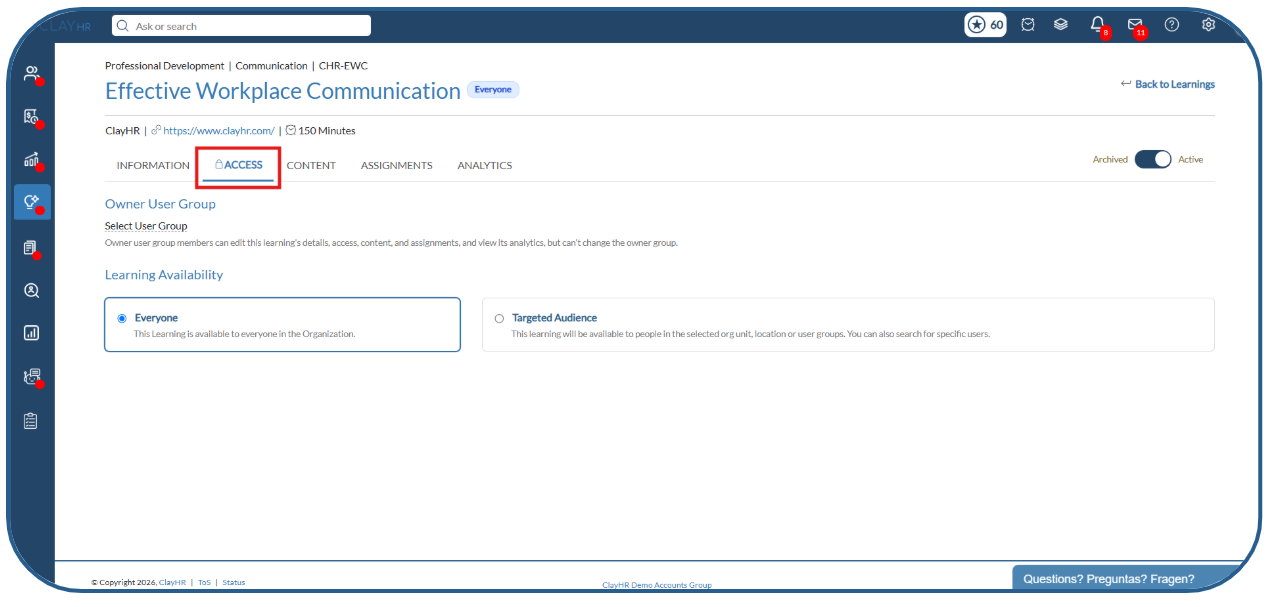
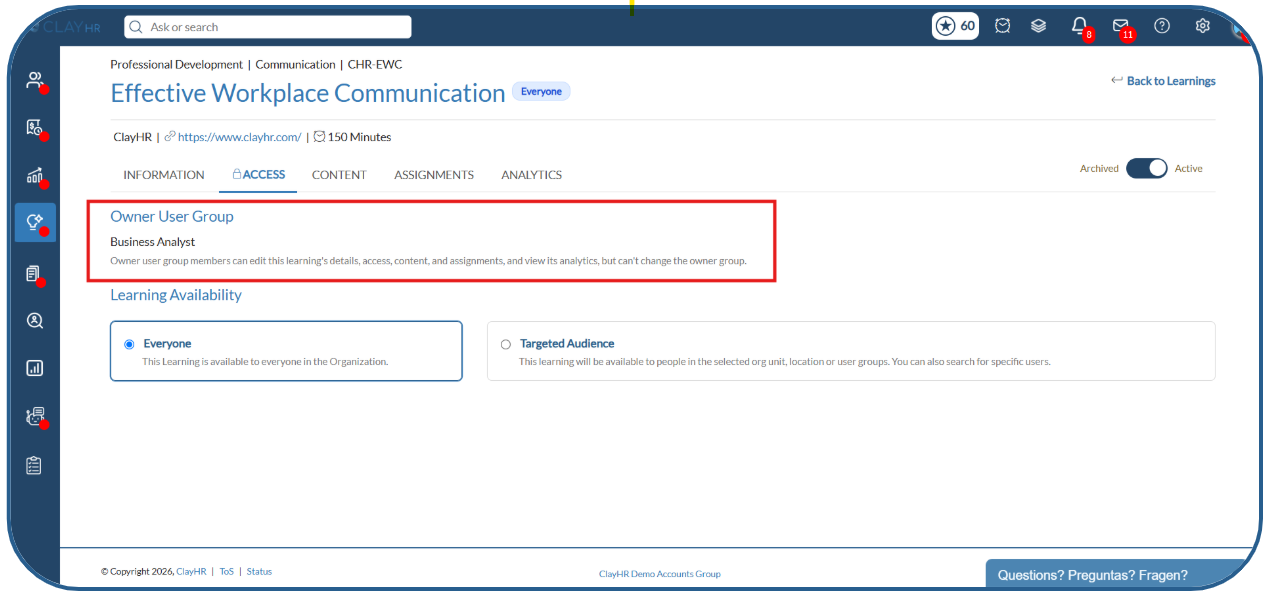
- Add a Learning Owner Group
You can assign an Owner User Group to a learning for learning-specific administration.
- Select an Owner User Group for the learning.
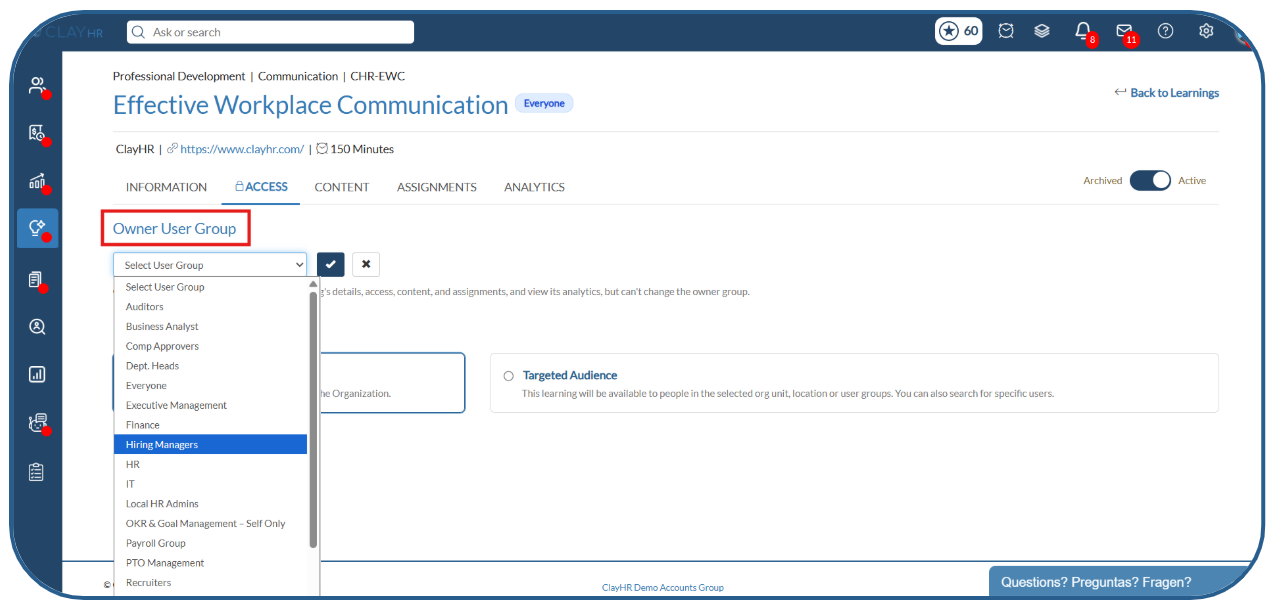
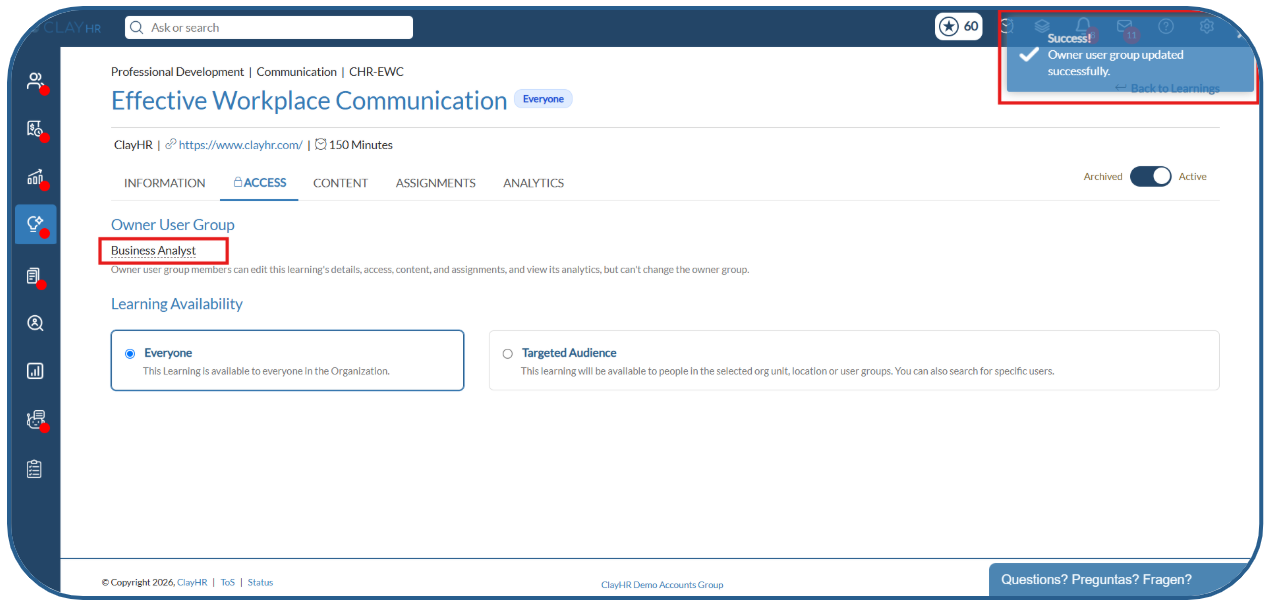
- Users who belong to the selected group and have the Manage Owned Learnings permission can manage the learning.
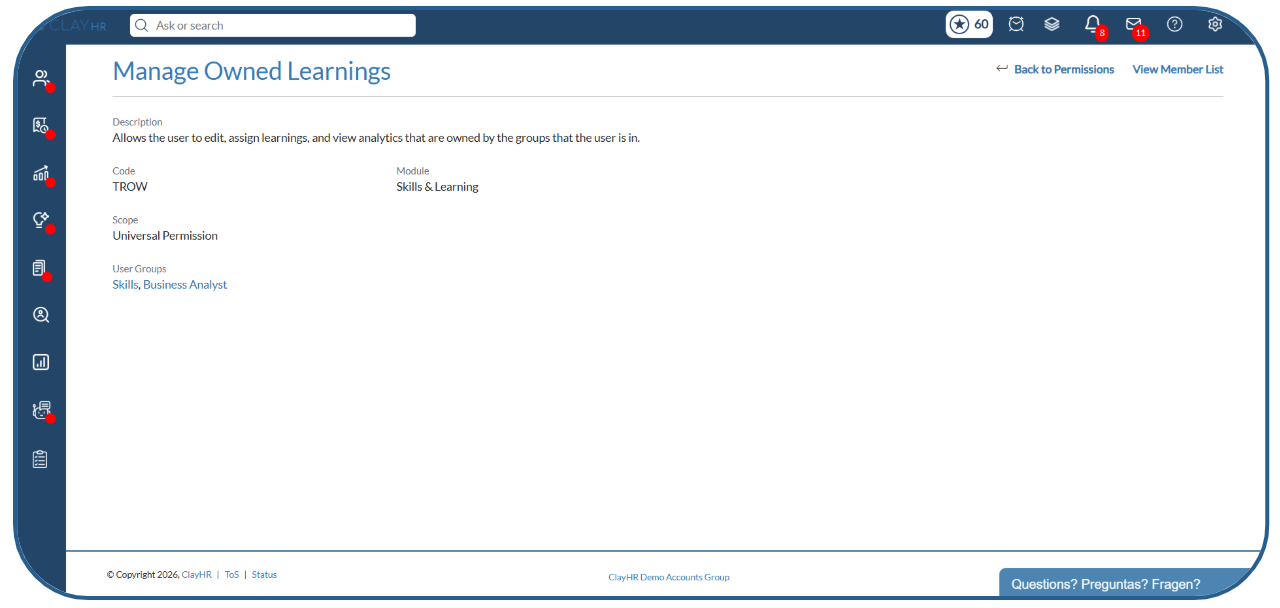
- Users with “Manage Owned Learnings“ permission can view the learnings that are owned by the groups that the user is in.
- Learning owners can manage the learning, including its content, access, assignments, and analytics.
- A learning owner cannot change the Owner User Group.
- Configure Learning Availability
The Availability section allows you to control which users can access the learning.
You can control learning access using the following two options:
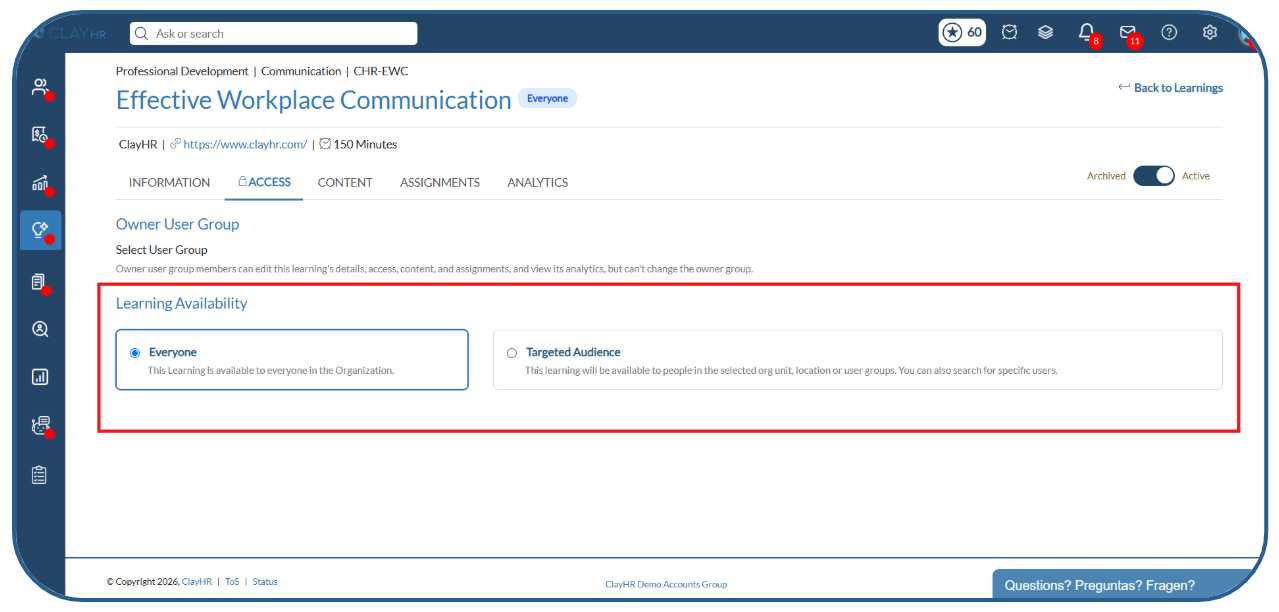
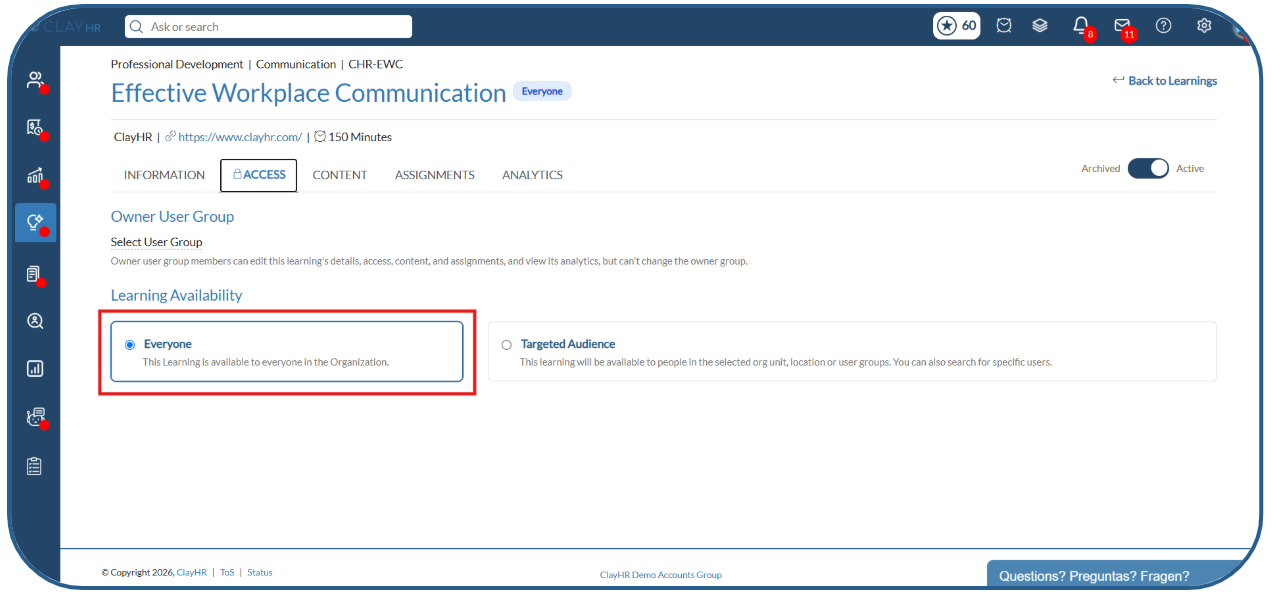
1. Everyone
Select this option to make the learning available to everyone in the organization.
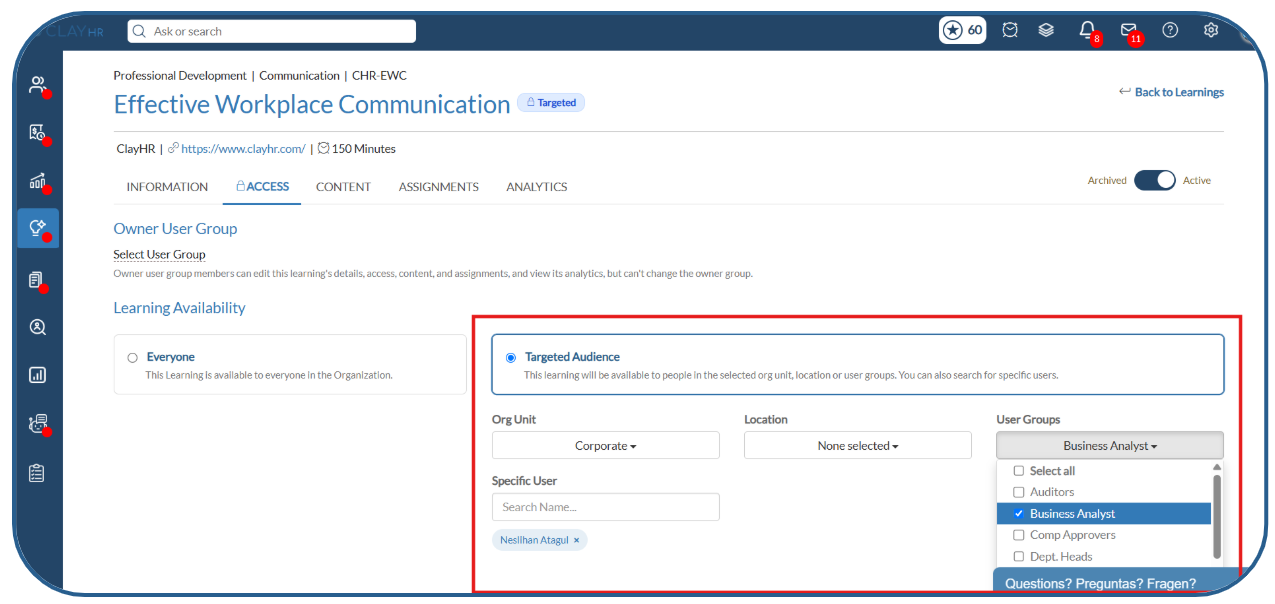
2. Targeted Audience
Select this option to make the learning available only to selected users based on the following criteria:
- Organization Unit: Make the learning available to users belonging to a specific organization unit.
- Location: Make the learning available to users at a selected location.
- User Group: Make the learning available to members of a specific user group.
- Specific Users: Select individual users who should have read access to the learning.
Note: Users with the required Learning Management permission can view all learnings,
even if they are not included in the configured target audience.
Step 3. Add Modules to the Learning
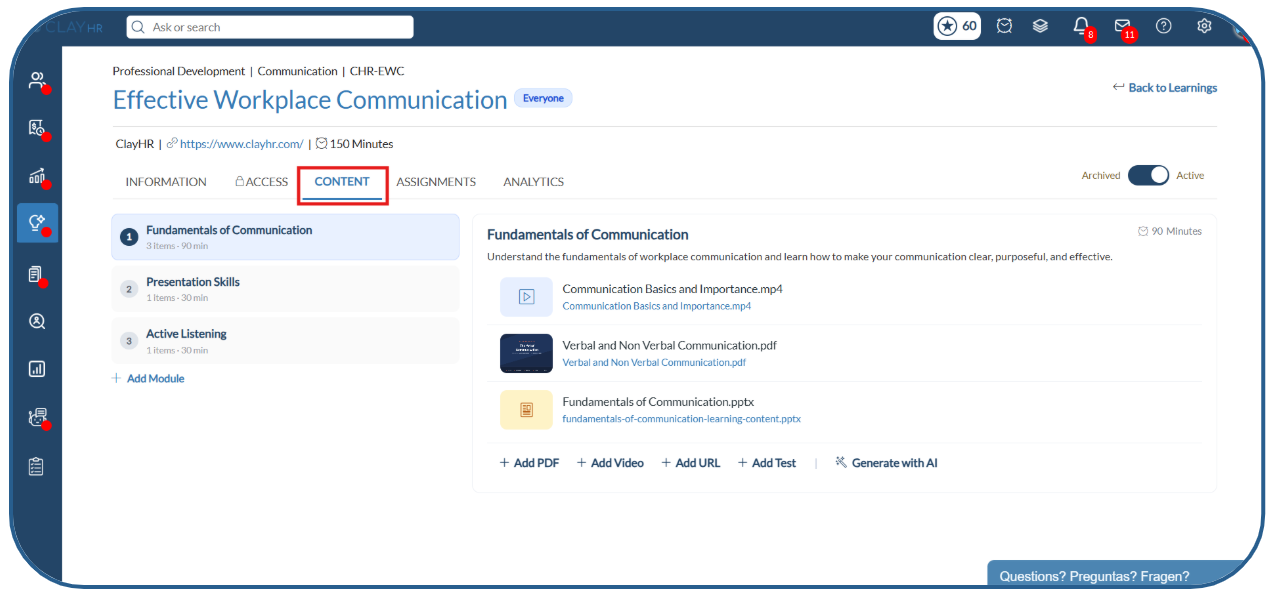
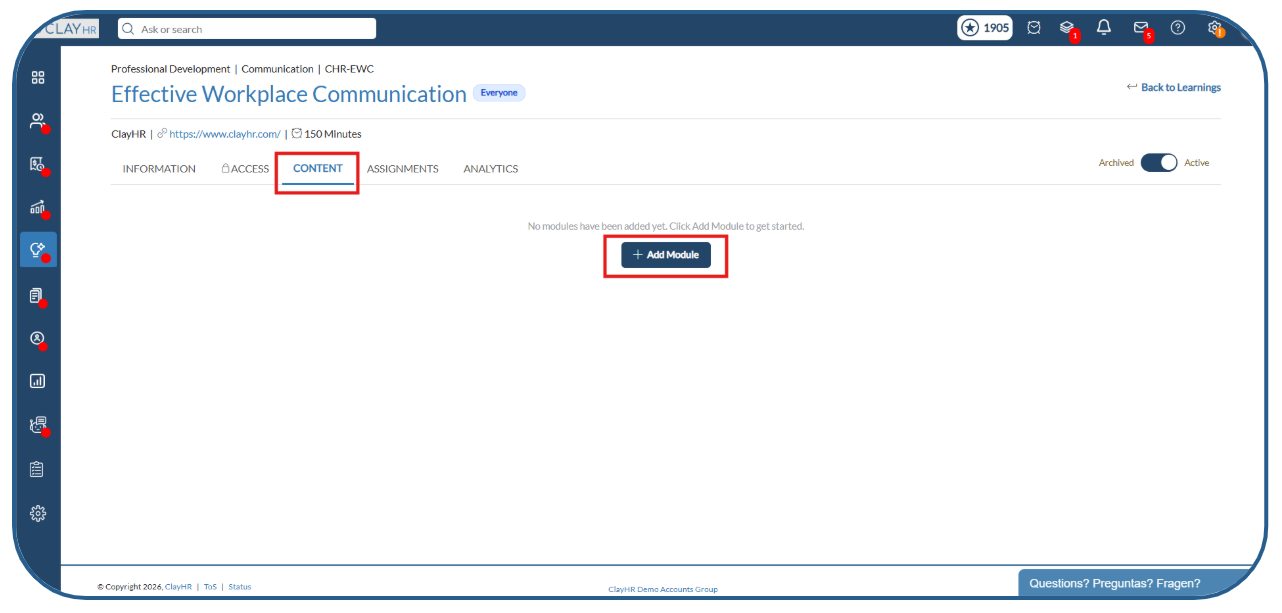
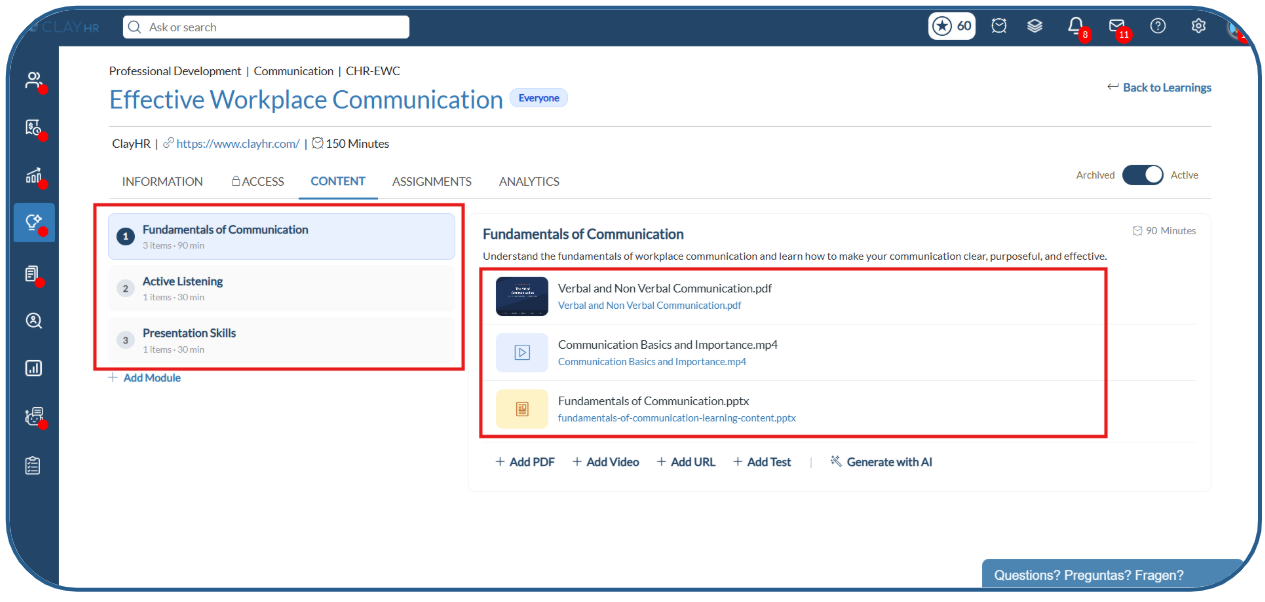
The Content tab allows you to organize learning content into modules.
- Open the Content tab.
- Click Add Module.
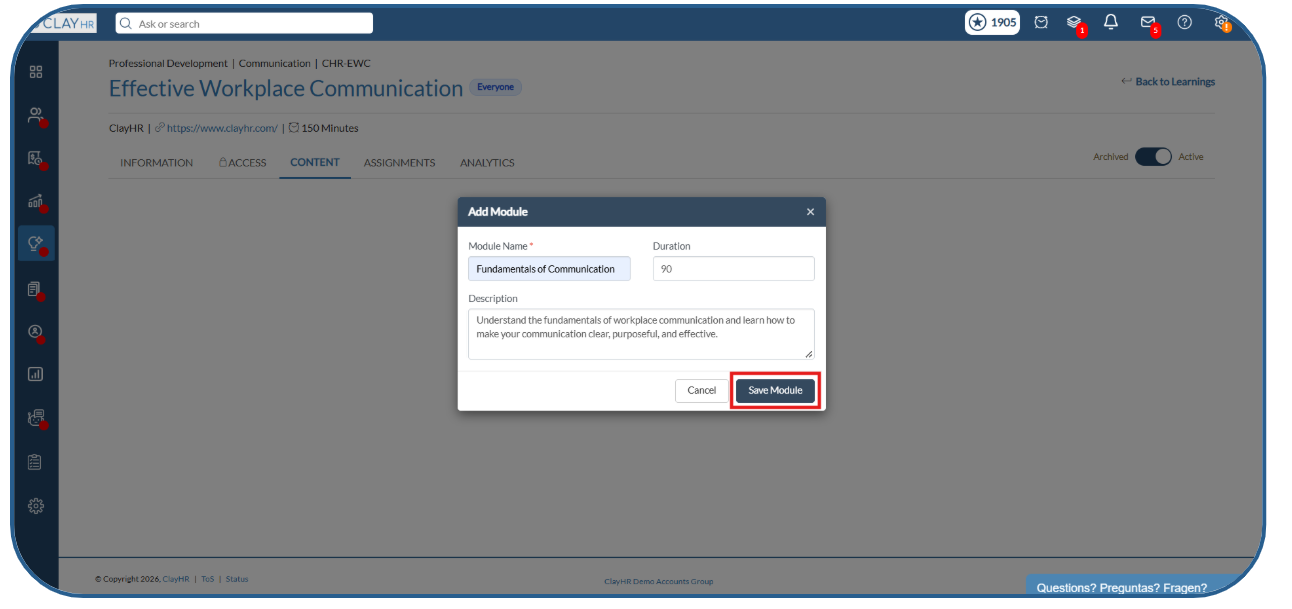
- Enter the Module Name.
- Add a Module Description.
- Enter the Module Duration (Minutes).
- Click Save Module.
- The module will be created in the learning.
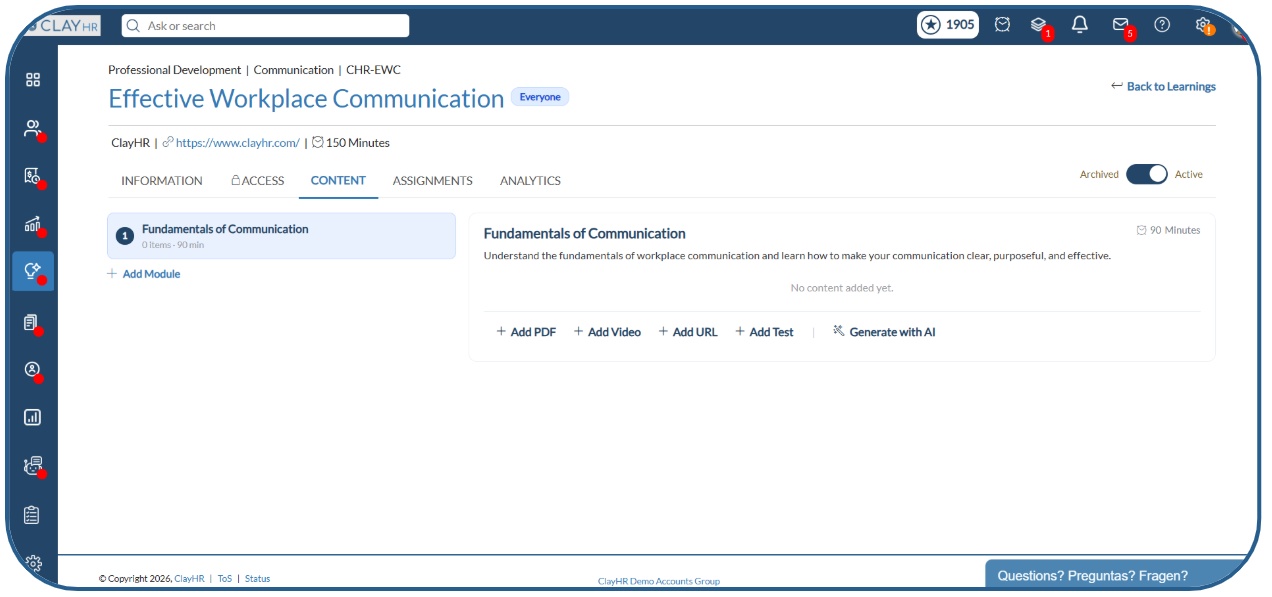
Step 4. Add Learning Content to a Module
Once a module is created, you can add different types of learning content to it.
- Open the module where you want to add content.
- Add the required Module Items.
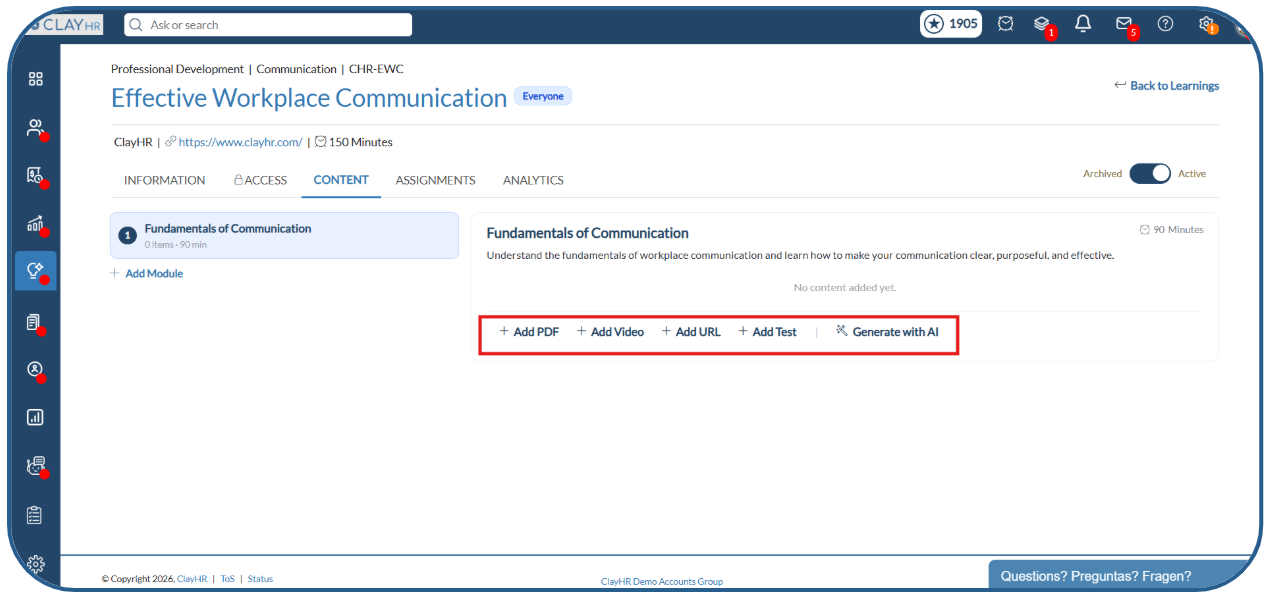
- You can add different types of learning content, such as:
- Video
- Test/Assessment
- URL
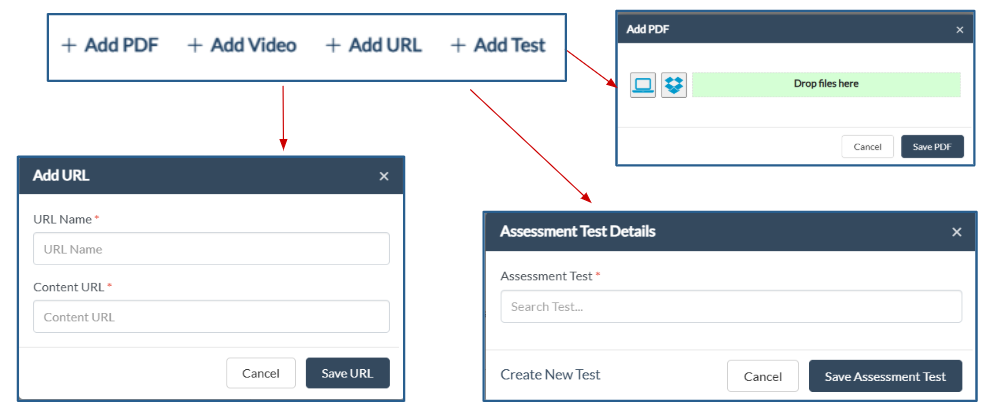
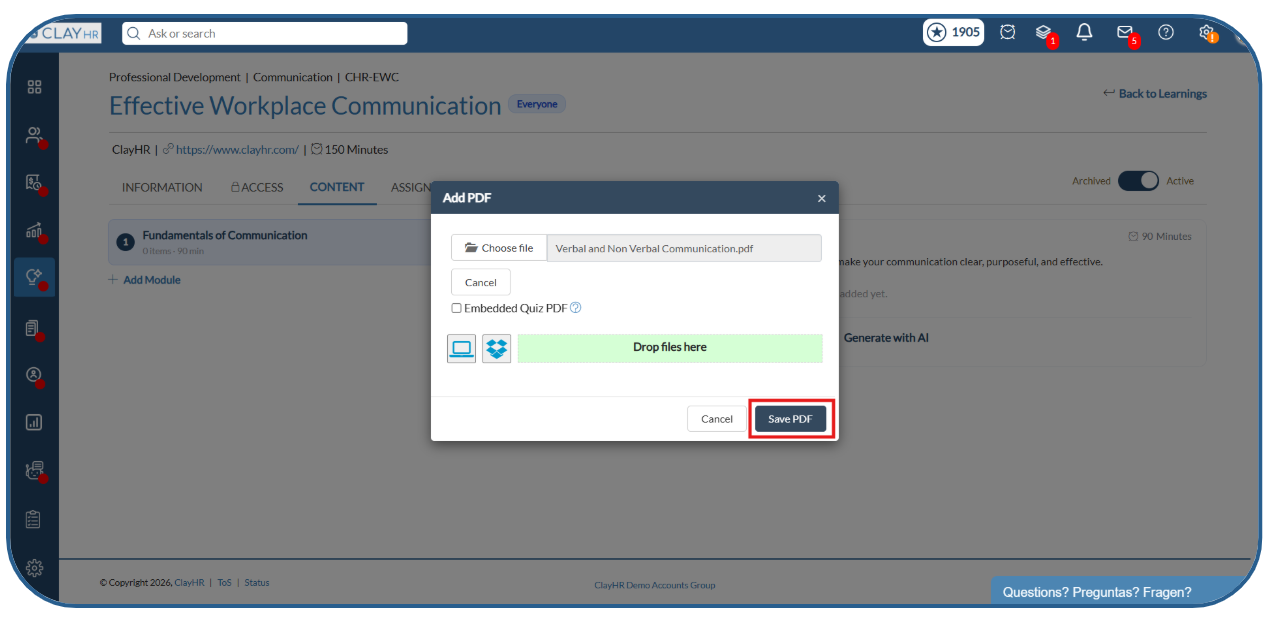
- Add the required content and save it.
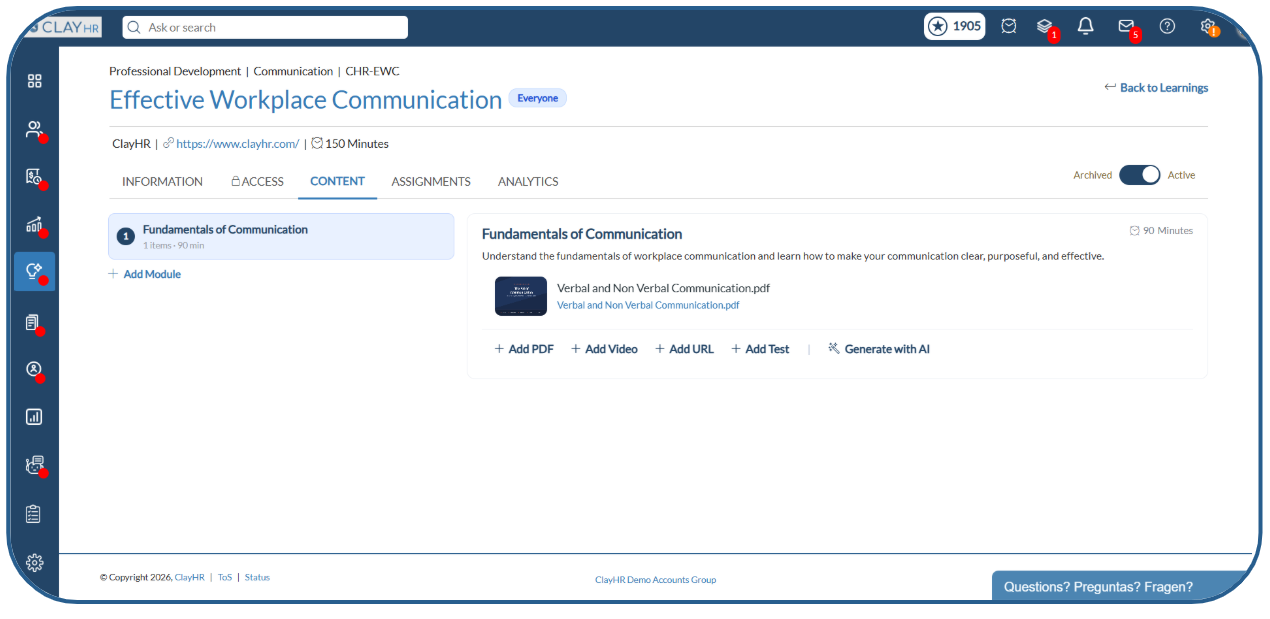
- The content will appear under the selected module.
Step 5. Edit Modules and Learning Items
You can update the learning structure whenever needed.
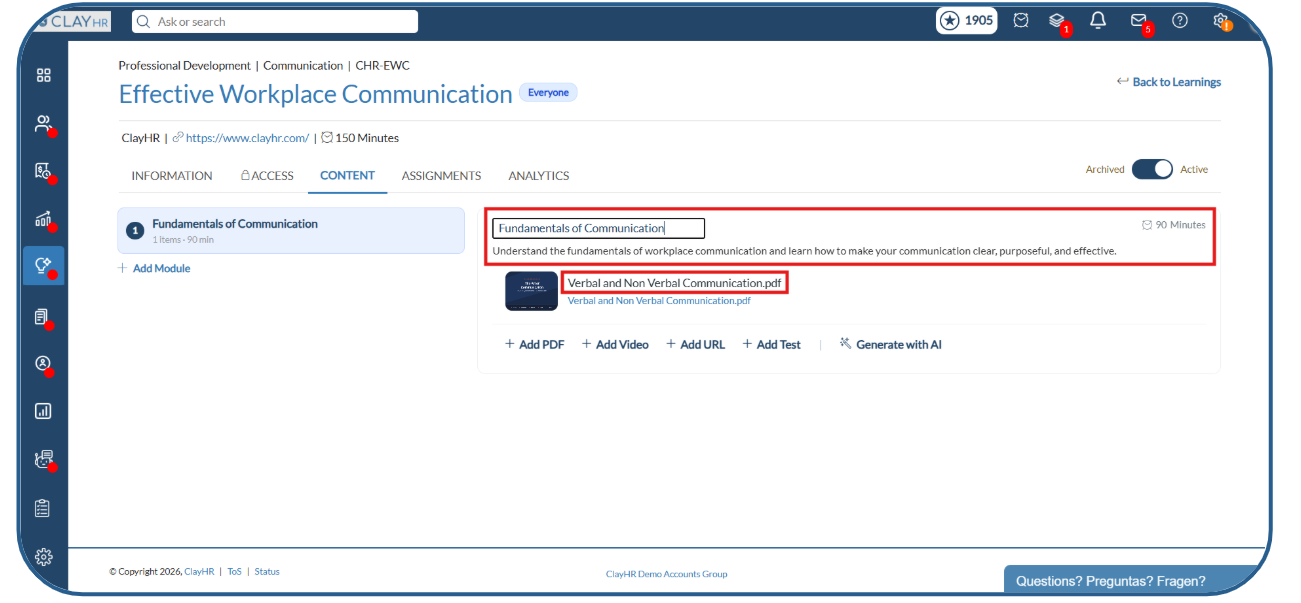
- Edit the module name and module description using the inline editable fields.
- Edit individual module item names as needed.
- Update the module duration (Minutes) when required.
Step 6. Set the Learning Sequence
Admins and Learning Management permission holders can control the order in which learners complete the learning.
- Drag and drop modules to change their order.
- Drag and drop module items to change their order within a module.
- The sequence set here determines the order in which learners complete the learning.
- Learners will follow the same sequence while completing the learning.
Step 7. Generate Learning Content Using AI
ClayHR also allows you to generate learning content using AI.
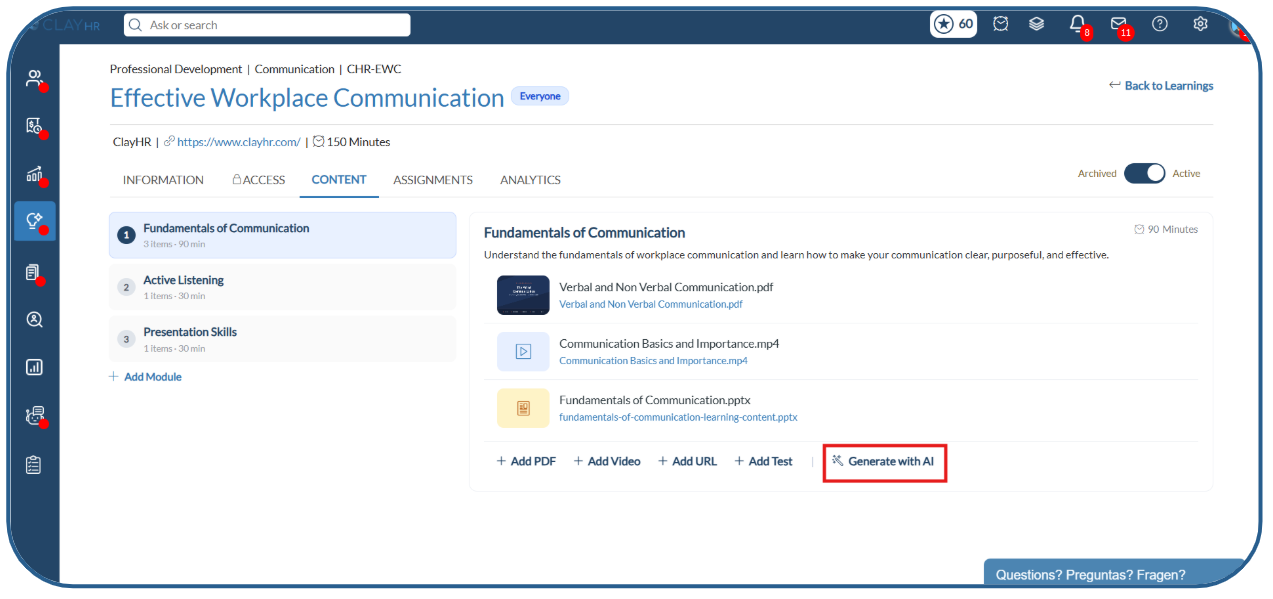
- Open the module where you want to add content.
- Click Generate with AI.
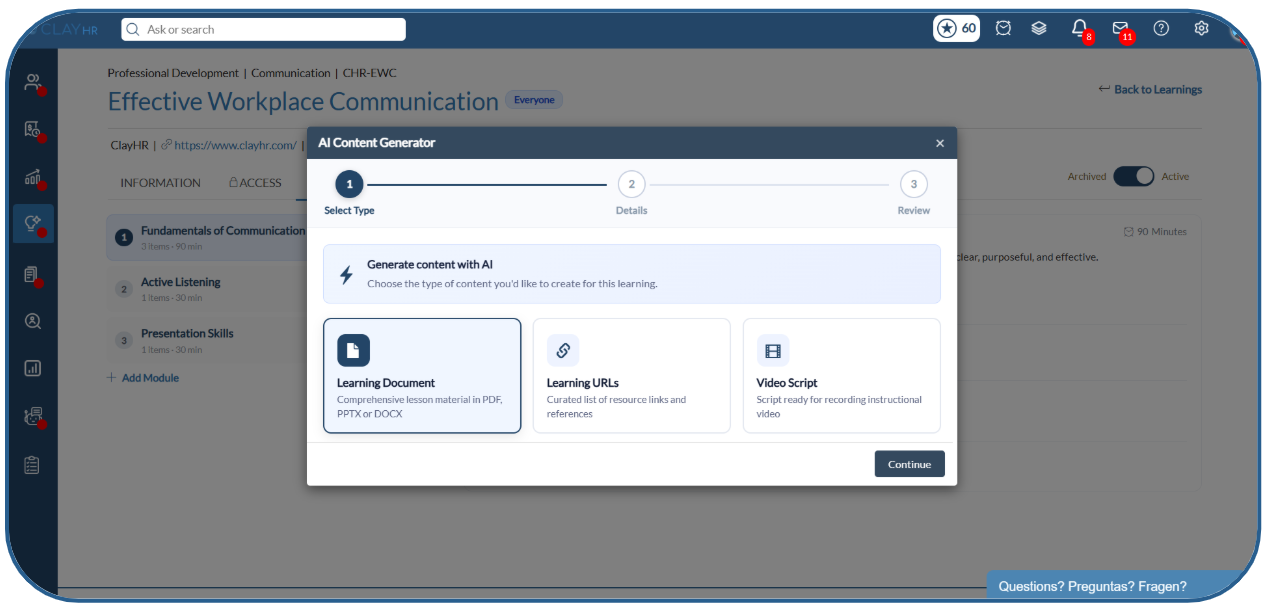
- Select the type of learning content you want to generate.
- AI uses the module name and relevant information to generate learning content.
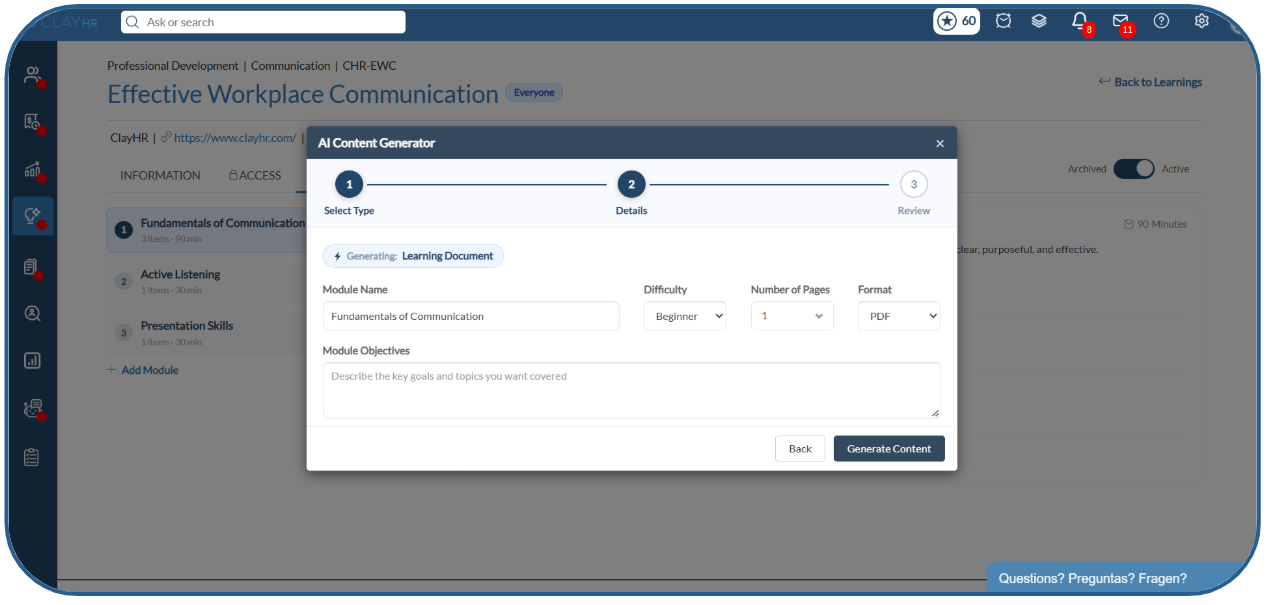
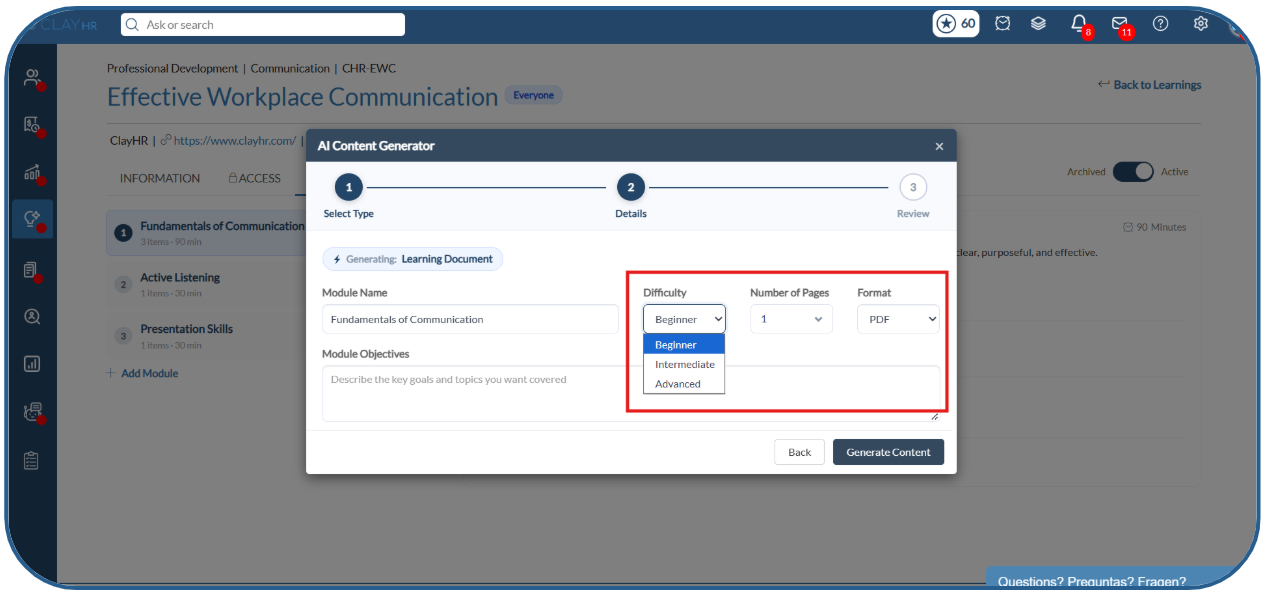
- Specify the difficulty level: Beginner, Intermediate, or Advanced.
- Select the number of pages for the generated document.
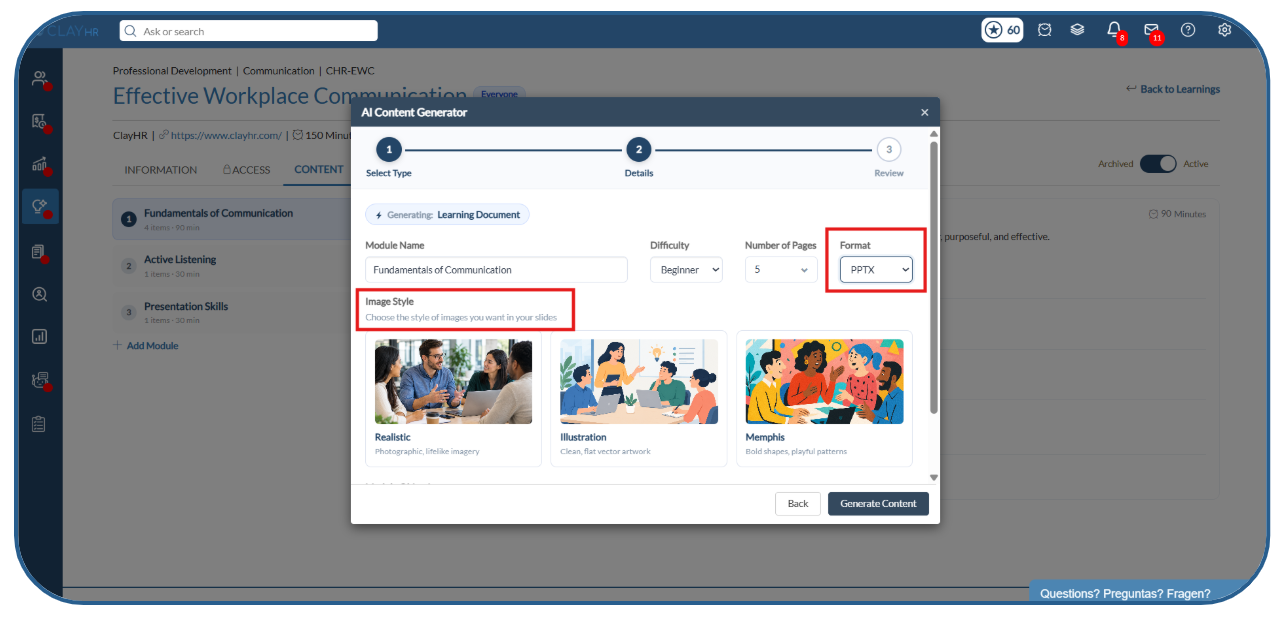
- Choose the required format, such as PDF.
- For PPTX presentations, you can choose to include images in the slides and select an image style. The presentation will be generated with both text and images based on the selected style.
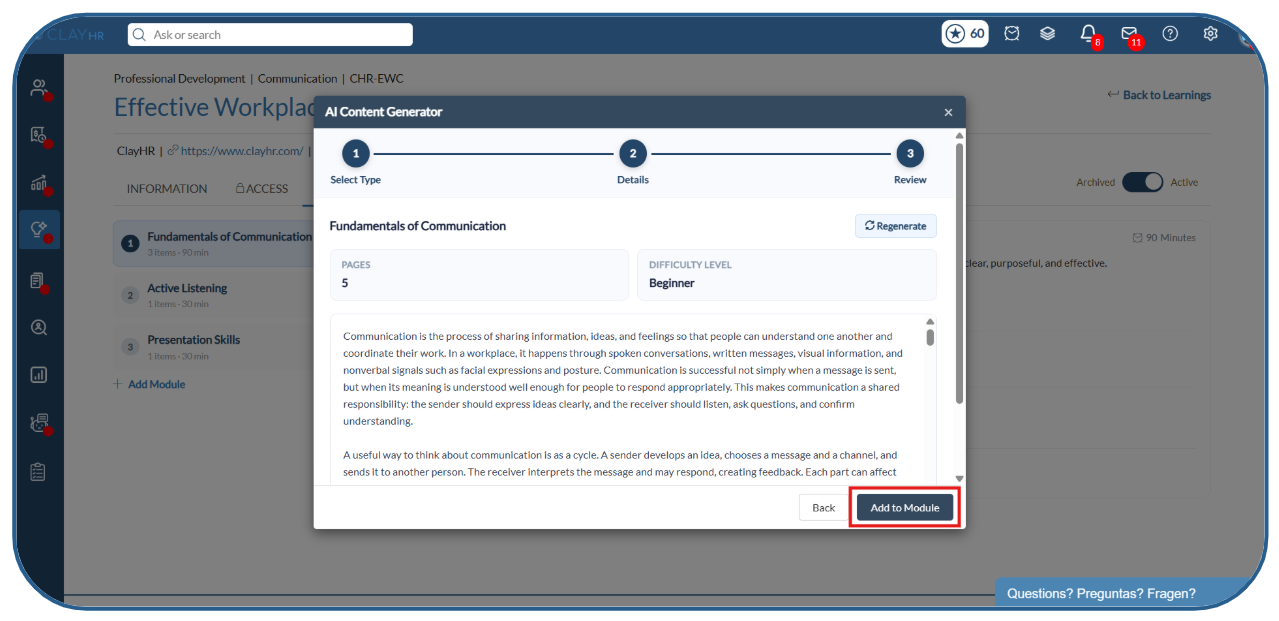
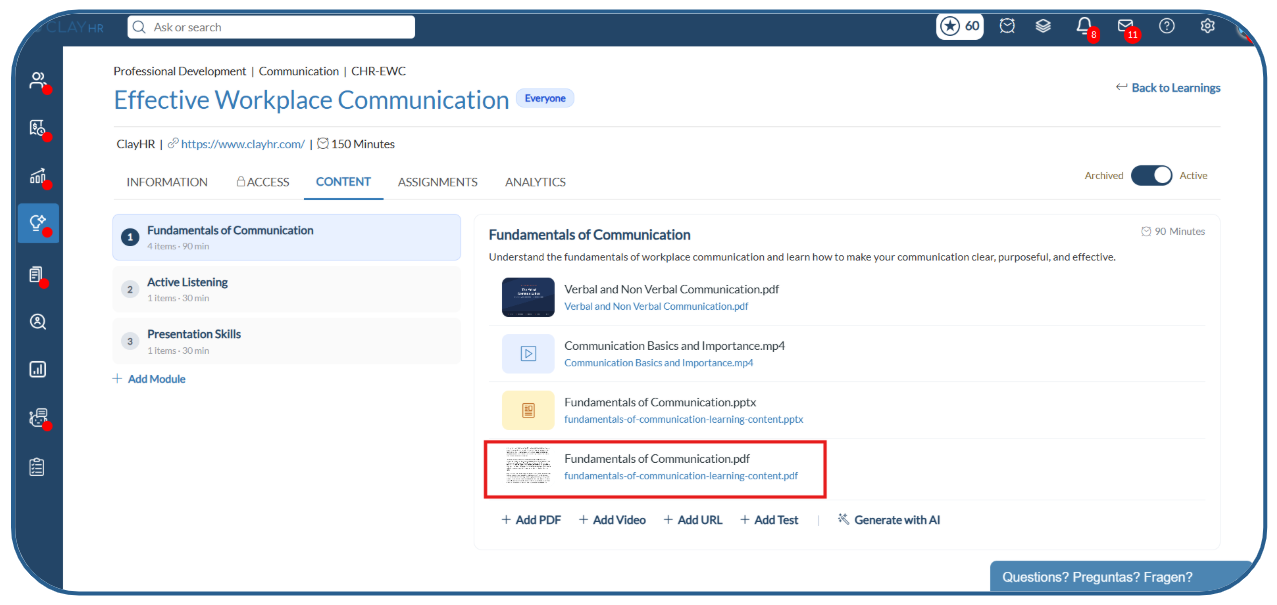
- Review the generated resources and add the required content to the module.
Step 8. Assign the Learning
Once the learning is created and configured, you can assign it to learners from the Assignments tab.
Individual Assignment
- Open the Assignments tab.
- Click Assign Learning to User.
- Select the learner.
- Select the coordinator, if required.
- Set the due date.
- Click Assign Learning.
Bulk Assignment
- Click Bulk Assignment.
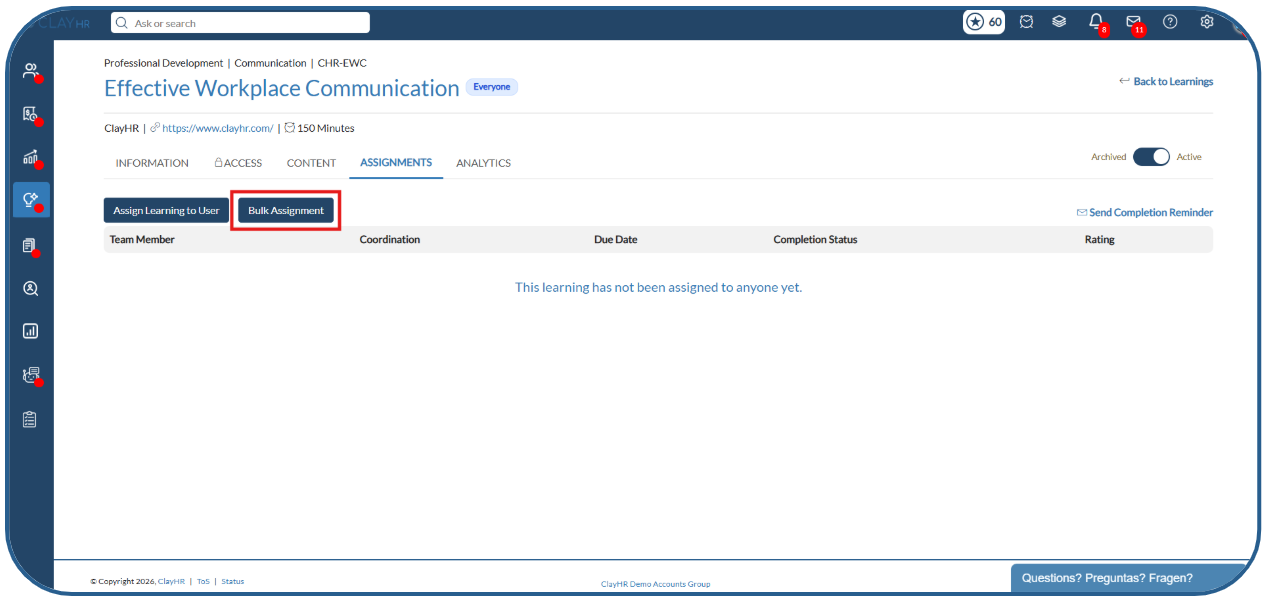
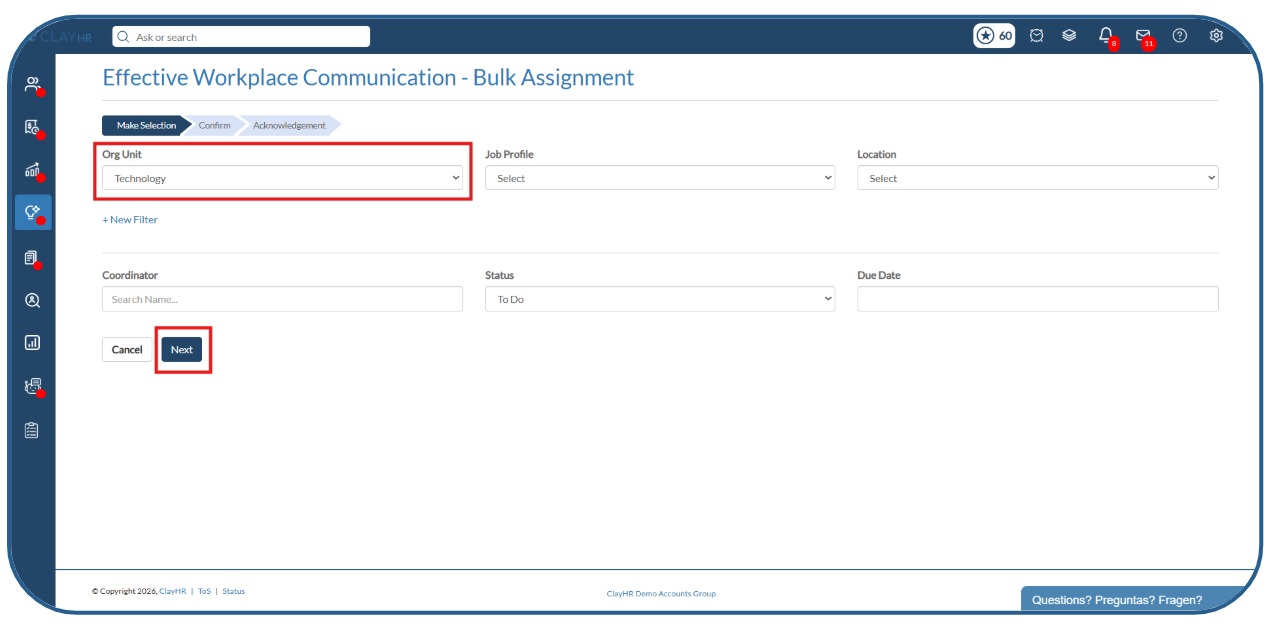
- Use available filters such as Organization Unit, Location, User Group, and other criteria to identify the target learners.
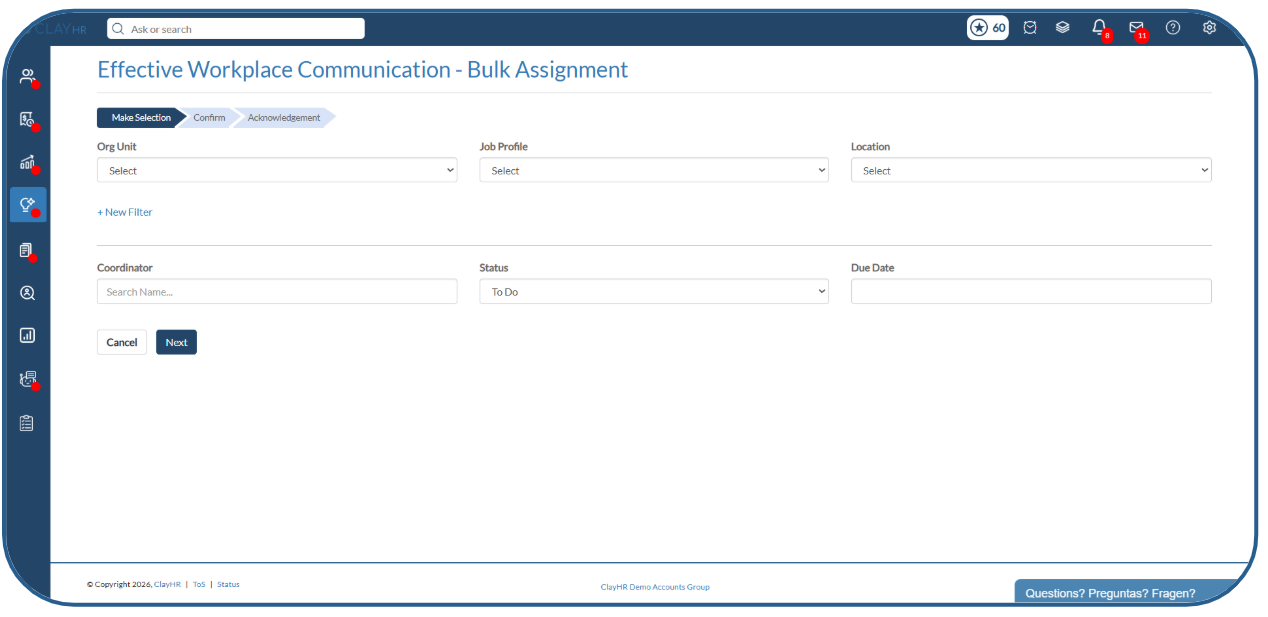
- Click Next.
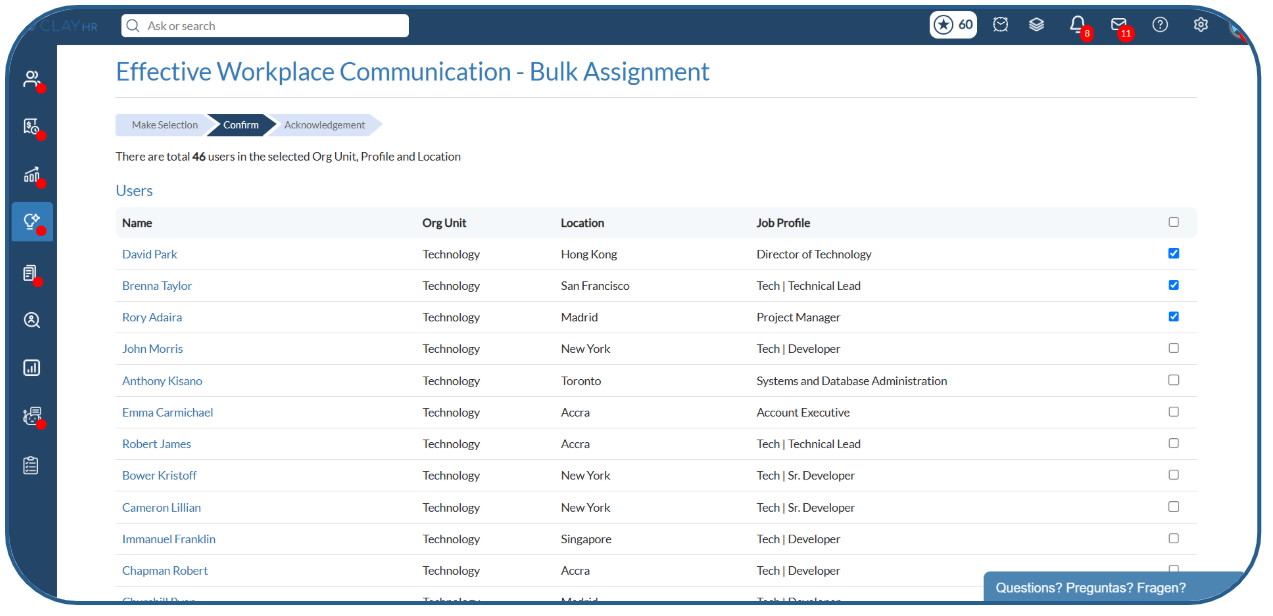
- Select the users you want to assign the learning to.
- Click Confirm Assignment.
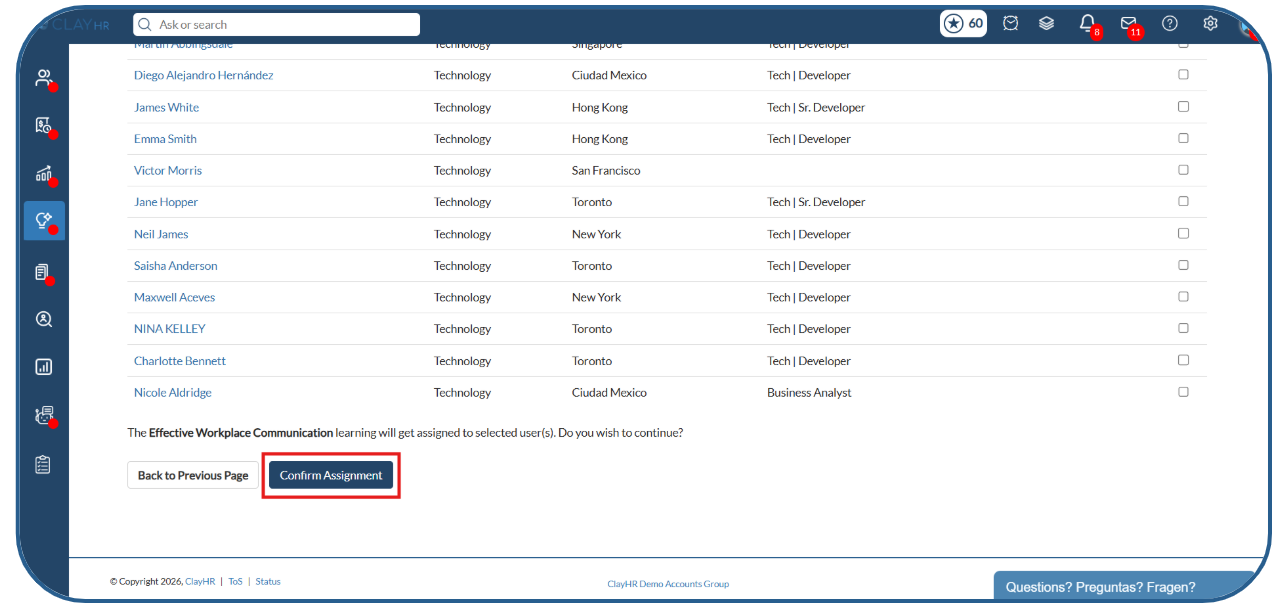
The learning will then be assigned to the selected users.
Step 9. View Learning Analytics
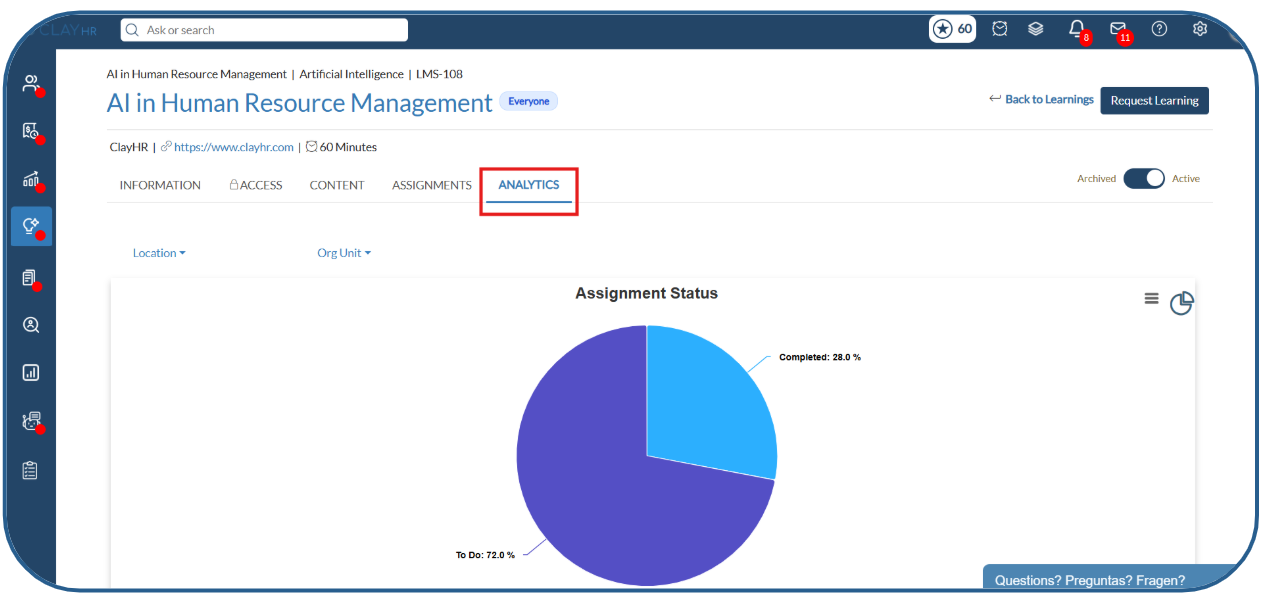
The Analytics tab allows learning admins to track learner progress and understand how users are progressing through the learning.
- Open the learning and go to the Analytics tab.
- View the overall learning completion status.
- Use the available analytics to monitor learner engagement and completion.
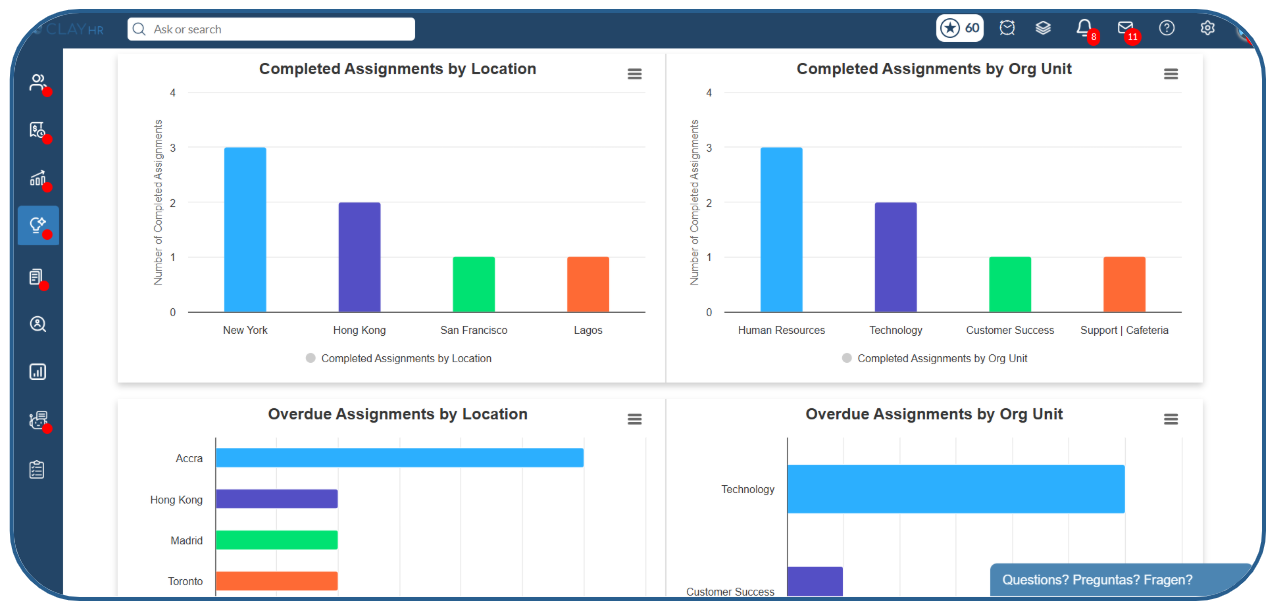
This helps admins quickly understand the overall progress of the assigned learning and identify learners who may need follow-up.






.webp)
