

How to Import Learnings into ClayHR?
ClayHR allows you to quickly import multiple learning records using a spreadsheet upload, making it easy to manage learning data in bulk. It covers the required file format, supported fields, and the step-by-step process needed to ensure a successful and accurate import of learning records into the system.
Instructions for Uploading Learnings via Spreadsheet
Download a sample Spreadsheet here.
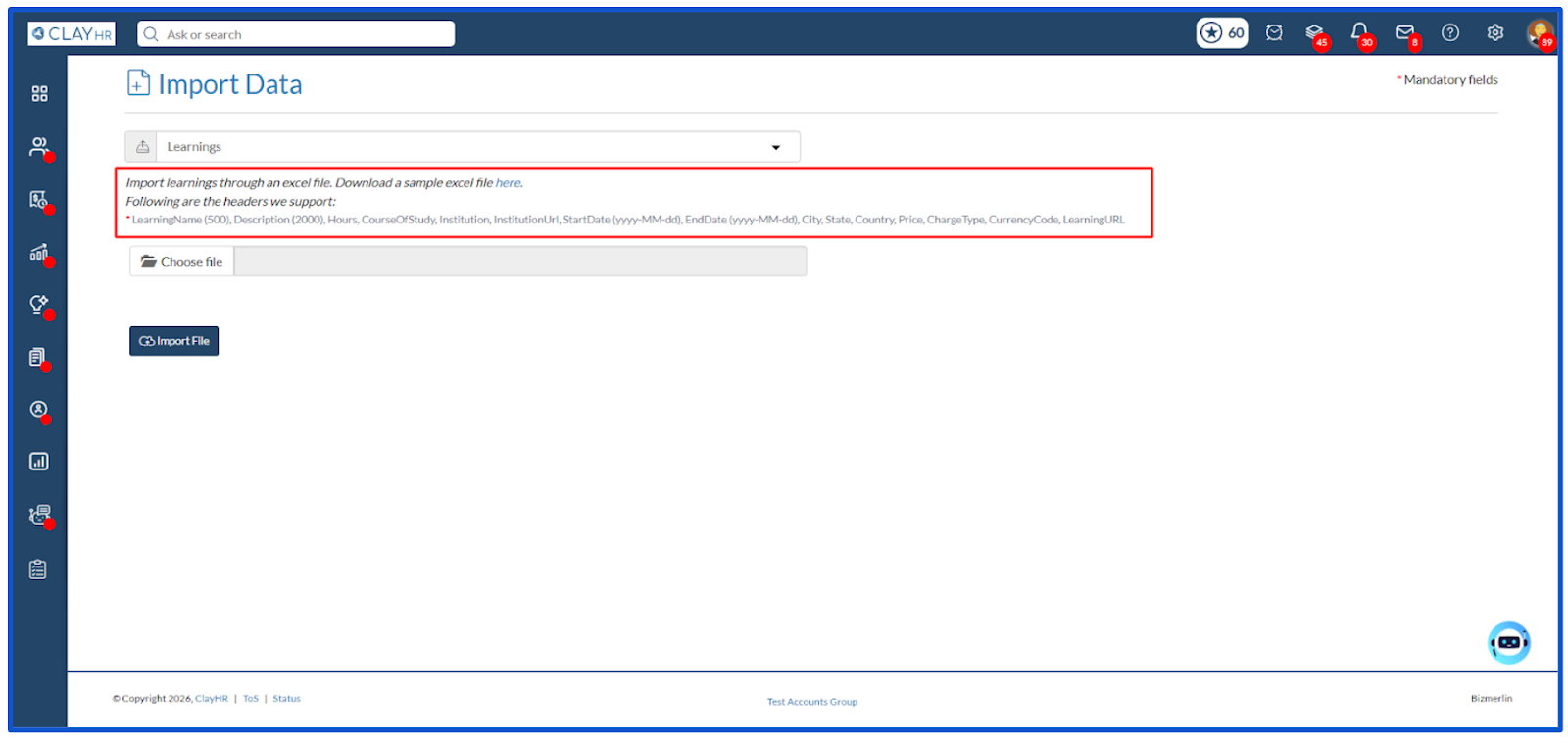
Following are the headers we support:
- LearningName: Enter the name of the learning program (Mandatory).
- Description: Provide a brief description of the learning program.
- Duration(Minutes): Specify the total duration in minutes required to complete the learning.
- CourseOfStudy: Mention the course or subject area the learning belongs to.
- Institution: Enter the name of the institution offering the learning.
- InstitutionUrl: Provide the official website URL of the institution.
- StartDate: Enter the start date of the learning program.
- EndDate: Enter the end date of the learning program.
- City: Specify the city where the learning is conducted.
- State: Specify the state where the learning is conducted.
- Country: Specify the country where the learning is conducted.
- Price: Enter the cost of the learning program.
- CurrencyCode: Specify the currency code for the price (e.g., USD, INR).
- LearningURL: Provide the URL linking directly to the learning program.
Steps to Import Learnings
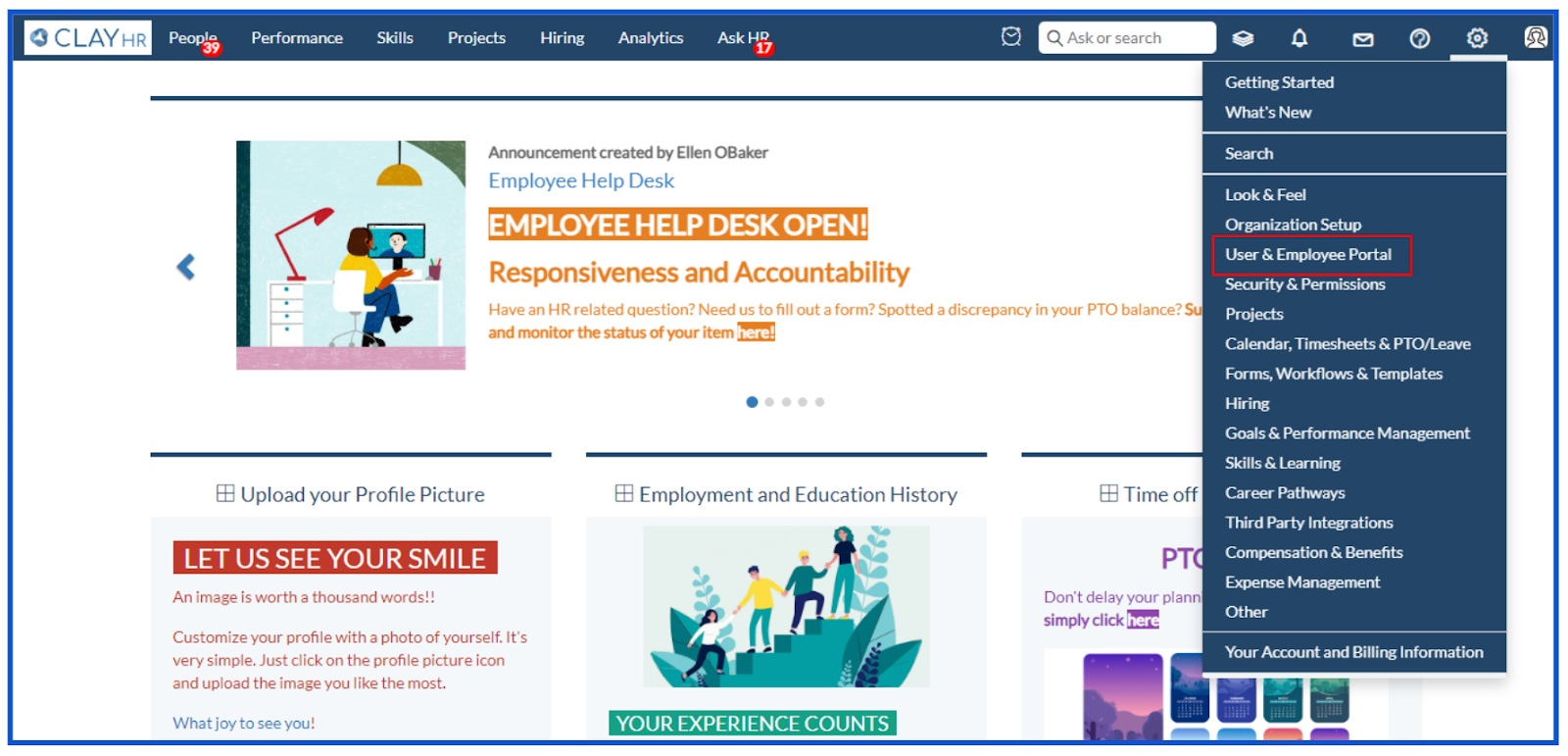
- Under the gear icon, click on the User & Employee Portal.
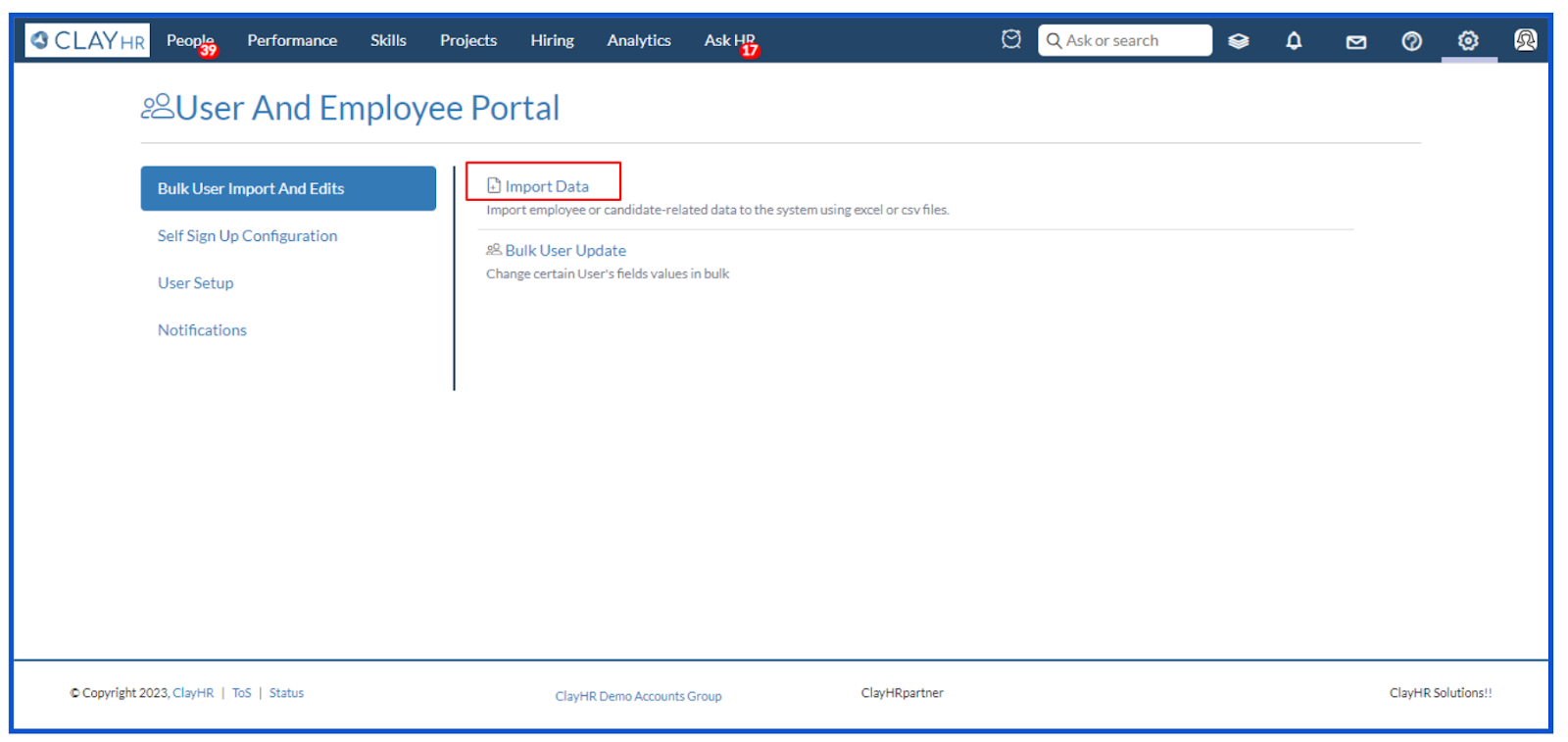
- Clicking on the User & Employee Portal button will redirect you to the User and Employee Portal page. Click on the Import Data.
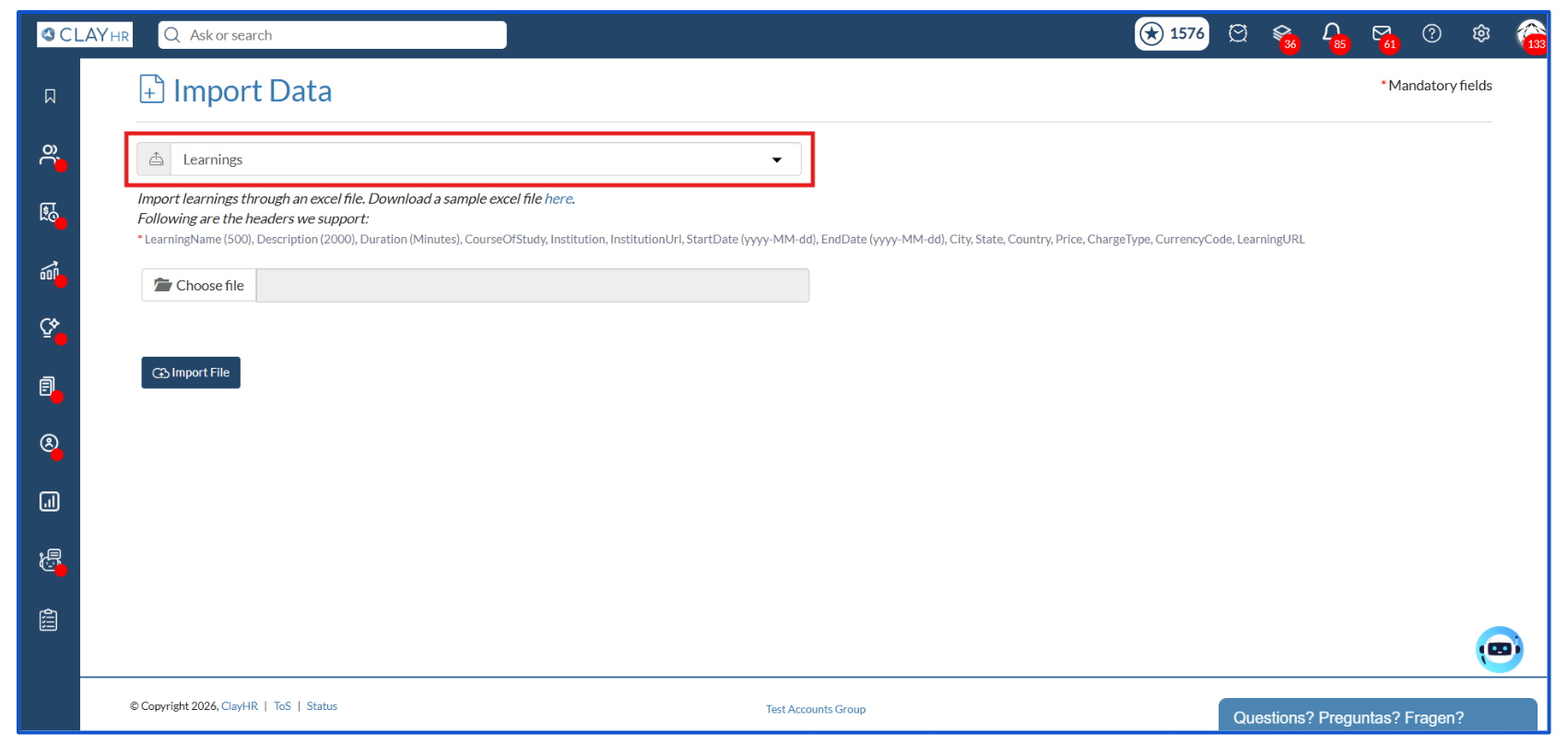
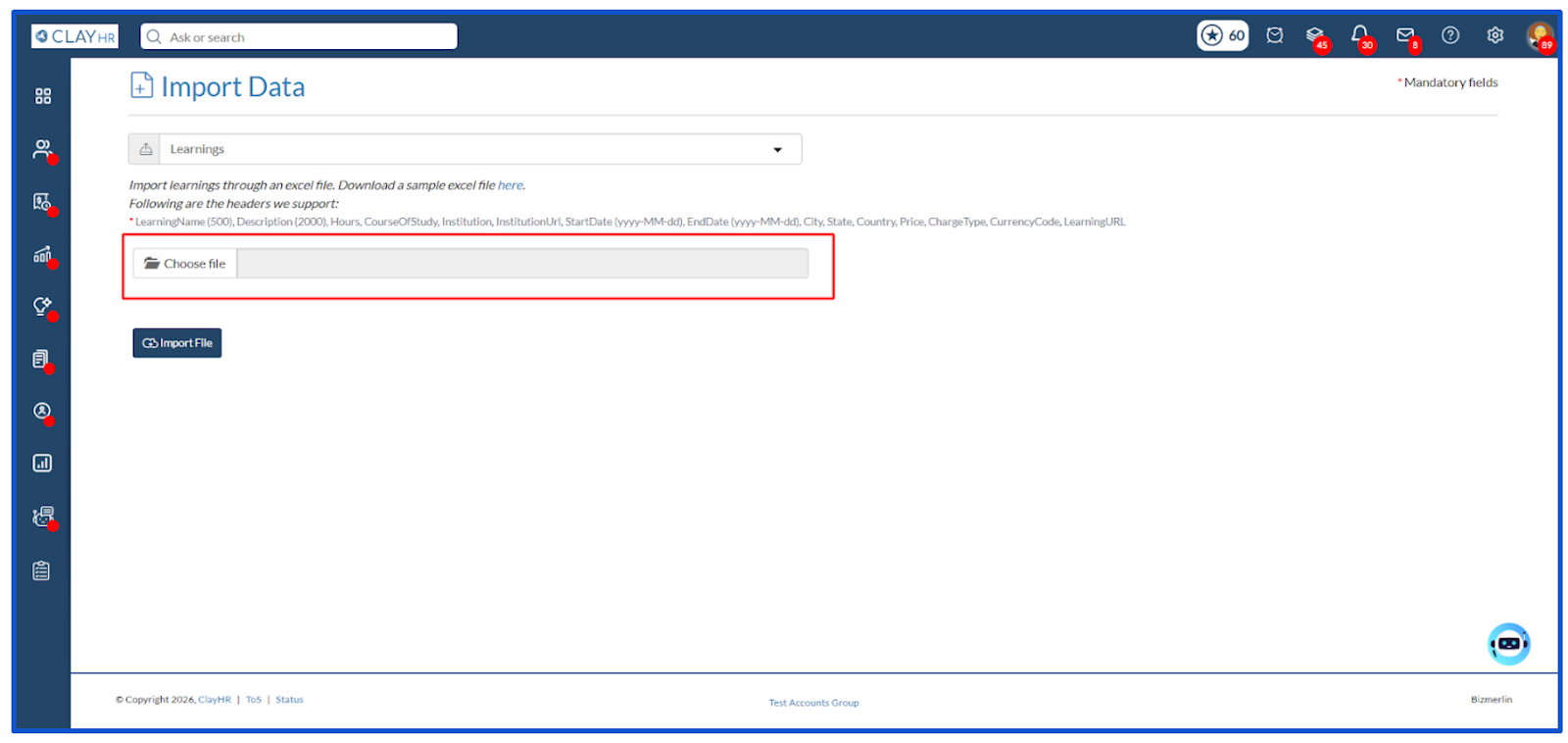
- Select Learnings from the select box.
- To import, prepare an Excel file with the column headers given. The ones marked with a red asterisk are mandatory fields.
- Once the file is ready, click Choose file and select the file in Excel (.xlsx) format from the system.
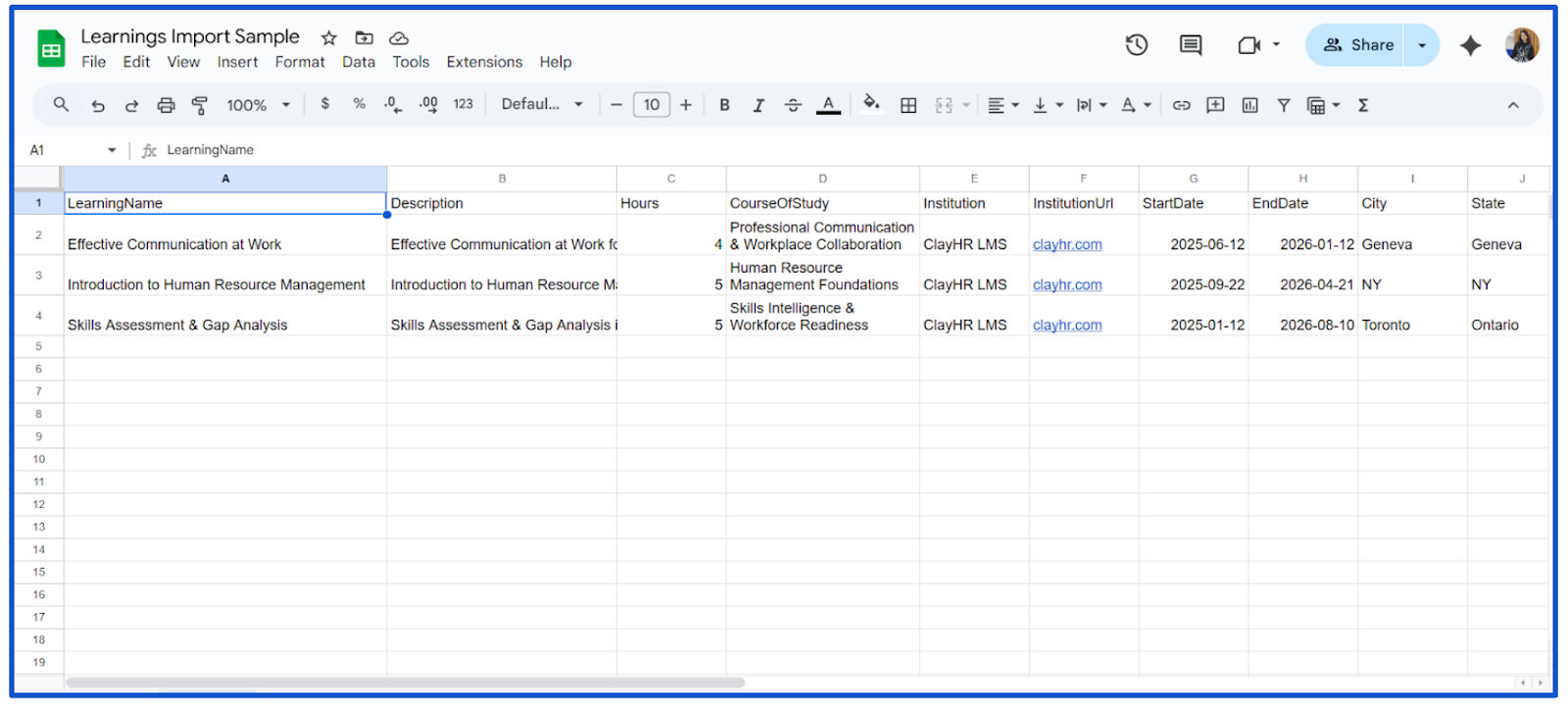
- Sample learning import file.
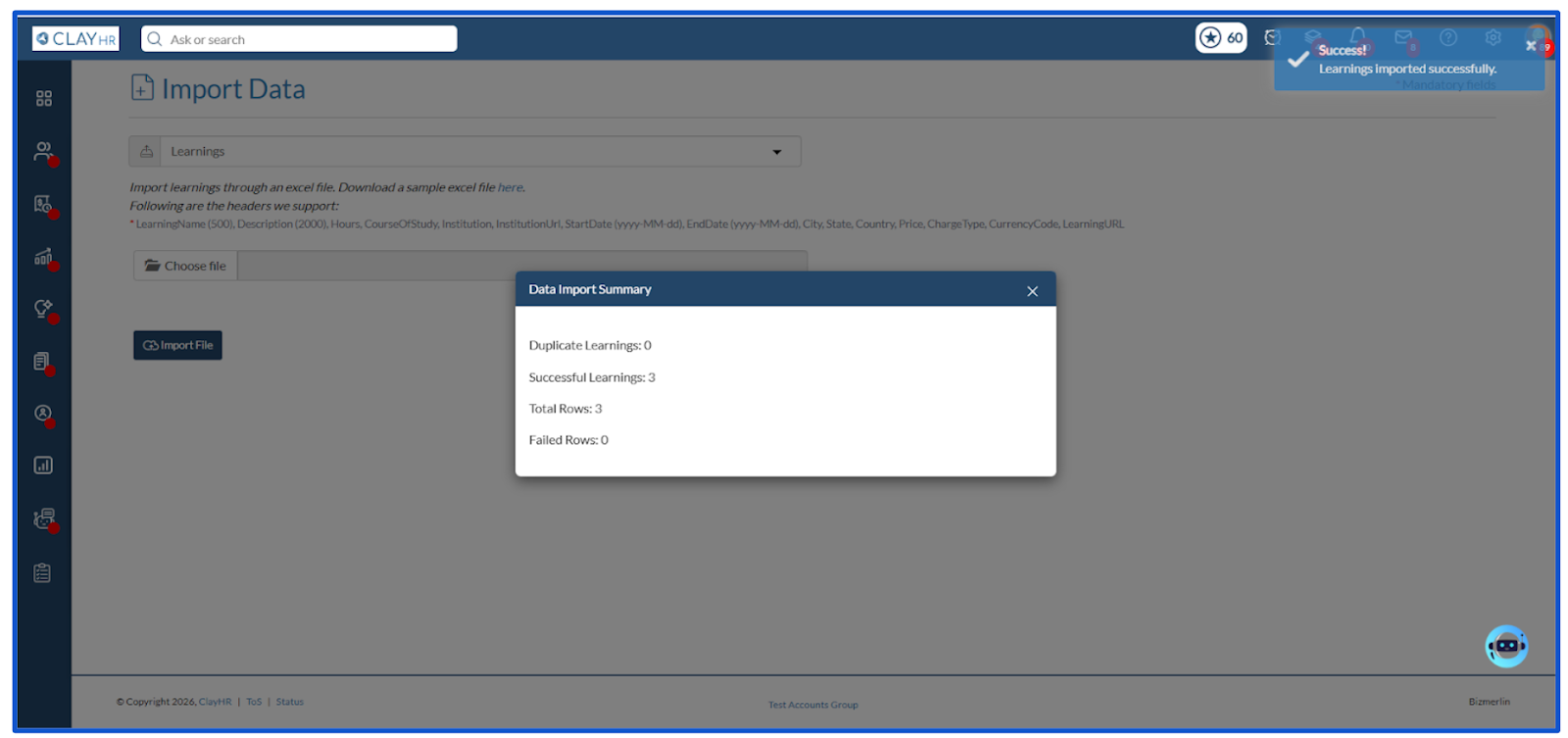
- Click on the Import File button. Once the file is imported, a toaster message appears along with a popup window that shows the data import summary.
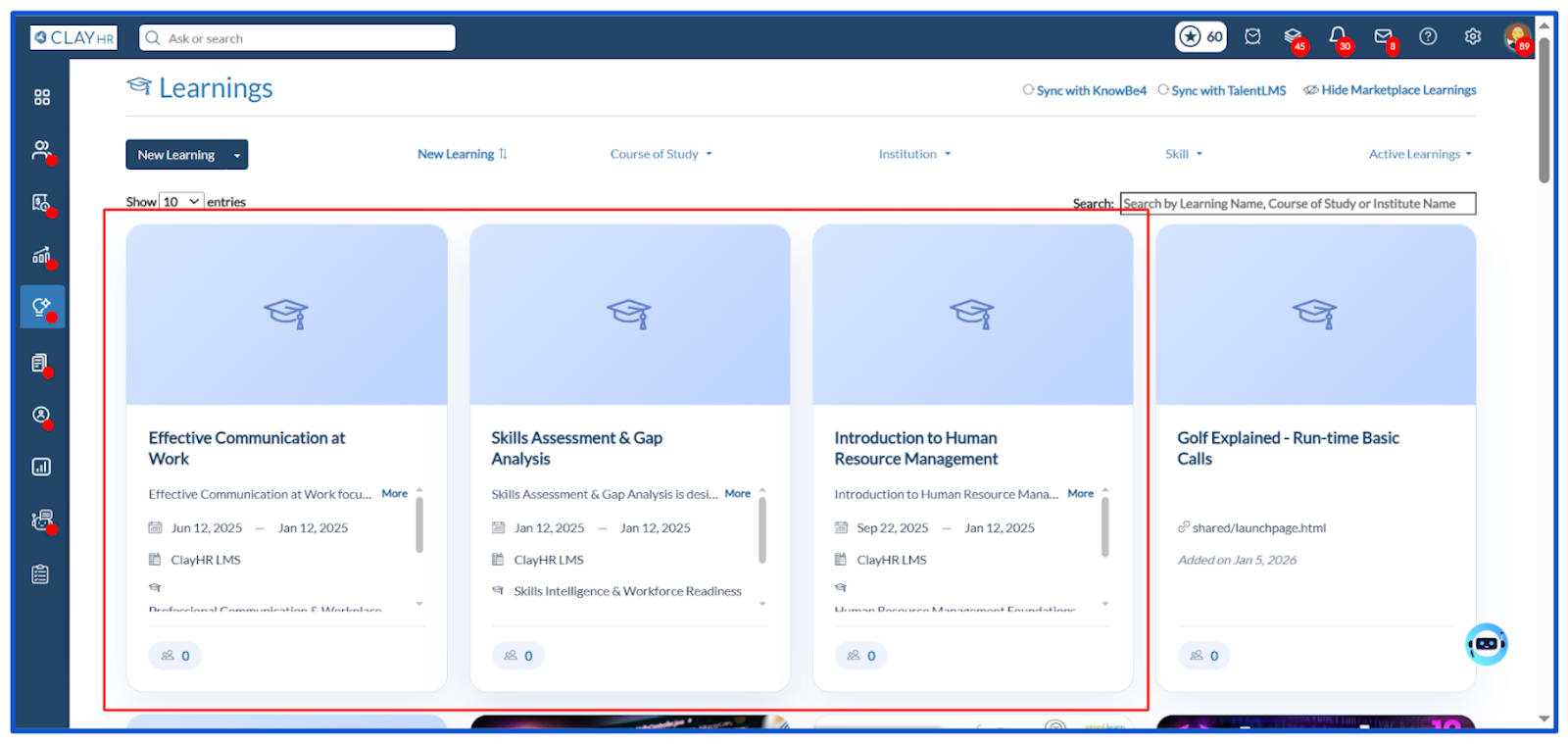
- Imported learnings in the learning home page will look like this:






.webp)
