

Slack Chat-ClayHR Integration
Slack Chat-ClayHR Integration
About Slack
Slack is an instant messaging app and a workplace messaging app through which you can send messages and files.
Setting up the Integration
Follow the below-mentioned steps in Slack to post feedback:
- Obtain your Slack App credentials:
a. Log in to Slack as an administrative user.
b. Go to the Slack API Applications page: https://api.slack.com/
c. Create a new app from your apps section.
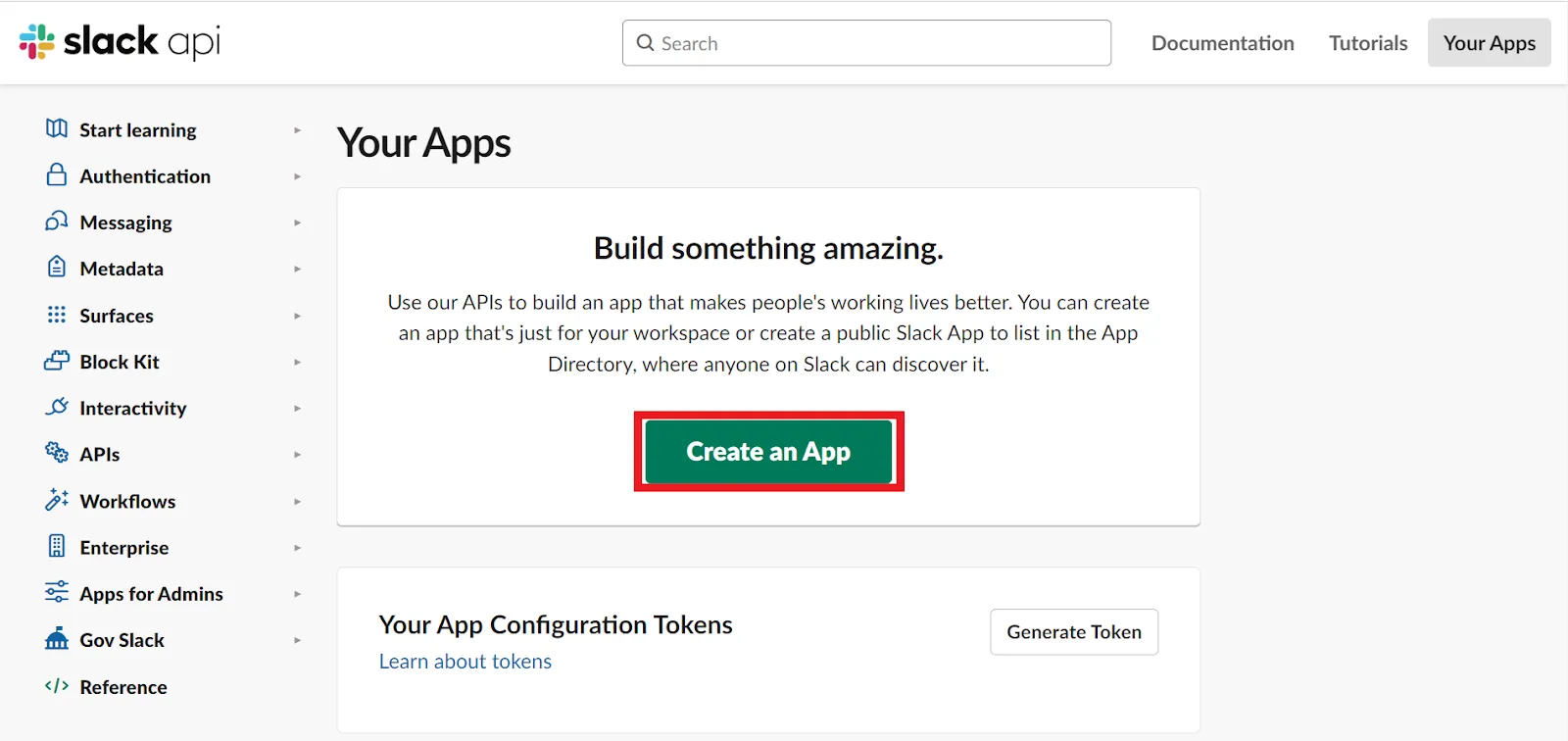
Choose the option “From Scratch”.
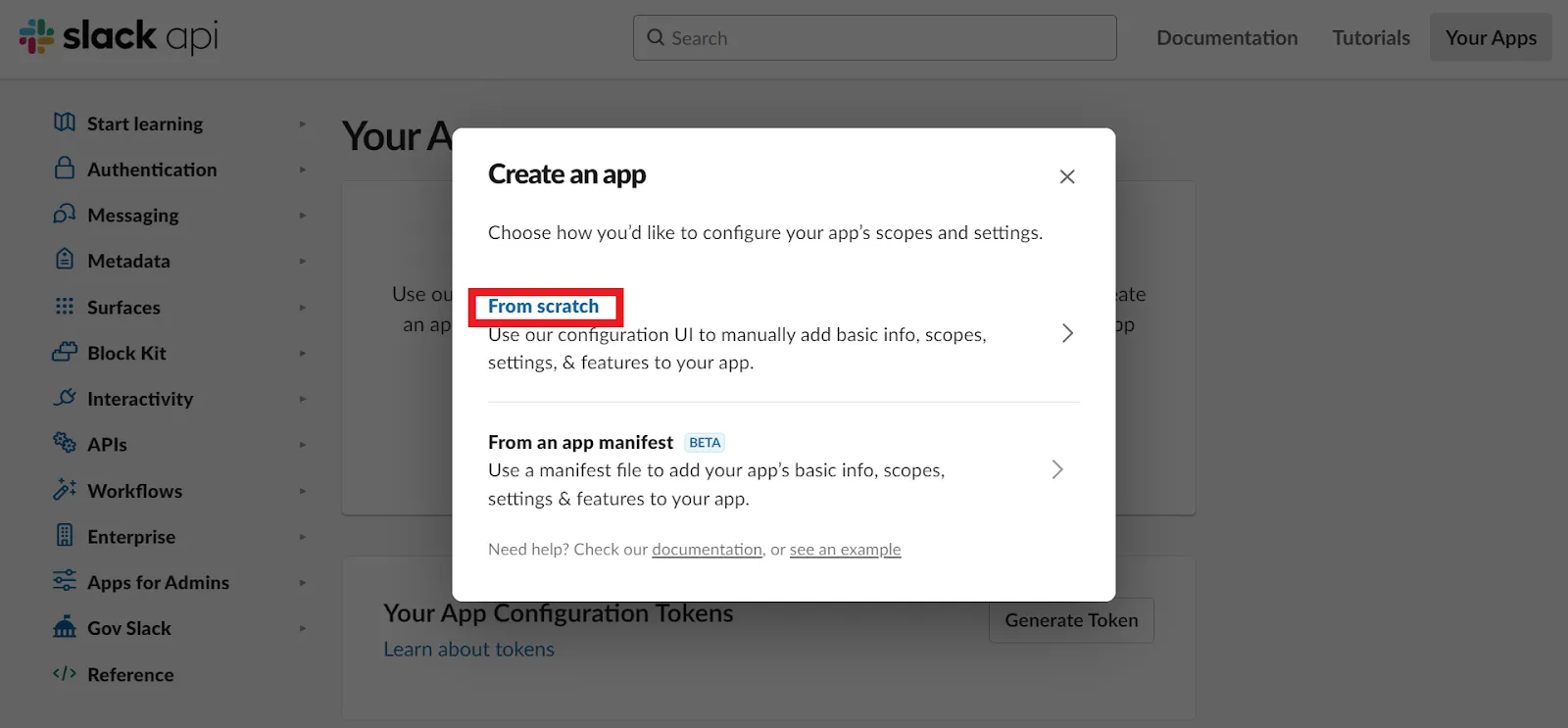
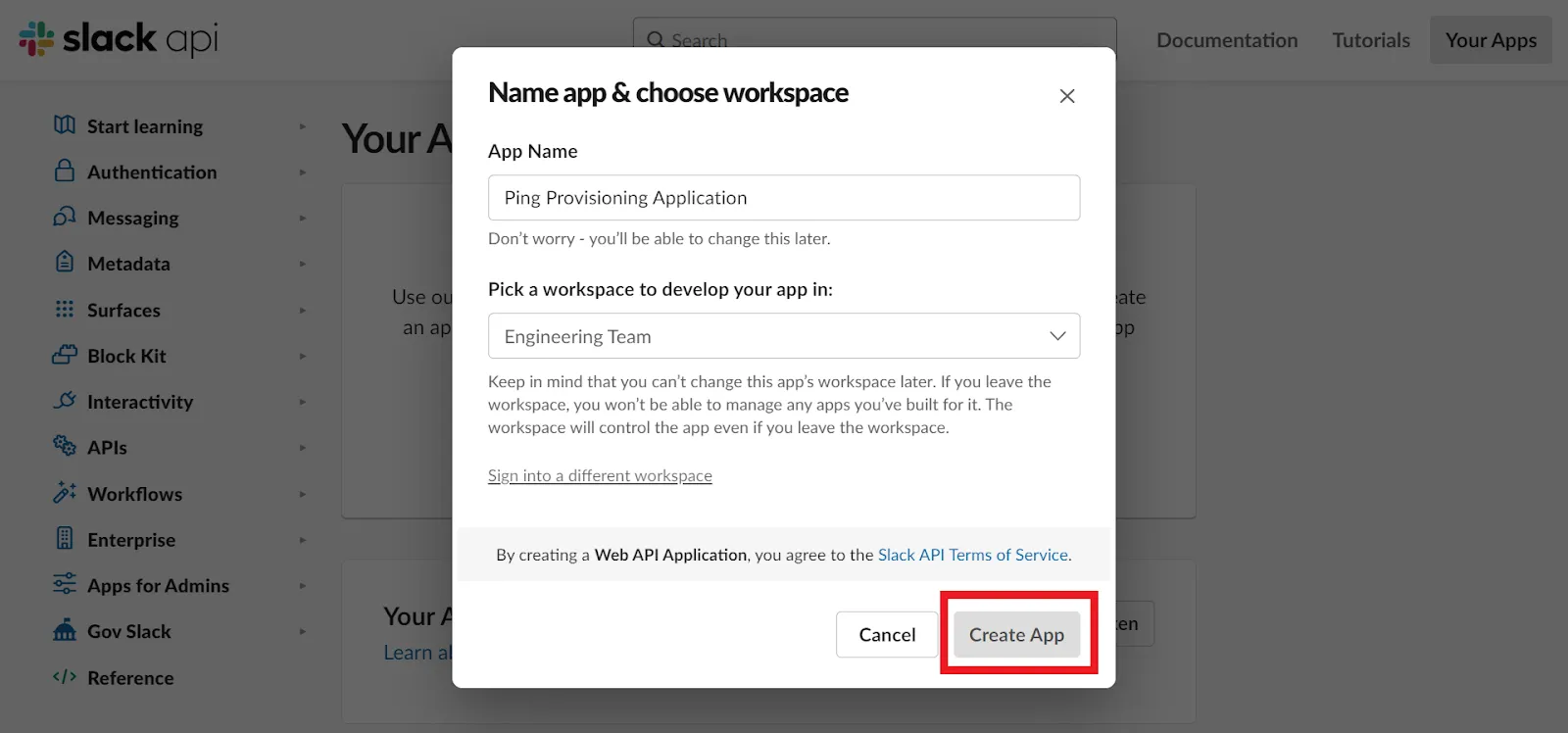
d. Fill the form as follows:
1. Enter any descriptive name into the App Name field.
2. Select the appropriate Development Slack Workspace to provision users into.
3. Click on the “Create App” button.
4. Click on the OAuth & Permissions link in the left navigation.

5. In the Redirect URLs section, Click the Add a new “Redirect URLs” button and enter the following URL into the text field:
https://yourdomain.bizmerlin.net/oauth/salesforce/callback
6. Click the “Add button”. Click the “Save URLs” button to save the URL.
7. In the Scopes section on the page, add the admin scope.
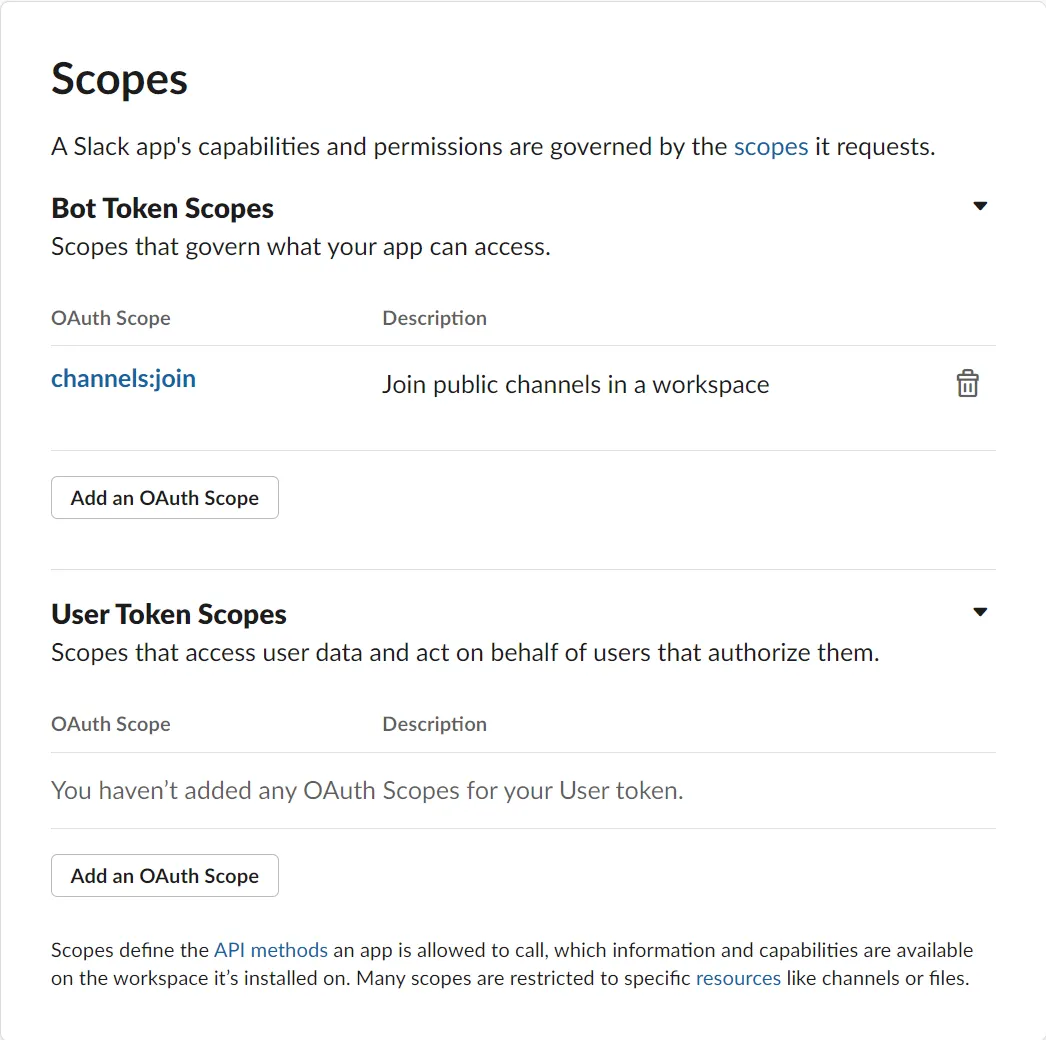
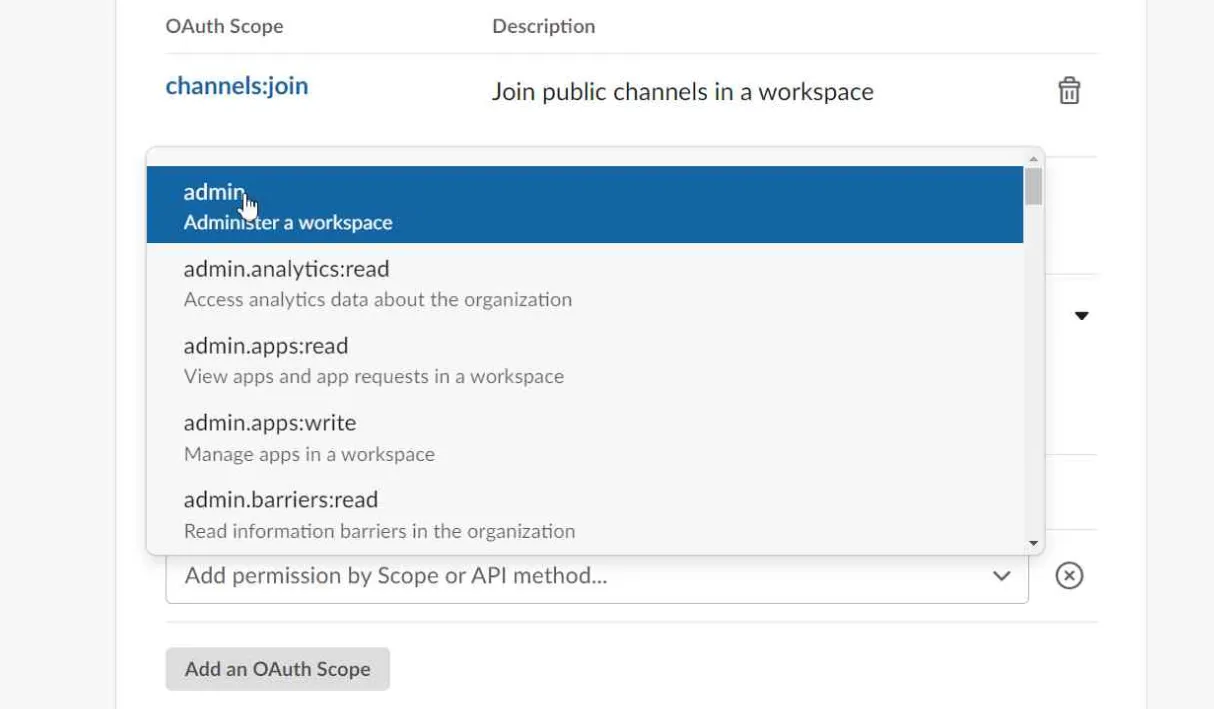
8. Add the following scopes.

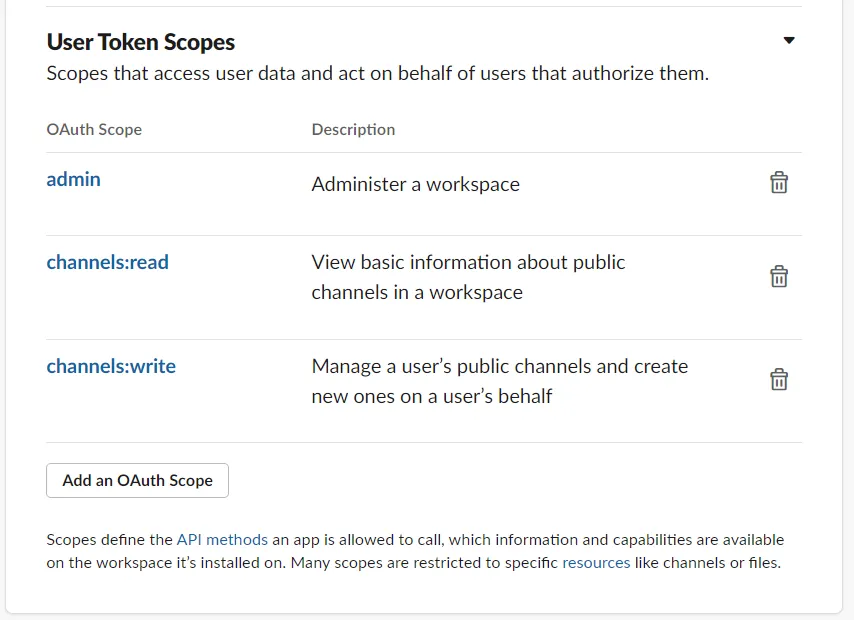
9. If the installation is taking place in an enterprise organization, perform the following steps:
a. Click on the Manage Distribution link in the left navigation.
b. Scroll down to the checklist and click on the Remove Hard Coded Information section.
c. Check the checkbox.
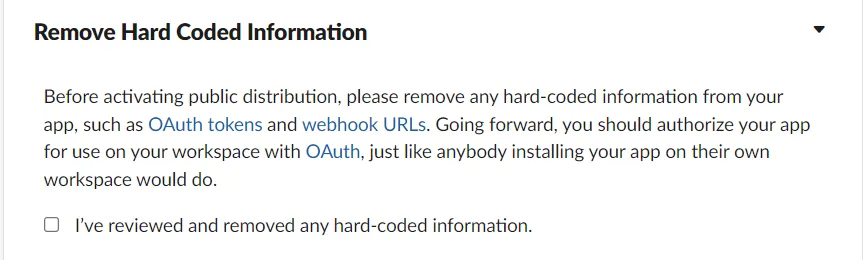
d. Click the Activate Public Distribution button.
e. Click on the Basic Information link in the left navigation.
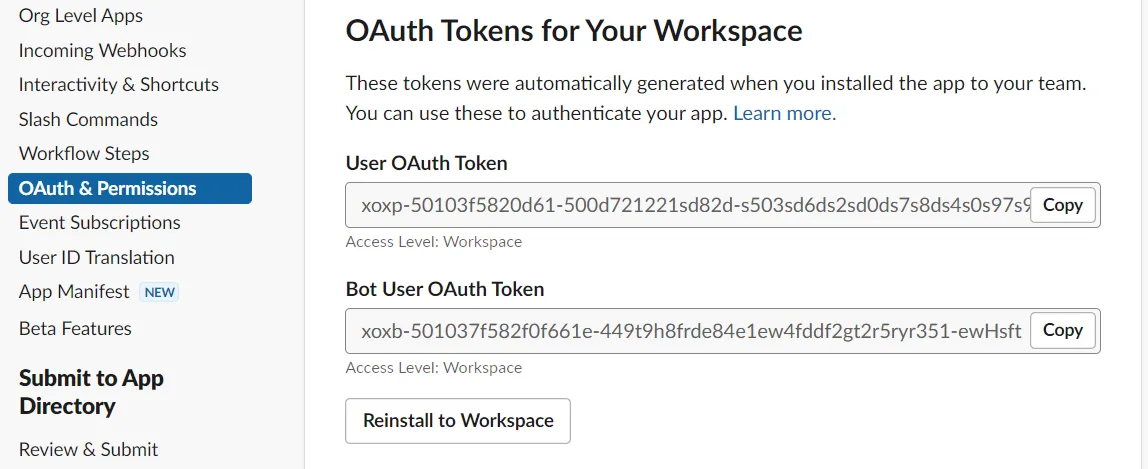
e. Go to the Settings -> Basic Information page and from the App Credentials section of the page copy the Client ID and Client Secret values.
f. Copy the Bot Auth token from OAuth & Permissions section.
- Setup Slack Chat on Third Party Integrations:
a. Now in the ClayHR Application go to setup > Third-Party Integration.
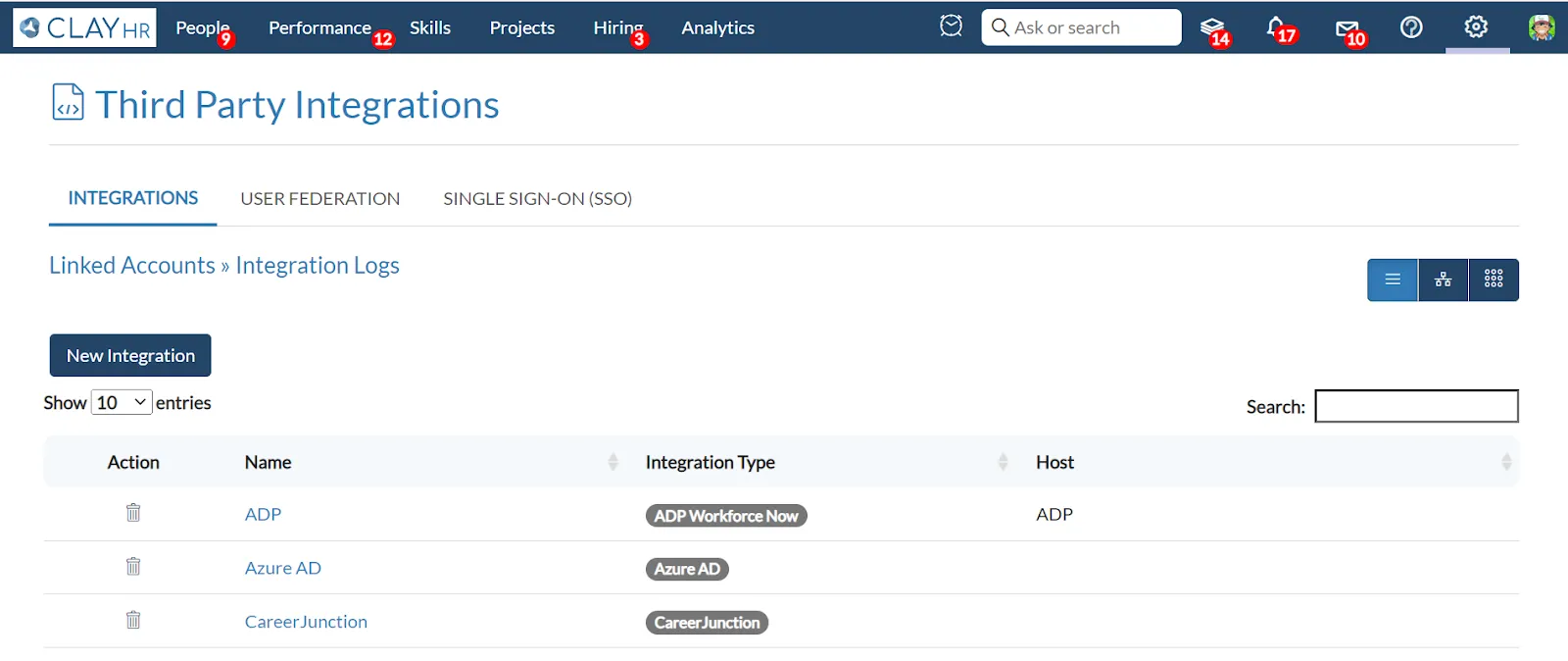
b. On the Third Party Integrations page, click on the button New Integration and choose Messaging -> Choose Slack Chat.
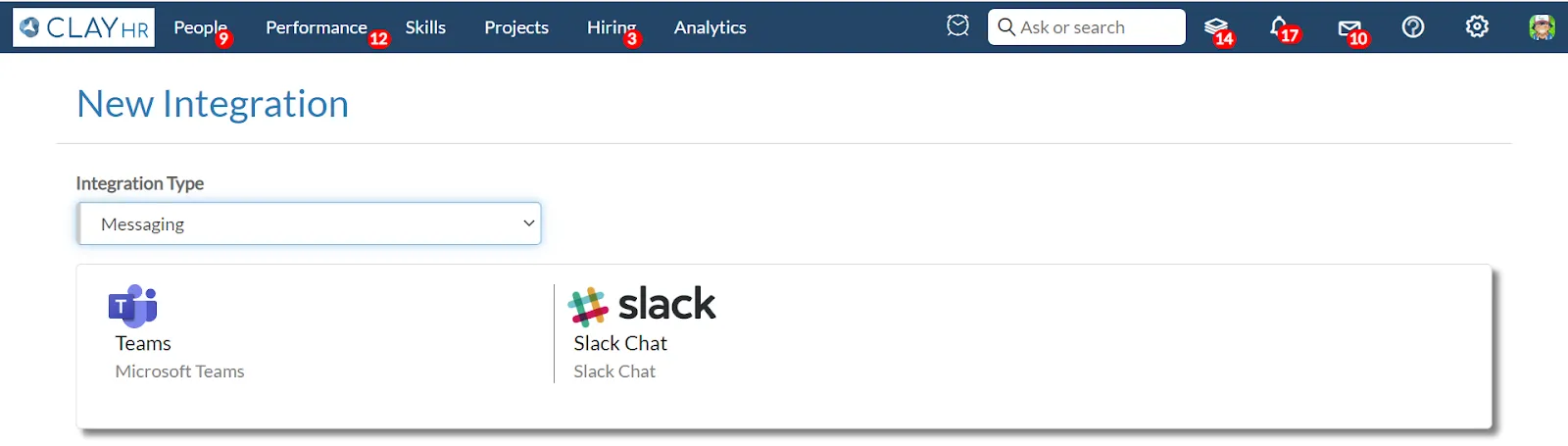
c. Fill in your Integration name in the Name field.
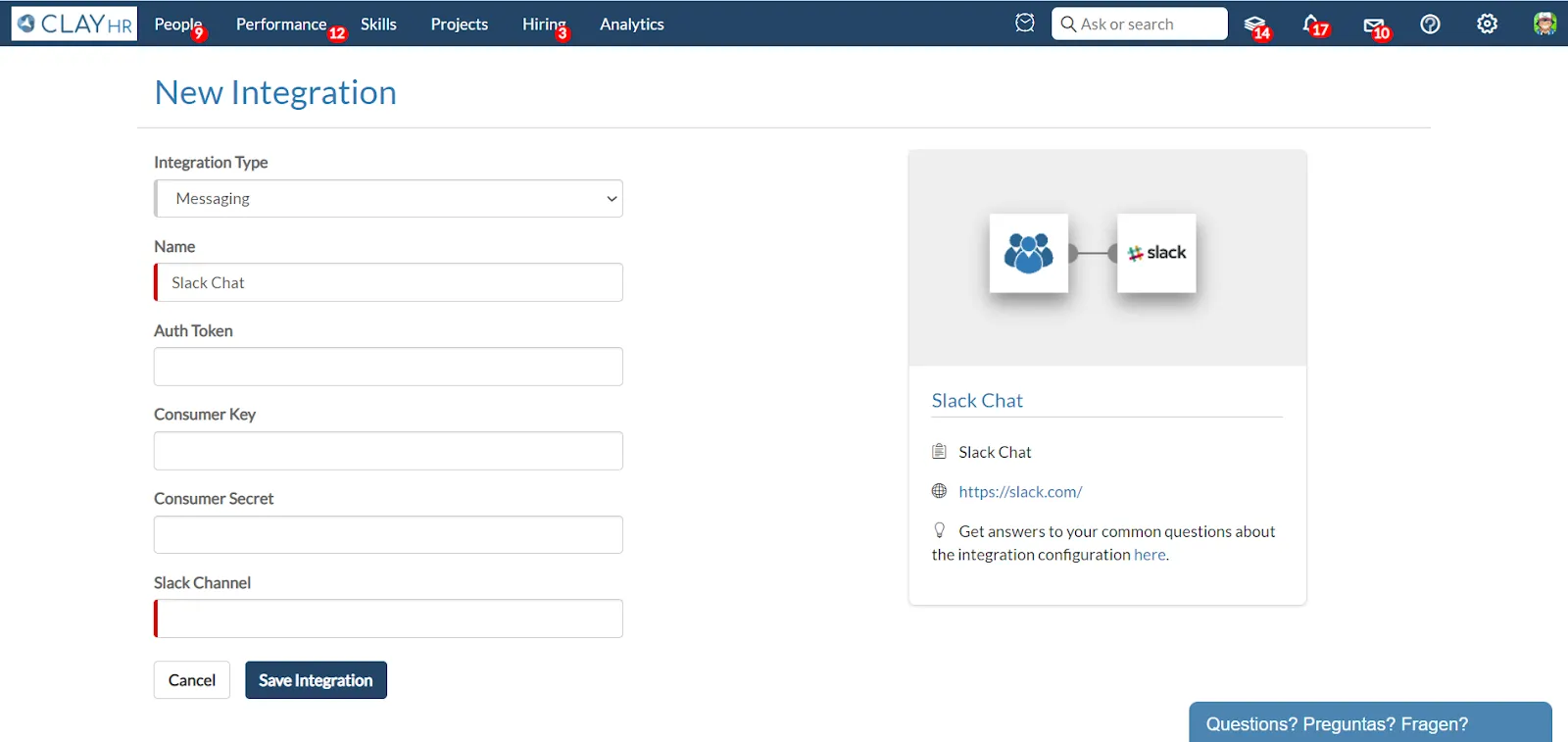
d. Fill in the Consumer Key (from the Client ID field obtained from Slack).
e. Fill in Consumer Secret (from the Client Secret field obtained from Slack).
f. Fill in Auth Token (from the User OAuth Token field obtained from Slack).
g. Save the integration.
How to Post ClayHR Feedback to Slack
- Open Slack integration from Third party integrations and click on Slack Integration Setup.
- Turn on New Feedback option and choose Slack channel where notifications will be sent for any new feedback that will be published on the wall.

Testing the Integration
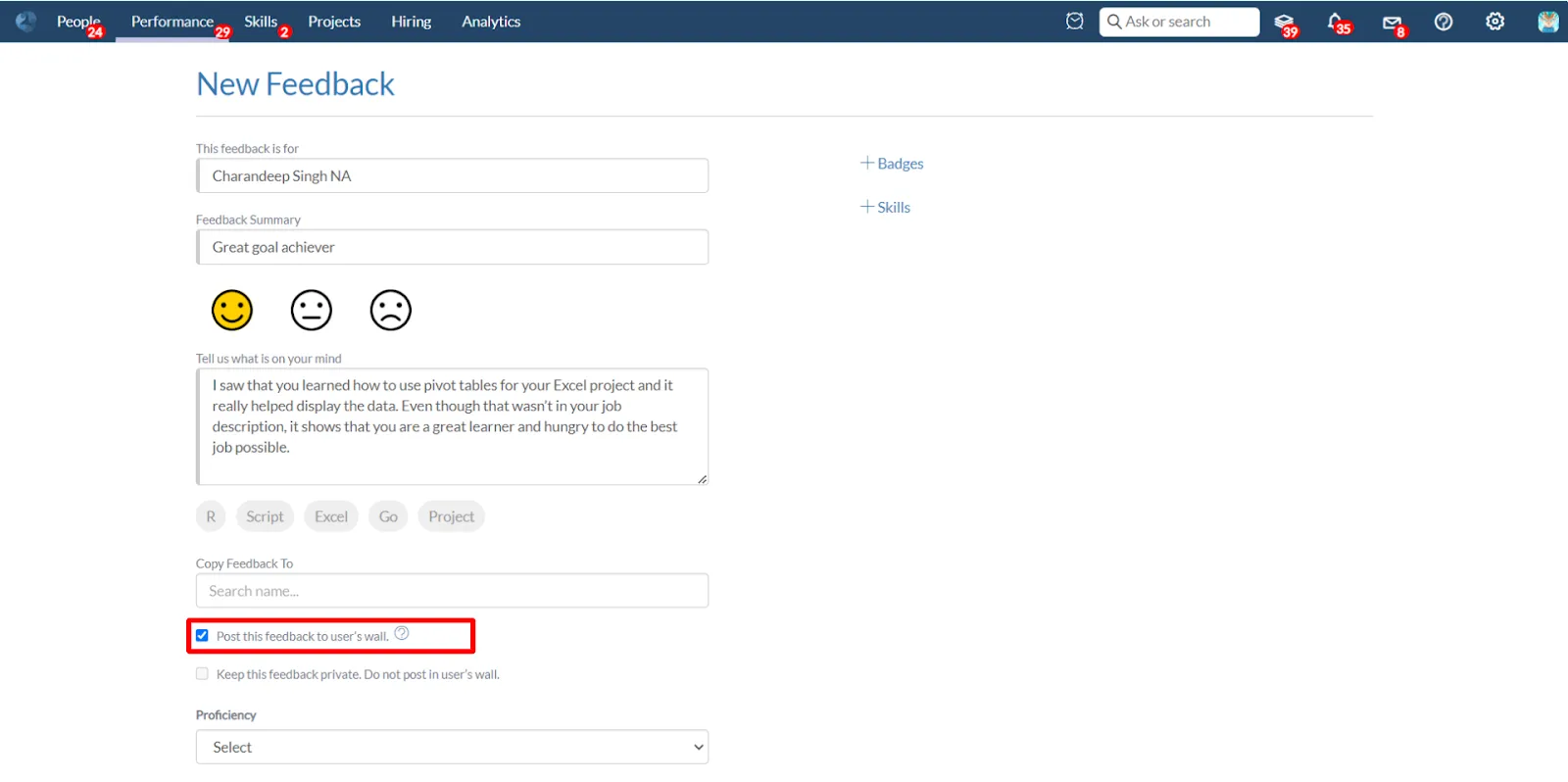
Click on the “Give Feedback” option.
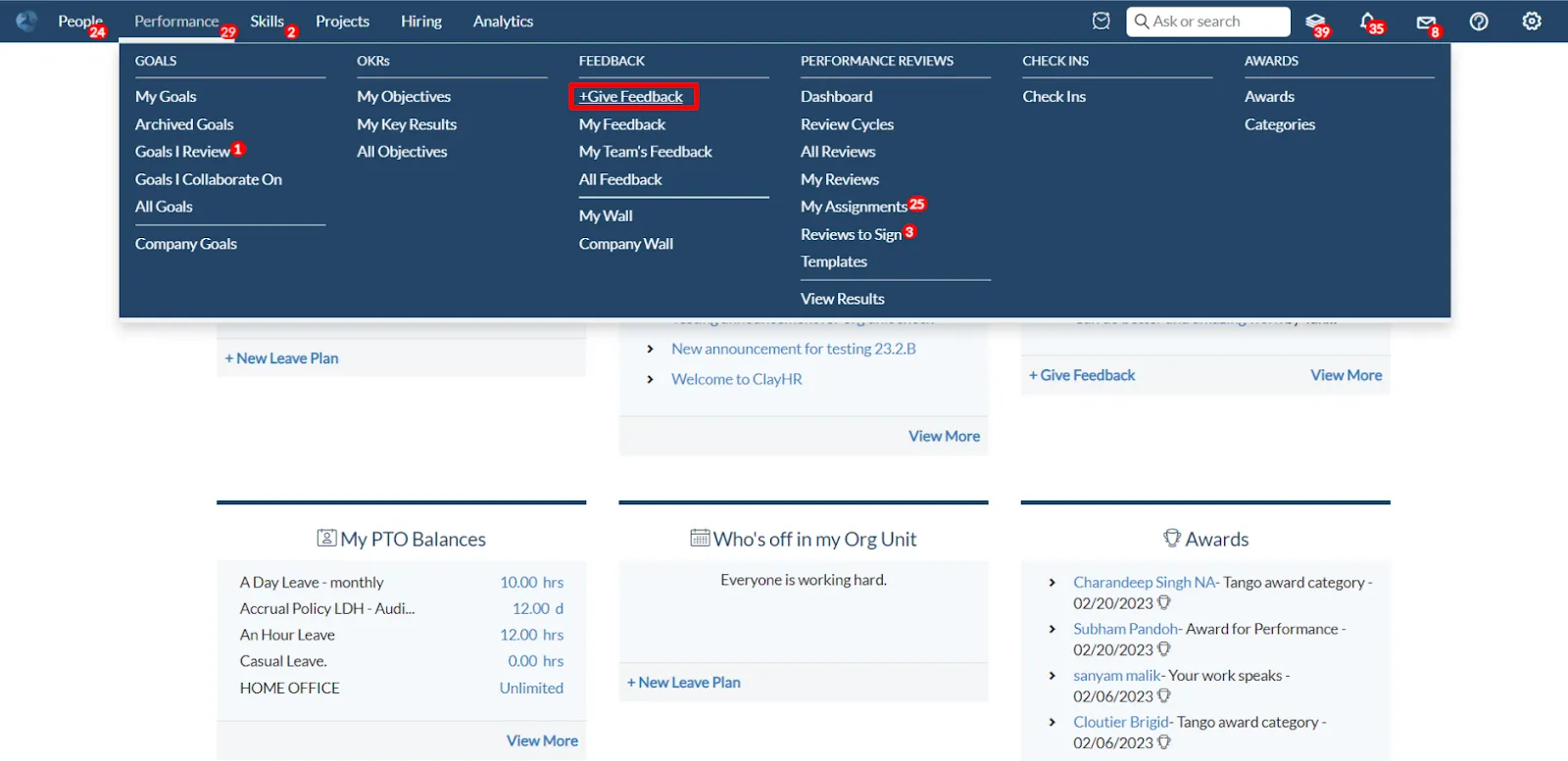
The user must create public feedback (Non-private) to publish it to the wall and check the checkbox to post the feedback to the user’s wall.
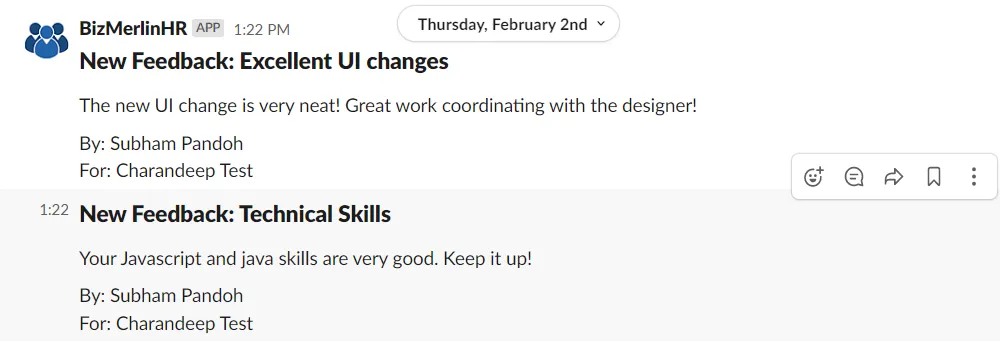
When a user publishes the feedback to the wall, feedback will appear in the Slack Channel in which Slack integration was set.






.webp)
