

Understanding Form Related Permissions
Understanding Form Permissions
Forms are often managed by HR administrators, system administrators, or other designated users responsible for creating and maintaining forms used throughout the organization. However, ClayHR also provides the flexibility to delegate form management beyond HR. For example, managers, department heads, or other business users can be granted permission to create and manage the forms they own without giving them administrative access to every form in the system.
Through the ClayHR Permission Framework, you can assign different levels of administrative access based on each user's responsibilities. Whether users need to manage all forms, manage only the forms they own, view forms assigned to users, or complete forms on behalf of others, permissions can be configured to support your organization's governance and collaboration requirements.
Before you begin: If you're new to Forms, we recommend reading Getting Started with Forms to understand how forms are created, assigned, and used throughout the platform. For a broader overview of how permissions work across ClayHR, see Understanding the Permission Framework.
1. Forms Permissions
The following permissions control access to Forms and related administrative capabilities.
1.1 Manage All Forms
The Manage All Forms permission provides unrestricted administrative access to every form in the organization, regardless of ownership.
Users with this permission can perform tasks such as:
- Create new forms
- Edit existing forms
- Copy forms
- Delete or archive forms
- Manage form settings
- Assign forms and surveys
- Access the Global Forms and Surveys Library
- See all responses to all forms
Because this permission grants full administrative control, it is typically reserved for system administrators or senior HR administrators.
1.2 Manage Owned Forms
The Manage Owned Forms permission allows users to manage only the forms they own or forms that have been shared with them. Unlike Manage All Forms, this permission does not provide access to every form in the organization.
This permission is useful when you want users—such as managers, department heads, or business administrators—to create and maintain the forms relevant to their own teams or processes without giving them unrestricted administrative access.
Sharing Access to a Form
A user's permissions determine what they are allowed to do, but a form's Access settings determine which specific forms they can access.
When editing a form, you can share its administration with other users by assigning:
- Owner User Groups – Members of these User Groups can manage the form, provided they also have the Manage Owned Forms permission granted in the Permission Matrix.
- Read Access User Groups – Members of these User Groups can view the form's configuration but cannot modify it.
This allows multiple administrators or business users to collaborate on maintaining the same form while limiting access to only the forms relevant to their responsibilities.
1.3 View User Forms
The View User Forms permission allows users to access the Forms tab within a user's profile.
This permission allows administrators to view:
- Forms assigned to the user
- Forms currently in progress
- Completed forms
- Responses submitted in completed forms
This permission is commonly assigned to HR administrators, managers, or other users who need visibility into a user's form activity.
Important: This permission does not grant access to employee records by itself. Users must also have permission to view the employee's profile through either the Basic User View or Extended User View permissions. The View User Forms permission only enables the Forms tab within employee records that the user is already authorized to access.
This dependency ensures that access to employee forms follows the same security model as the rest of the employee record, preventing users from viewing forms for employees whose profiles they are not permitted to access.
1.4 Form – Fill for Others
The Form – Fill for Others permission allows users to complete a form on behalf of another user.
This permission is useful when:
- Assisting employees who are unable to complete a form themselves.
- Entering information collected during interviews or meetings.
- Completing forms during onboarding or other HR-assisted processes.
For step-by-step instructions, see How to Fill Out a Form on Behalf of Another User.
2. Best Practices
To keep form administration secure and easy to manage:
- Reserve Manage All Forms for a small number of trusted administrators.
- Use Manage Owned Forms together with Owner User Groups to distribute responsibility for maintaining forms.
- Assign View User Forms only to users who need to review forms associated with employee records.
- Grant Form – Fill for Others only when users have a legitimate business need to submit forms on behalf of others.
- Regularly review Forms permissions and User Group assignments to ensure access remains appropriate as responsibilities change.
------
The form designer gets access to the Forms in ClayHR, by default. Other than this, additional access can be given to members of user groups through the Form Owners concept.
Steps to give access to a form
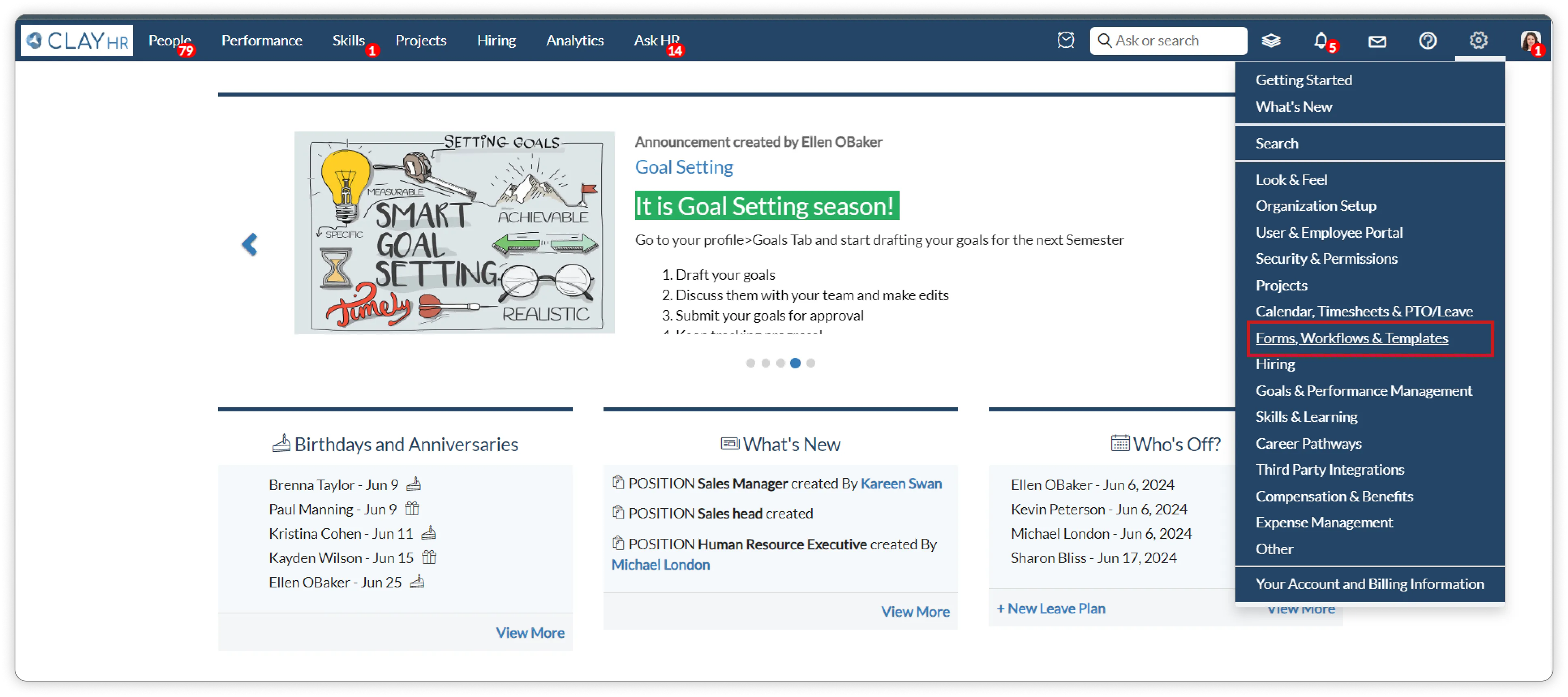
- Go to the top right “Setup” menu and scroll down to “Forms, Workflows & Templates”: Setup -> Forms, Workflows & Templates.
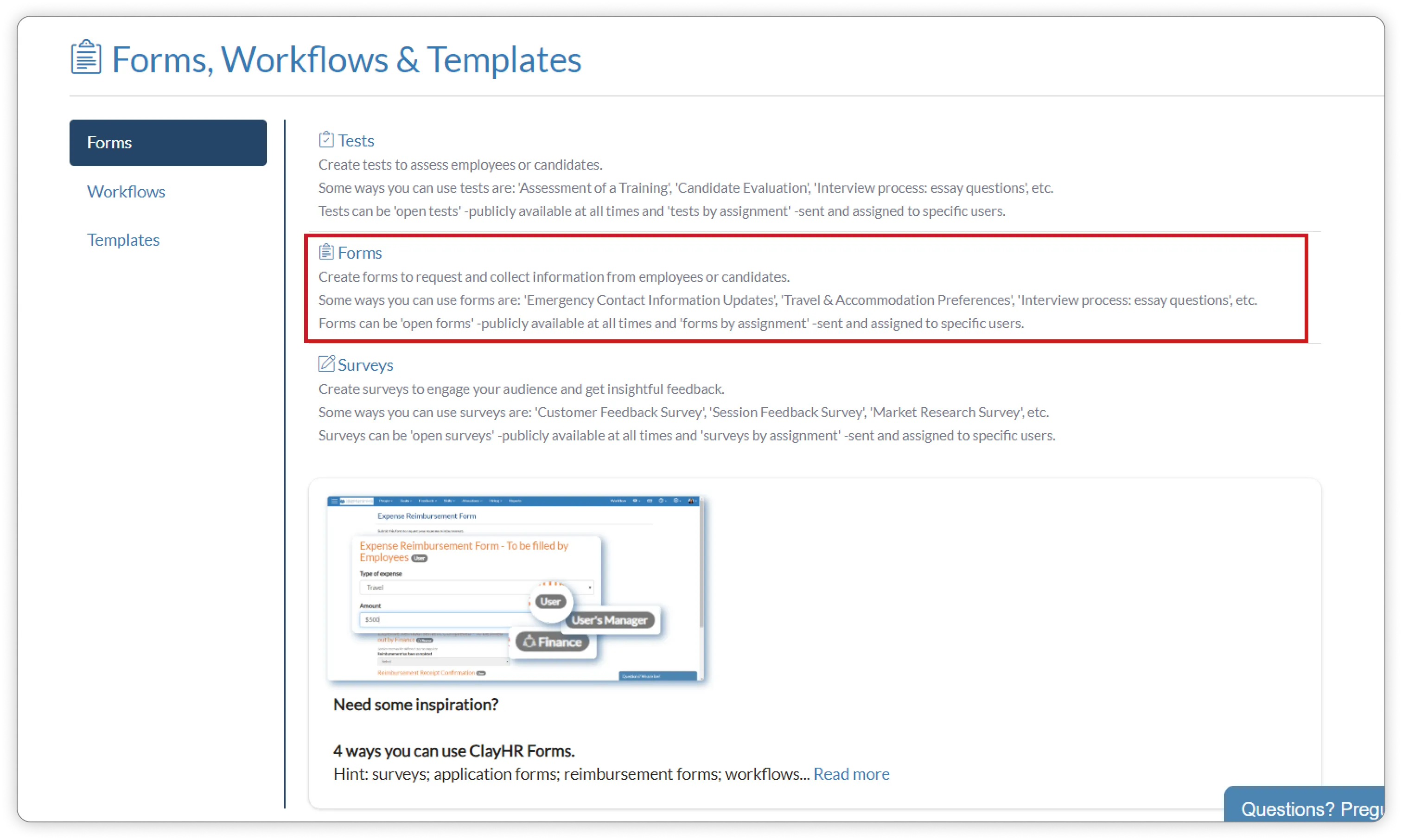
- On the Forms, Workflows & Templates page, click on “Forms”.
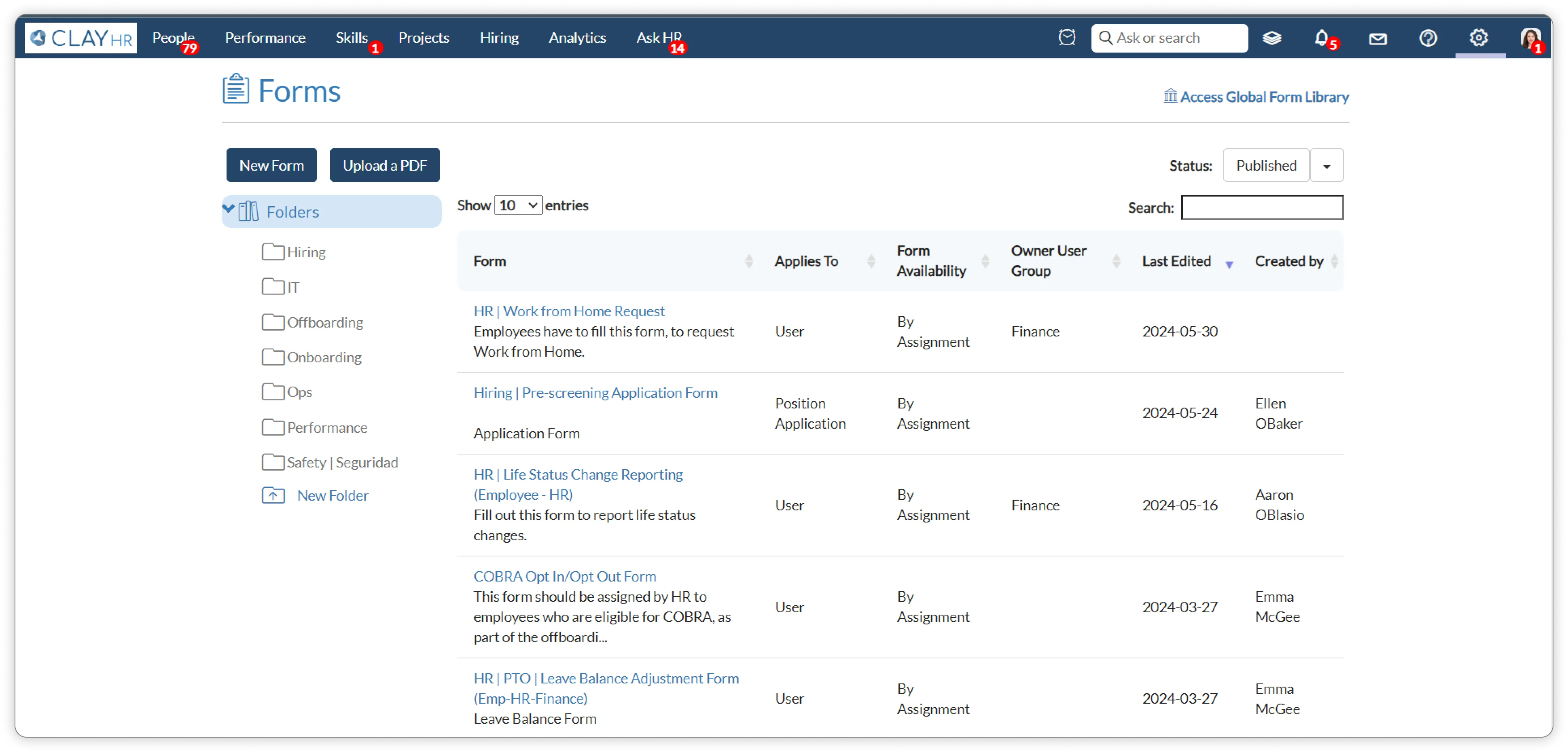
3. Select the form for which you want to define the access, Form -> Access tab.
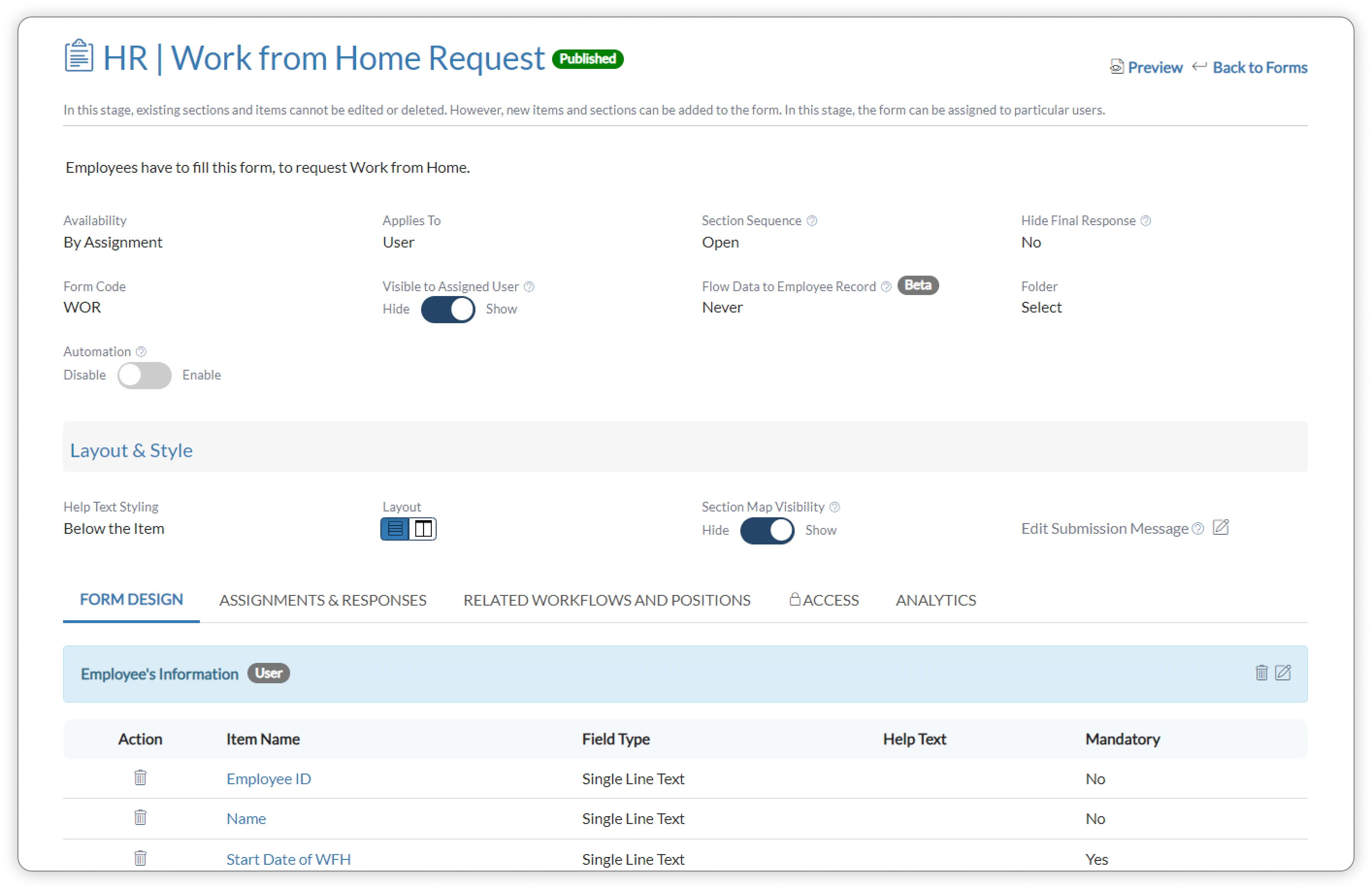
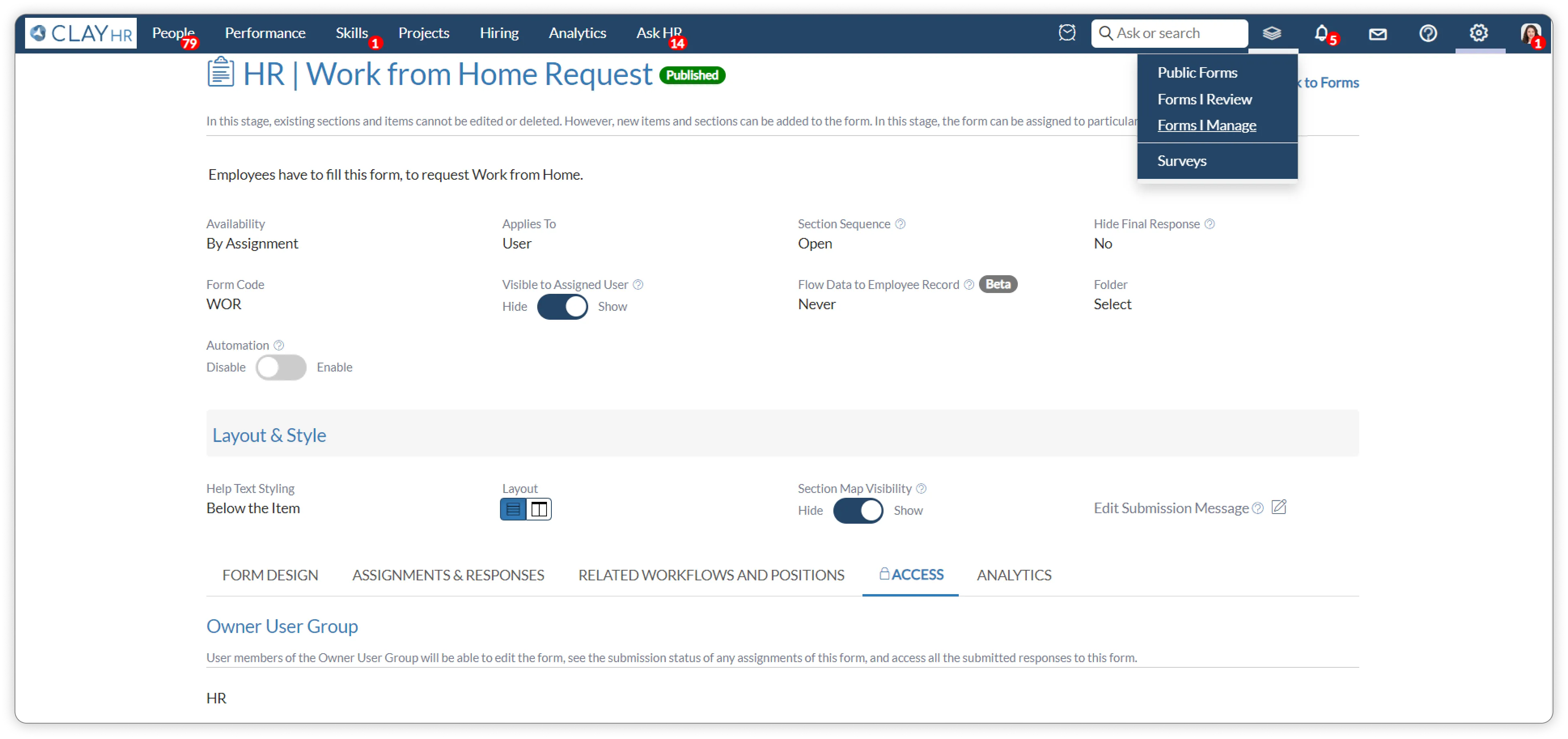
4. There are two options to give access: Owner User Group and Read Access User Group. Owner User Group has all the access rights to add, edit and delete the form elements. On the other hand, Read Access User Group people only read the form design details.
5.”Manage Owned Forms” permission is required to access both owned and read access forms.
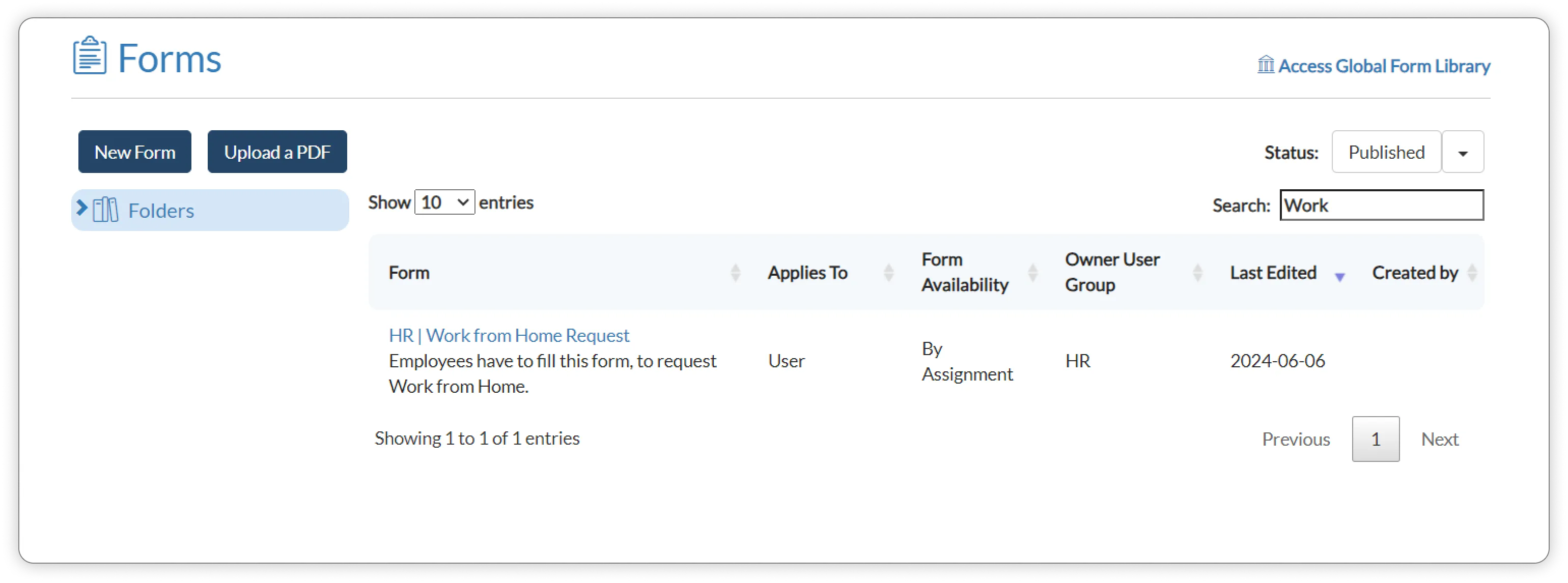
6. Once the permission is assigned to the user or user group, please go to the “Forms I Manage” tab to access.





.webp)
