

How to Assign a Form?
How to Assign a Dynamic Form to a User or Candidate
Dynamic Forms can be made available to users in two different ways:
- Public (Open) Forms, which users can initiate themselves at any time.
- Assignment-Based Forms, which only become available after they have been assigned to a specific user or candidate.
This article explains how to assign an Assignment-Based Form to an individual user or candidate. Assignment-Based Forms are commonly used for onboarding, offboarding, compliance acknowledgements, performance reviews, and other processes where administrators control when a participant receives the form.
Note: If you're new to Dynamic Forms, we recommend first reading Getting Started with Dynamic Forms, which explains the different types of forms available in ClayHR and how they integrate with workflows, employee records, approvals, and business automation.
1. Before You Begin
Before assigning a form, verify that:
- The form has been created and published.
- The form is configured as an Assignment-Based Form.
- You have permission to assign forms.
- The user or candidate exists in ClayHR.
Administrators can assign forms individually from a person's profile or assign them in bulk to multiple users.
2. Method 1: Assign a Form from the User or Candidate Profile
This method is recommended when assigning a form to a single individual.
To assign a form:
- Navigate to the employee or candidate profile.
- Open the Forms tab.
- Select Assign Form.
- Choose the Dynamic Form you want to assign.
- Click Assign.
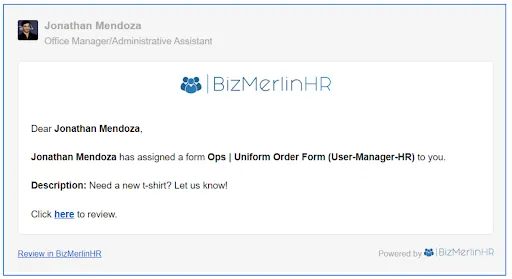
The form is immediately assigned and becomes available to the user or candidate. The participant may also receive an email or in-platform notification informing them that a new form is available.
3. Method 2: Assign Forms in Bulk
Bulk assignment allows administrators to distribute the same form to multiple users simultaneously.
This method is commonly used for:
- Annual policy acknowledgements
- Compliance certifications
- Organization-wide surveys
- Benefits enrollment
- Company announcements requiring acknowledgement
- Seasonal or recurring HR processes
To assign forms in bulk:
- Go to the Setup Menu (Gear Icon to the top right)
- Navigate to the "Forms, Workflows & Templates" submenu
- Click on Forms
- Select the Form that needs to be assigned
- Choose the Assign Form bulk action.
- Confirm the assignment.
ClayHR creates an individual form instance for each selected participant.
Each participant completes their own copy of the form independently.
4. What Happens After Assignment?
Once assigned, the form becomes available to the designated participant.
Depending on the form's configuration, the participant may:
- Receive an email notification.
- Receive an in-platform notification.
- See the form in their assigned Forms list.
- Complete only the sections assigned to them.
- Collaborate with other participants if it is a Multi-Participant Form.
If the form is part of a larger business process, additional participants may automatically receive their assigned sections as the process progresses.
5. What Happens After Submission?
Submitting a form can trigger additional actions depending on how the form was designed.
Examples include:
- Starting an approval process.
- Routing the form to another participant.
- Requesting electronic signatures.
- Updating employee standard fields.
- Updating custom employee fields.
- Updating Custom Tables.
- Sending notifications.
- Storing the completed form within the employee or candidate record.
Some forms are completed immediately after submission, while others continue through multiple stages involving managers, HR, IT, or other participants.
6. Assignment Best Practices
Consider the following recommendations when assigning Dynamic Forms:
- Use Assignment-Based Forms when administrators need to control who receives a form and when.
- Use Public (Open) Forms when users should be able to initiate the form themselves.
- Assign forms as part of automated workflows whenever possible to reduce manual administration.
- Use bulk assignment for organization-wide initiatives affecting many users.
- Configure notifications so participants know when a new form has been assigned.
- Review form visibility settings to ensure completed forms are available only to the appropriate users.
Related Articles
- Getting Started with Dynamic Forms
- How to Access Open (Public) Forms
- Designing Dynamic Forms
- Dynamic Forms and Workflows
- Multi-Participant Forms
- Dynamic Form Approvals
-----
- After the form is published, under the ‘Access’ tab, select the user group that will be the owner of that particular form.

Note: Members of the ‘User Group that can view responses’ can change the name, description, availability, and presentation style. A user group can view responses, add new questions, a new section, and assignments, view responses, and analytics, and download the published survey responses.

- Under ‘Read Access’, click on the ‘Add User Group’ button to select the user group that can view the responses to the form.


- After the form is published, the form can be assigned to select users.

- Click on the add assignment button.


- Users can also write comments on specific assignment


- Click on the ‘Add Form To User’ button on the employee record page.


- The assignee will receive an email notification.






.webp)
