

Assign a workflow to a user or candidate
Assign a workflow to a User or Candidate
Workflows allow you to guide a process with tasks, checklists, and deadlines. They can have as many phases or sections and as many steps as you need.
- Assign Workflow Through the “Setup” menu
- Navigate to the Workflow you would like to assign
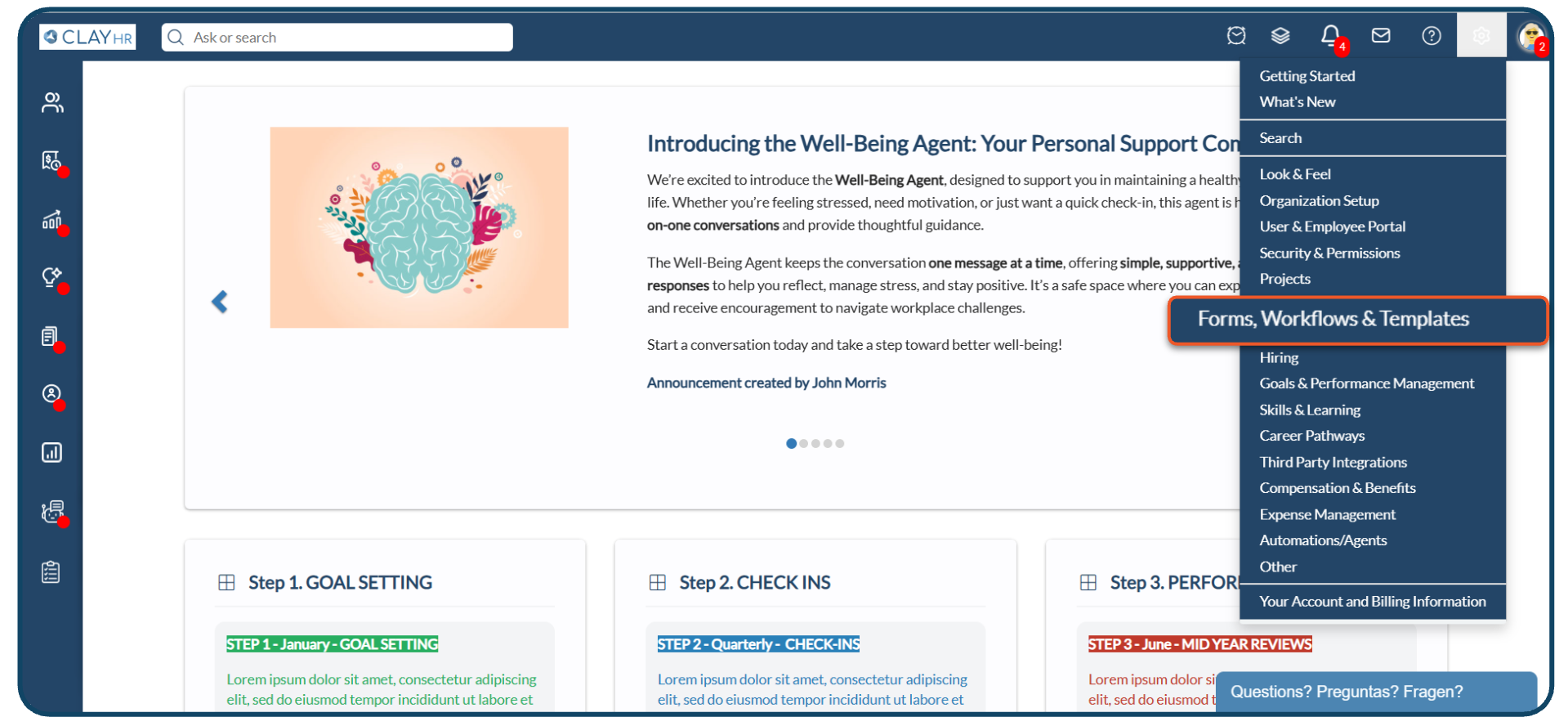
- Go to Gear Icon in the upper right corner, select “Forms, Workflows & Template”
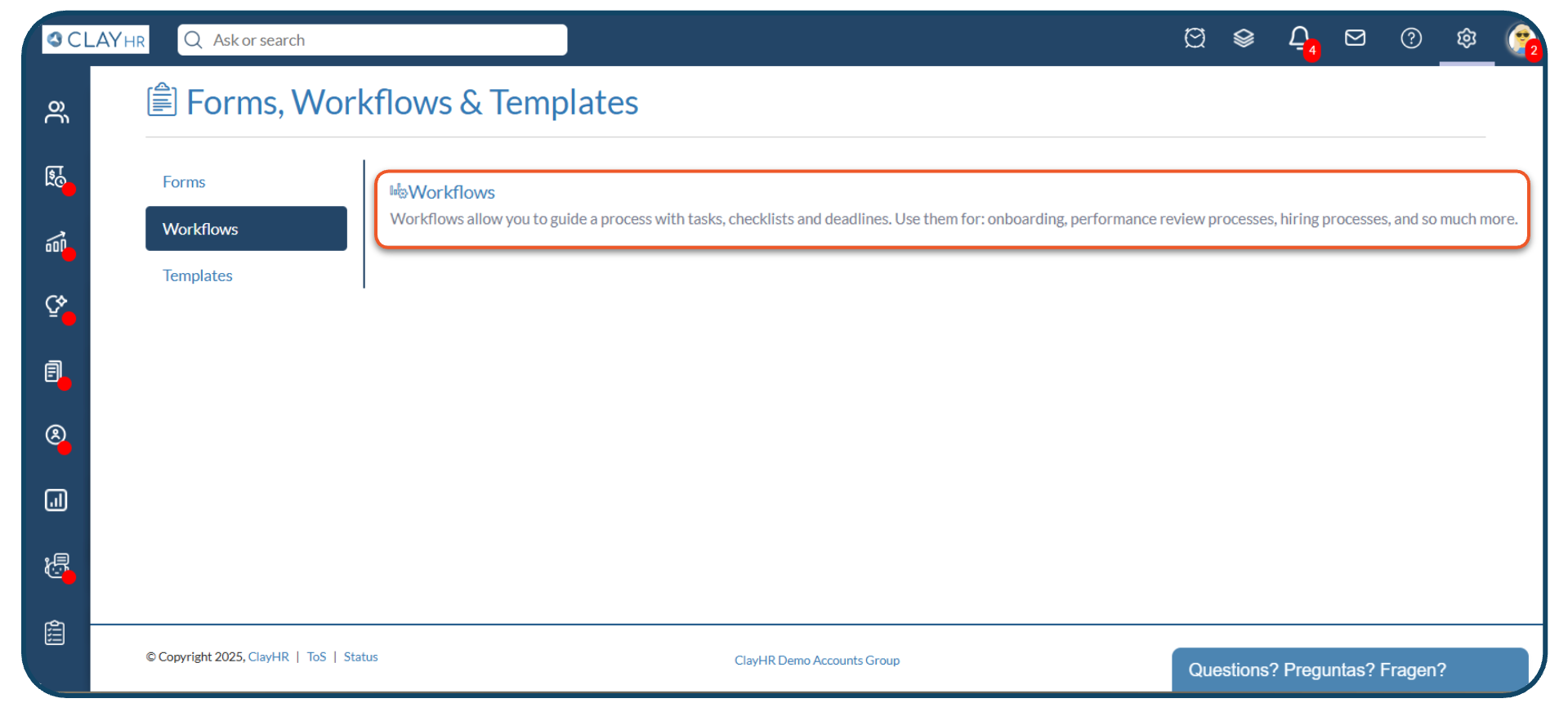
- Go to the Workflows section and click on “Workflows”.
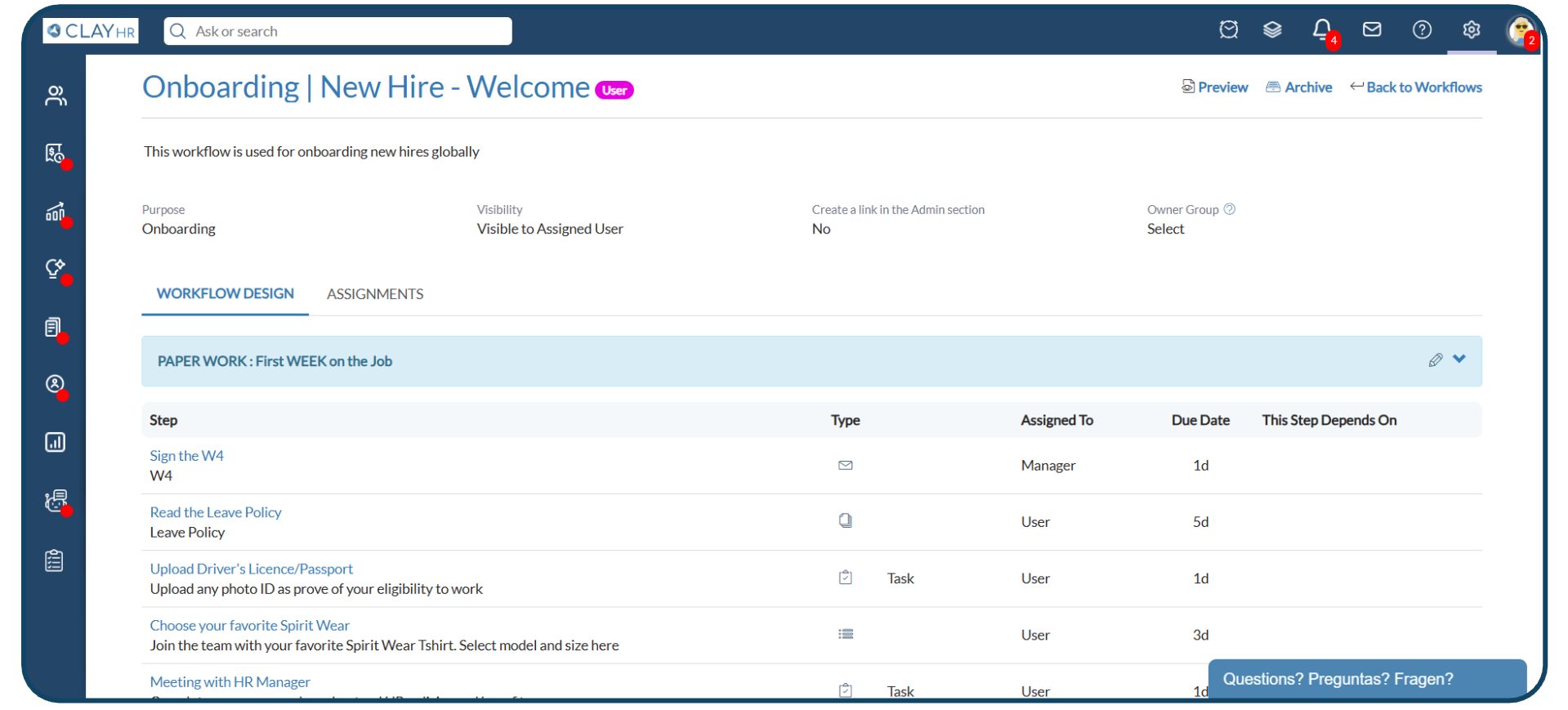
- Click on the workflow you would like to assign.
- Click on the “Assignments” tab.
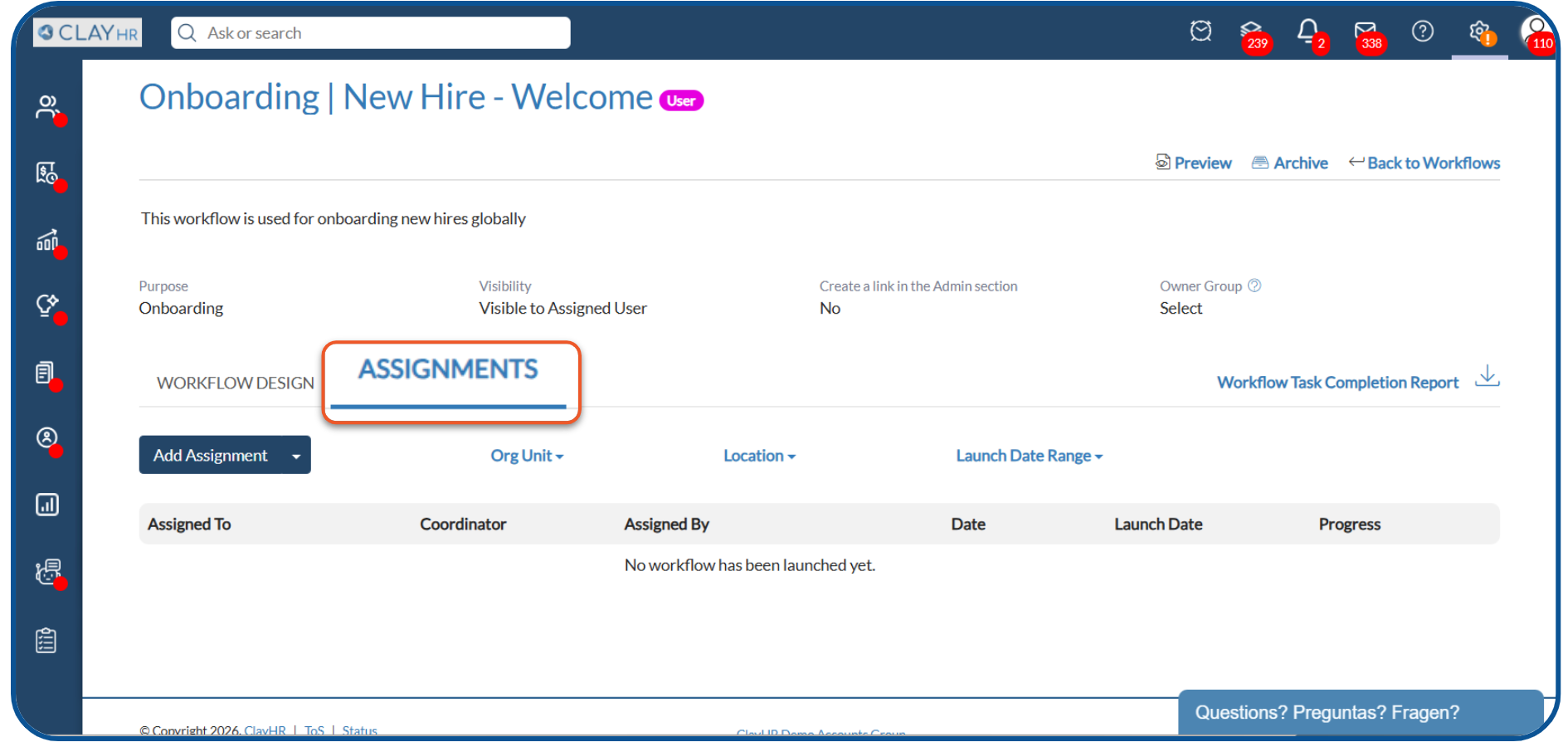
- Users can assign workflow to users/candidates individually or in bulk.
Individual Assignment:
- Click “Add Assignment” button
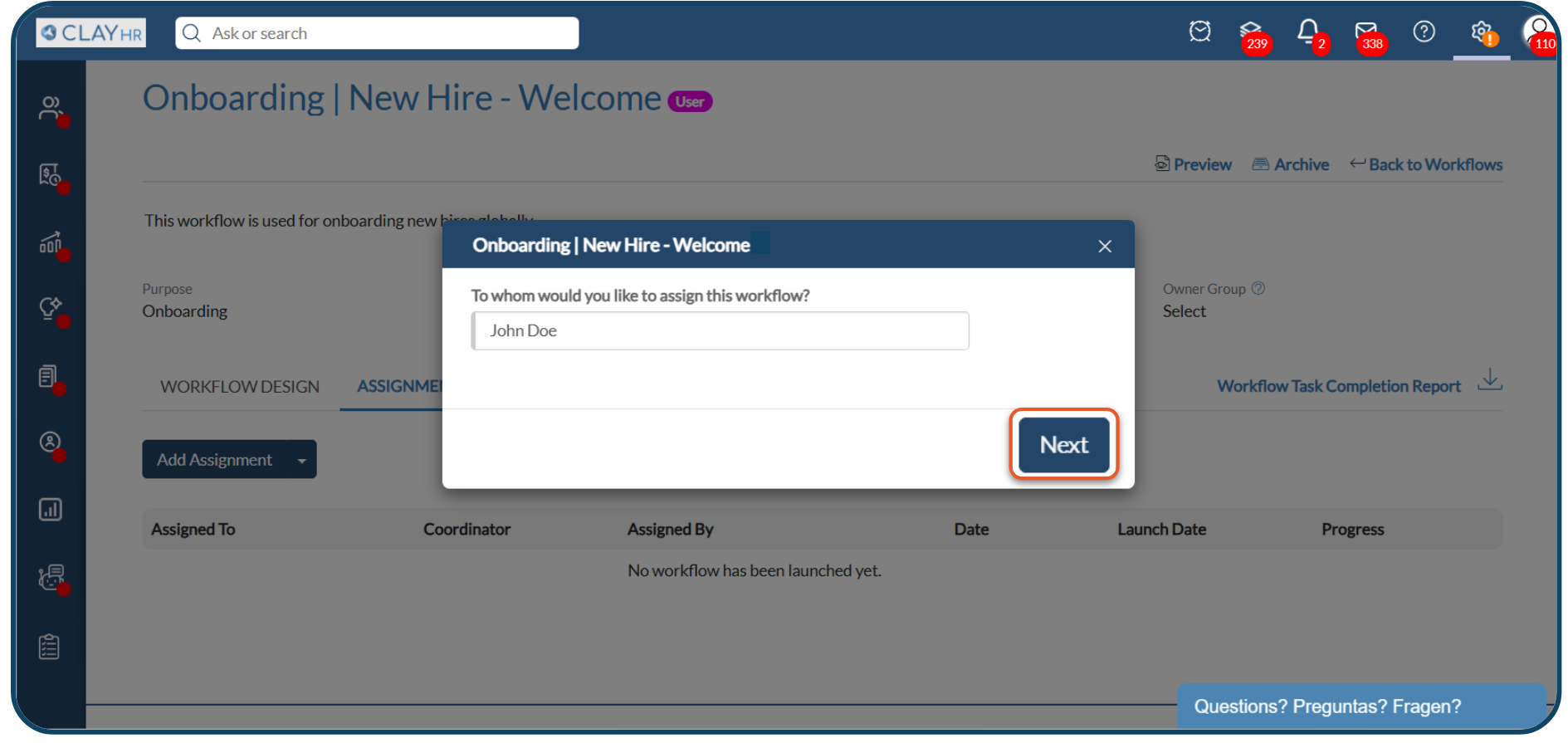
- Enter the assignee’s name and click on the “Next” button.
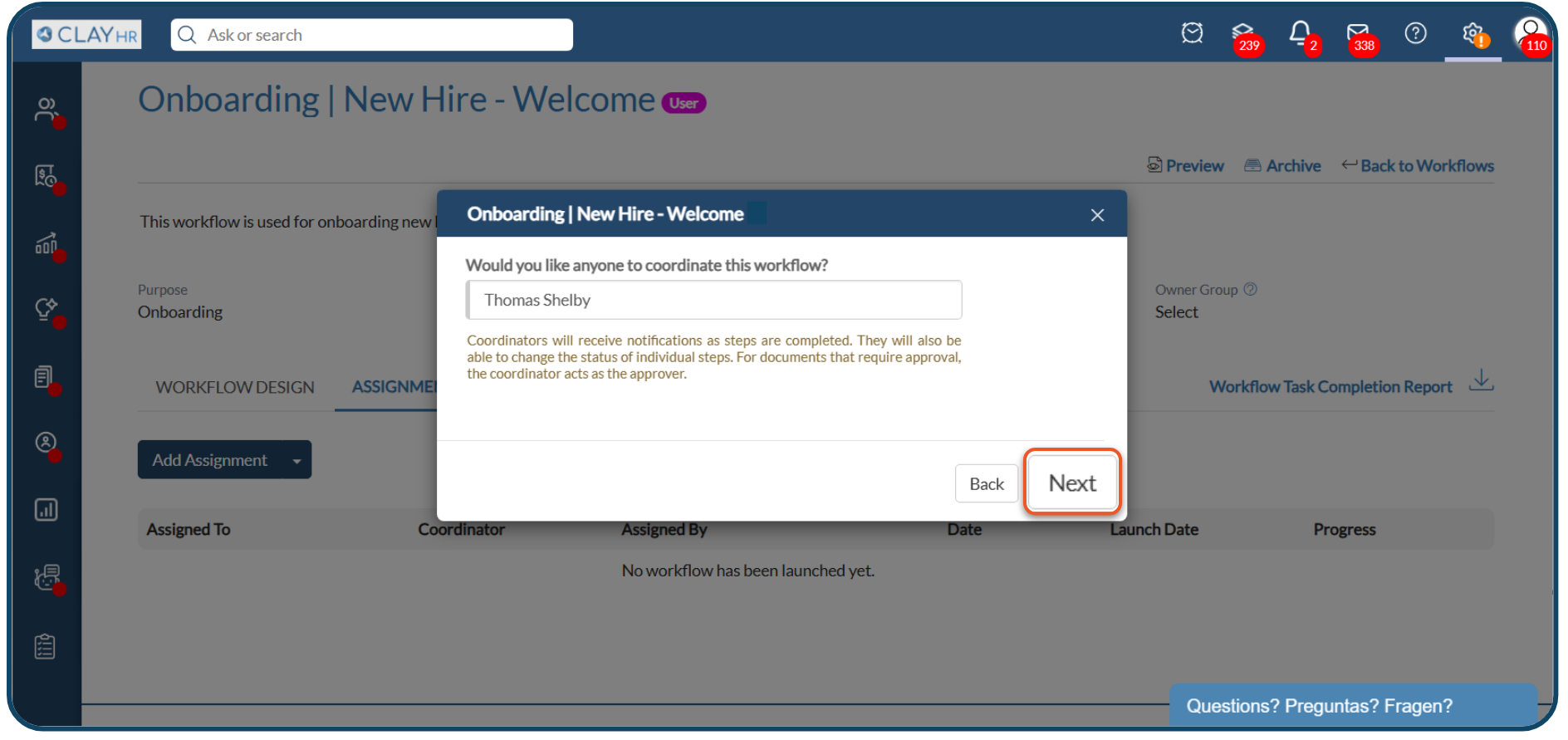
- Enter the workflow’s coordinator name and click on the “Next” button.
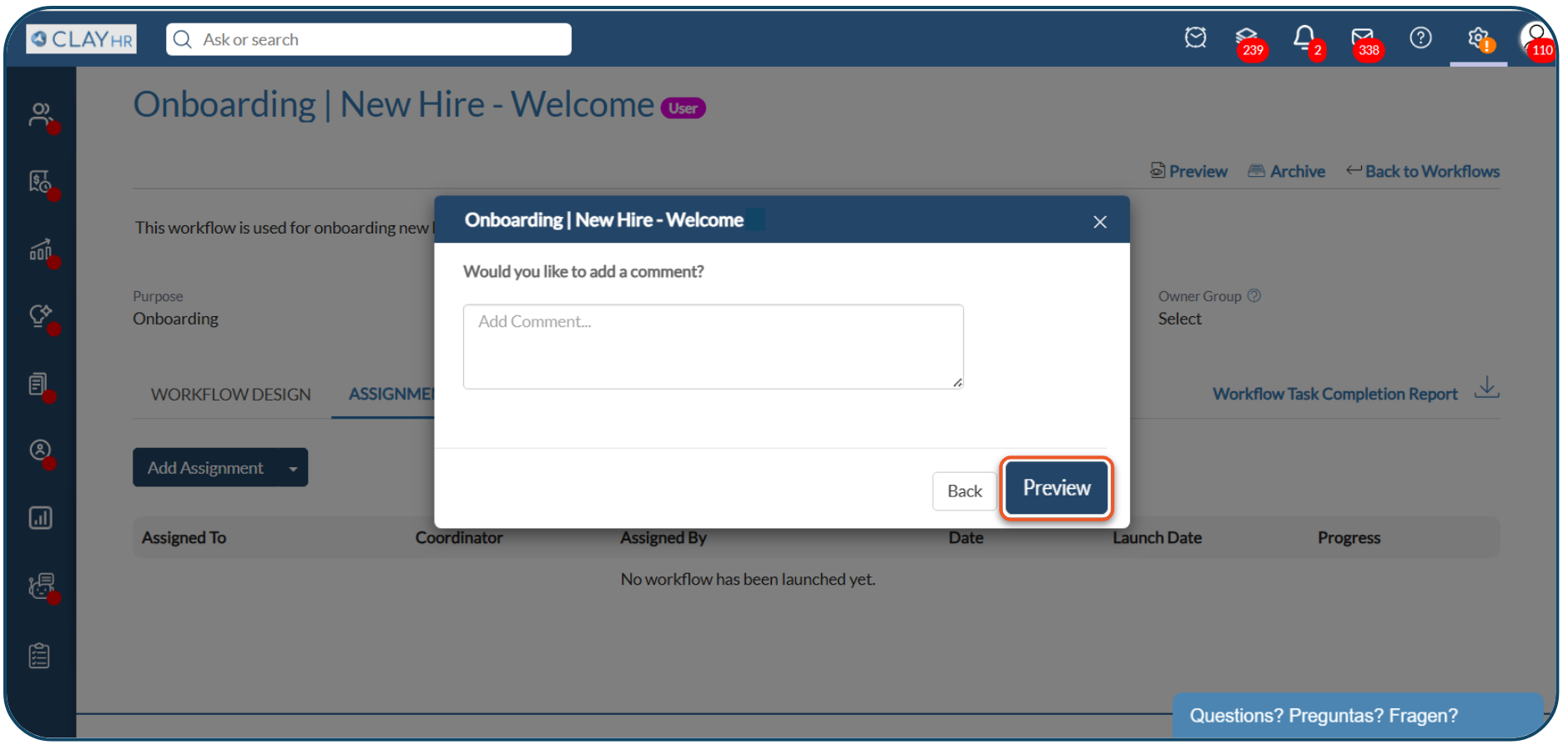
- Add comment (optional) and click on the “Preview” button to view and confirm the tasks before the assignment.
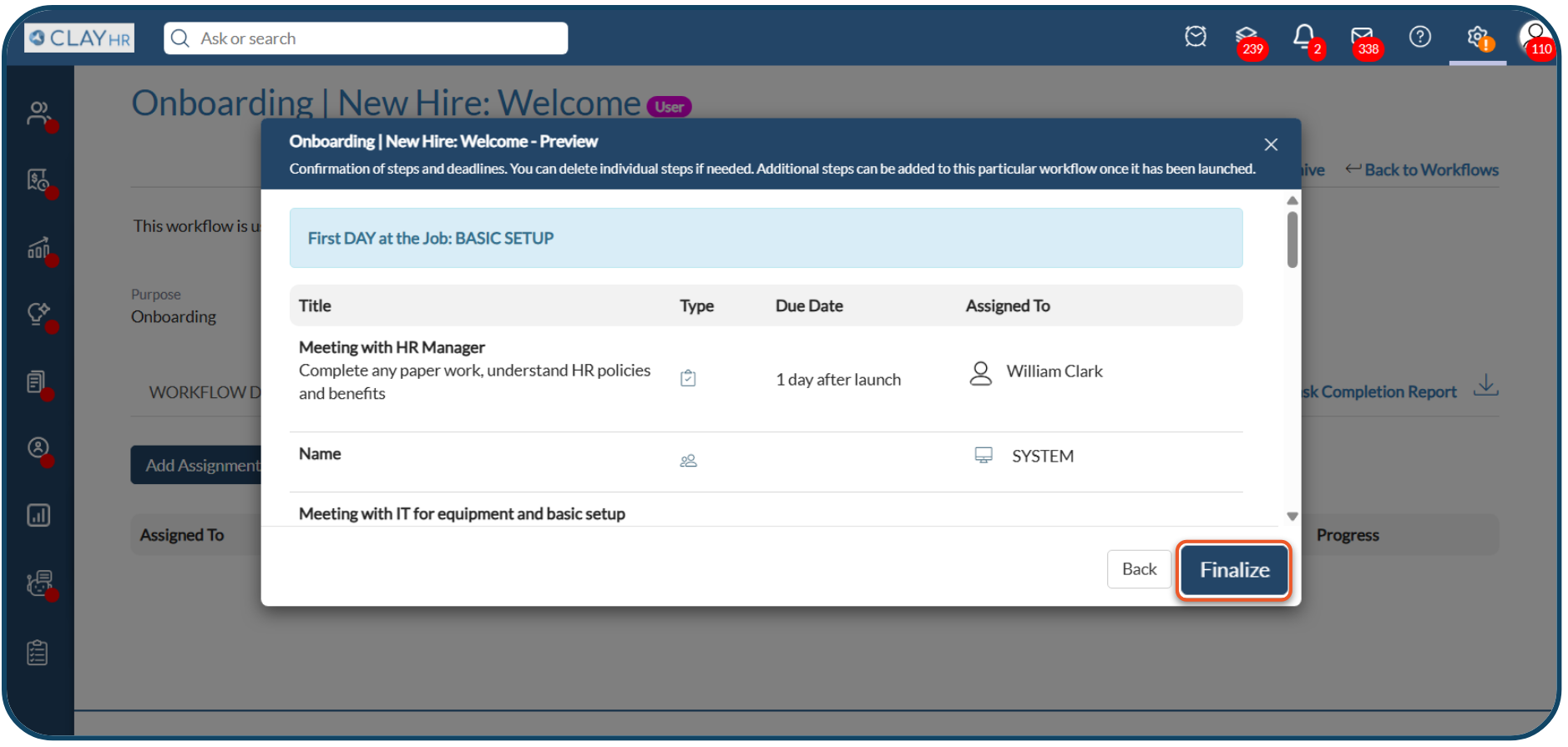
- Click on the “Finalize” button.
- Click on the “Add Assignment” button.
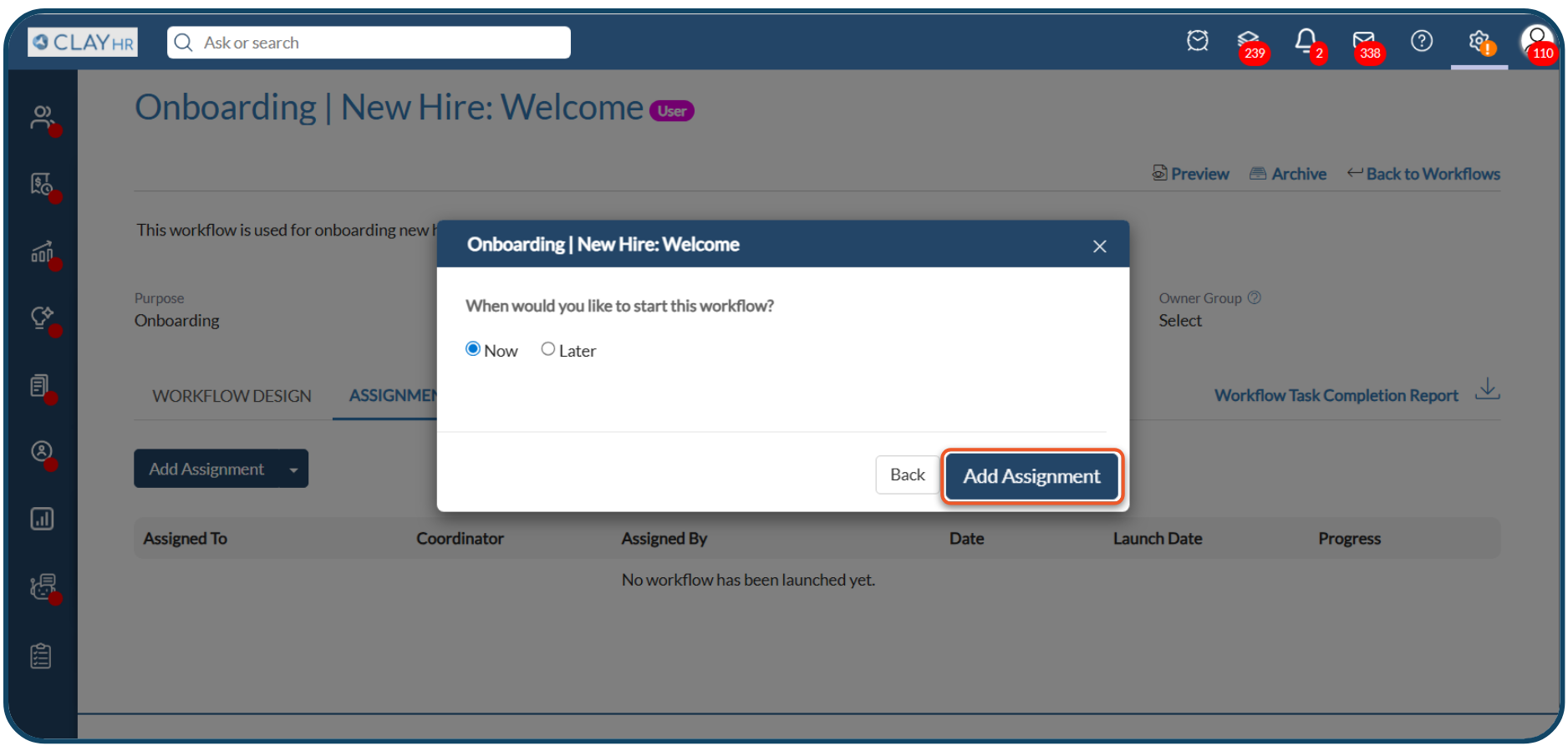
The user/candidate will receive a notification in their email regarding the workflow assignment.
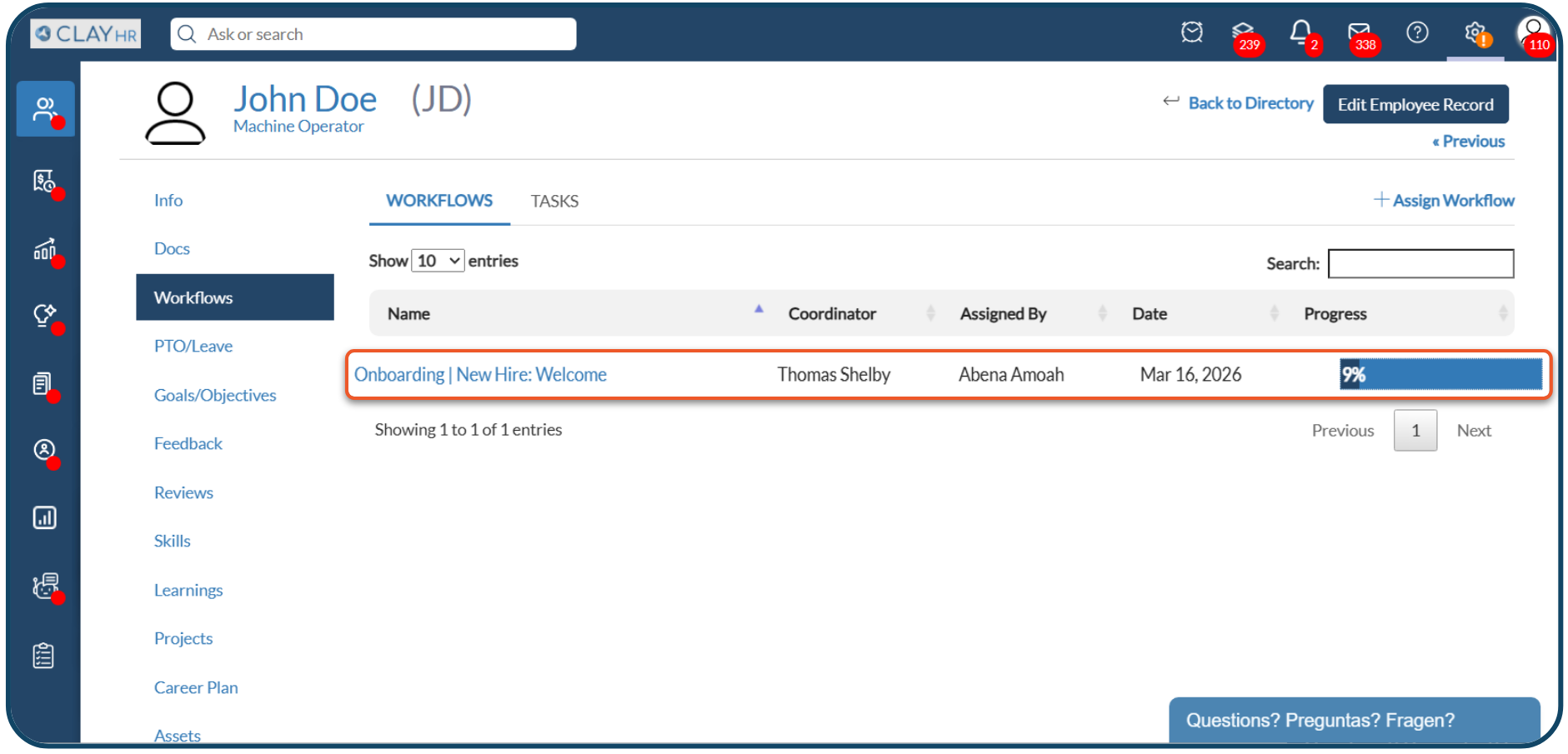
The workflow will be available in the “Workflows” tab of their user record, and “My Workflows” under People → Workflows.
Bulk Assignment:
- Click the Bulk Assignment button.
- Enter the workflow’s coordinator name and click on the “Next” button.
- Add comment (optional) and click on the “Preview” button to view and confirm the tasks before the assignment.
- Click on “Select Assignees” button
- Use filters such as organization unit, location, and others to select a targeted group of users.
- Click the Next button.
- Select one or more users from the filtered list.
- Click the Confirm Assignment button.
- Assign Workflow Through User/Candidate Profile
a. For Users
- Go to the User’s record – Under the People → Directory, select the user you want to assign a workflow to.
- Go to the “Workflows” tab in their user record.
- Click on the “Assign Workflow” link
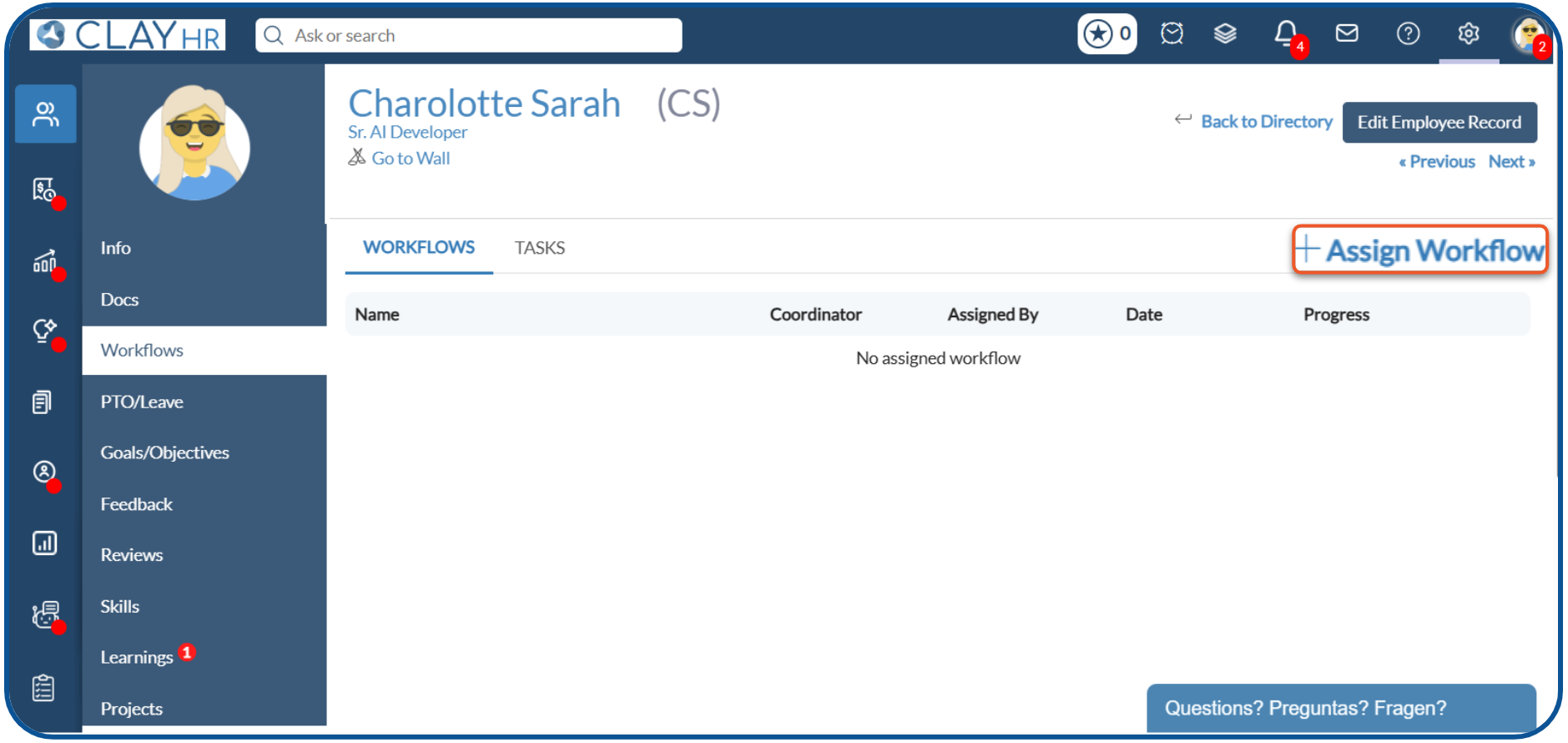
- Select the workflow and click “Next”.
- Enter the workflow’s coordinator name and click on the “Next” button.
- Add comment (optional) and click on the “Preview” button to view and confirm the tasks before the assignment.
- Click on the “Finalize” button.
- Click on the “Add Assignment” button.
b. For Candidates
- Go to the Candidate’s record – In the Hiring → Candidates, select the candidate’s profile you want to assign a workflow.
- Go to the Tasks tab, and select the sub-tab “Workflow”.
- Click on the “Assign Workflow” link
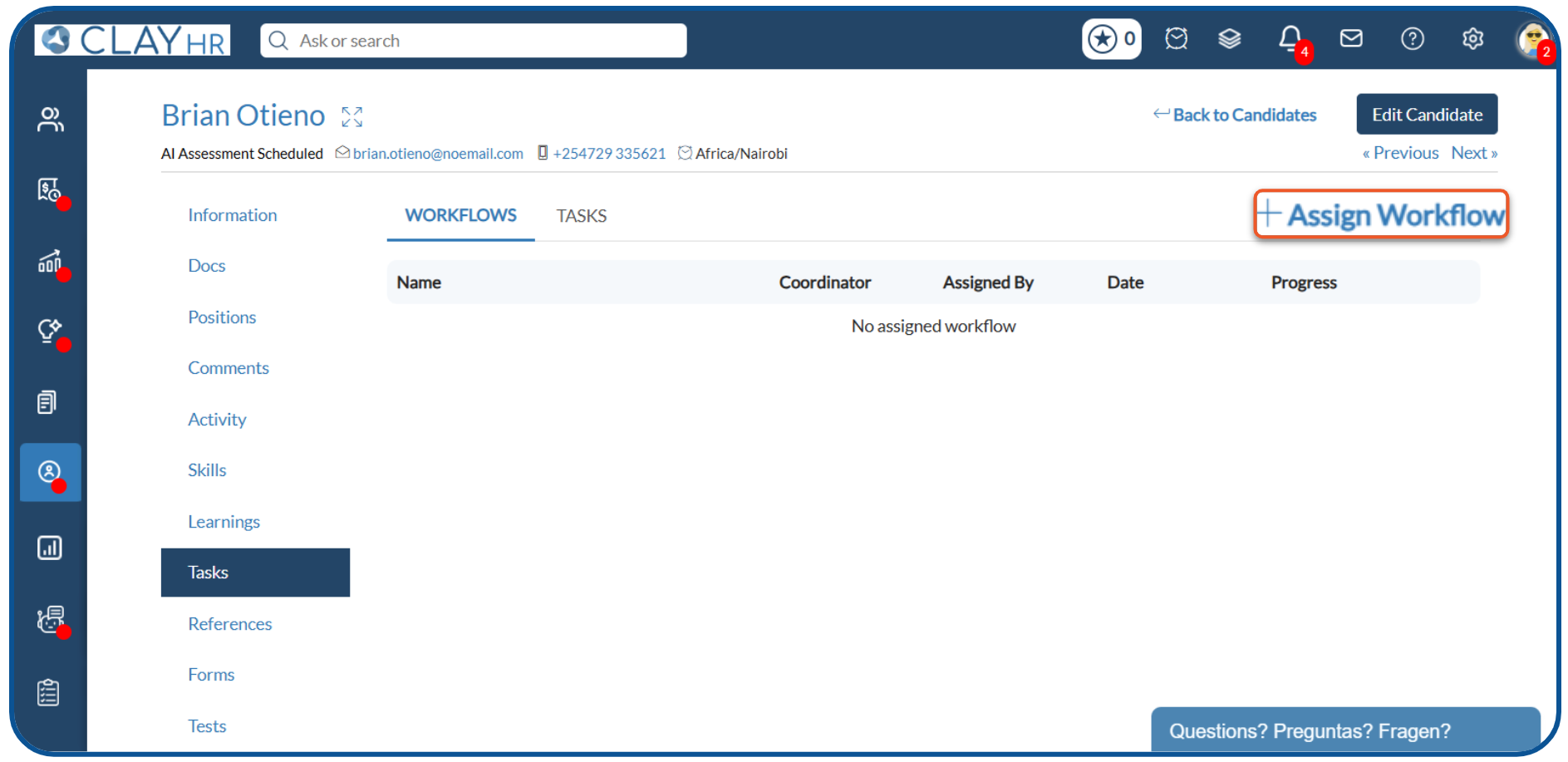
- Select the workflow and click “Next”.
- Enter the workflow’s coordinator name and click on the “Next” button.
- Add comment (optional) and click on the “Preview” button to view and confirm
the tasks before the assignment.
- Click on the “Finalize” button.
Hope this helps :)






.webp)
