

How to add a Conditional Phase in a Workflow
Conditional phases allow a workflow to dynamically adapt to the user or candidate it is assigned to. Instead of creating multiple versions of the same workflow, you can configure phases that only appear when specific conditions are met.
For example, you may want to:
- Show an equipment setup phase only for remote employees.
- Include additional compliance documents only for employees in a specific country.
- Display manager-specific tasks only for users with certain job profiles.
- Add language-specific forms only for employees who speak a particular language.
Conditional phases make workflows more flexible while keeping them easier to maintain.
New to workflows? This article focuses specifically on conditional phases. For a complete overview of workflows, phases, steps, assignments, and workflow automation in ClayHR, see Getting Started: Workflows.
Before You Begin
Conditional phases are configured at the phase level.
When a workflow runs, ClayHR evaluates the conditions configured for each phase. If the assigned user or candidate matches those conditions, the phase becomes part of the workflow. Otherwise, the entire phase is skipped automatically.
This is different from assigning individual steps within a phase. Phase conditions determine whether the phase exists at all, while step assignees determine who completes each task.
How to Configure a Conditional Phase
1. Open your workflow
Create a new workflow or open an existing workflow from the Workflow Library.
Go to: Top right Setup Menu (Gear Icon) >> Submenu "Forms, Workflows & Templates" >> Tab "Workflows" >> Select the Workflow
2. Edit the phase
Click the Edit Phase pencil icon next to the phase you want to make conditional.
3. Configure the phase conditions
Enter the Phase Name.
Expand the Advanced Settings link to define when this phase should be included in the workflow.
You can restrict a phase based on standard employee attributes such as:
- Job Profile
- Organizational Unit
- Location
For example:
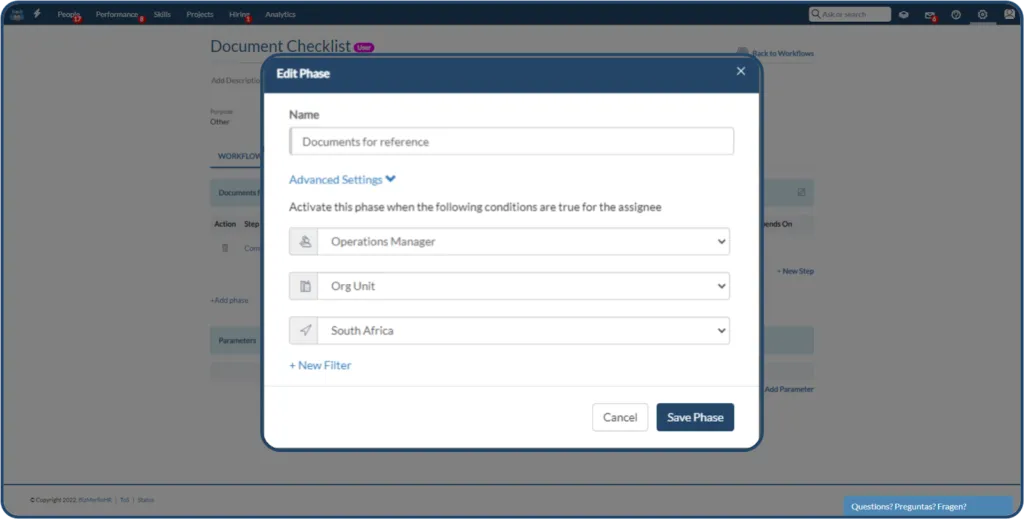
- Phase Name: Documents for Reference
- Job Profile: Operations Manager
- Location: South Africa
In this example, the phase will only be considered for users matching those criteria.
4. Add additional filters (optional)
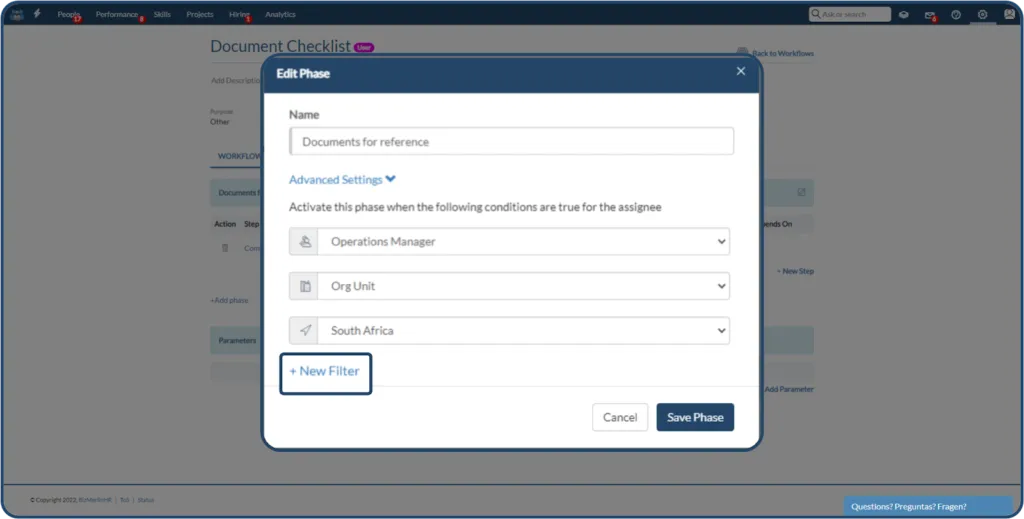
For more advanced scenarios, click + New Filter.
You can create additional conditions based on supported custom fields from the user record, including:
- Generic Text fields
- Drop-down fields
For example, if you add the condition:
- Language = Spanish
the phase will only be included for users whose employee record also contains Spanish as their language.
5. Save the phase
Click Save Phase.
When the workflow is assigned, ClayHR evaluates all configured conditions.
If the assigned user:
- is an Operations Manager
- is located in South Africa
- has Spanish recorded as their language
then the conditional phase will appear as part of their workflow.
If any of those conditions are not met, the phase is automatically omitted, while the remainder of the workflow continues normally.
Common Use Cases
Conditional phases are commonly used to personalize workflows without maintaining multiple workflow versions.
Typical examples include:
- Country-specific onboarding or compliance activities
- Different onboarding tasks for employees and contractors
- Department-specific training
- Location-based equipment requests
- Language-specific documentation
- Manager-only approval or review activities
Related Articles
- Getting Started: Workflows
- How to Create a Workflow
- Assign a Workflow to a User or Candidate
- Nested Workflows: Including a Second Workflow
- How to Use Parameters in Workflows
------------------
To create a conditional phase, click on the “Edit Phase” icon which is present on the right side of the ‘Phase Name’.

In the pop-up menu, add the “Name” of the phase. Under the “Advanced Settings”, we make the particular selection in the “Profile”, ”Org Unit”, or “Location”.
For example, the phase name is set as “Documents for reference” and should only be available to the users whose profile is “Operations Manager” and are from “South Africa”.
4. There is another option to include conditions by clicking on “+New Filter” and the following drop-down menu displays the list of the custom fields from the user record, provided the ‘field type’ are of either





.webp)
