

How to create an Offer Letter Template?
An offer letter template is a pre-configured document that can be used to generate offers for candidates. ClayHR allows you to customize the template content, branding, header, footer, and signature sections so that offers can be generated consistently and efficiently, helping organizations communicate job offers clearly and professionally.
Steps to Create an Offer Letter Template
- Navigate to Setup Menu > Hiring > Hiring Configuration.
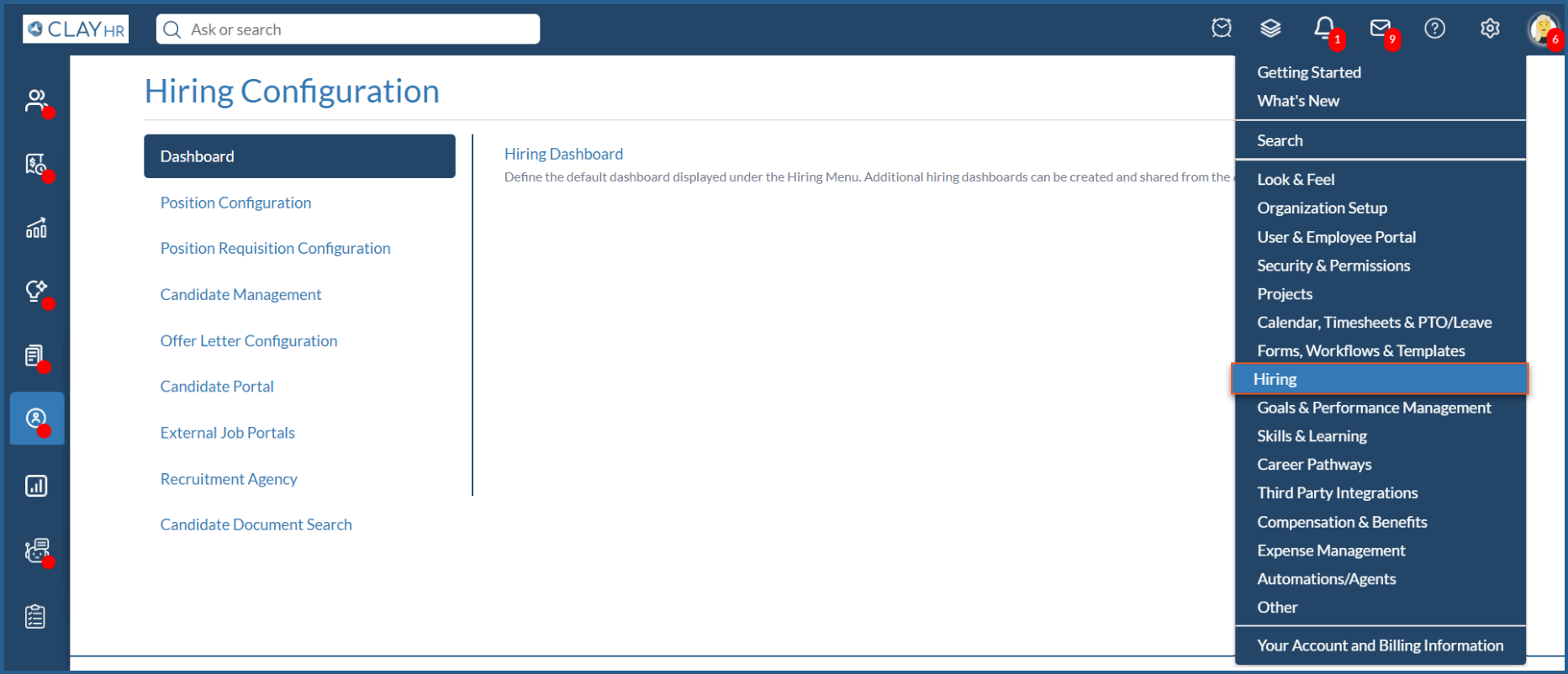
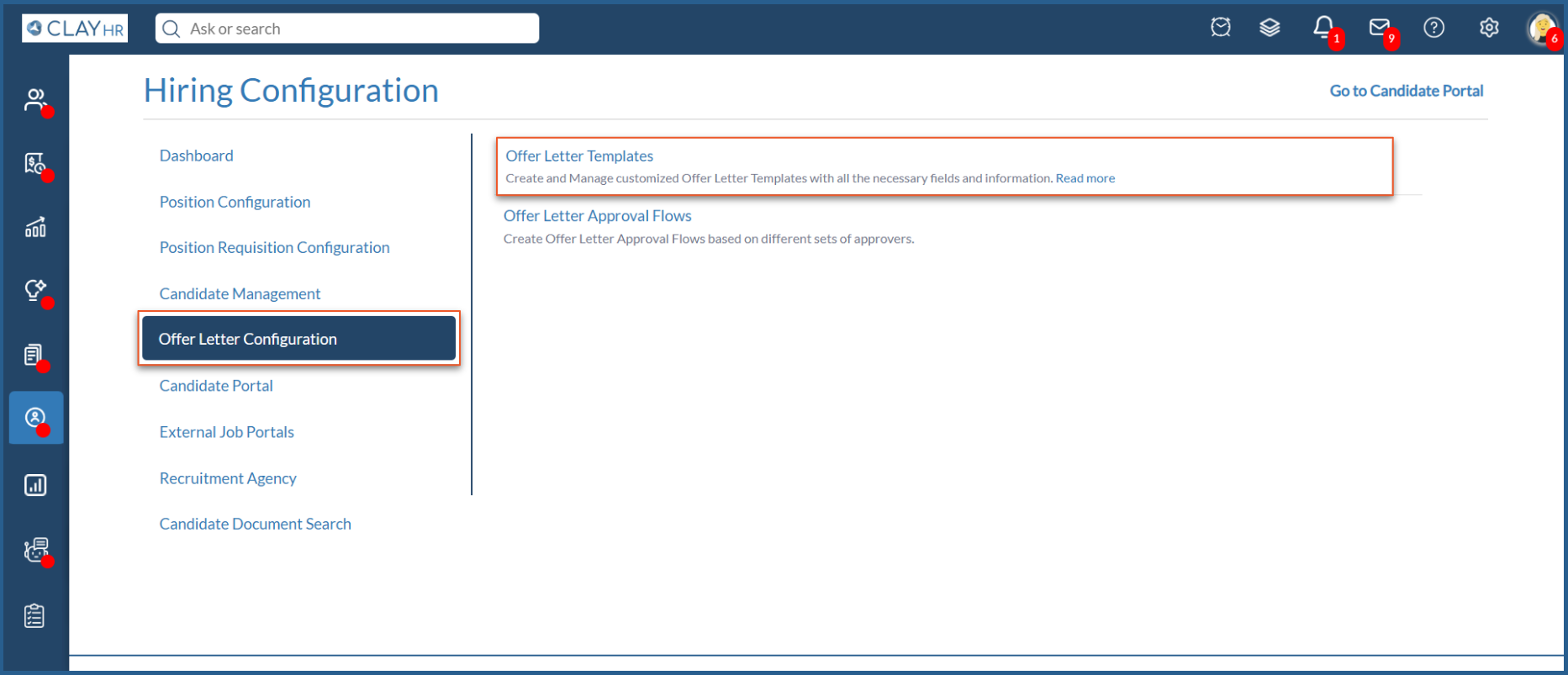
- Click Offer Letter Configuration > Offer Letter Templates.
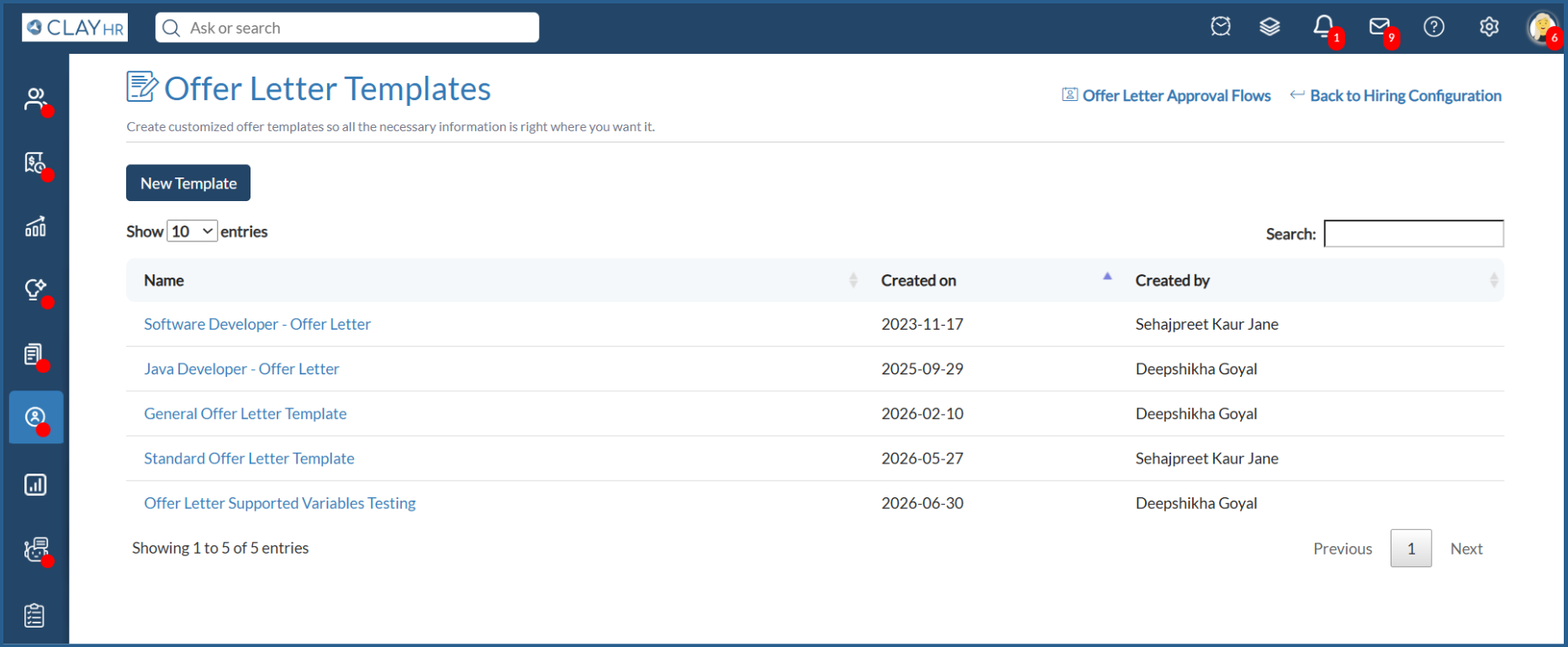
- A comprehensive list of all the offer letter templates created will appear on the home page.
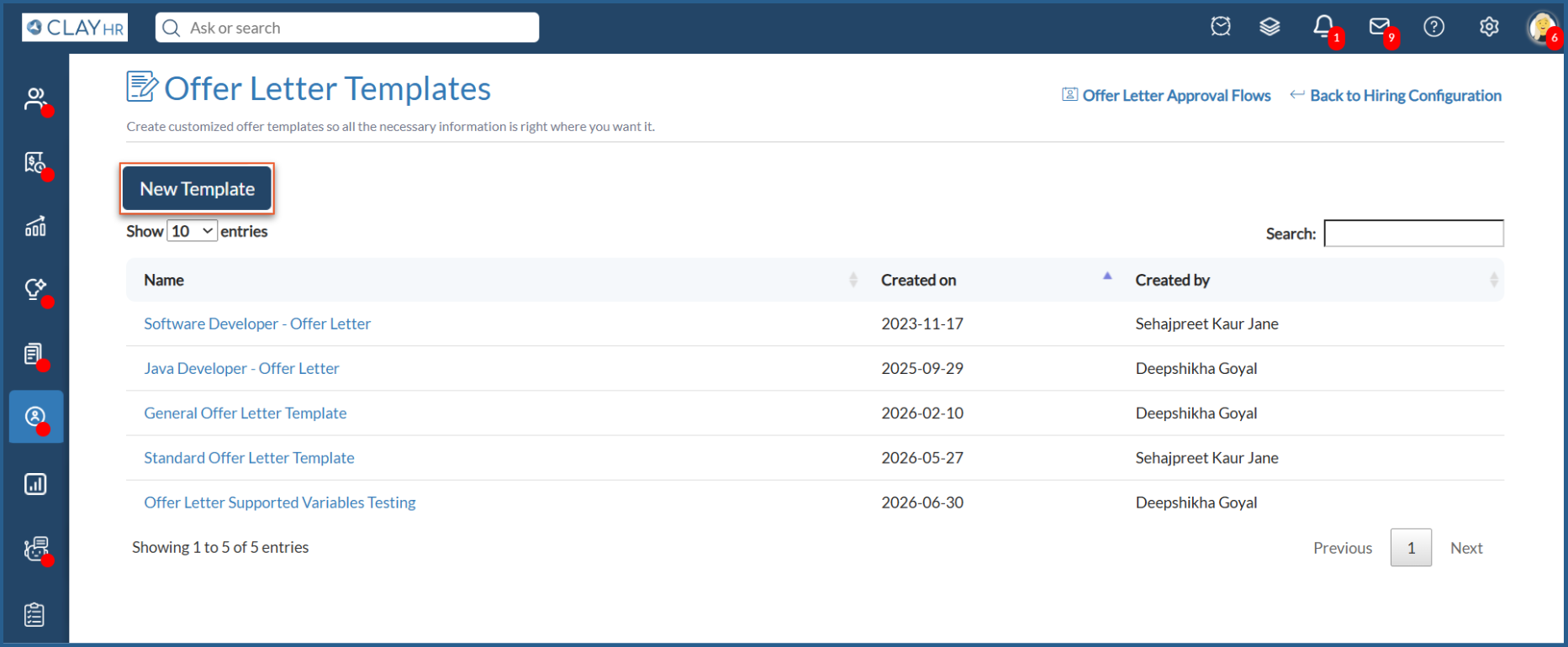
- Click the New Template button to create a new offer letter template.
- Now, fill in the required details to create a template, including the Template Name and other fields displayed in the template configuration. The template name is also used by the auto-generation option to generate an initial offer letter body.
Configure the Offer Letter Header
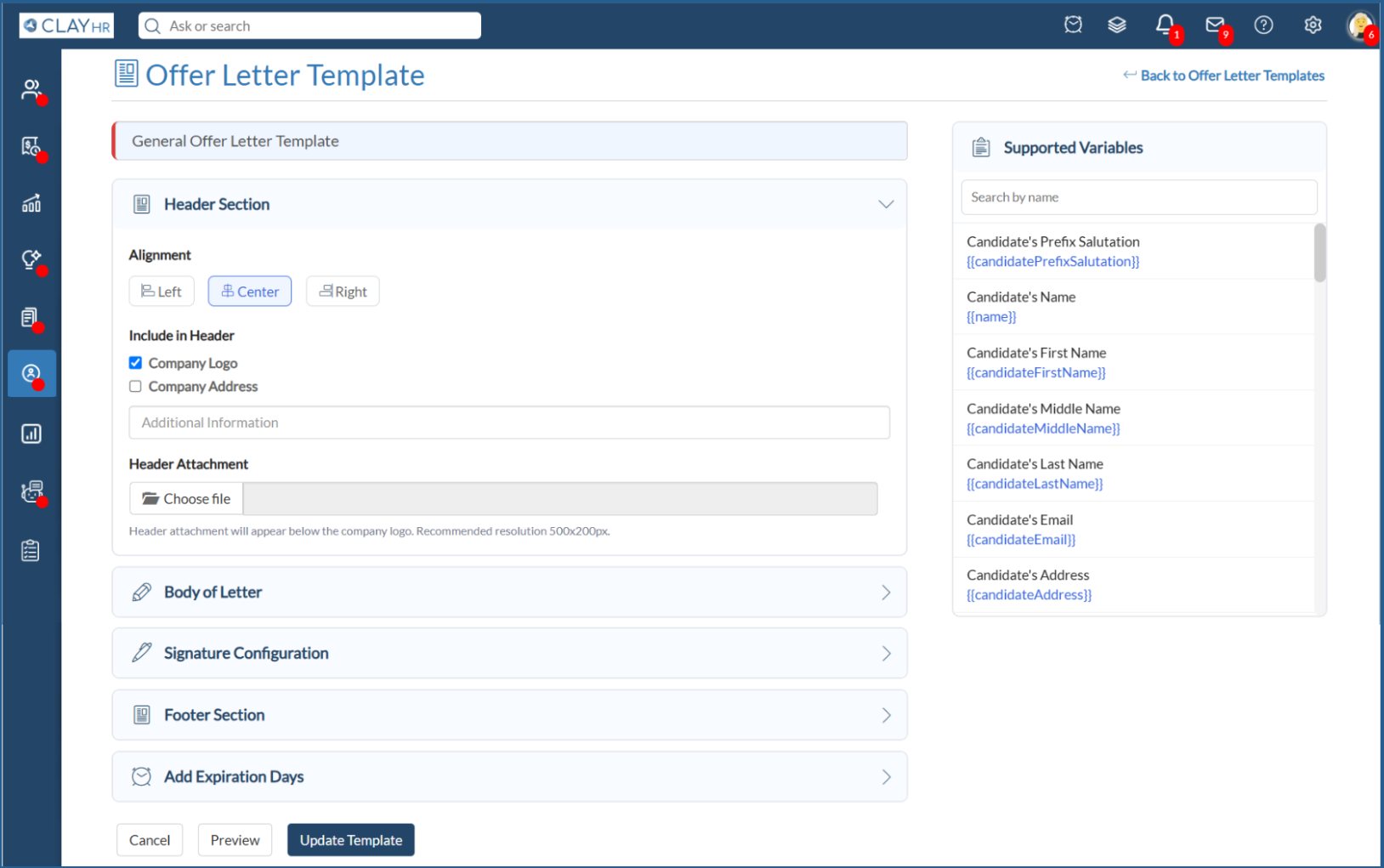
The header section allows the users to configure how the header appears on the generated offer letter.
You can configure the header alignment by selecting one of the following options: Left, Center, or Right
Select the alignment that best suits your organization's offer letter format.
Configure the Offer Letter Body
The Body of Letter section is used to define the main content of the offer letter.
- Enter the required offer letter content in the Body of Letter section.
- Use Supported Variables to automatically populate candidate, position, and other relevant information when the offer letter is generated. Copy the supported variable and add it to the body using the provided variable syntax.
- Users can use the auto-generation option to generate the initial body of the letter based on the template name.
- Review and customize the generated content as required.
Note: If a supported variable does not have a value for the candidate, the empty space is added. Verify the generated offer during preview to ensure all required information is populated correctly.
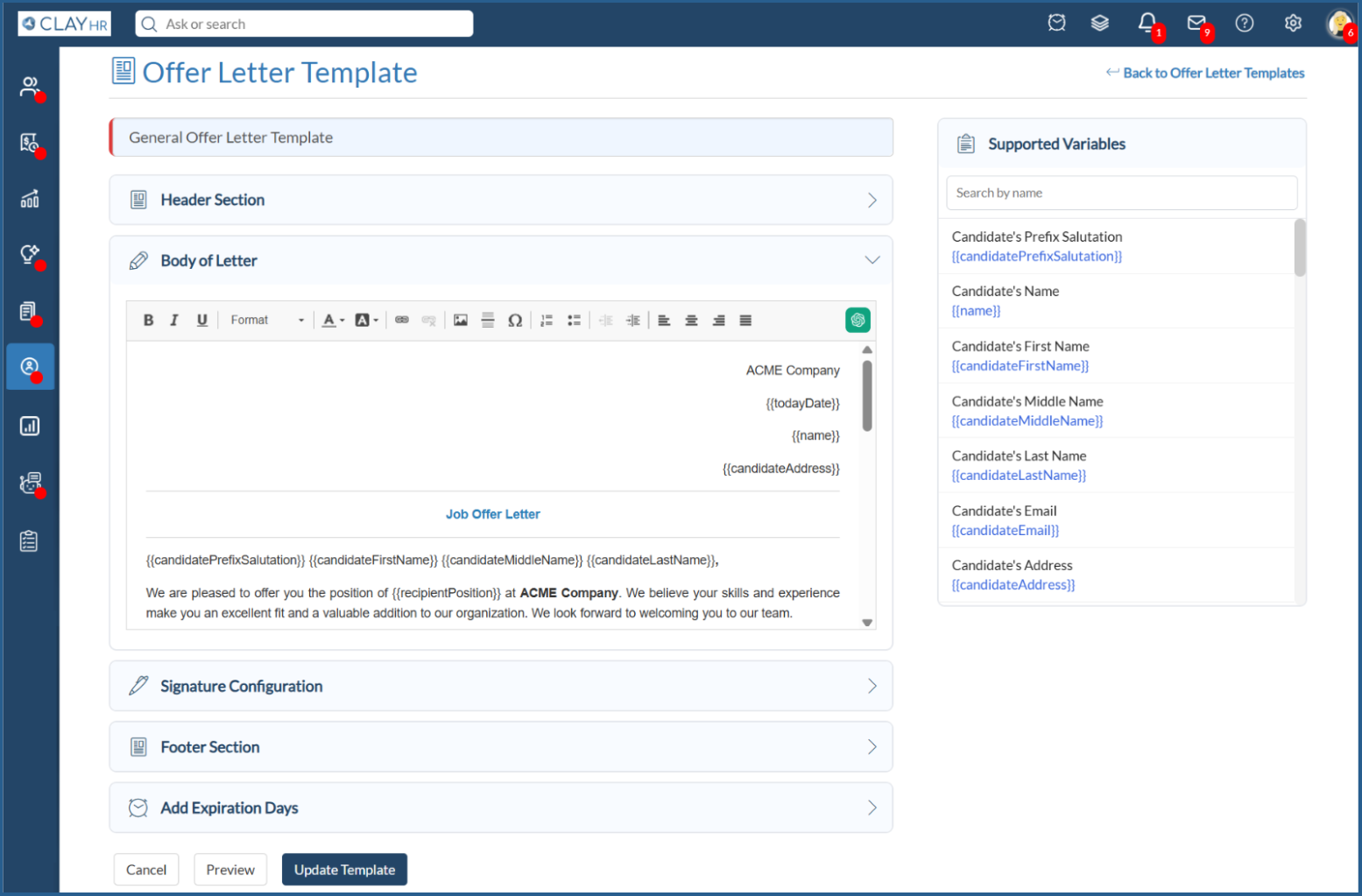
The configured body will be used as the base content when the template is selected while generating an offer letter for a candidate.
Configure Signature Options
The Signatures section allows users to configure how signatures should be displayed on the generated offer letter.
Depending on your offer letter workflow, you can configure:
- Whether approver signatures should be included when an approval flow is initiated, along with the position of the approver signatures on the offer letter.
- The position of the candidate signature on the offer letter.
- You can configure the signature alignment by selecting one of the following options: Left, Center, or Right
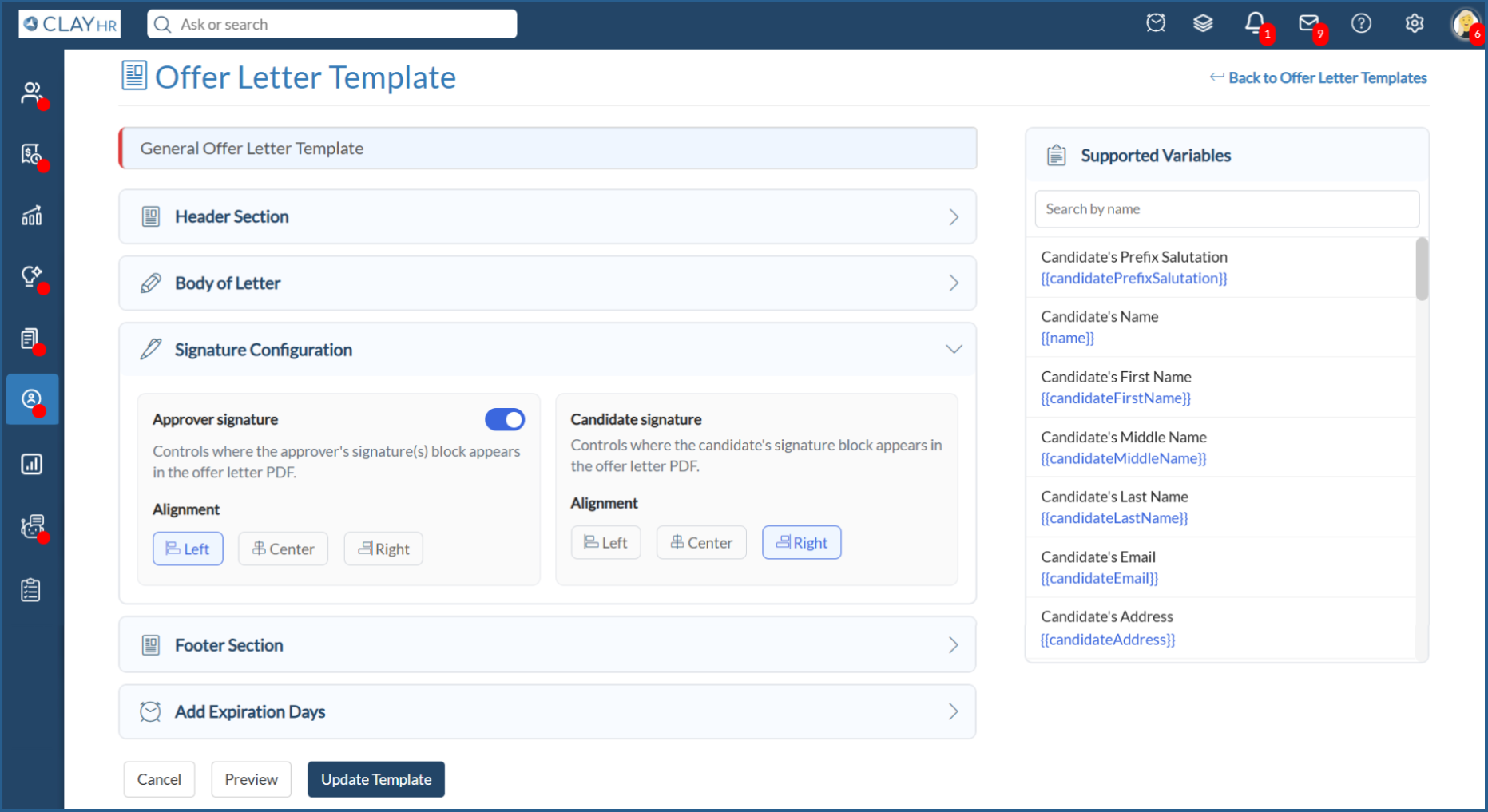
Configure the signature options according to your organization's offer and approval process.
Configure the Offer Letter Footer
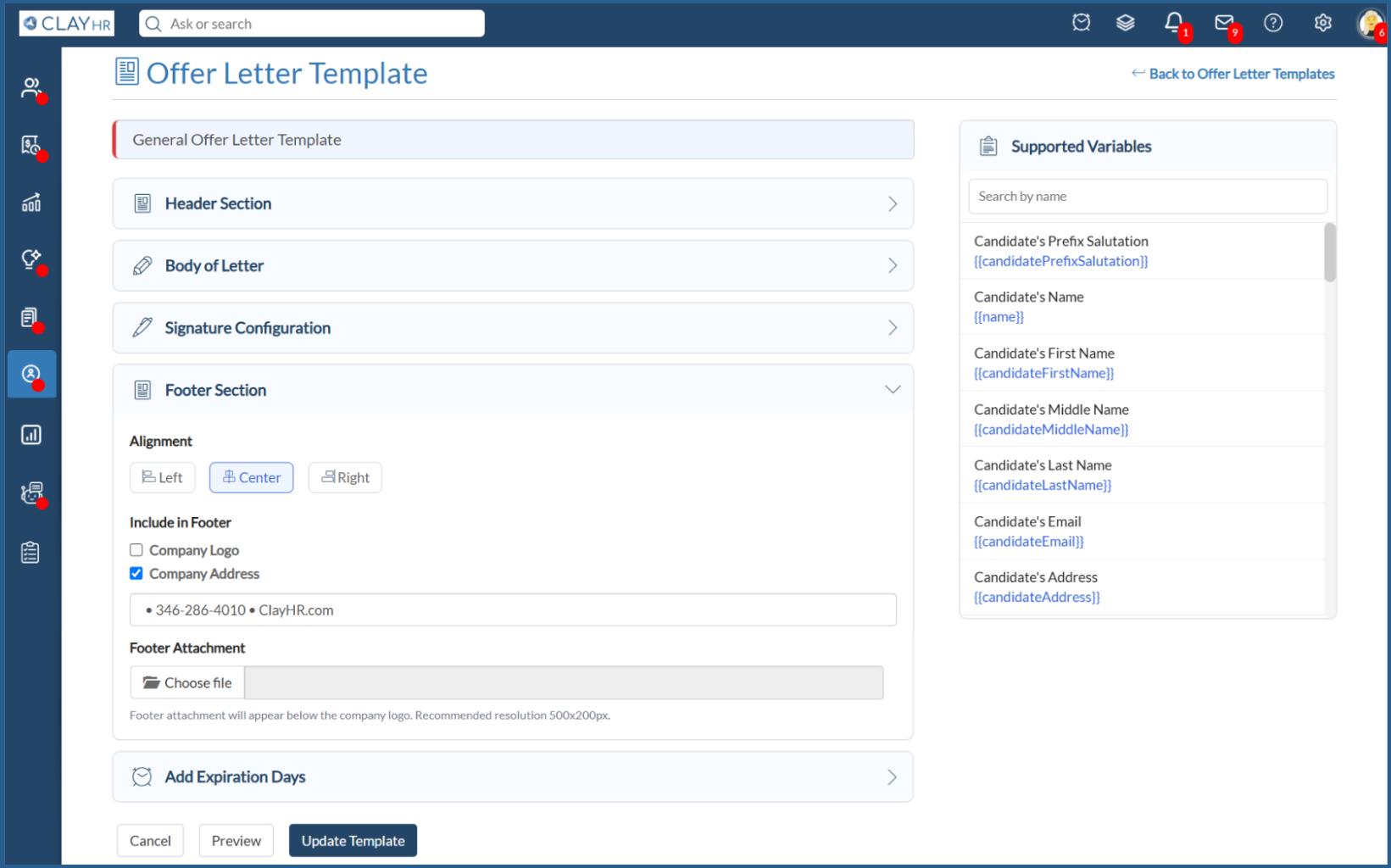
The footer section allows the user to configure the content and placement of the footer in the generated offer letter.
You can configure the footer alignment by selecting one of the following options: Left, Center, or Right
Select the appropriate alignment based on your organization's offer letter format.
Preview the Offer Letter Template
Before saving the template, users can preview how the offer letter will appear.
- Click Preview.
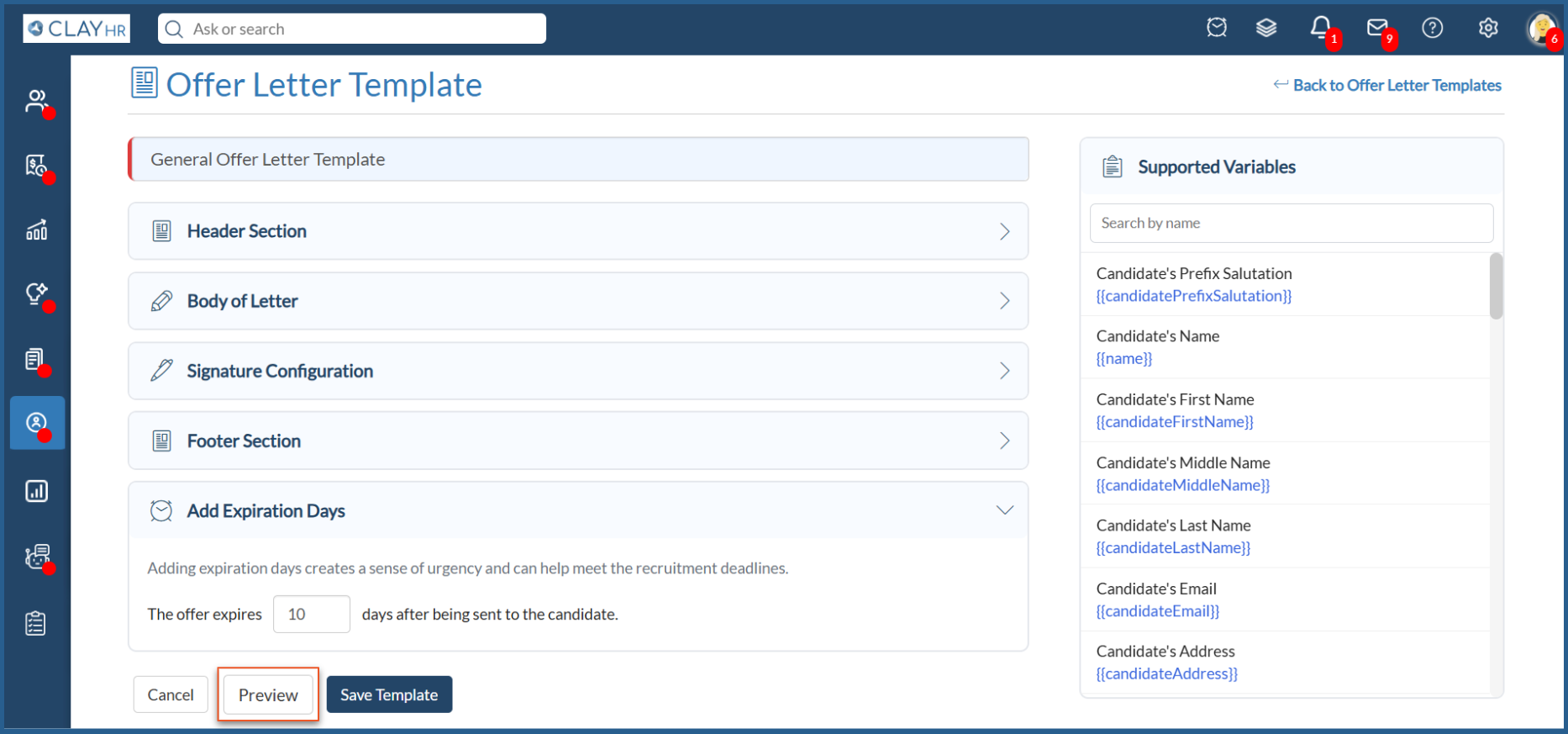
- The system displays the complete offer letter template in the preview page.
- Review the header, body, footer, and signature sections to verify that the template is configured as expected.
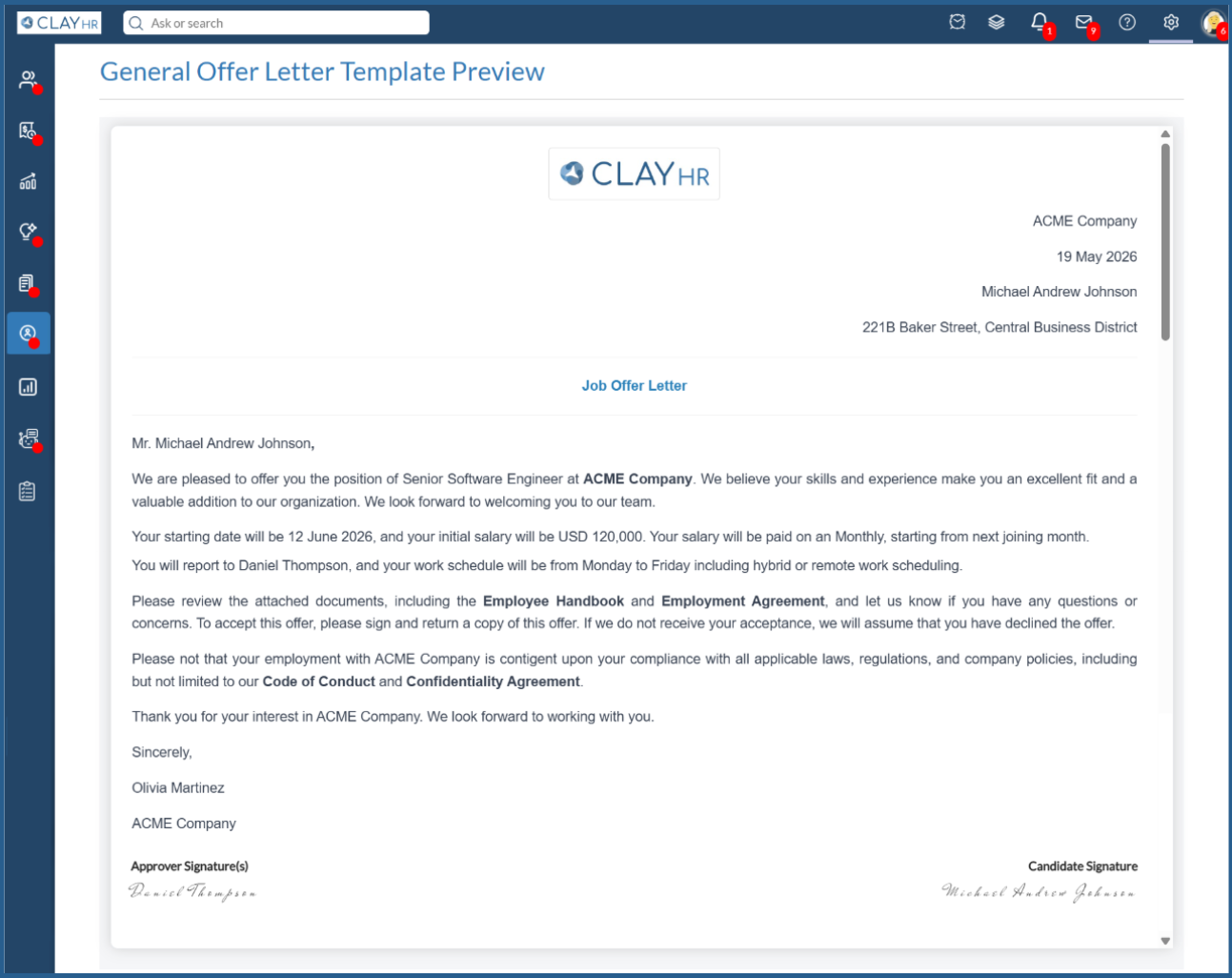
- If changes are required, return to the template configuration and update the relevant sections.
Previewing the template helps you verify the overall layout and formatting before the template is used to generate an offer letter.
Save the Offer Letter Template
After completing the configuration and reviewing the template details:
- Click Save Template.
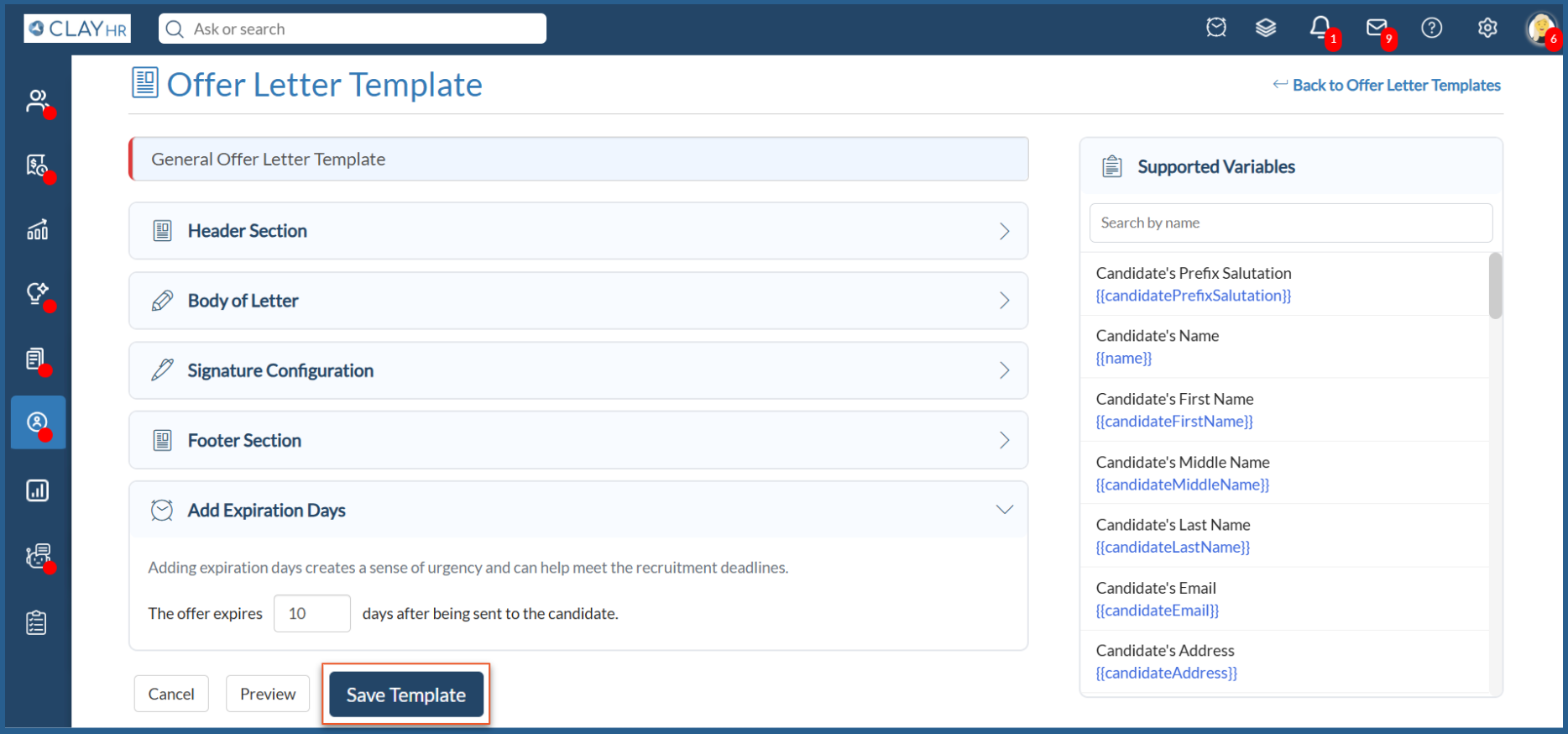
- The template is saved and becomes available for selection when generating an offer letter for the candidate.
You can create multiple offer letter templates based on your organization's requirements.
Manage Existing Offer Letter Templates
After creating an offer letter template, you can manage it from the offer letter templates page.
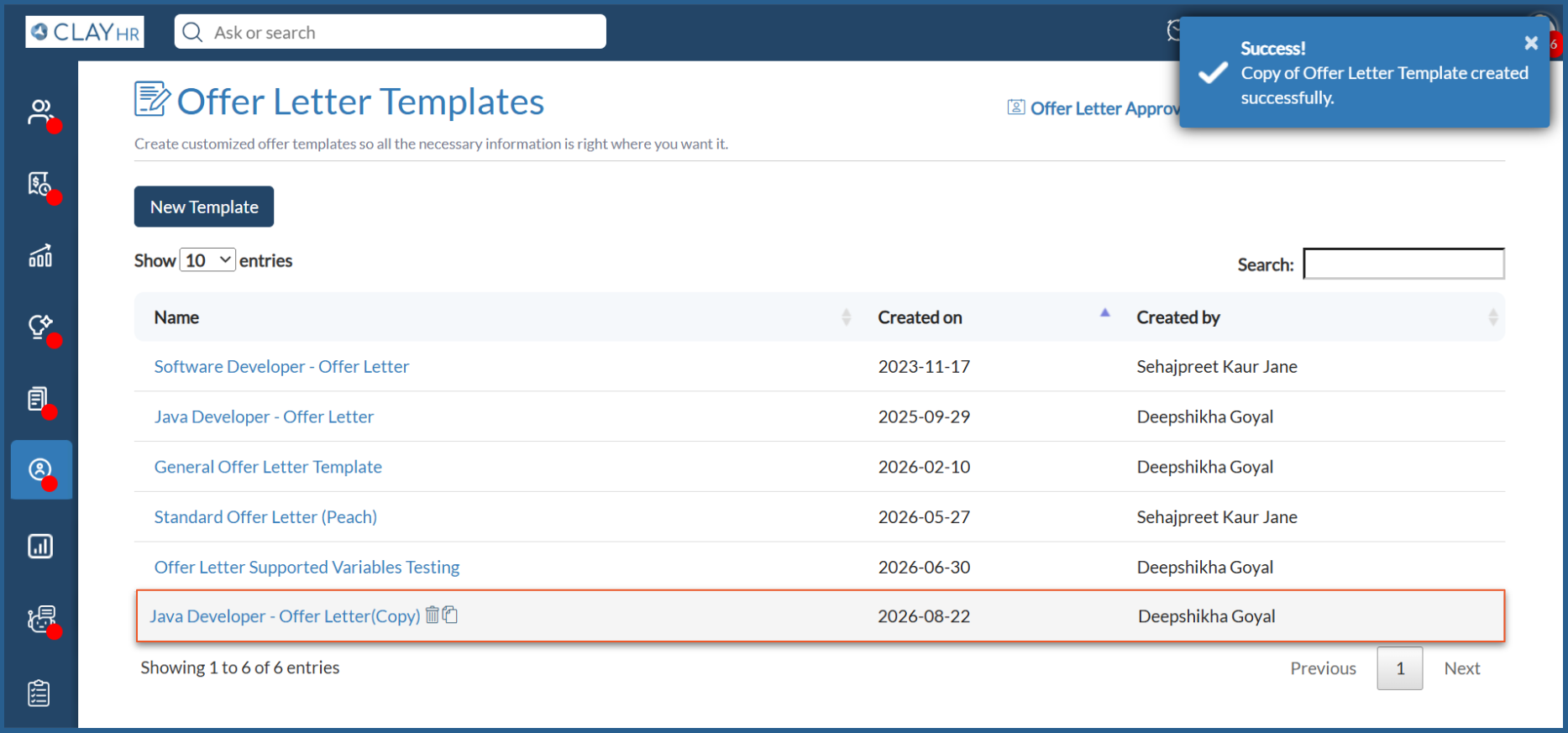
Copy an Offer Letter Template
You can create a copy of an existing template when you want to reuse its configuration as the starting point for a new template.
- Navigate to Offer Letter Configuration > Offer Letter Templates home page.
- Locate the template you want to copy.
- Click the Copy icon.
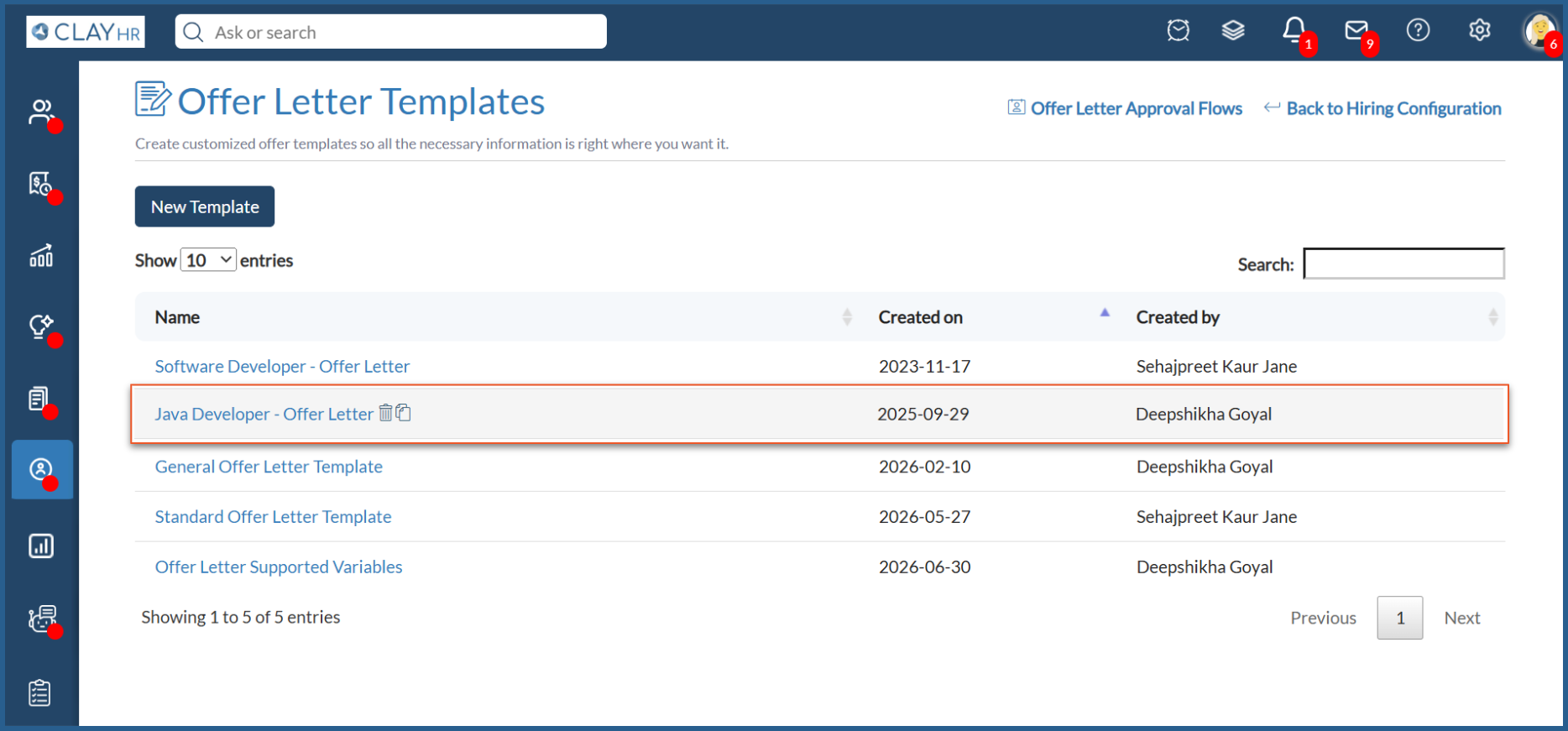
- The copy of the selected template is saved.
Delete an Offer Letter Template
If an offer letter template is no longer required, you can delete it.
- Locate the template you want to delete.
- Click the Delete (trash) icon.
- In the confirmation pop-up, click Delete Offer Letter.
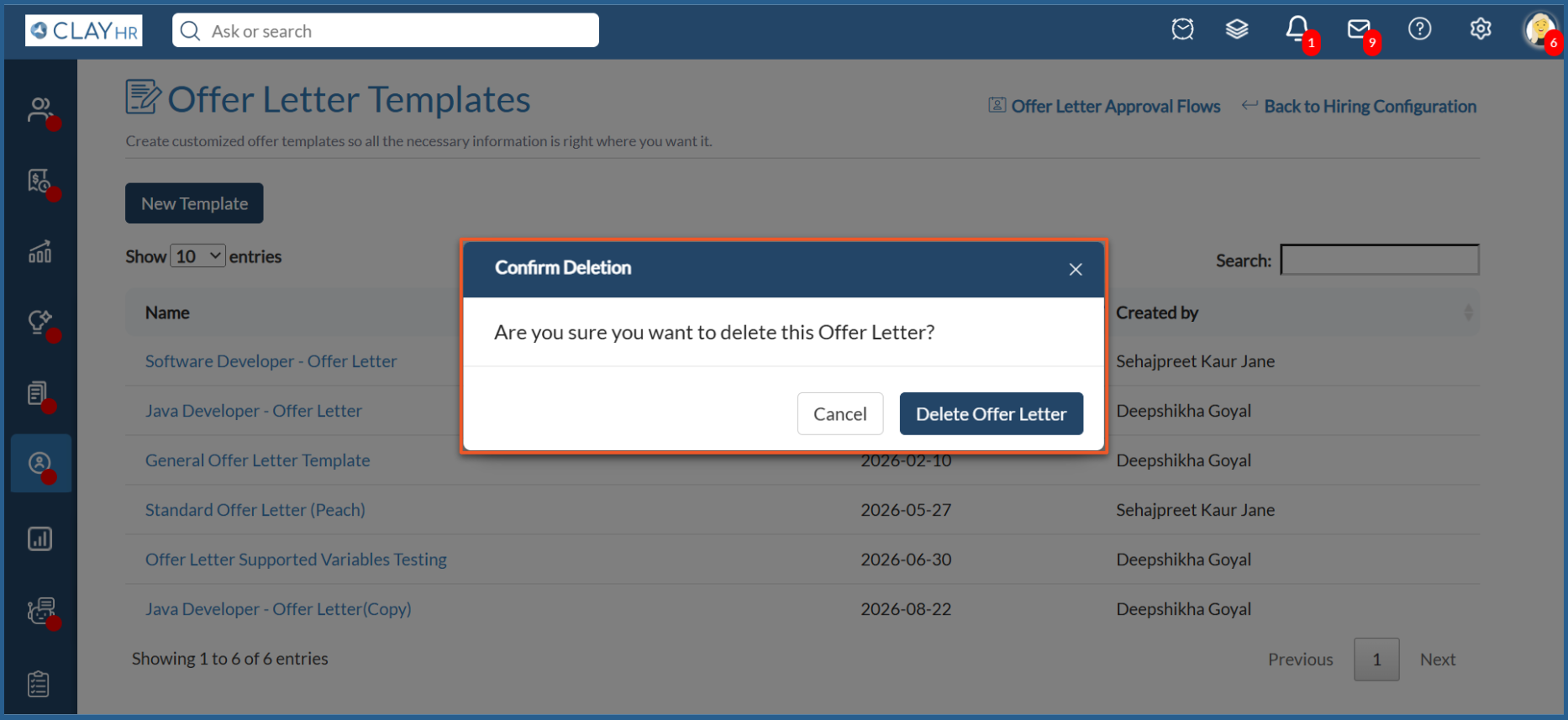
Note: Deleting an offer letter template removes it from the list of templates available for creating new offers. Offers that have already been generated using the template, including offers that are currently going through the approval process, are not affected by deleting the template.






.webp)
